

WebSearchStride is the browser-based threat that targets mac devices with search hijacking functions
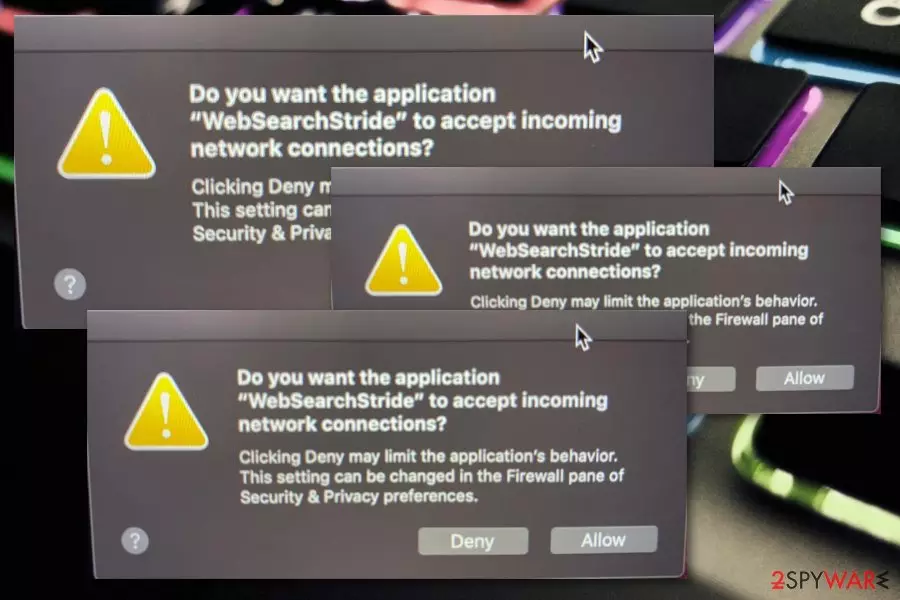
In general, WebSearchStride virus or a browser hijacker is used to flood the web browser with content not originating from the site that you initially wanted to access. It hijacks search engine and reroutes every attempt to find valuable information online through a shady site that delivers results filled with sponsored advertisements. All the additional content that fills your screen significantly affects the speed of your machine and web browsers' performance. Additionally, these redirects and advertisements expose you to possibly malicious or malware-infested pages.
| Name | WebSearchStride |
|---|---|
| Type | Potentially unwanted program or a browser hijacker |
| Symptoms | The browser-based application infiltrates every browsing session and alters default settings so the user can get redirected to sponsored pages, commercial sites, and visit affiliated domains. Additional pop-ups regarding suspicious PUP activities appear on the screen causing frustration for the victim |
| OS affected | Mac |
| Distribution | Programs get installed during freeware installations due to software bundling method and other deceptive sites, advertisements trigger downloads with such applications without fully disclosing the extra installs |
| Damage | The potentially unwanted program can affect the system and install other intruders to control processes and material you get to see. Unfortunately, online content often is filled with malicious scripts and can expose to malware-laced material or directly trigger malware downloads |
| Elimination | WebSearchStride removal gives the best results when you use anti-malware tools for the process and clean the machine fully |
WebSearchStride is the Mac infection that gets added alongside other types of software when you install them from suspicious sources. If you have ever been infected with a potentially unwanted program like a browser hijacker, you might have wondered how did the suspicious app access your system or web browser. Usually, it is the lack of protection and awareness that leads to unexpected PUP installation.
It is possible that WebSearchStride got promoted, and you installed the program yourself by believing those claims and features listed on deceptive sites and pop-ups or banners injected on commonly visited sites. If you are not the one that added this PUP on the machine, it may have entered the machine because you skipped through some steps during the intentional application installation.
WebSearchStride itself gets advertised as an optional offer or a free extra, but this PUP can freely install additional toolbars, applications, in-browser extensions, and other files without asking for permission from the user. This program can cause these symptoms:
- pop-ups on the desktop or web browser directly;
- browser redirects;
- online search results injected with advertisements;
- banners, blinking boxes placed randomly all over the screen;
- push notifications.
All these symptoms can be followed with performance and speed issues because all the processes caused by the intruder affect the startup, general state of the machine, and security. You need to remove WebSearchStride as soon as you find anything suspicious on the machine and react to symptoms as soon as possible, so additional damage that PUP can cause is avoided. 
Also, WebSearchStride PUP, as any other ad-supported program, can directly access, track, and collect information regarding your browsing history and preferences. Location details, information about your most viewed pages, searched items, social media likes can be used to generate personalized ads.[2]
When you get those targeted ads continuously and experience redirects to pages filled with possibly dangerous content, WebSearchStride removal may get even more difficult. When your system has a few intruders at the same time, and you continuously surf on insecure sites, PUP can run all over the background and trigger multiple changes at the same time.
It may seem that Mac devices are safe from malware, and there is no need to get anti-malware tools or system repair programs. However, when fighting potentially unwanted programs or intruders like this WebSearchStride hijacker, there is no other way than to get a professional anti-malware program and clean the machine from any potential intruders.
PUPs reach computers through bundling and fake updates
PUP developers often rely on stealth distribution techniques as they do not want their program to be noticed at first. Usually, they employ a well-known method called “software bundling”.[3] When this type of technique is used, the browser hijacker or any other suspicious product enters devices through other free apps such as download managers, pdf converters, players, and similar products that get downloaded from unsecured sources.
The main way to avoid such unknown installations is to always pay attention to the downloading steps that you are completing. Never skip any of them or start rushing as you can easily agree with the appearance of a PUP. Furthermore, always choose the “Custom” or “Advanced” configuration as here you will be allowed to opt-out of all additional add-ons, plug-ins, toolbars, and simple products that you just do not want to find lurking on your computer system.
Another popular way of sending a browser hijacker to a user's machine is by disguising it as a fake software update. Usually, developers release fake flash player updates and encourage people to agree with them. DO NOT take any upgrade process for granted unless it is provided by the software's original developers, or you have checked for official updates releases. Besides, download and install antimalware protection that will always warn you about possible infections.
Helpful removal steps for WebSearchStride PUP
The browser hijacker might show various symptoms of infection, and it is important to spot them on time to be able to remove WebSearchStride before it causes any unwanted consequences. If you are a less-advanced computer user, we suggest employing reliable antimalware software that will complete the entire work within a few minutes and time and not require you to put much effort into it.
However, if you have already dealt with similar cyber threats in the past, completing WebSearchStride removal might be just a piece of cake for you. Just be prepared to spend some time on OS and web browser cleaning. You will have to get rid of all suspicious files and processes that the browser hijacker might have added to your computer system. Also, web browsers such as Google Chrome, Mozilla Firefox, and Safari are very likely to have suffered from unexpected changes and the installation of questionable add-ons, plug-ins, or toolbars.
If you are completing the WebSearchStride virus elimination process on your own, note that if you skip any suspicious components that were included by the PUP, the app might easily return with all of its functionalities the next time you reboot your Mac device or open the infected web browser application.
Delete from macOS
Remove the unwanted application:
- From the menu bar, select Go > Applications.
- In the Applications folder, look for any suspicious entries, then drag them to Trash (or right-click and pick Move to Trash).


Delete leftover files and folders:
- Select Go > Go to Folder.
- Enter /Library/Application Support and remove any suspicious folders related to the unwanted program.
- Repeat the same check in the /Library/LaunchAgents and /Library/LaunchDaemons folders, deleting any suspicious entries.

- Finally, empty the Trash to permanently remove the leftovers.

Remove from Mozilla Firefox (FF)
Remove dangerous extensions:
- Open Mozilla Firefox browser and click on the Menu (three horizontal lines at the top-right of the window).
- Select Add-ons.
- In here, select the unwanted extension and click Remove.


Reset the homepage:
- Click three horizontal lines at the top right corner to open the menu.
- Choose Settings.
- Under Home, set your preferred homepage and new tab settings.
Clear cookies and site data:
- Click Menu and pick Settings.
- Go to Privacy & Security section.
- Scroll down to locate Cookies and Site Data.
- Click on Clear Data...
- Select Cookies and Site Data and Temporary cached files and pages, then click Clear.


Reset Mozilla Firefox
If clearing the browser as explained above did not help, reset Mozilla Firefox:
- Open Mozilla Firefox browser and click the Menu.
- Go to Help and then choose Troubleshooting Information.

- Under Give Firefox a tune up section, click on Refresh Firefox...
- Once the pop-up shows up, confirm the action by pressing on Refresh Firefox.



Remove from Google Chrome
Delete malicious extensions from Google Chrome:
- Open Google Chrome, click on the Menu (three vertical dots at the top-right corner) and select More tools > Extensions.
- In the newly opened window, you will see all the installed extensions. Uninstall all suspicious extensions related to the unwanted program by clicking Remove.


Clear cache and web data from Chrome:
- Click on Menu and pick Settings.
- Under Privacy and security, select Clear browsing data.
- Select Browsing history, Cookies and other site data, as well as Cached images and files.
- Click Clear data.


Change your homepage:
- Click menu and choose Settings.
- Look for a suspicious site in the On startup section.
- Click on Open a specific or set of pages and click on three dots to find the Remove option.
Reset Google Chrome:
If the previous methods did not help you, reset Google Chrome to eliminate all the unwanted components:
- Click on Menu and select Settings.
- In the Settings, scroll down and click Advanced.
- Scroll down and locate Reset and clean up section.
- Now click Restore settings to their original defaults.
- Confirm with Reset settings.


Delete from Safari
Remove dangerous extensions:
- Open Safari, click Safari in the menu at the top-left of the screen, and select Preferences.
- Go to the Extensions tab, look for any suspicious entries, and click Uninstall to remove them.


Clear history and website data:
- Click Safari in the menu and pick Clear History.
- Set Clear to all history and confirm with Clear History.


Reset Safari:
- Click Safari in the menu and select Preferences > Advanced.
- Enable Show Develop menu in menu bar.
- From the menu bar, click Develop and select Empty Caches.


Did this guide help?
Be the first to comment