

Crysphere ransomware is a money extortion-based malware that holds your files hostage
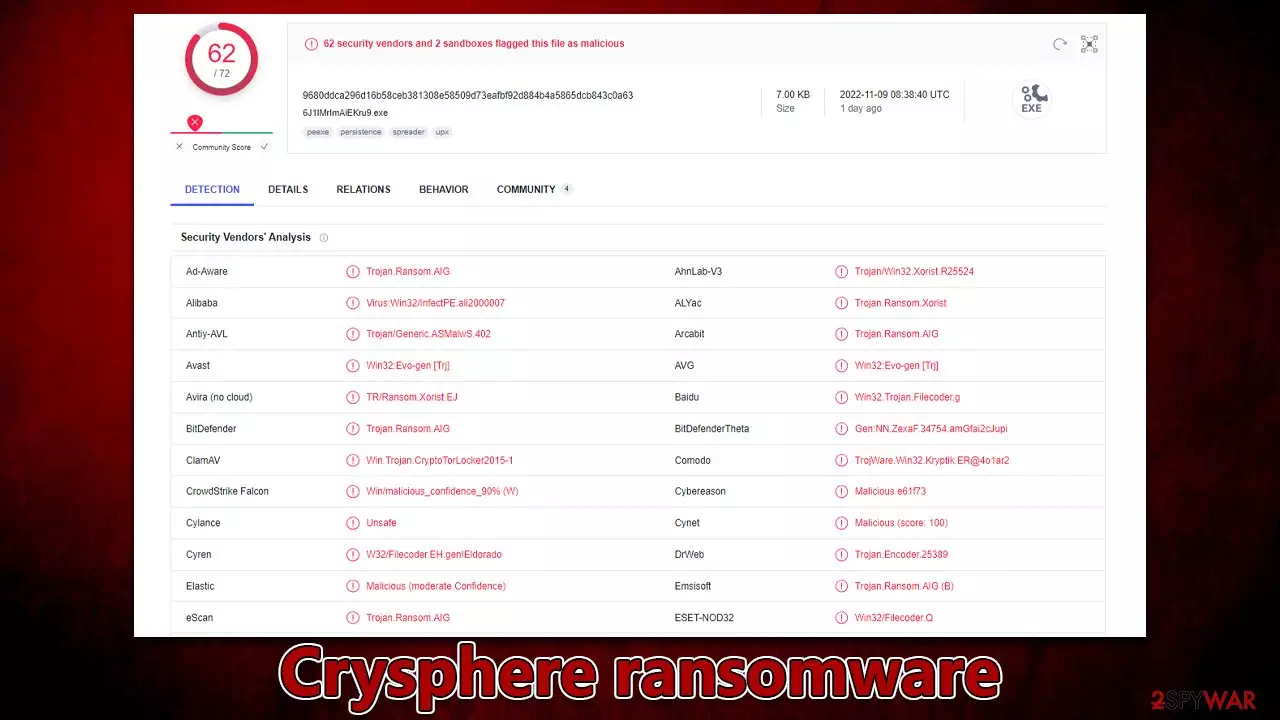
Crysphere is a type of malware called ransomware that extracts money from victims. It usually accesses Windows systems silently (through spam emails or cracked software installers) and then starts to encrypt files. This process puts the .CrySpheRe extension on every personal photo, document, database, etc., which means that owners can't modify or open their files – they are locked using a strong encryption algorithm known as TEA.[1]
After finishing this process, the virus shows a pop-up window titled “Error” and also delivers a ransom note КАК РАСШИФРОВАТЬ ФАЙЛЫ.txt. In both of these items, users can find out that their files are locked until their pay $30 worth of ransom in bitcoin and contact cybercriminals using the march20222021@proton.me email.
| Name | Crysphere virus |
|---|---|
| Type | Ransomware, file-locking malware |
| File extension | .CrySpheRe appended to personal files located on the system |
| Malware family | Xorist |
| Ransom note | КАК РАСШИФРОВАТЬ ФАЙЛЫ.txt and a pop-up window titled “Error” |
| Contact | march20222021@proton.me email |
| File Recovery | The most reliable method to retrieve lost data is by using backups. If this is not an option or the files were encrypted as well, chances for recovery are very limited – see all potential solutions below |
| Malware removal | Remove the computer from the network and the internet, then run a complete system check with SpyHunterCombo Cleaner security software |
| System fix | If malware is installed on your system, it can potentially damage or corrupt crucial system files, which often results in crashes, errors, and other stability issues. FortectIntego PC repair software can automatically fix any such damage by replacing corrupted files |
Cybercriminals are asking for $30: why you shouldn't pay
Crysphere ransomware belongs to a very broad family of malware known as Xorist, with variants like Flying Dutchman, Bruhnet, Trg, and many others released over the years. The virus's purpose is to find and encrypt every non-system file on a Windows computer or any others connected to the infiltrated network.
Once in a while, cybercriminals might use management software that is installed locally to target backup systems too. Also, there are various other methods for malware to be installed on regular people's computers, like software vulnerabilities,[2] spam emails, malicious advertisements, fake updates, etc.
Regardless of whether the affected target is a private computer user or a corporate network, a ransom note is always delivered. Both the pop-up window and the text file include identical information – this is most likely done to make sure that it reaches users, as it increases the chances they will pay for a decryptor. Here's what the messages claim:
All of your files have been encrypted
Your computer was infected with a ransomware virus. Your files have been encrypted.
What can I do to get my files back? You can buy our special
decryption software, this software will allow you to recover all of your data and remove the
ransomware from your computer.The price for the software is $30.Contact for buying decryption software: march20222021@proton.me
Considering a relatively low price of $30, it is likely that crooks are targeting regular computer users, as most can't afford to pay thousands of dollars for a decryptor, providing no profits for perpetrators.

Despite the low price, we do not recommend paying the Crysphere virus authors. It would only assure them that their illegal operations work as intended, and they would infect more victims in the future. Making a profit from small ransoms is only possible when infecting a large volume of people, and that's likely what they are going for.
Instead, we recommend not communicating with cybercriminals and resorting to alternative methods that could be useful for data recovery. Before that, though, a complete malware removal must be performed – we provide all the relative information below.
Choose automatic ransomware removal
Malware installation on a PC contaminated the device and can no longer be considered safe to use. The infection might spread throughout the network if there is one accessible or even initiate other malicious software's installation. Furthermore, under specific circumstances, crooks may gain remote access to users' PCs by utilizing a remote connection[3] over the internet. Losing this link is critical before proceeding any further with ransomware removal.
- Type in Control Panel in Windows search and press Enter
- Go to Network and Internet
- Click Network and Sharing Center
- On the left, pick Change adapter settings
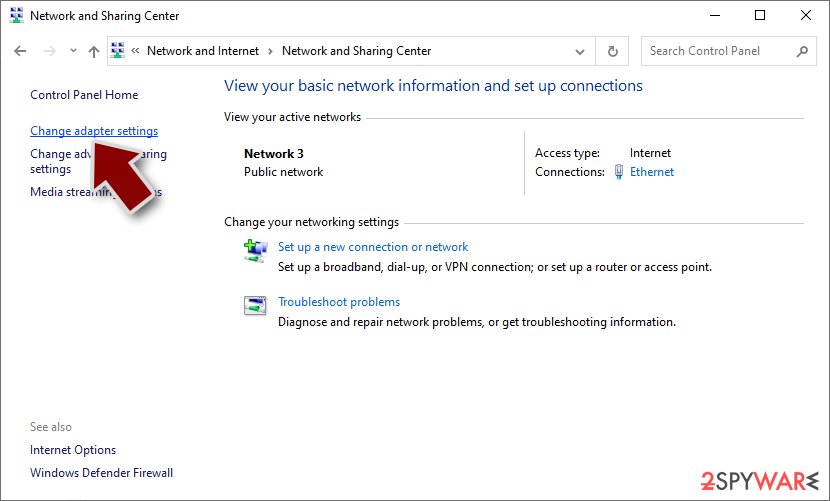
- Right-click on your connection (for example, Ethernet), and select Disable
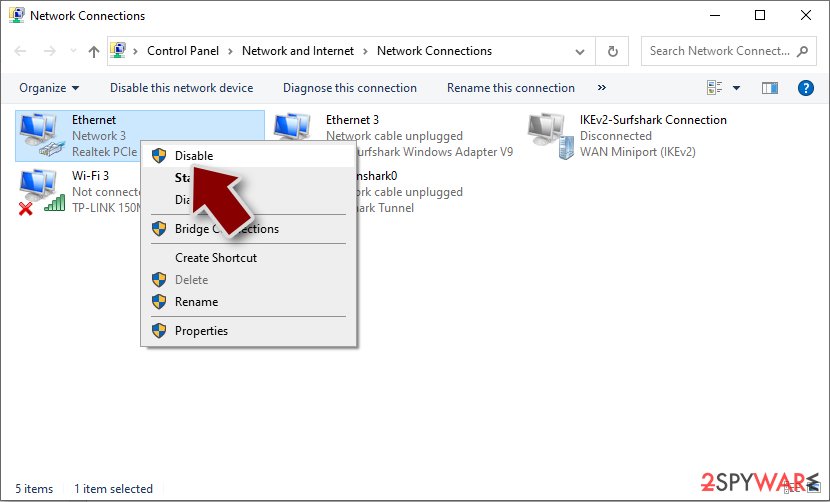
- Confirm with Yes.


While you can attempt to remove viruses from your system manually, we strongly suggest using security software instead. SpyHunterCombo Cleaner and MalwarebytesMalwarebytes are great resources that can help you find and remove all malicious components automatically. Keep in mind that security software should be your first line of defense against malware attacks; it's always best to try and avoid infection altogether if possible.
Malware could damage your system performance and stability – here's how to fix these issues
Malware alters a computer's system, which can lead to performance and stability issues that antivirus software cannot fix. Consequently, users might have to reinstall Windows to resolve them. However, it is unnecessary as there are other ways of tackling issues that could arise after malware elimination.
We recommend using the patented technology of FortectIntego repair to fix your virus damage. Not only can it remove malware that has already infiltrated your system, but it also prevents future infections with its multiple engines. Additionally, this program is capable of fixing various Windows-related issues not caused by malware, such as Blue Screen errors and registry errors. Here are broader instructions on how to use it:
- Download the application by clicking on the link above
- Click on the ReimageRepair.exe

- If User Account Control (UAC) shows up, select Yes
- Press Install and wait till the program finishes the installation process
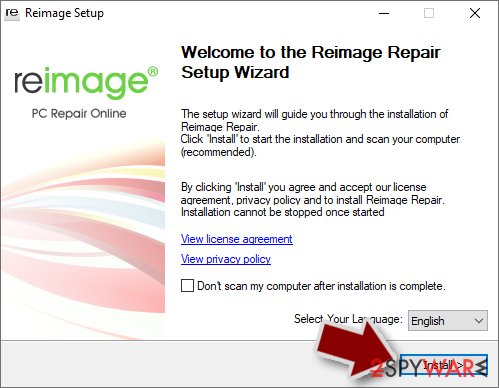
- The analysis of your machine will begin immediately
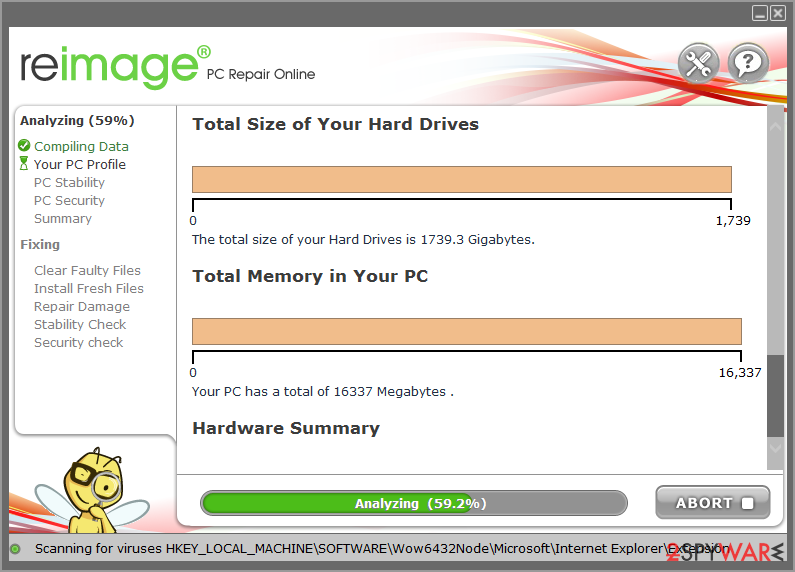
- Once complete, check the results – they will be listed in the Summary
- You can now click on each of the issues and fix them manually
- If you see many problems that you find difficult to fix, we recommend you purchase the license and fix them automatically.



Attempt file recovery without paying
Though some people think that scanning a computer with security software can bring back .trg files, data encryption is actually quite permanent – unless the unique key is applied. Also, contrary to popular belief, encrypted files are not damaged beyond repair.
Even the most up-to-date computers cannot decode this encryption technique. Although, it does not mean that the data is necessarily corrupted; instead, it just requires a unique key that the attacker stores on their own servers.
The best way to protect against ransomware attacks is by maintaining backup copies of your personal files. If you don't have backups, data encrypted by ransomware can be difficult or impossible to restore. In this case, you may try using data recovery software or wait for a decryptor tool to become available.
Note that if you don't have working backups, it's important to make extra copies of encrypted files before attempting any sort of recovery in order to avoid corrupting the originals.
- Download Data Recovery Pro.
- Double-click the installer to launch it.

- Follow on-screen instructions to install the software.
- As soon as you press Finish, you can use the app.
- Select Everything or pick individual folders which you want the files to be recovered from.
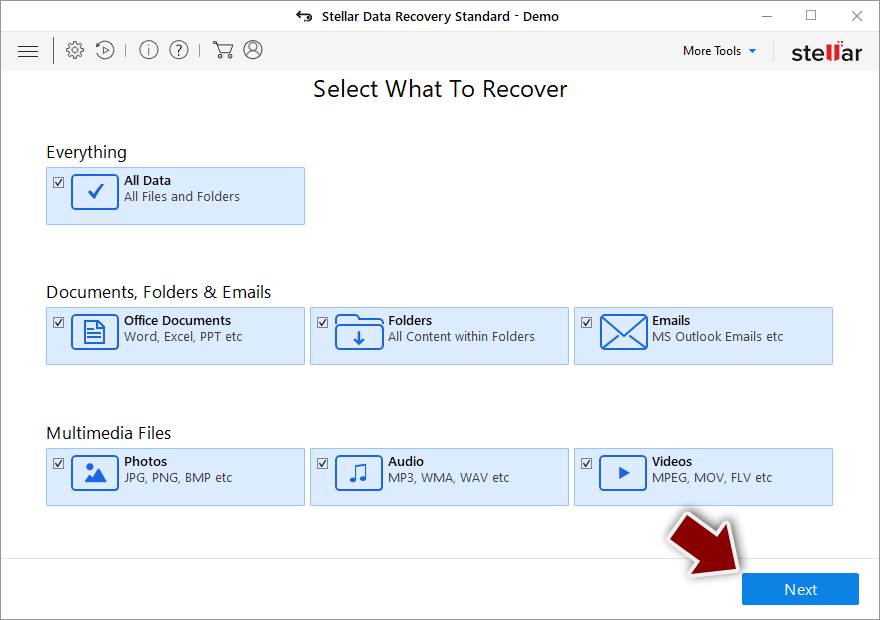
- Press Next.
- At the bottom, enable Deep scan and pick which Disks you want to be scanned.

- Press Scan and wait till it is complete.
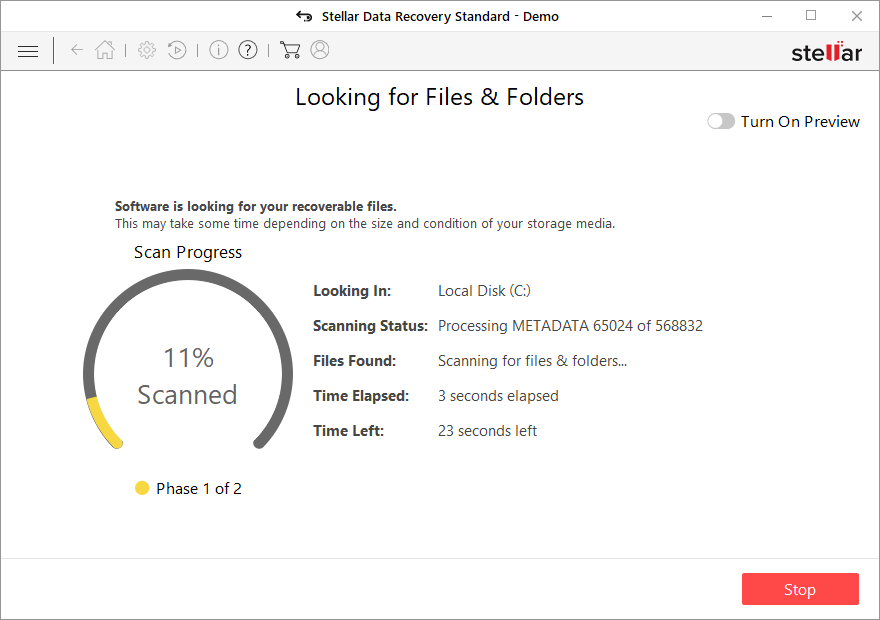
- You can now pick which folders/files to recover – don't forget you also have the option to search by the file name!
- Press Recover to retrieve your files.


Decryption tools for specific ransomware strains may also be created thanks to the work of security researchers. In certain cases, reputable security firms help competent authorities seize the servers of criminal organizations and make their keys available to the public. The following links will help you get started:
- No More Ransom Project
- Free Ransomware Decryptors by Kaspersky
- Free Ransomware Decryption Tools from Emsisoft
- Avast decryptors

Did this guide help?
Be the first to comment