

Mppn ransomware is a type of malware that may lead to personal file loss

Mppn is a ransomware-type virus that stems from a broad malware family known as Djvu. It spreads mostly via cracked software installers distributed on illegal websites, although other methods may also be used by cybercriminals. Regardless of its spreading techniques, all the affected users install the virus unintentionally, although it does not take long for them to see the first symptoms of the infection.
As soon as malware breaches the Windows system, it performs several changes to it, but the most visible one is that made to personal files – all of them drop their original icons and receive a .mppn extension. Suchlike data can no longer be edited or even opened, although it is not corrupted but locked behind a unique cryptographic RSA key.
Cybercriminals are willing to sell that key for $980/$490 to victims, as they explain all the details in the _readme.txt ransom note. They also provide contact emails – support@fishmail.top and datarestorehelp@airmail.cc – for communication purposes. To go the alternative route and avoid payments, we recommend following this guide instead.
| Name | Mppn virus |
|---|---|
| Type | Ransomware, file-locking malware |
| File extension | .mppn appended to all personal files, rendering them useless |
| Family | Djvu |
| Ransom note | _readme.txt dropped at every location where encrypted files are located |
| Contact | support@fishmail.top and datarestorehelp@airmail.cc |
| File Recovery | There is no guaranteed way to recover locked files without backups. Other options include paying cybercriminals (not recommended, might also lose the paid money), using Emisoft's decryptor (works for a limited number of victims), or using third-party recovery software |
| Malware removal | After disconnecting the computer from the network and the internet, do a complete system scan using the SpyHunterCombo Cleaner security program |
| System fix | As soon as it is installed, malware has the potential to severely harm some system files, causing instability problems, including crashes and errors. Any such damage can be automatically repaired by using FortectIntego PC repair |
Ransom note overview
Djvu, which first emerged in 2017 and remains to be one of the most common ransomware families today, with close to a thousand versions. Every day, hundreds of people become infected with Kcvp, Kcbu, Tcbu, Tcvp, or other malware through pirated software installers, with Mppn being one of the latest versions.
There are rather minimal differences between these variants, as they all use the same encryption mechanism based on RSA cipher, deliver identical ransom notes, and ask for the same amount of money to be delivered as bitcoin cryptocurrency. It is worth noting that the contact emails may sometimes vary – crooks change those to avoid detection by law enforcement agencies in most cases.

Upon intrusion and data encryption completion, the Mppn virus immediately opens the ransom note, which reads:
ATTENTION!
Don't worry, you can return all your files!
All your files like pictures, databases, documents and other important are encrypted with strongest encryption and unique key.
The only method of recovering files is to purchase decrypt tool and unique key for you.
This software will decrypt all your encrypted files.
What guarantees you have?
You can send one of your encrypted file from your PC and we decrypt it for free.
But we can decrypt only 1 file for free. File must not contain valuable information.
You can get and look video overview decrypt tool:
https://we.tl/t-8aIWIsUQt9
Price of private key and decrypt software is $980.
Discount 50% available if you contact us first 72 hours, that's price for you is $490.
Please note that you'll never restore your data without payment.
Check your e-mail “Spam” or “Junk” folder if you don't get answer more than 6 hours.To get this software you need write on our e-mail:
support@fishmail.topReserve e-mail address to contact us:
datarestorehelp@airmail.ccYour personal ID:
As is typical, users are provided with a 50% “discount” if they pay within the first three days of the attack and also are offered a free test decryption service. All of these social engineering tricks are meant to convince victims that cooperating is their best option, and the sooner – the better.
However, law authorities and the security community highly discourage users from paying. Not only do payments support the illegal business of cybercriminals, but the decryptor might not even work or never be delivered, as cybercriminals can never be trusted.
Malware removal
When you realize that ransomware has locked your files, it's natural to feel panicked. But panicking won't solve anything and could even make the situation worse. To prevent any more damage, it is essential to follow these recovery steps in order, and your first goal is to make sure you remove Mppn ransomware from your system effectively.
Since malware is capable of communicating with the remote Command & Control[1] server, it is important to make sure that the affected machine is no longer connected to any kind of network. To do this, please follow these steps (although pulling out the ethernet plug or disconnecting your WiFi also works):
- Type in Control Panel in Windows search and press Enter
- Go to Network and Internet
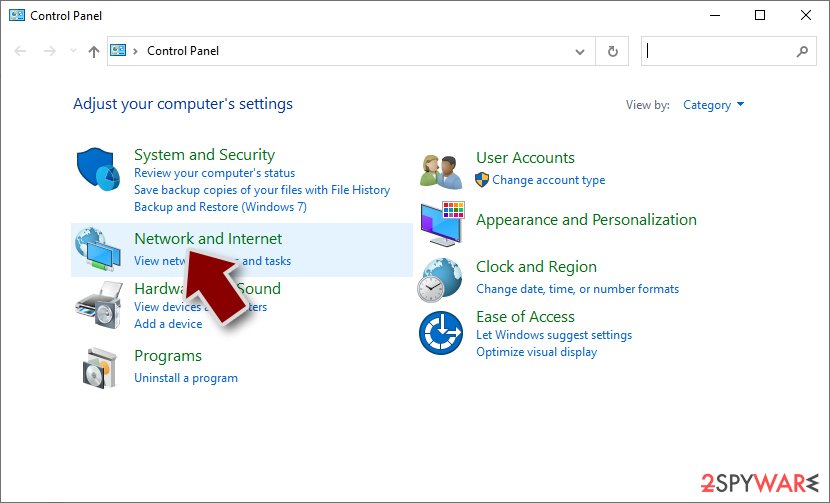
- Click Network and Sharing Center
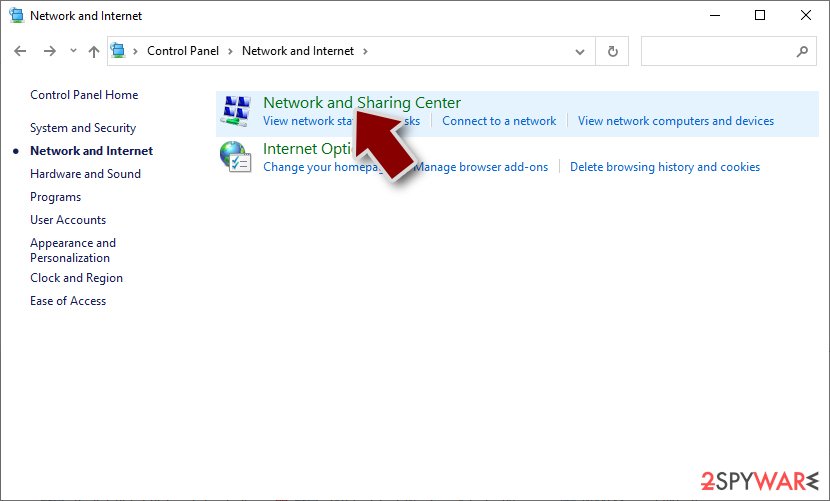
- On the left, pick Change adapter settings
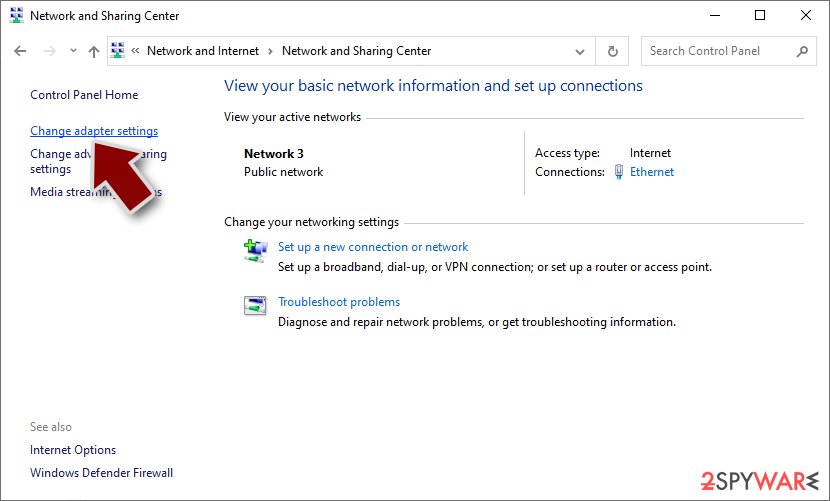
- Right-click on your connection (for example, Ethernet), and select Disable
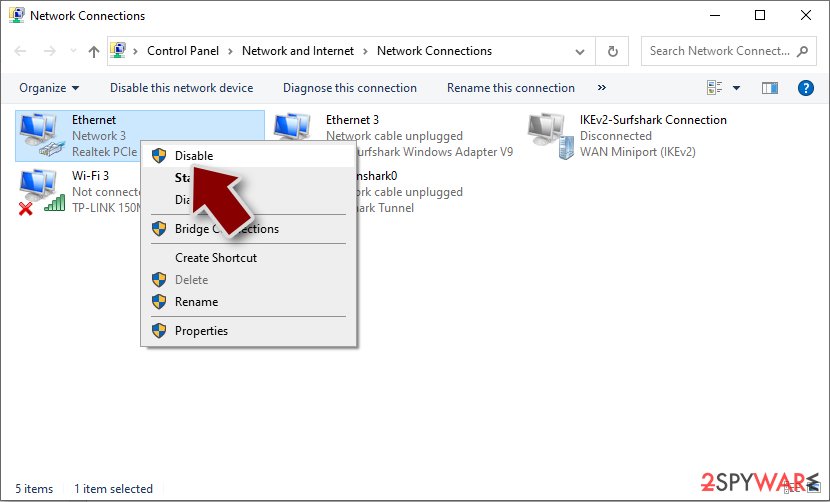
- Confirm with Yes.


Some ransomware has a self-destructive tendency after encrypting data, but this isn't always reliable. For example, it commonly spreads with other malware, such as data stealers or keyloggers.[2] Therefore, it is necessary to eliminate all malware components at once. The most straightforward approach is using robust anti-malware software – like SpyHunterCombo Cleaner or MalwarebytesMalwarebytes – which can locate all malicious components, quarantine them temporarily, and then delete them permanently.
If malware is interfering with your security software's operation and you're having difficulty removing it, you can try Mppn virus removal in Safe Mode.
Windows 7 / Vista / XP
- Click Start > Shutdown > Restart > OK.
- When your computer becomes active, start pressing the F8 button (if that does not work, try F2, F12, Del, etc. – it all depends on your motherboard model) multiple times until you see the Advanced Boot Options window.
- Select Safe Mode with Networking from the list.


Windows 10 / Windows 8
- Right-click on the Start button and select Settings.
- Scroll down to pick Update & Security.
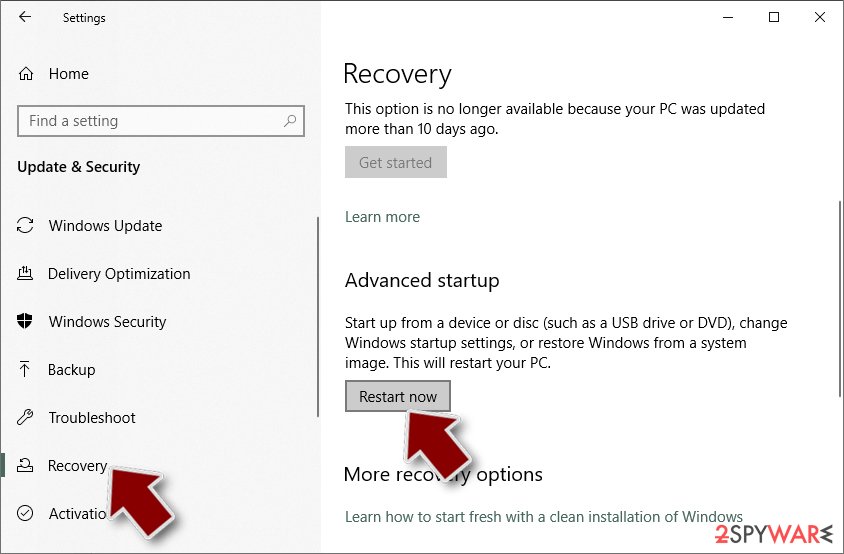
- On the left side of the window, pick Recovery.
- Now scroll down to find the Advanced Startup section.
- Click Restart now.
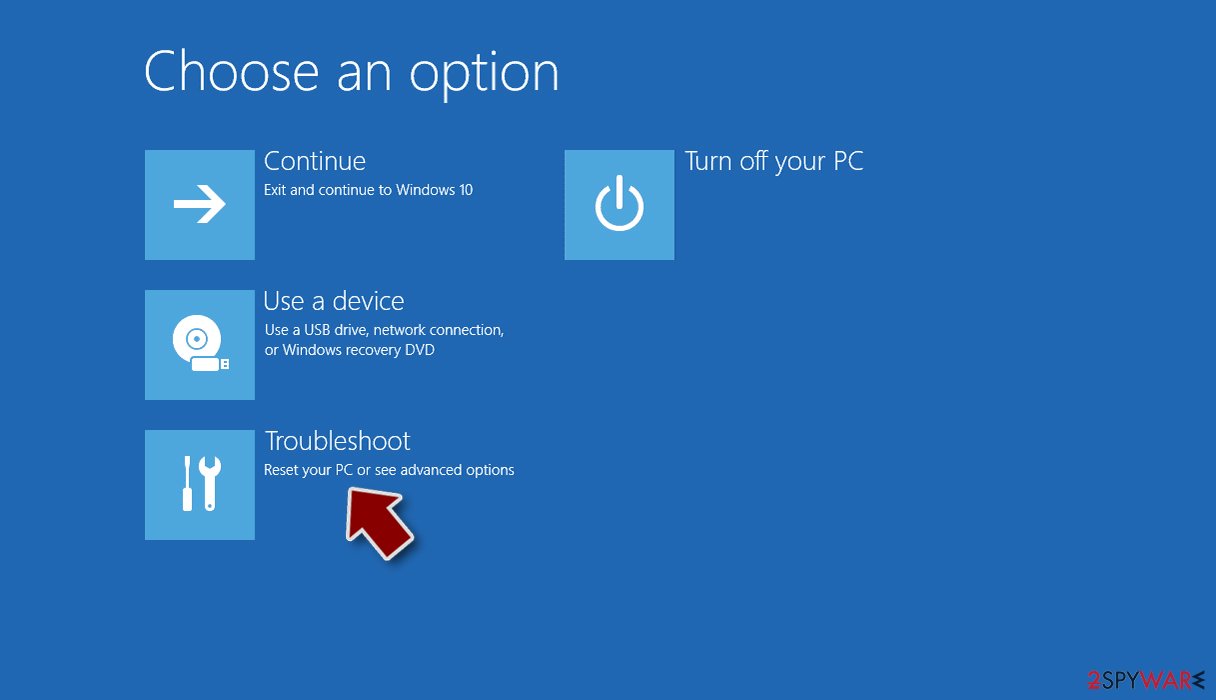
- Select Troubleshoot.
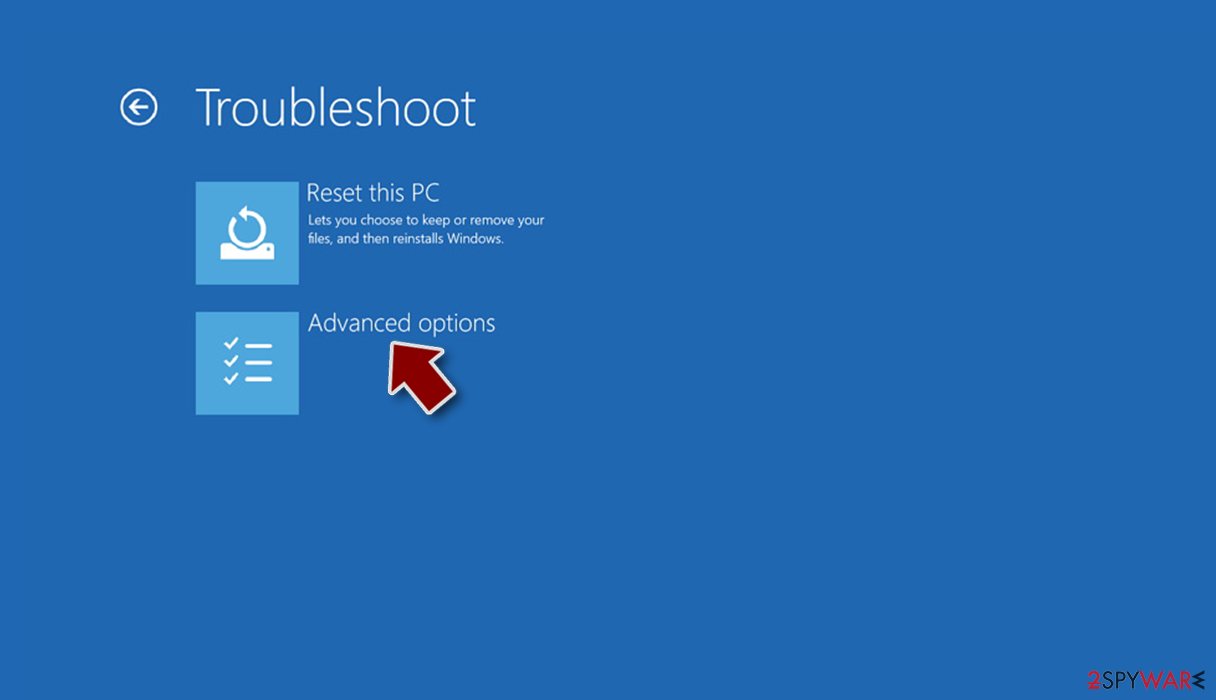
- Go to Advanced options.
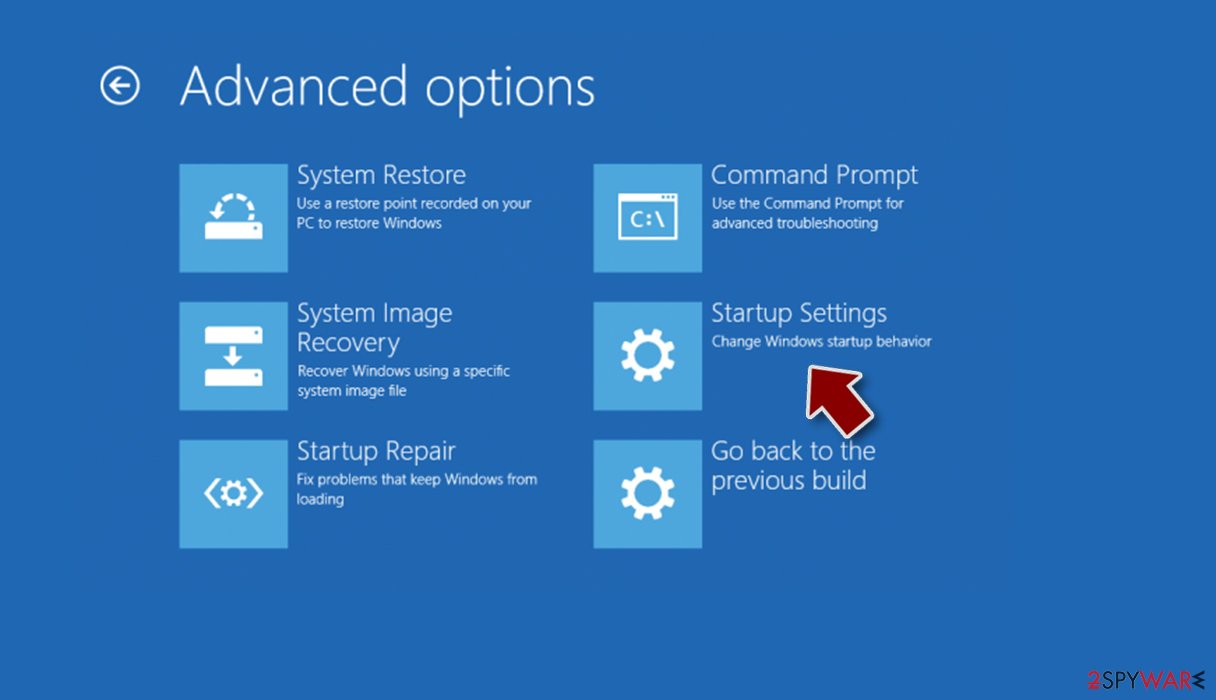
- Select Startup Settings.
- Click Restart.
- Press 5 or click 5) Enable Safe Mode with Networking.


Malware wreaks havoc on Windows systems, often to the point where only a full reinstallation can fix the damage. For example, an infection can change the Windows registry database, break vital bootup components, delete or corrupt DLL[3] files, and more. Antivirus software cannot repair these broken files – you will need a specialized app for that. We recommend FortectIntego as one of the best options out there.
Data recovery
Many people mistakenly believe that their security software will automatically fix any issues with personal files. However, this is not the case. The main goal of anti-malware software is to remove infected files from your system in order to avoid future problems. It's not possible for this type of software to restore encrypted ransomware files because it uses a different process altogether.
Once ransomware is launched, it encrypts bits of data within files, generating a unique ID and complex encryption and decryption key, all of which are sent to cybercriminals behind the attack. With the help of this information, hackers can match the decrytpion key to a unique ID, which can then recover users' files. The problem is that the decryptor is not going to be given away for free.
We recommend using the alternative methods listed below, although please make sure you make copies of all encrypted files, as the restoration process might damage them beyond repair.
Use Djvu decryptor from Emsisoft
If your computer got infected with one of the Djvu variants, you should try using Emsisoft decryptor for Djvu/STOP. It is important to mention that this tool will not work for everyone – it only works if data is locked with an offline ID due to malware failing to communicate with its remote servers.
Even if your case meets this condition, somebody from the victims has to pay criminals, retrieve an offline key, and then share it with security researchers at Emsisoft. As a result, you might be unable to restore the encrypted files immediately.
- Download the app from the official Emsisoft website.
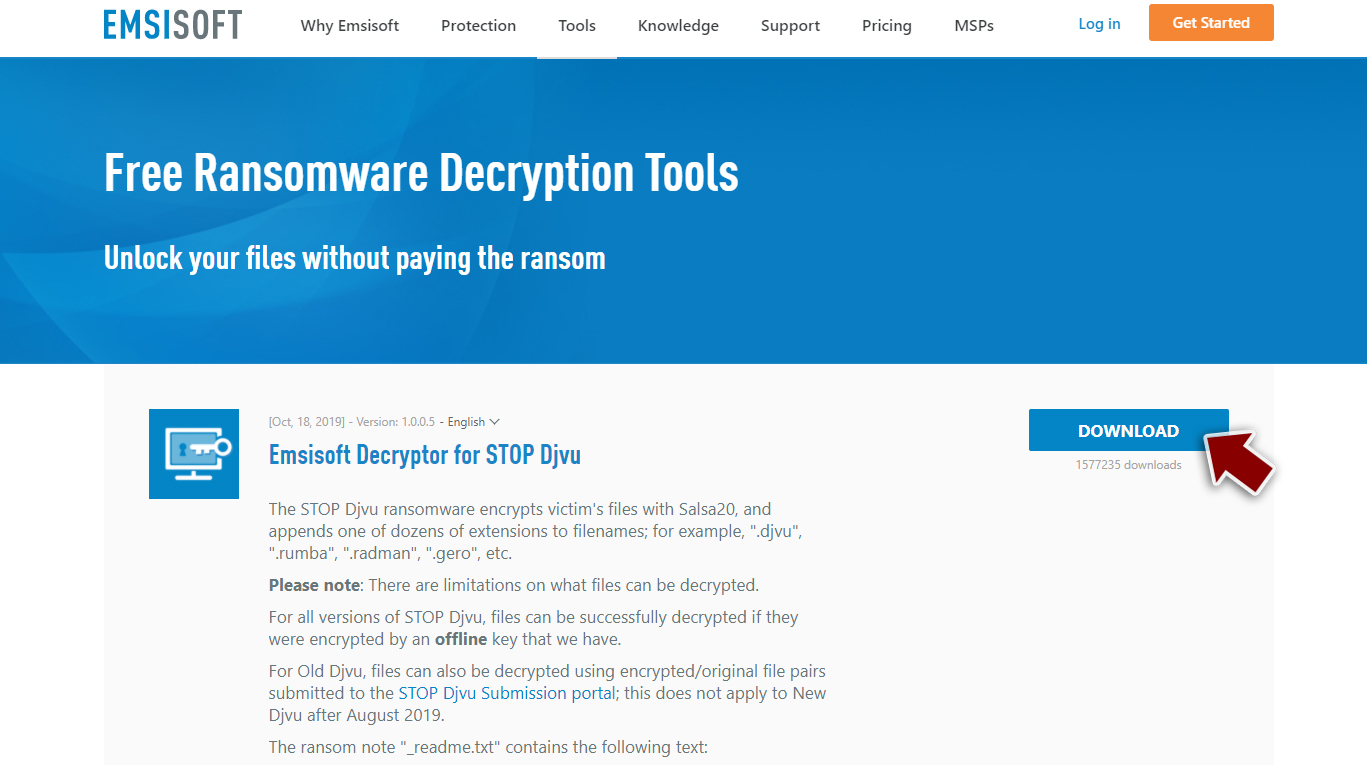
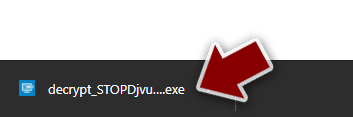
- After pressing Download button, a small pop-up at the bottom, titled decrypt_STOPDjvu.exe should show up – click it.
- If User Account Control (UAC) message shows up, press Yes.
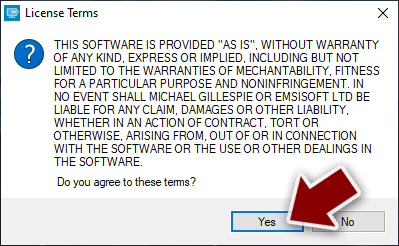
- Agree to License Terms by pressing Yes.
- After Disclaimer shows up, press OK.
- The tool should automatically populate the affected folders, although you can also do it by pressing Add folder at the bottom.
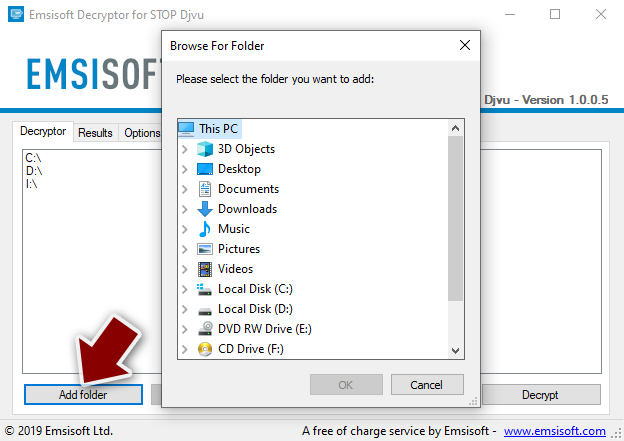
- Press Decrypt.
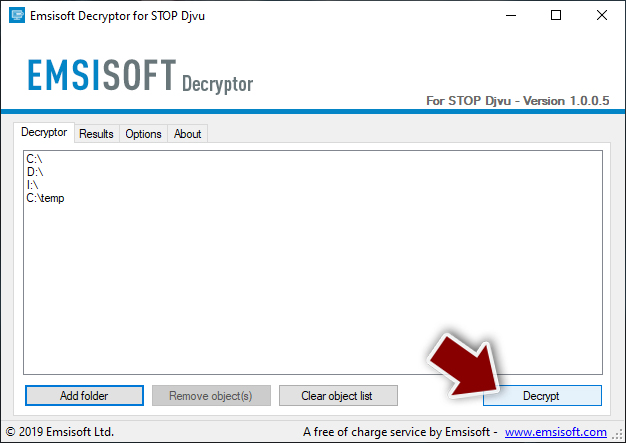


From here, there are three available outcomes:
- “Decrypted!” will be shown under files that were decrypted successfully – they are now usable again.
- “Error: Unable to decrypt file with ID:” means that the keys for this version of the virus have not yet been retrieved, so you should try later.
- “This ID appears to be an online ID, decryption is impossible” – you are unable to decrypt files with this tool.
Try data recovery software
Your other option is to try using specialized data recovery software:
- Download Data Recovery Pro.
- Double-click the installer to launch it.

- Follow on-screen instructions to install the software.
- As soon as you press Finish, you can use the app.
- Select Everything or pick individual folders which you want the files to be recovered from.
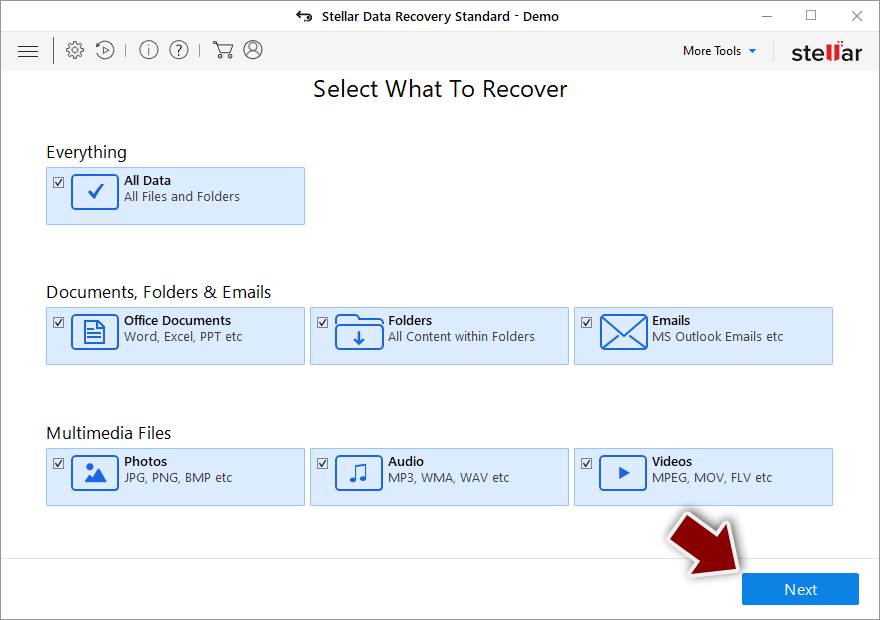
- Press Next.
- At the bottom, enable Deep scan and pick which Disks you want to be scanned.

- Press Scan and wait till it is complete.
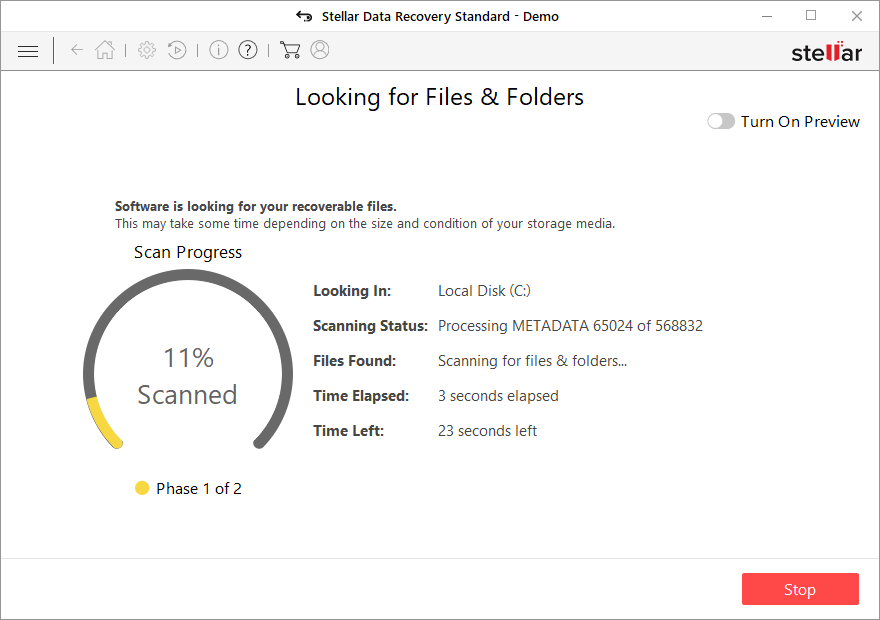
- You can now pick which folders/files to recover – don't forget you also have the option to search by the file name!
- Press Recover to retrieve your files


below you will also find a few more tips that can help you recover after a ransomware attack. For example, you should delete the host file from the system, as you may not be able to access certain security websites otherwise. You should also report the incident to authorities and make sure you back up your files from now on.
Did this guide help?
Be the first to comment