

Mcafeesupport.top – a fake website made by scammers to impersonate legitimate security scans
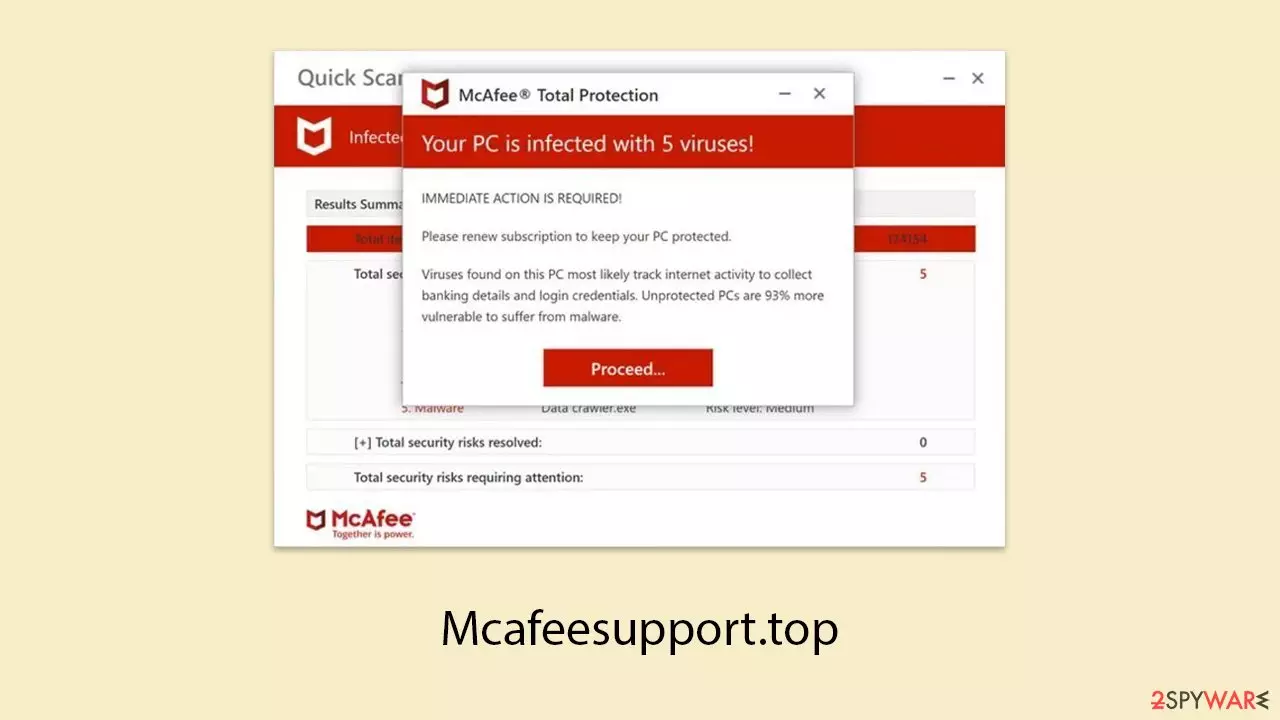
Mcafeesupport.top is a fraudulent site designed by scammers with the sole intention of profiting from unsuspecting users. It’s not common for individuals to find this site through regular search engines unless they are unreliable. The primary methods of reaching this site involve either visiting other high-risk sites or being redirected by adware that operates in the background.
Once redirected to Mcafeesupport.top, visitors often encounter an animation that simulates multiple pop-up messages resembling a security scan supposedly performed by McAfee, a well-known provider of antivirus solutions. In just a few moments, users are alarmed with urgent warnings claiming their devices are infected and require immediate action to resolve the issues.
However, Mcafeesupport.top is not associated with McAfee or any legitimate antivirus provider. The perpetrators behind this scam use fake virus alerts to create a sense of fear and urgency, convincing users that their system is compromised. The so-called solution involves downloading security software and purchasing its license, which results in profits for the scammers through commissions.
| Name | Mcafeesupport.top |
| Type | Scam, fraud, phishing, redirect |
| Distribution | Redirects, misleading ads, software bundling |
| Operation | Claims that viruses have been found on the system and that the security software has expired. Asks to purchase a license and enable push notifications |
| Dangers | Loss of finances due to fake subscriptions; redirects to other malware-laden, scam websites; installation of potentially unwanted or malicious software |
| Removal | You should not interact with any links or ads shown on the scam page and shut it down immediately. Then, perform a full scan with SpyHunterCombo Cleaner security software as a precautionary measure |
| Other tips | Third parties can employ cookies to continue tracking your online activities, so we recommended clearing browser caches and other leftover PUP files with FortectIntego |
How scammers achieve their goals
Fear is an effective tool, which is why many online scams leverage it to trick users. When individuals see alarming warnings that claim viruses have been found on their devices, especially if they are not well-informed about malware and how it spreads, they are more likely to panic. To make these schemes more convincing, scammers often use the names of well-known companies like Microsoft, Apple, or Google.
When users land on the Mcafeesupport.top scam website, they are often taken aback by what they encounter. The page simulates a security scan, showing files being inspected and alerts being triggered by supposed malware detections. In just moments, a message appears with a warning that may resemble:
Your PC is infected with 5 viruses!
ACTION REQUIRED
Your Norton Subscription Has Expired!
Renew now to keep your PC protected.
If your PC is unprotected, it is at risk for viruses and other malware.
For users unfamiliar with such scams, these messages might appear genuine, leading them to believe that a trusted security company has detected threats on their system and that they must act quickly. This is precisely the outcome scammers hope for – to exploit users’ lack of knowledge.
In reality, nothing on Mcafeesupport.top is legitimate, and the scan results are entirely fake. This approach is mirrored across many phishing sites, which use similar methods to deceive visitors. The goal is always the same: to spread panic and pressure users into downloading or paying for unnecessary software, ultimately benefiting the scammers.

Checking the system for infections
In many cases, phishing websites are encountered after visiting already suspicious or high-risk sites. These could include torrent platforms, peer-to-peer networks, and sites that distribute software cracks. Such sites often hide various traps, including links that can lead to malicious redirects. Even a simple, unintended click on a page element might result in being sent to a deceptive website. For this reason, it’s best to avoid such sites whenever possible.
Another common reason users come across scam sites like Mcafeesupport.top is due to the presence of adware or other potentially unwanted or harmful programs already on their device. If a system is infected, users are more likely to face numerous pop-ups, intrusive ads, and redirects while browsing, which can increase the chance of encountering fraudulent content or fake updates.
To counter these risks, it is essential to use reliable security software, such as SpyHunterCombo Cleaner or MalwarebytesMalwarebytes, to conduct a thorough scan of your system. These tools can detect and eliminate malicious components effectively. Additionally, using FortectIntego helps clean residual files, such as tracking cookies, which can enhance system performance and maintain privacy.
Stop intrusive push notifications which could bring similar fake virus alerts
When users land on Mcafeesupport.top, they are not only faced with a fake alert claiming their device is infected but are also prompted to enable push notifications. If someone clicks “Allow” on this prompt, even accidentally, they will start receiving unwanted notifications at random times. These notifications often include malicious links, increasing the risk of further scams.
If you notice such behavior, it is advisable to go into your browser settings and block the site’s URL from the list of websites permitted to send notifications.
Google Chrome
- Open the Google Chrome browser and go to Menu > Settings.
- Scroll down and click on Advanced.
- Locate the Privacy and security section and pick Site Settings > Notifications.
- Look at the Allow section and look for a suspicious URL.
- Click the three vertical dots next to it and pick Block. This should remove unwanted notifications from Google Chrome.


Mozilla Firefox
- Open Mozilla Firefox and go to Menu > Options.
- Click on Privacy & Security section.
- Under Permissions, you should be able to see Notifications. Click the Settings button next to it.
- In the Settings – Notification Permissions window, click on the drop-down menu by the URL in question.
- Select Block and then click on Save Changes. This should remove unwanted notifications from Mozilla Firefox.


Safari
- Click on Safari > Preferences…
- Go to the Websites tab and, under General, select Notifications.
- Select the web address in question, click the drop-down menu and select Deny.


MS Edge
- Open Microsoft Edge, and click the Settings and more button (three horizontal dots) at the top-right of the window.
- Select Settings and then go to Advanced.
- Under Website permissions, pick Manage permissions and select the URL in question.
- Toggle the switch to the left to turn notifications off on Microsoft Edge.


MS Edge (Chromium)
- Open Microsoft Edge, and go to Settings.
- Select Site permissions.
- Go to Notifications on the right.
- Under Allow, you will find the unwanted entry.
- Click on More actions and select Block.


Internet Explorer
- Open Internet Explorer, and click on the Gear icon at the top-right of the window.
- Select Internet options and go to the Privacy tab.
- In the Pop-up Blocker section, click on Settings.
- Locate web address in question under Allowed sites and pick Remove.


Did this guide help?
Be the first to comment