

DuckDuckGo search is a reliable search engine with several cons
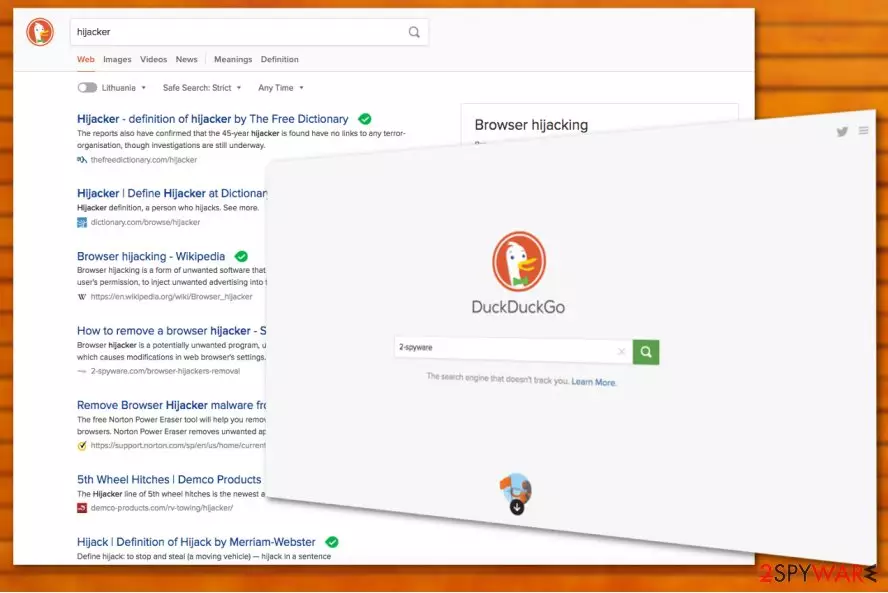
DuckDuckGo is considered to be a reputable search engine, and it is not a virus! We want to put this forward not to give you the wrong impression about the software which receives an average of 63 million searches per day in mid-2020,[1], and is mostly used by mobile device users.[2] The search engine has received mostly positive feedback and has increased in popularity exponentially in the past few years. Having in mind its popularity, it might be that you already came across Duck Duck Go at some point, especially if you have been looking for a new search tool that does not spy on your online activities.
As you might already know, browser hijackers which modify search engines often collect various user browsing details or even their personal information. DuckDuckGo is a privacy-focused search engine that does not track its users for personalized advertisements, but instead provides results that are not filtered by personal preferences. While some might see it as a negative, browser's users think that it is an excellent feature that allows them to experience an organic web without being tracked.
| Name | DuckDuckGo |
|---|---|
| Type | Search engine |
| Any dangers? | The search engine does not track you and provides organic search results |
| Compatible with | Can appear on Chrome, Safari, Firefox, and other browsers |
| Distribution | DuckDuckGo can be set up as main search engine via the browser settings; this can also happen after a browser hijacker modifies browser settings without permission |
| Compatible OS | macOS, Windows, Android, iOS |
| Removal process | If the search engine was set up by a potentially unwanted program, you can undo these changes by eliminating it. You can perform uninstallation manually or by employing anti-malware tool that detects PUPs |
| Optional steps | You can also reset your web browser in case a browser hijacker or other unwanted program has gained access to your device. In such a case, you should also make additional checks with repair tools such as FortectIntego to ensure best computer performance |
As we all know, privacy is a very rare feature found in search engines[3], and there is a wide belief that this search engine can be used to avoid tracking [4]. However, you should keep in mind that DuckDuckGo has been employing active promotion strategies. So, it may happen that the search engine may show up on your browser without your direct permission.
Such tendencies of software distribution are not new and are considered to be legitimate. However, they have been actively used by both reliable developers and shady search providers. If you have just found DuckDuckGo on your Mac, iPhone, Android, or computer, the only person who is to blame for letting this search provider into the system is you. Why is that, you ask?
That's because you are the one who allows the installation of bundled programs by skipping important installation steps of the freeware. If you want to know what steps do you need to perform to avoid the DuckDuckGo search engine, check further paragraphs. Ensure that you have read all the below-provided information carefully in order to reach the best option.
What is more, right after you enter the official website of the software, you can immediately notice how much stress does this web page put on your browsing habits. This might interfere with your browsing sessions as it tends to direct its users to other domains occasionally. This phenomenon might become far from annoying as it tries to promote sponsored websites and help them increase their visitors' traffic.

If you don't want to deal with these redirects, we recommend you remove DuckDuckGo search engine along with the hijacker that gained access to your machine without permission. For time-saving purposes, you can install anti-malware and perform a full system scan with it (you can also investigate and increase your machine's performance after a computer infection whit repair tools such as FortectIntego). Note that, even if this program is not malicious and can be used as a reliable browser tool, there is no need to keep it on your computer system if you did not want to use it in the first place.
The latest versions of the DuckDuckGo search tool are compatible with Android and iOS. If you are dealing with any of these versions on your smartphone or tablet, you should uninstall them without hesitation. Apart from the previously-mentioned redirect tendency, the hijacker may add related plug-ins to your browser[5]. If you are not OK with that, DuckDuckGo removal should be your current priority.
You can find plenty of reasons not to remove DuckDuckGo
Right after you open the Privacy Policy or End User's License Agreement of the DuckDuckGo search tool, you can see that developers' main concern is privacy. They claim that they do not compile any personal information of their users and do not share it with third parties. Nevertheless, if you read further, you might see the following provisions which contradict each other:
“When you search at DuckDuckGo, we don't know who you are and there is no way to tie your searches together.
We also save searches, but again, not in a personally identifiable way (…) Similarly, we may add an affiliate code to some eCommerce sites (e.g. Amazon & eBay) that results in small commissions being paid back to DuckDuckGo when you make purchases at those sites.”
In short, every website collects more or less technical information about the users. It does so not only for marketing purposes but for maintaining the security of their websites. While using this search engine, you might encounter DuckDuckGo redirects from time to time. It means that the web page might guide you to the domains of its partners.
Likewise, these third-parties might employ various tracking technologies[6] to collect the information which defines your personal browsing preferences. After acquiring such data, online advertising companies might cram your browser with frustrating personalized commercial offers.
DuckDuckGo team goes further when it comes to privacy – possibly more than any other browser on the market. It provides a variety of perks that would help users to take privacy and browsing into their own hands:
- Privacy Grade – rates websites based on their trustworthiness
- Encryption – forces sites to use encrypted connections when available
- Tracker Blocker – prevents advertisers from tracking you on the websites you visit
- Search history privacy – DuckDuckGo does not track your search history.
As you can see, in a world where most of the data about your digitized, taking privacy into your hands is extremely important. This is why DuckDuckGo is one of the better options for privacy, along with privacy-focused browsers, such as Brave, Mozilla Firefox, Chromium MS Edge, and a few others.

Reasons for obtaining unwanted search services
According to tech experts,[7] usually, possibly unwanted programs infiltrate computers by disguising under the freeware[8]. Users also contribute to such distribution peculiarities as they quickly rush through the installation wizard without even realizing that “bonus” programs come along legitimate applications as well.
In order to escape DuckDuckGo hijack in the future, change the usual sequence of installation order:
- Run the software installation wizard and select “Advanced” mode.
- Then, you should notice several check boxes that ask you do agree to download additional add-ons. Unmark them all.
If you accidentally enabled them and they got installed eventually, rest assured as the PUP can be easily removed. Keep in mind that downloading and installing a reliable antimalware program will also prevent installations of questionable-looking programs and for the content that you did not apply any requests to download on your machine.
Easy way to remove DuckDuckGo
If you want to initiate DuckDuckGo removal on your computer, check the manual removal steps that are given below. You need to uninstall this search engine and also reset your browsers to get rid of it. This process overtakes different types of web browser apps such as Chrome, Firefox, Explorer, Edge, Safari, etc.
Once you finish this procedure and DuckDuckGo is no longer on your PC, you should also think about a full system scan with anti-spyware software to make sure that your computer is totally safe and free of serious computer pests. For that, you need to use one of the security programs that are given below, update it to its latest version and run a full system scan.
Usually, it takes only a couple of minutes to remove DuckDuckGo virus properly from the device. Lastly, do not forget that personal cautiousness significantly reduces the chances of encountering a cyber threat.

FAQ:
Question. DuckDuckGo website has replaced my homepage. Although it really looks cool, it makes my computer lag and displays some annoying ads. I decided that I do not need this search engine nor do I want to use it… Can you tell me what should I do?
Answer. If DuckDuckGo has appeared as your default homepage and also as a primary search engine, you might have been inattentive while installing another app on your computer. However, it is NOT a virus, so you can use it for your searches. If the previously-used search engine looks better for you, we recommend you to remove DuckDuckGo search from your PC. You can find the removal guidelines below.
Uninstall from Windows
Uninstall from Windows 10/8:
- Type Control Panel into the Windows search box and open the result.
- Under Programs, select Uninstall a program.


Uninstall from Windows 7/XP:
- Click on Windows Start > Control Panel (Windows XP users should click on Add/Remove Programs).
- In Control Panel, select Programs > Uninstall a program.


Remove the unwanted program:
- In the Programs and Features window, look for any recently installed suspicious entries, select them, and click Uninstall.
- If User Account Control appears, click Yes to confirm, then complete the removal.


Delete from macOS
Remove the unwanted application:
- From the menu bar, select Go > Applications.
- In the Applications folder, look for any suspicious entries, then drag them to Trash (or right-click and pick Move to Trash).


Delete leftover files and folders:
- Select Go > Go to Folder.
- Enter /Library/Application Support and remove any suspicious folders related to the unwanted program.
- Repeat the same check in the /Library/LaunchAgents and /Library/LaunchDaemons folders, deleting any suspicious entries.

- Finally, empty the Trash to permanently remove the leftovers.

Reset Internet Explorer
Remove dangerous add-ons:
- Open Internet Explorer, click on the Gear icon (IE menu) on the top-right corner of the browser
- Pick Manage Add-ons.
- You will see a Manage Add-ons window. Here, look for suspicious plugins. Click on these entries and select Disable.


Change your homepage if it was altered:
- Open IE and click on the Gear icon.
- Select Internet Options.
- In the General tab, delete the Home page address and replace it by your preferred one (for example, Google.com).
- Click Apply and then select OK.


Delete temporary files:
- Press on the Gear icon and select Internet Options.
- Under Browsing history, click Delete...
- Select relevant fields and press Delete.


Reset Internet Explorer:
- Click on Gear icon > Internet options and select Advanced tab.
- Select Reset.
- In the new window, check Delete personal settings and select Reset.


Remove from Microsoft Edge
Delete unwanted extensions from MS Edge:
- Select Menu (three horizontal dots at the top-right of the browser window) and pick Extensions.
- From the list, pick the extension and click on the Gear icon.
- Click Remove.


Clear cookies and other browser data:
- Click on the Menu (three horizontal dots at the top-right of the browser window) and select Settings > Privacy, search, and services..
- Under Clear browsing data, pick Choose what to clear.
- Select Cookies and other site data and Cached images and files. (apart from passwords, although you might want to include Media licenses as well, if applicable) and click on Clear.


Restore new tab and homepage settings:
- Click the menu icon and choose Settings.
- Then find On startup section.
- Click Remove next to any suspicious startup page.
Reset MS Edge if the above steps did not work:
- Press on Ctrl + Shift + Esc to open Task Manager.
- Click on More details arrow at the bottom of the window.
- Select Details tab.
- Now scroll down and locate every entry with Microsoft Edge name in it. Right-click on each of them and select End Task to stop MS Edge from running.


Instructions for Chromium-based Edge
Delete extensions from MS Edge (Chromium):
- Open Edge and click select Settings > Extensions.
- Delete unwanted extensions by clicking Remove.


Clear cache and site data:
- Click on Menu and go to Settings.
- Select Privacy, search and services.
- Under Clear browsing data, pick Choose what to clear.
- Under Time range, pick All time.
- Select Clear now.


Reset Chromium-based MS Edge:
- Click on Menu and select Settings.
- On the left side, pick Reset settings.
- Select Restore settings to their default values.
- Confirm with Reset.
- This will disable extensions and reset startup pages but will not delete bookmarks, saved passwords, or browsing history.


Remove from Mozilla Firefox (FF)
Remove dangerous extensions:
- Open Mozilla Firefox browser and click on the Menu (three horizontal lines at the top-right of the window).
- Select Add-ons.
- In here, select the unwanted extension and click Remove.


Reset the homepage:
- Click three horizontal lines at the top right corner to open the menu.
- Choose Settings.
- Under Home, set your preferred homepage and new tab settings.
Clear cookies and site data:
- Click Menu and pick Settings.
- Go to Privacy & Security section.
- Scroll down to locate Cookies and Site Data.
- Click on Clear Data...
- Select Cookies and Site Data and Temporary cached files and pages, then click Clear.


Reset Mozilla Firefox
If clearing the browser as explained above did not help, reset Mozilla Firefox:
- Open Mozilla Firefox browser and click the Menu.
- Go to Help and then choose Troubleshooting Information.

- Under Give Firefox a tune up section, click on Refresh Firefox...
- Once the pop-up shows up, confirm the action by pressing on Refresh Firefox.



Remove from Google Chrome
Delete malicious extensions from Google Chrome:
- Open Google Chrome, click on the Menu (three vertical dots at the top-right corner) and select More tools > Extensions.
- In the newly opened window, you will see all the installed extensions. Uninstall all suspicious extensions related to the unwanted program by clicking Remove.


Clear cache and web data from Chrome:
- Click on Menu and pick Settings.
- Under Privacy and security, select Clear browsing data.
- Select Browsing history, Cookies and other site data, as well as Cached images and files.
- Click Clear data.


Change your homepage:
- Click menu and choose Settings.
- Look for a suspicious site in the On startup section.
- Click on Open a specific or set of pages and click on three dots to find the Remove option.
Reset Google Chrome:
If the previous methods did not help you, reset Google Chrome to eliminate all the unwanted components:
- Click on Menu and select Settings.
- In the Settings, scroll down and click Advanced.
- Scroll down and locate Reset and clean up section.
- Now click Restore settings to their original defaults.
- Confirm with Reset settings.


Delete from Safari
Remove dangerous extensions:
- Open Safari, click Safari in the menu at the top-left of the screen, and select Preferences.
- Go to the Extensions tab, look for any suspicious entries, and click Uninstall to remove them.


Clear history and website data:
- Click Safari in the menu and pick Clear History.
- Set Clear to all history and confirm with Clear History.


Reset Safari:
- Click Safari in the menu and select Preferences > Advanced.
- Enable Show Develop menu in menu bar.
- From the menu bar, click Develop and select Empty Caches.


Did this guide help?
5 comments
prince
to open my mail
Gen
It isnt hard: uninstall it from your programs, then go into IE Settings, Internet Options, Advanced, reset, click reset personal settings, apply, then close IE, perform a clean up, and restart IE. All traces should be gone.
Worked for me, hope this helps!
Anonymous
DuckDuckGo Isnt Really a Virus I Use It Currently On My Browser They Are Just A Search Engine That Doesnt Track You If You Want To Remove From Google Chrome Just Go To The Top Right With The Three Line Bars And Click On It And Click On Settings Next Go To The Open Specific Pages
And Click The Set Pages Option And Click The x On The Right Side Then Go To Manage Search Engine And Click On It And Make Google Default And Click The x Button Not The Right Side On Top Just On The Right Side Hoped This Helped.
Roy Wadhams
Using SpyHunter 4,Malwarebytes Anti-Malware Premium and Superantispyware Professional and only SpyHunter found DuckDuckGo but after trying a number of times it will not remove this software.
DDG is not in Add/Remove and does not show anywhere on my computer but is a default search engine in Firefox but I "removed" it.
I did not install this at any time and when downloading software,if I come across DDG,I do not accept their product.
Cristina
The article is good, I have uninstalled DuckDuckGo ads already! You probably do not know that hijackers are dangerous and can redirect you to dangerous sites on the web!