

ReimagePlus.com is the official site of Reimage Repair software
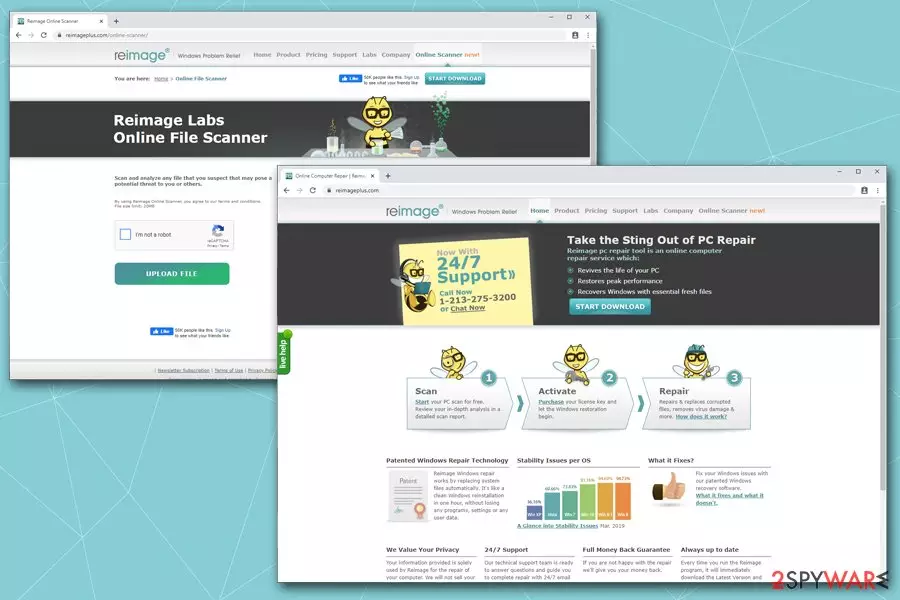
ReimagePlus.com is an official website of Reimage software – users can download and install legitimate installers of Reimage Repair, Reimage for Mac, Reimage for Android, as well as get informed with various product usage policies. The site also includes various information on operation principles and explanations of technology applied by this one-of-a-kind repair tool.
Unfortunately, ReimagePlus.com ads are something that users may encounter on Google Chrome, Safari, Mozilla Firefox, or Internet Explorer browsers – sometimes more often than they would like. The source of these advertisements is not the website or software developers but rather adware application that is embedded within user's computer. In other words, ads are inserted into various users' machines without the permission of the authors.
| Name | ReimagePlus.com ads |
| Type | Adware |
| Infection means | Users are usually infected with potentially unwanted programs via software bundles, after being tricked by fake update/ad or when they install the app deliberately without knowing that it engages in browser hijacking behavior post-installation |
| Symptoms | Redirects to unknown websites, pop-up ads, changed web browser settings, etc. |
| Termination | In order to stop ads, you need to locate and uninstall a potentially unwanted program that initiates these ads. You can check the instructions below |
In most cases, potentially unwanted programs[1] get into users' computers via software bundles[2] that are downloaded from third-party websites. Developers of freeware/shareware often insert additional apps into installers and fail to notify users correctly. Thus, if not checking the installation process carefully, they might end up with adware on their machines, and would soon feel the negative effects of its infections, such as display of ReimagePlus.com ads.
The main problem related to it is that people are not clearly warned about specific components that can be downloaded to their computers in a bundle with free programs. Once they are installed, commercial add-ons, extensions, and similar components are embedded in web browsers, and they start causing pop-up ads.
Such pieces of software tend to connect to various ad networks and load third-party advertisements from there. There is no specific program that might start causing pop-up ads, although thousands of them might engage in suspicious browser behavior, such as browser redirects, sponsored links, homepage, and new tab changes, etc.

To remove ReimagePlus.com ads, you would have to detect and uninstall the potentially unwanted program that is causing them. It can either done manually or automatically – check the instructions below. In fact, Reimage can be used as a great option to sweep up the computer from unwanted modifications that adware and malware performs. Additionally, the software is great with it comes to system corruption and various BSOD errors[3] – it can repair these issues quickly, increasing system performance and stability.
So, after sorting out why people see ads on their computers, we should also mention redirects to this domain. They may interrupt you after clicking one of these ads while browsing the web. As we have already mentioned, this website is legitimate. It is used to promote Reimage Repair or its technical support.
If you need help, you can use its service without any fears. In addition to ReimagePlus.com redirects, you may start seeing its pop-up alerts informing about various risks to your computer. If you can see such notification while browsing, you should think about your computer's performance. Is it low? Could it be filled with bad registry entries[4]?
Keep in mind that Reimage is a tool that can help you improve your computer speed and performance. Even more, you can call for its professional technicians and get assistance regarding various computer problems that bother you.
Again, remember that you are not obliged to use the software if you do not want to. We have also noticed that users often ask “is Reimage Plus a virus” just because they do not know the real purpose of the program or how to uninstall it from their computers. No, the program is not a virus.

If you can't remove the PC optimization software, you probably can't find its components on your system. No worries! At the end of this post, you can find a comprehensive explanation of what files and programs have to be removed to completely uninstall ReimageRepair from the system.
We have also noticed that users are interested in how to get rid of ReimagePlus, so we provided a tutorial on how to remove annoying pop-up ads by uninstalling ad-supported programs. We kindly invite you to use “How to remove pop-up ads?” tutorial that we prepared.
Reasons why people receive ads promoting Reimage
As already mentioned, ReimagePlus.com is an official website of legitimate Windows repair software, so it cannot hijack[5] anything. Its ads are caused by third party browser add-ons and extensions that have been widely promoted in a bundle with free software.
As you probably heard, browser add-ons and ad-supported programs are usually disseminated alongside other freeware and shareware. Therefore, every time you install a download manager, media player, PDF creator or any other free program, you may download a bunch of other programs.
Some of them are harmless, others are quite aggressive, including Discount Buddy, Search Safer, VeriBrowse, and many others. Fortunately, freeware[6] distributors often give us a chance to opt out such unwanted components; however, for that, they require to pay much more attention to the freeware's installation process than the users are used to dedicate.
It's a must to select Advanced or Custom installation option and check every check box carefully. Otherwise, you may skip the list of 'optional components' and unconsciously agree to install the whole list of apps.
Frequently asked questions about Reimage Plus
Question. What is Reimage Plus? Why do I see its ads on my computer screen?
Answer. Reimage is a legitimate computer repair software. If you started receiving ads that promote this product, you may have an adware program installed on your system. To identify it, check the list of currently installed programs and remove the suspicious ones.

Question. I've been thinking about purchasing Reimage license key. I am not sure where do I get it?
Answer. Dear visitor, if you have Reimage software on your computer, perform a system scan and click Start Repair button. Then, the software will ask you whether you have a license key or you are a new customer. Choose “I am a new customer” option. Fill in the required fields and click Continue.
Then you will be taken to ReimagePlus.com, which is the official website of Reimage. You will see your key on the same website right after purchasing the license key. We suggest printing or writing them down so that they wouldn't get lost. You will have to enter the key into the Reimage software in order to fix your system.
How to Remove ReimagePlus.com ads
A virus is a wrong term and it doesn't describe the program promoted on that website at all. Reimage is a legitimate program, however, some users are not satisfied with the amount of its advertisements appearing on various websites on the Internet.
However, if you have spotted a suspicious behavior on your computer, for example, unexpected redirects to web pages promoting certain software, it might mean that you have lately installed an ad-supported program that promotes various third-party products.
Let us remind you that adware programs usually target Chrome users, and that explains why so many users ask us how to remove ReimagePlus virus Chrome. As we mentioned, you have to use a tutorial that we provided a link to earlier in order to remove ad-supported software from the system.
We recommend you to perform a system scan to identify and remove the provider of the ads. If you are curious how to remove http://www.reimageplus.com, check the list of programs installed on your system. One of them might be serving you these ads. Besides, it could be a troublesome browser extension, too. An easy way to get rid of these is to reset your web browsers.
If you already installed the computer repair software and you don't want to keep it on your computer anymore, we have some good news for you. It is extremely easy to uninstall it from the system. Just follow this Reimage removal guide and you will securely delete it from your computer in less than 5 minutes:
- Click Start menu → Control Panel → Uninstall a Program or Add/Remove Programs.
- Find Reimage, right-click on it and select Uninstall.
Uninstall from Windows
Uninstall from Windows 10/8:
- Type Control Panel into the Windows search box and open the result.
- Under Programs, select Uninstall a program.


Uninstall from Windows 7/XP:
- Click on Windows Start > Control Panel (Windows XP users should click on Add/Remove Programs).
- In Control Panel, select Programs > Uninstall a program.


Remove the unwanted program:
- In the Programs and Features window, look for any recently installed suspicious entries, select them, and click Uninstall.
- If User Account Control appears, click Yes to confirm, then complete the removal.


Delete from macOS
Remove the unwanted application:
- From the menu bar, select Go > Applications.
- In the Applications folder, look for any suspicious entries, then drag them to Trash (or right-click and pick Move to Trash).


Delete leftover files and folders:
- Select Go > Go to Folder.
- Enter /Library/Application Support and remove any suspicious folders related to the unwanted program.
- Repeat the same check in the /Library/LaunchAgents and /Library/LaunchDaemons folders, deleting any suspicious entries.

- Finally, empty the Trash to permanently remove the leftovers.

Remove from Microsoft Edge
Delete unwanted extensions from MS Edge:
- Select Menu (three horizontal dots at the top-right of the browser window) and pick Extensions.
- From the list, pick the extension and click on the Gear icon.
- Click Remove.


Clear cookies and other browser data:
- Click on the Menu (three horizontal dots at the top-right of the browser window) and select Settings > Privacy, search, and services..
- Under Clear browsing data, pick Choose what to clear.
- Select Cookies and other site data and Cached images and files. (apart from passwords, although you might want to include Media licenses as well, if applicable) and click on Clear.


Restore new tab and homepage settings:
- Click the menu icon and choose Settings.
- Then find On startup section.
- Click Remove next to any suspicious startup page.
Reset MS Edge if the above steps did not work:
- Press on Ctrl + Shift + Esc to open Task Manager.
- Click on More details arrow at the bottom of the window.
- Select Details tab.
- Now scroll down and locate every entry with Microsoft Edge name in it. Right-click on each of them and select End Task to stop MS Edge from running.


Instructions for Chromium-based Edge
Delete extensions from MS Edge (Chromium):
- Open Edge and click select Settings > Extensions.
- Delete unwanted extensions by clicking Remove.


Clear cache and site data:
- Click on Menu and go to Settings.
- Select Privacy, search and services.
- Under Clear browsing data, pick Choose what to clear.
- Under Time range, pick All time.
- Select Clear now.


Reset Chromium-based MS Edge:
- Click on Menu and select Settings.
- On the left side, pick Reset settings.
- Select Restore settings to their default values.
- Confirm with Reset.
- This will disable extensions and reset startup pages but will not delete bookmarks, saved passwords, or browsing history.


Remove from Mozilla Firefox (FF)
Remove dangerous extensions:
- Open Mozilla Firefox browser and click on the Menu (three horizontal lines at the top-right of the window).
- Select Add-ons.
- In here, select the unwanted extension and click Remove.


Reset the homepage:
- Click three horizontal lines at the top right corner to open the menu.
- Choose Settings.
- Under Home, set your preferred homepage and new tab settings.
Clear cookies and site data:
- Click Menu and pick Settings.
- Go to Privacy & Security section.
- Scroll down to locate Cookies and Site Data.
- Click on Clear Data...
- Select Cookies and Site Data and Temporary cached files and pages, then click Clear.


Reset Mozilla Firefox
If clearing the browser as explained above did not help, reset Mozilla Firefox:
- Open Mozilla Firefox browser and click the Menu.
- Go to Help and then choose Troubleshooting Information.

- Under Give Firefox a tune up section, click on Refresh Firefox...
- Once the pop-up shows up, confirm the action by pressing on Refresh Firefox.



Remove from Google Chrome
Delete malicious extensions from Google Chrome:
- Open Google Chrome, click on the Menu (three vertical dots at the top-right corner) and select More tools > Extensions.
- In the newly opened window, you will see all the installed extensions. Uninstall all suspicious extensions related to the unwanted program by clicking Remove.


Clear cache and web data from Chrome:
- Click on Menu and pick Settings.
- Under Privacy and security, select Clear browsing data.
- Select Browsing history, Cookies and other site data, as well as Cached images and files.
- Click Clear data.


Change your homepage:
- Click menu and choose Settings.
- Look for a suspicious site in the On startup section.
- Click on Open a specific or set of pages and click on three dots to find the Remove option.
Reset Google Chrome:
If the previous methods did not help you, reset Google Chrome to eliminate all the unwanted components:
- Click on Menu and select Settings.
- In the Settings, scroll down and click Advanced.
- Scroll down and locate Reset and clean up section.
- Now click Restore settings to their original defaults.
- Confirm with Reset settings.


Delete from Safari
Remove dangerous extensions:
- Open Safari, click Safari in the menu at the top-left of the screen, and select Preferences.
- Go to the Extensions tab, look for any suspicious entries, and click Uninstall to remove them.


Clear history and website data:
- Click Safari in the menu and pick Clear History.
- Set Clear to all history and confirm with Clear History.


Reset Safari:
- Click Safari in the menu and select Preferences > Advanced.
- Enable Show Develop menu in menu bar.
- From the menu bar, click Develop and select Empty Caches.


Did this guide help?
Be the first to comment