

“Deceptive Site Ahead” is a warning that can protect you from phishing, scam, and malware-laden sites
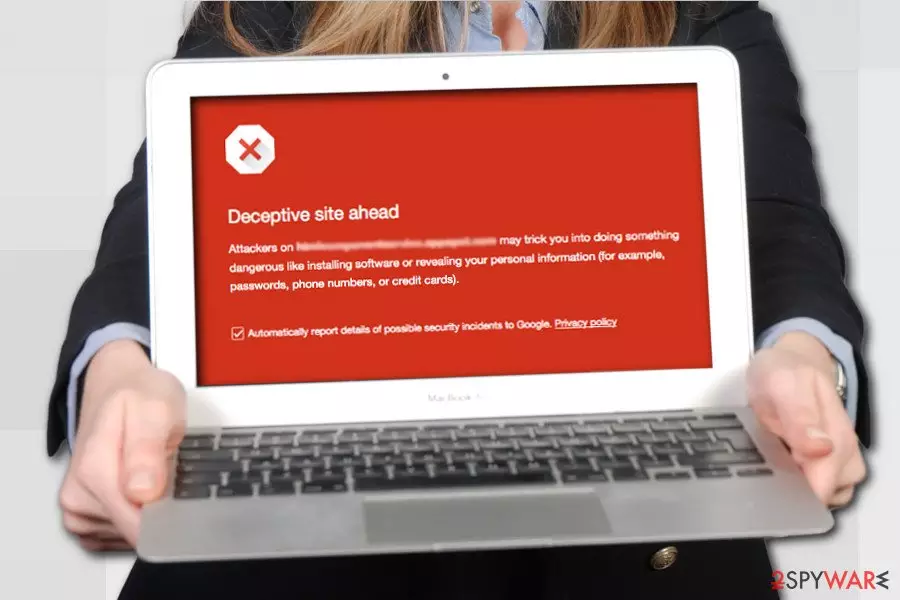
“Deceptive Site Ahead” is a warning that Google Chrome users might encounter at any time while browsing the web. The alert is designed by Google – it warns users about the upcoming deceptive or even malicious content and advises users not to proceed. Depending on the severity of the impact, the waning might not let users let bypass the screen and land on the destination site. Despite these restrictions, “Deceptive Site Ahead” might save users from malware infections, financial losses, and even identity theft.
Since Google Chrome is the most popular browser, the Deceptive Site Ahead warning became a custom, and cybercriminals are well aware of that. Due to this, they started to launch fake warnings that imitate the legitimate ones with the intent to misguide users and make them download malicious software, call fake tech support services, or provide sensitive information on an insecure site. In this article, we will explore the differences between real and fake “Deceptive Site Ahead” notifications that users can encounter while browsing the internet.
| Name | “Deceptive Site Ahead” |
|---|---|
| Type | Security notification provided by Google on Chrome web browser |
| Purpose | Protect people from accessing phishing, malware-infected websites |
| Description | A “Deceptive Site Ahead” warning shows up (with the red background) when trying to access suspicious website |
| EXCEPTION | “Deceptive Site Ahead” pop-up can be misused by hackers and turned to tech-support-scam alert. If it contains a telephone number – do not call for it as you can be tricked into downloading useless software or giving away your money to crooks for useless services |
| Removal | To bypass legitimate Google warning, check the instructions below. To eliminate adware that could be causing redirects to unsafe sites, scan your machine with reputable anti-malware software |
| System fix | If you installed any type of software from unsafe site or which was provided by tech support scammers, you should treat is as malware infection. Eliminate it, and then fix virus damage with tools like FortectIntego |
Google Safe Browsing services[1] have created this message in order to protect people from unsafe online content. This service scans websites and looks for deceptive buttons, for instance, download buttons[2] that install software from unrelated and unreliable third-party sources. Deceptive website warning is basically designed to keep you away from web pages and content that can put your privacy at serious risk.
Keep in mind that the “Deceptive Site Ahead” block can be applied to various sites not due to the owner's fault. In some cases, websites get infected with malware or intercepted by the attackers. In such a case, only the website developer can fix this issue after verifying information via Google Search Console Panel. If you noticed that one of your favorite websites was marked as deceptive, you should contact the developer of the site and inform about the situation.
Chrome Deceptive Site Ahead message might also show up before entering social engineering[3] websites, for example, phishing[4] or deceptive sites. Internet sites that are marked as potentially dangerous might trick people to install suspicious software or disclose sensitive information. Therefore, before entering an unreliable site, it is likely you will see this message:
Deceptive site ahead.
Attackers on [site URL] may trick you into doing something dangerous like installing software or revealing your personal information (for example, passwords, phone numbers, or credit cards).
After seeing Google Deceptive Site Ahead on Unanalytics.com and similar websites, you should not become worried about your computer safety. It’s not infected yet. This is merely a warning that it is better to keep away from the website you were attempting to visit. By clicking on the details and choosing to simply ignore the warning you can continue to the desired site, yet it is not recommended. In this case, you should install security software on your computer which will help you prevent potential malware and potentially unwanted programs.

Users looking for ways how to remove Deceptive Site Ahead warning put their security and privacy at great risk because the alert does not appear without reason. Whatever the reason might be, it can compromise your computer or steal private information about you, and we are sure that you do not want that to happen.
Of course, some legitimate sites may be flagged as well because of the advertising displayed on them, but such issue can be fixed with a little bit of effort.
The removal itself may take a while because the website administrators must find and terminate the sources of the potentially dangerous content. Only then, the site can be reviewed and evaluated by Google. Despite the lengthy procedure, the legitimate sites usually deal with this issue as their owners do not want to scare away the visitors. Therefore, usually, the sites which display “deceptive site ahead” instead of their site’s content should be avoided.
IMPORTANT: crooks can take advantage of Deceptive Site Ahead warning and turn it to a Tech-Support-Scam. In other words, criminals camouflage a legitimate warning, except as they include a telephone number and urge gullible people to call for support. That's a catch that can lead to money loss or malware infection. If you randomly receive a Deceptive Site Ahead pop-up with a number of “certified technicians,” force close your web browser and scan your PC with security software to eliminate malware. If something malicious was found, we recommend fixing damage doe to the computer with tools like FortectIntego.

Get to know what sites Google marks as potentially dangerous
Essentially, there are three types of potentially dangerous sites which may be included into Googles “black list”:
- Sites that pretend their content to be legitimate and trusted;
- Sites which content tries to trick the users into sharing login details or calling tech support;
- Sites which contain deceptive download buttons.
- Sites that were hacked or incorporate malicious ads.
On 2-spyware.com, we have already discussed a number of such sites. Any of the browser hijacker websites can fall under the first category of websites that may act as a legitimate search engine, including Delta-homes.com, Yoursites123 and similar. The second category is usually associated with sites which spread adware and scareware-type programs, such as Intelli-support-assistant.com or Adsystemscan.com. Such highly unwanted sites and browser applications are also defined on other security-related sites such as Dieviren.de[5].
Finally, the fake download buttons can be inserted into any random sites, especially, on obscure software download, file-sharing sites, etc. Nevertheless, sometimes the malicious website creators may bypass the Google filter and load regularly on your browser. In such case, you should keep your system equipped with a reputable anti-malware tool, such as FortectIntego.

Fix “Deceptive Site Ahead” issue
Even though it is not advisable to remove “Deceptive Site Ahead” filter from your browser, you can do that by following these simple steps:
- Start Google Chrome.
- Click “Menu” or “More” icon in the upper-right corner.
- Select “Settings” and “Show advanced settings”.
- Go to “Privacy” and deselect “Protect you and your device from dangerous sites.”

If you follow these instructions, your browser should not display such warning messages anymore. However, you will have to protect your computer from the cyber threats by some other means.
We recommend obtaining a reliable antivirus and anti-malware protection system, which is capable of eliminating viruses from your computer as well as guarding you against these threats in real-time browsing. Take our advice and strengthen your computer's security with anti-malware software.
Although deceptive site ahead fix makes the described alerts disappear, we would like to remind you that Google Chrome browser displays them for your own good. Therefore, if you see the described message too frequently, ask yourself whether websites you are interested in are trustworthy. On the other hand, the reason you might see a Deceptive Site Ahead redirects often is due to adware infection on your system – this is especially could be the case if you see increased amount of advertisements in search results and visited websites around the web.
To fix Deceptive Site Ahead recurring issues, you should ensure that your system is free of adware. For that, please check the instructions we provide below – access the installed program list and uninstall everything suspicious. Then, reset all the installed web browsers.
Uninstall from Windows
Uninstall from Windows 10/8:
- Type Control Panel into the Windows search box and open the result.
- Under Programs, select Uninstall a program.


Uninstall from Windows 7/XP:
- Click on Windows Start > Control Panel (Windows XP users should click on Add/Remove Programs).
- In Control Panel, select Programs > Uninstall a program.


Remove the unwanted program:
- In the Programs and Features window, look for any recently installed suspicious entries, select them, and click Uninstall.
- If User Account Control appears, click Yes to confirm, then complete the removal.


Delete from macOS
Remove the unwanted application:
- From the menu bar, select Go > Applications.
- In the Applications folder, look for any suspicious entries, then drag them to Trash (or right-click and pick Move to Trash).


Delete leftover files and folders:
- Select Go > Go to Folder.
- Enter /Library/Application Support and remove any suspicious folders related to the unwanted program.
- Repeat the same check in the /Library/LaunchAgents and /Library/LaunchDaemons folders, deleting any suspicious entries.

- Finally, empty the Trash to permanently remove the leftovers.

Reset Internet Explorer
Remove dangerous add-ons:
- Open Internet Explorer, click on the Gear icon (IE menu) on the top-right corner of the browser
- Pick Manage Add-ons.
- You will see a Manage Add-ons window. Here, look for suspicious plugins. Click on these entries and select Disable.


Change your homepage if it was altered:
- Open IE and click on the Gear icon.
- Select Internet Options.
- In the General tab, delete the Home page address and replace it by your preferred one (for example, Google.com).
- Click Apply and then select OK.


Delete temporary files:
- Press on the Gear icon and select Internet Options.
- Under Browsing history, click Delete...
- Select relevant fields and press Delete.


Reset Internet Explorer:
- Click on Gear icon > Internet options and select Advanced tab.
- Select Reset.
- In the new window, check Delete personal settings and select Reset.


Remove from Microsoft Edge
Delete unwanted extensions from MS Edge:
- Select Menu (three horizontal dots at the top-right of the browser window) and pick Extensions.
- From the list, pick the extension and click on the Gear icon.
- Click Remove.


Clear cookies and other browser data:
- Click on the Menu (three horizontal dots at the top-right of the browser window) and select Settings > Privacy, search, and services..
- Under Clear browsing data, pick Choose what to clear.
- Select Cookies and other site data and Cached images and files. (apart from passwords, although you might want to include Media licenses as well, if applicable) and click on Clear.


Restore new tab and homepage settings:
- Click the menu icon and choose Settings.
- Then find On startup section.
- Click Remove next to any suspicious startup page.
Reset MS Edge if the above steps did not work:
- Press on Ctrl + Shift + Esc to open Task Manager.
- Click on More details arrow at the bottom of the window.
- Select Details tab.
- Now scroll down and locate every entry with Microsoft Edge name in it. Right-click on each of them and select End Task to stop MS Edge from running.


Instructions for Chromium-based Edge
Delete extensions from MS Edge (Chromium):
- Open Edge and click select Settings > Extensions.
- Delete unwanted extensions by clicking Remove.


Clear cache and site data:
- Click on Menu and go to Settings.
- Select Privacy, search and services.
- Under Clear browsing data, pick Choose what to clear.
- Under Time range, pick All time.
- Select Clear now.


Reset Chromium-based MS Edge:
- Click on Menu and select Settings.
- On the left side, pick Reset settings.
- Select Restore settings to their default values.
- Confirm with Reset.
- This will disable extensions and reset startup pages but will not delete bookmarks, saved passwords, or browsing history.


Remove from Mozilla Firefox (FF)
Remove dangerous extensions:
- Open Mozilla Firefox browser and click on the Menu (three horizontal lines at the top-right of the window).
- Select Add-ons.
- In here, select the unwanted extension and click Remove.


Reset the homepage:
- Click three horizontal lines at the top right corner to open the menu.
- Choose Settings.
- Under Home, set your preferred homepage and new tab settings.
Clear cookies and site data:
- Click Menu and pick Settings.
- Go to Privacy & Security section.
- Scroll down to locate Cookies and Site Data.
- Click on Clear Data...
- Select Cookies and Site Data and Temporary cached files and pages, then click Clear.


Reset Mozilla Firefox
If clearing the browser as explained above did not help, reset Mozilla Firefox:
- Open Mozilla Firefox browser and click the Menu.
- Go to Help and then choose Troubleshooting Information.

- Under Give Firefox a tune up section, click on Refresh Firefox...
- Once the pop-up shows up, confirm the action by pressing on Refresh Firefox.



Remove from Google Chrome
Delete malicious extensions from Google Chrome:
- Open Google Chrome, click on the Menu (three vertical dots at the top-right corner) and select More tools > Extensions.
- In the newly opened window, you will see all the installed extensions. Uninstall all suspicious extensions related to the unwanted program by clicking Remove.


Clear cache and web data from Chrome:
- Click on Menu and pick Settings.
- Under Privacy and security, select Clear browsing data.
- Select Browsing history, Cookies and other site data, as well as Cached images and files.
- Click Clear data.


Change your homepage:
- Click menu and choose Settings.
- Look for a suspicious site in the On startup section.
- Click on Open a specific or set of pages and click on three dots to find the Remove option.
Reset Google Chrome:
If the previous methods did not help you, reset Google Chrome to eliminate all the unwanted components:
- Click on Menu and select Settings.
- In the Settings, scroll down and click Advanced.
- Scroll down and locate Reset and clean up section.
- Now click Restore settings to their original defaults.
- Confirm with Reset settings.


Delete from Safari
Remove dangerous extensions:
- Open Safari, click Safari in the menu at the top-left of the screen, and select Preferences.
- Go to the Extensions tab, look for any suspicious entries, and click Uninstall to remove them.


Clear history and website data:
- Click Safari in the menu and pick Clear History.
- Set Clear to all history and confirm with Clear History.


Reset Safari:
- Click Safari in the menu and select Preferences > Advanced.
- Enable Show Develop menu in menu bar.
- From the menu bar, click Develop and select Empty Caches.


Did this guide help?
2 comments
HemmingwayFan2010
I disabled these warnings a long time ago. Theyre just simply annoying
Kelly
Good thing that such filters are integrated in chrome, no wonder its one of the safest browsers