

Mefuli-search2016.com is the questionable program that gets called a virus
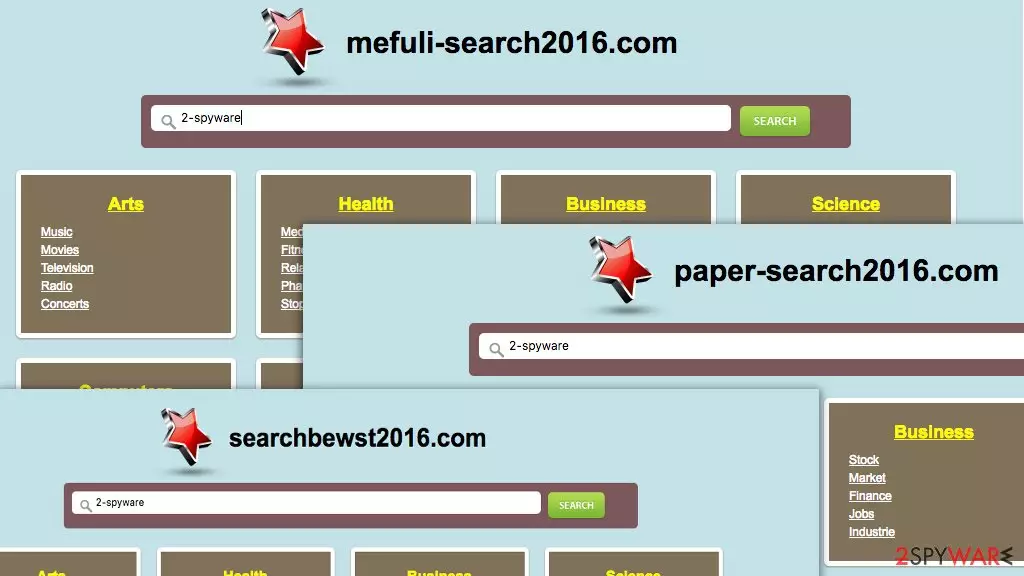
Mefuli-search2016.com virus is the search engine that exposes users to unwanted material instead of improving the browsing experience. This is another addition to the family of suspicious clone websites that includes Paper-search2016.com and Searchbewst2016.com. We have already discussed these sites in our previous articles, focusing on their behavior as browser hijackers. Essentially, this site is exactly the same as its counterparts. It shows up on the Internet browsers unexpectedly and stays as their default search engine and homepage until it is removed from the computer by brute force.
Sadly, even this technique may sometimes fail because during the time this browser hijacker stays on your computer it may install “helper-objects” which – if not disclosed and removed – can help the virus bounce back to the browser. Thus, when it comes to virus removal, we strongly recommend opting for the automatic solution.
| Name | Mefuli-search2016 |
|---|---|
| Type | Browser hijacker, potentially unwanted program |
| Alleged functionality | Improving the speed and experience with browsing the web |
| Danger | Data tracking can be used by third-party advertisers and sponsors. Users get exposed to unwanted commercial content that is not secure most of the times |
| Distribution | Freeware installations, deceptive sites, misleading promotional ads |
| Recovery |
You can use professional antivirus software like SpyHunterCombo Cleaner or MalwarebytesMalwarebytes, for instance. When the virus is finally eliminated, you can then switch back to your preferred search engine. Nonetheless, we still suggest choosing the trusted and already acknowledged search providers such as Google, Yahoo, or Bing.
Another concerning aspect that emerges when analyzing Mefuli-search2016.com hijack is data tracking. We have already mentioned that “helper-objects” which can be secretly installed after some unanticipated redirect to untrusted websites, assist the virus in staying put on your browser. But there is also another function these programs can be used for and that involves keeping a record of the users’ browsing habits.
All the collected non-personally identifiable information such as most visited websites, viewed pages, saved bookmarks, etc., can then be shared with third parties to help them create more specific user-targeted advertising. This way, various vendors and website owners have a greater chance of selling their products or generating more user traffic to their desired domains. Of course, such activity must have some kind of response to the system.
And, sadly, it can be quite evident. Due to the increased amount of additional programs running in the browser, the speed of your Internet surfing may significantly decrease. The browser may even start encountering malfunctions, start freezing or crash unexpectedly. Such behavior simply cannot be ignored. You should remove Mefuli-search2016.com from your PC as soon as you find time for it and if you don’t, let your antivirus take care of it.
Distribution techniques browser hijackers most commonly use
Browser hijackers more or less operate in the same manner, so this search engine is not an exception either. This virus will never find its way on the computer the right and overt way. It will most likely try to make its infiltration as smooth and stealthy as possible so that it can run on the system uninterrupted.
There are numerous ways to do it. One of the most common techniques used by browser hijackers is the so-called software bundling. PUP distributors embed this suspicious application in software packages together with applications that are often legitimate and frequently downloaded.
The rest depends on the users. If you choose to install new software without analyzing if there are no additional conditions to it, you should not be surprised to see unfamiliar content appear on your computer. The option of making the questionable site your default search engine and the homepage is usually hidden within the “Custom” or “Advanced” installation settings, so you should always opt for these options for more in-depth access and management of the software package components.
Methods of Mefuli-search2016.com removal
The virus is a deceptive application that targets and infects computers without their owners’ consent. On top of that, with this program installed, you can expect privacy infringements and most certainly interruption of your regular browsing experience. You cannot allow this program to take over your computer and acting however it pleases.
We recommend that you remove Mefuli-search2016.com from your computer and use reputable search engines instead. The manual removal tutorial of this hijacker is presented below. Nonetheless, if you want to ensure full system cleanup and not the PUP removal alone, we suggest scanning your computer with an automatic antivirus utility.
Uninstall from Windows
Uninstall from Windows 10/8:
- Type Control Panel into the Windows search box and open the result.
- Under Programs, select Uninstall a program.


Uninstall from Windows 7/XP:
- Click on Windows Start > Control Panel (Windows XP users should click on Add/Remove Programs).
- In Control Panel, select Programs > Uninstall a program.


Remove the unwanted program:
- In the Programs and Features window, look for any recently installed suspicious entries, select them, and click Uninstall.
- If User Account Control appears, click Yes to confirm, then complete the removal.


Delete from macOS
Remove the unwanted application:
- From the menu bar, select Go > Applications.
- In the Applications folder, look for any suspicious entries, then drag them to Trash (or right-click and pick Move to Trash).


Delete leftover files and folders:
- Select Go > Go to Folder.
- Enter /Library/Application Support and remove any suspicious folders related to the unwanted program.
- Repeat the same check in the /Library/LaunchAgents and /Library/LaunchDaemons folders, deleting any suspicious entries.

- Finally, empty the Trash to permanently remove the leftovers.

Remove from Microsoft Edge
Delete unwanted extensions from MS Edge:
- Select Menu (three horizontal dots at the top-right of the browser window) and pick Extensions.
- From the list, pick the extension and click on the Gear icon.
- Click Remove.


Clear cookies and other browser data:
- Click on the Menu (three horizontal dots at the top-right of the browser window) and select Settings > Privacy, search, and services..
- Under Clear browsing data, pick Choose what to clear.
- Select Cookies and other site data and Cached images and files. (apart from passwords, although you might want to include Media licenses as well, if applicable) and click on Clear.


Restore new tab and homepage settings:
- Click the menu icon and choose Settings.
- Then find On startup section.
- Click Remove next to any suspicious startup page.
Reset MS Edge if the above steps did not work:
- Press on Ctrl + Shift + Esc to open Task Manager.
- Click on More details arrow at the bottom of the window.
- Select Details tab.
- Now scroll down and locate every entry with Microsoft Edge name in it. Right-click on each of them and select End Task to stop MS Edge from running.


Instructions for Chromium-based Edge
Delete extensions from MS Edge (Chromium):
- Open Edge and click select Settings > Extensions.
- Delete unwanted extensions by clicking Remove.


Clear cache and site data:
- Click on Menu and go to Settings.
- Select Privacy, search and services.
- Under Clear browsing data, pick Choose what to clear.
- Under Time range, pick All time.
- Select Clear now.


Reset Chromium-based MS Edge:
- Click on Menu and select Settings.
- On the left side, pick Reset settings.
- Select Restore settings to their default values.
- Confirm with Reset.
- This will disable extensions and reset startup pages but will not delete bookmarks, saved passwords, or browsing history.


Remove from Mozilla Firefox (FF)
Remove dangerous extensions:
- Open Mozilla Firefox browser and click on the Menu (three horizontal lines at the top-right of the window).
- Select Add-ons.
- In here, select the unwanted extension and click Remove.


Reset the homepage:
- Click three horizontal lines at the top right corner to open the menu.
- Choose Settings.
- Under Home, set your preferred homepage and new tab settings.
Clear cookies and site data:
- Click Menu and pick Settings.
- Go to Privacy & Security section.
- Scroll down to locate Cookies and Site Data.
- Click on Clear Data...
- Select Cookies and Site Data and Temporary cached files and pages, then click Clear.


Reset Mozilla Firefox
If clearing the browser as explained above did not help, reset Mozilla Firefox:
- Open Mozilla Firefox browser and click the Menu.
- Go to Help and then choose Troubleshooting Information.

- Under Give Firefox a tune up section, click on Refresh Firefox...
- Once the pop-up shows up, confirm the action by pressing on Refresh Firefox.



Remove from Google Chrome
Delete malicious extensions from Google Chrome:
- Open Google Chrome, click on the Menu (three vertical dots at the top-right corner) and select More tools > Extensions.
- In the newly opened window, you will see all the installed extensions. Uninstall all suspicious extensions related to the unwanted program by clicking Remove.


Clear cache and web data from Chrome:
- Click on Menu and pick Settings.
- Under Privacy and security, select Clear browsing data.
- Select Browsing history, Cookies and other site data, as well as Cached images and files.
- Click Clear data.


Change your homepage:
- Click menu and choose Settings.
- Look for a suspicious site in the On startup section.
- Click on Open a specific or set of pages and click on three dots to find the Remove option.
Reset Google Chrome:
If the previous methods did not help you, reset Google Chrome to eliminate all the unwanted components:
- Click on Menu and select Settings.
- In the Settings, scroll down and click Advanced.
- Scroll down and locate Reset and clean up section.
- Now click Restore settings to their original defaults.
- Confirm with Reset settings.


Delete from Safari
Remove dangerous extensions:
- Open Safari, click Safari in the menu at the top-left of the screen, and select Preferences.
- Go to the Extensions tab, look for any suspicious entries, and click Uninstall to remove them.


Clear history and website data:
- Click Safari in the menu and pick Clear History.
- Set Clear to all history and confirm with Clear History.


Reset Safari:
- Click Safari in the menu and select Preferences > Advanced.
- Enable Show Develop menu in menu bar.
- From the menu bar, click Develop and select Empty Caches.


Did this guide help?
Be the first to comment