

Search.searchqpt.com is the site that should provide useful searches but it offers questionable services
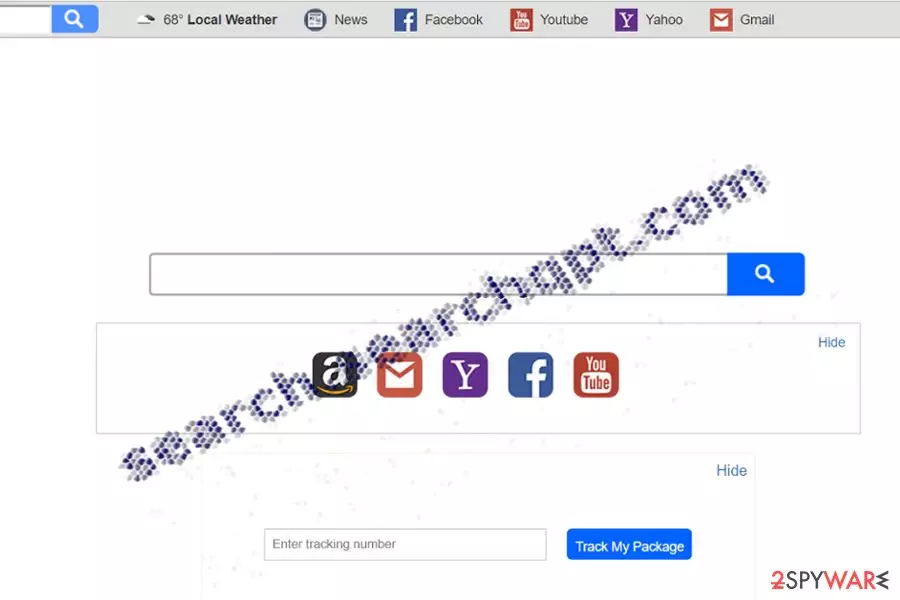
Search.searchqpt.com virus functions as a search engine that delivers a diverse choice of services: quick access links to Yahoo, Facebook, Amazon. Additionally, the tool supposedly enables weather forecast services. However, this functionality of this Quick Package Tracker does not seem to work properly. While the website attracts your attention by providing news articles, you may be surprised that these articles are offered by Revcontent advertising platform. Though the latter is legitimate, it has sparked doubts and frustration for users.
| Name | Search.searchqpt.com virus |
|---|---|
| Type | Browser hiajcker |
| Category | Potentially unwanted program |
| Symptoms | The search site is set as homepage, default new tab, search engine. These changes affect the experience online |
| Elimination | Your system can be affected by various PUPs, so running an antivirus program can clear various threats off of the machine |
| Repair | The system requires to check too, make sure to run FortectIntego for a check or even affected data recovery |
If you took a look at the privacy policy of the Quick Package Tracker virus, you would discover that the website is created by Polarity Technologies Ltd, the company which has released multiple shady and identical search tools. Due to these factors, researchers classify this tool into the browser hijacker category. Usually, they may:
- trigger sponsored ads
- redirect to other websites contrary to your initial inquiry[1]
- offer disputable browser extensions and virus scanners
Though this hijacker may not behave like a stereotypical browser hijacker, you should not ignore the fact that it promotes various add-ons and extensions, system programs. if you install those tools you can receive another app that is labeled as highly troublesome. Therefore, we highly recommend you remove Search.searchqpt.com. SpyHunterCombo Cleaner, MalwarebytesMalwarebytes will help you clean any threats off of the machine and you can then speed up the whole process of recovering after the infection.
Identical search tools fill up the market
If you have been following our posts, you may recall that we frequently discuss Polarity Technologies products. Thus, you may recall that all of them contain almost identical URL domain addresses. Search.searchqpt.com virus is almost identical to Search.searchumrz.com, Search.searchtpn.com, search.hlocalweatherradar.co, and many others.
No matter how harmless the search tools seem, their aim is to make the money thru advertising. Their main functionality, for example, weather forecasts, does not work properly, so there is no reason to ignore continuous redirects on your browser.
Furthermore, the application may be praised for delivering an explicit privacy policy and terms of use. Nonetheless, the following statement may alert users who value ad-free and anonymous browsing:
(…)we may collect personally-identifiable information through the use of our Services upon your contacting us so that we may respond to your questions or comments, such as your name, email or mailing address, or other information you include when contacting us.
In addition, as part of the functionality provided by our Service, we may collect and store URLS (…). We may also collect, use and store information about your search activity when you use web search services (such as search queries) (“Search Data”). This information may be shared with third-party applications that use Search Data to function, or to offer you more customized information, advertising and services.
Thus, sooner or later you might get annoyed by popping ads and there. Specifically, due to the described reasons above, you might experience search.searchqpt.com redirect phenomenon.
However, due to the expansive network and cooperation with the SafeBrowser hijacker family, you may get directed to sponsored web pages that, unfortunately, may be poorly protected from virtual threats. Therefore, it is highly recommended to initiate Quick Package Tracker removal.

Preventions tips
This PUP may not target so aggressively as, for instance, toolbars and browser extensions issued by Mindspark Interactive Network.[2] You have found this tool if you have been searching for a new browser engine deliberately.
Due to the wide network, it is likely that this tool might be distributed along with a free application. Thus, in order to avoid system hijack and detect similar PUPs on time, make sure you opt for “Custom” settings. Remove the checkmarks from unwanted add-ons and only then install the primary program.
Search.searchqpt.com elimination options
You can successfully get rid of this search engine either you choose an ordinary or automatic Quick Package Tracker removal method. Speaking of the latter, you will save time as an anti-spyware application will detect all components and web scripts faster. Besides, you will get a chance to protect yourself in the future and prevent similar viruses that have been actively spread with the help of bundling.
If you are convinced that you do not need such a tool, make sure you carefully follow instructions that are given below. To remove all pieces of the PUP and all the web scripts you need some knowledge. Rely on the guide below and pay attention to every step instead. Note that the search is actively promoted to every country, be it the Netherlands[3] or Romania.
Uninstall from Windows
Uninstall from Windows 10/8:
- Type Control Panel into the Windows search box and open the result.
- Under Programs, select Uninstall a program.


Uninstall from Windows 7/XP:
- Click on Windows Start > Control Panel (Windows XP users should click on Add/Remove Programs).
- In Control Panel, select Programs > Uninstall a program.


Remove the unwanted program:
- In the Programs and Features window, look for any recently installed suspicious entries, select them, and click Uninstall.
- If User Account Control appears, click Yes to confirm, then complete the removal.


Delete from macOS
Remove the unwanted application:
- From the menu bar, select Go > Applications.
- In the Applications folder, look for any suspicious entries, then drag them to Trash (or right-click and pick Move to Trash).


Delete leftover files and folders:
- Select Go > Go to Folder.
- Enter /Library/Application Support and remove any suspicious folders related to the unwanted program.
- Repeat the same check in the /Library/LaunchAgents and /Library/LaunchDaemons folders, deleting any suspicious entries.

- Finally, empty the Trash to permanently remove the leftovers.

Remove from Microsoft Edge
Delete unwanted extensions from MS Edge:
- Select Menu (three horizontal dots at the top-right of the browser window) and pick Extensions.
- From the list, pick the extension and click on the Gear icon.
- Click Remove.


Clear cookies and other browser data:
- Click on the Menu (three horizontal dots at the top-right of the browser window) and select Settings > Privacy, search, and services..
- Under Clear browsing data, pick Choose what to clear.
- Select Cookies and other site data and Cached images and files. (apart from passwords, although you might want to include Media licenses as well, if applicable) and click on Clear.


Restore new tab and homepage settings:
- Click the menu icon and choose Settings.
- Then find On startup section.
- Click Remove next to any suspicious startup page.
Reset MS Edge if the above steps did not work:
- Press on Ctrl + Shift + Esc to open Task Manager.
- Click on More details arrow at the bottom of the window.
- Select Details tab.
- Now scroll down and locate every entry with Microsoft Edge name in it. Right-click on each of them and select End Task to stop MS Edge from running.


Instructions for Chromium-based Edge
Delete extensions from MS Edge (Chromium):
- Open Edge and click select Settings > Extensions.
- Delete unwanted extensions by clicking Remove.


Clear cache and site data:
- Click on Menu and go to Settings.
- Select Privacy, search and services.
- Under Clear browsing data, pick Choose what to clear.
- Under Time range, pick All time.
- Select Clear now.


Reset Chromium-based MS Edge:
- Click on Menu and select Settings.
- On the left side, pick Reset settings.
- Select Restore settings to their default values.
- Confirm with Reset.
- This will disable extensions and reset startup pages but will not delete bookmarks, saved passwords, or browsing history.


Remove from Mozilla Firefox (FF)
Remove dangerous extensions:
- Open Mozilla Firefox browser and click on the Menu (three horizontal lines at the top-right of the window).
- Select Add-ons.
- In here, select the unwanted extension and click Remove.


Reset the homepage:
- Click three horizontal lines at the top right corner to open the menu.
- Choose Settings.
- Under Home, set your preferred homepage and new tab settings.
Clear cookies and site data:
- Click Menu and pick Settings.
- Go to Privacy & Security section.
- Scroll down to locate Cookies and Site Data.
- Click on Clear Data...
- Select Cookies and Site Data and Temporary cached files and pages, then click Clear.


Reset Mozilla Firefox
If clearing the browser as explained above did not help, reset Mozilla Firefox:
- Open Mozilla Firefox browser and click the Menu.
- Go to Help and then choose Troubleshooting Information.

- Under Give Firefox a tune up section, click on Refresh Firefox...
- Once the pop-up shows up, confirm the action by pressing on Refresh Firefox.



Remove from Google Chrome
Delete malicious extensions from Google Chrome:
- Open Google Chrome, click on the Menu (three vertical dots at the top-right corner) and select More tools > Extensions.
- In the newly opened window, you will see all the installed extensions. Uninstall all suspicious extensions related to the unwanted program by clicking Remove.


Clear cache and web data from Chrome:
- Click on Menu and pick Settings.
- Under Privacy and security, select Clear browsing data.
- Select Browsing history, Cookies and other site data, as well as Cached images and files.
- Click Clear data.


Change your homepage:
- Click menu and choose Settings.
- Look for a suspicious site in the On startup section.
- Click on Open a specific or set of pages and click on three dots to find the Remove option.
Reset Google Chrome:
If the previous methods did not help you, reset Google Chrome to eliminate all the unwanted components:
- Click on Menu and select Settings.
- In the Settings, scroll down and click Advanced.
- Scroll down and locate Reset and clean up section.
- Now click Restore settings to their original defaults.
- Confirm with Reset settings.


Delete from Safari
Remove dangerous extensions:
- Open Safari, click Safari in the menu at the top-left of the screen, and select Preferences.
- Go to the Extensions tab, look for any suspicious entries, and click Uninstall to remove them.


Clear history and website data:
- Click Safari in the menu and pick Clear History.
- Set Clear to all history and confirm with Clear History.


Reset Safari:
- Click Safari in the menu and select Preferences > Advanced.
- Enable Show Develop menu in menu bar.
- From the menu bar, click Develop and select Empty Caches.


Did this guide help?
Be the first to comment