

News24social is the advertising site that is involved in various questionable campaigns
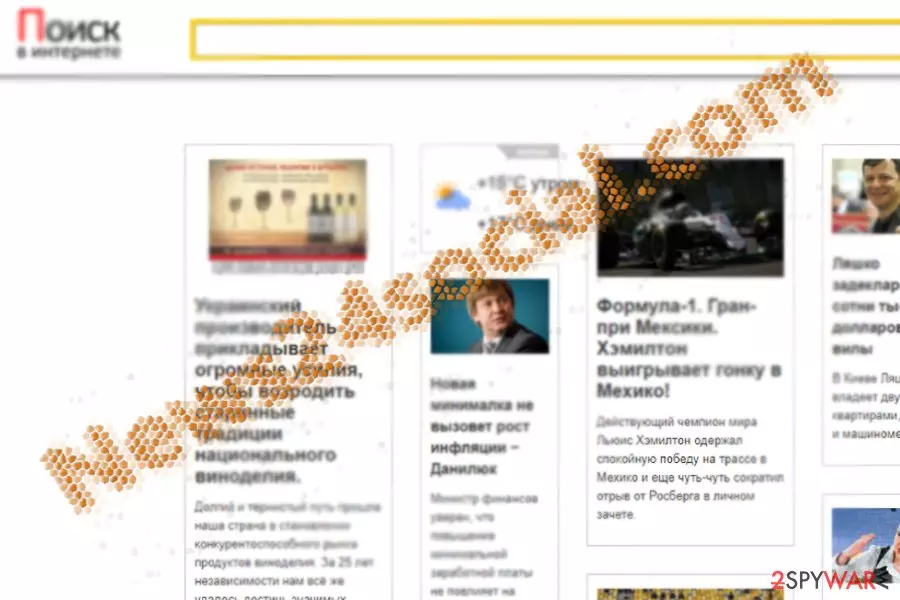
News24social.com virus is classified as a search engine. All might seem fine and dandy except the fact that it does not contain several elements necessary for a reliable website:
- Privacy policy
- Terms of Use
- Contact information
- HTTPS protocol
Considering the latter aspect, websites without this indicator are subject to a virtual assault. In addition, the fact that the developers keep their identity secret without providing necessary contact details about does not reassuring as well.
The privacy policy should also contain information on what kind of information this website collects. If it does, you might also wonder how much data is used. Without such documents, one might suspect that the website trades information with third parties.[1] Therefore, this search engine has been labeled as a browser hijacker. If you have been getting redirected to this website, you can remove News24social.com web scripts faster with SpyHunterCombo Cleaner or MalwarebytesMalwarebytes.
It is commendable that this PUP site is not aggressive as YeaDesktop or Incredibar hijackers. Furthermore, this search engine uses Google as the main database. Though it provides seemingly the same search results as the original Google search tool, sometimes it behaves oddly. For example, if you are looking for information in Russian[2], it delivers some results in Ukrainian.
Despite how useful this domain may seem, the fact that this search engine is a counterpart of several others: workno.ru, teryeru.ru, etc., suggests that its authors focus only on maximizing their revenue.
As discussed above, without a privacy policy, this website does not only spark suspicions. If the hijacker collects data about your browsing habits, after all, your privacy might be at risk.[3] Thus, you should perform News24social removal.
Promoting PUP products leads to silent infiltrations of browser-based threats
Since this website is registered in the .com domain, you are likely to get redirected there if you were looking for a news portal. Alternatively, since the hijacker cooperates with third parties, you might also find yourself here after you click on the ads promoted there.
Likewise, the hijack does not exist. In any case, you should be wary of the PUP distribution method. Certain browser hijackers travel along with free applications. Instead of choosing “Basic” settings, opt for “Custom” mode. Proceed carefully via the stages to spot unwanted optional add-ons. Unmark them and only then install the primary program.
Get rid of News24social.com with tools designed for security
If you are forcefully misguided to this site, remove News24social virus elements simply by eliminating its web scripts and cookies. You can do so manually by resetting the browser or use the assistance of an anti-spyware tool.
This tool will complete News24social.com removal within a couple of minutes. Check whether you did not accidentally enable any shady extensions or add-ons related to this site. You can find guidelines below that will explain how to cease the PUP and the threat that causes all redirects.
Uninstall from Windows
Uninstall from Windows 10/8:
- Type Control Panel into the Windows search box and open the result.
- Under Programs, select Uninstall a program.


Uninstall from Windows 7/XP:
- Click on Windows Start > Control Panel (Windows XP users should click on Add/Remove Programs).
- In Control Panel, select Programs > Uninstall a program.


Remove the unwanted program:
- In the Programs and Features window, look for any recently installed suspicious entries, select them, and click Uninstall.
- If User Account Control appears, click Yes to confirm, then complete the removal.


Delete from macOS
Remove the unwanted application:
- From the menu bar, select Go > Applications.
- In the Applications folder, look for any suspicious entries, then drag them to Trash (or right-click and pick Move to Trash).


Delete leftover files and folders:
- Select Go > Go to Folder.
- Enter /Library/Application Support and remove any suspicious folders related to the unwanted program.
- Repeat the same check in the /Library/LaunchAgents and /Library/LaunchDaemons folders, deleting any suspicious entries.

- Finally, empty the Trash to permanently remove the leftovers.

Remove from Microsoft Edge
Delete unwanted extensions from MS Edge:
- Select Menu (three horizontal dots at the top-right of the browser window) and pick Extensions.
- From the list, pick the extension and click on the Gear icon.
- Click Remove.


Clear cookies and other browser data:
- Click on the Menu (three horizontal dots at the top-right of the browser window) and select Settings > Privacy, search, and services..
- Under Clear browsing data, pick Choose what to clear.
- Select Cookies and other site data and Cached images and files. (apart from passwords, although you might want to include Media licenses as well, if applicable) and click on Clear.


Restore new tab and homepage settings:
- Click the menu icon and choose Settings.
- Then find On startup section.
- Click Remove next to any suspicious startup page.
Reset MS Edge if the above steps did not work:
- Press on Ctrl + Shift + Esc to open Task Manager.
- Click on More details arrow at the bottom of the window.
- Select Details tab.
- Now scroll down and locate every entry with Microsoft Edge name in it. Right-click on each of them and select End Task to stop MS Edge from running.


Instructions for Chromium-based Edge
Delete extensions from MS Edge (Chromium):
- Open Edge and click select Settings > Extensions.
- Delete unwanted extensions by clicking Remove.


Clear cache and site data:
- Click on Menu and go to Settings.
- Select Privacy, search and services.
- Under Clear browsing data, pick Choose what to clear.
- Under Time range, pick All time.
- Select Clear now.


Reset Chromium-based MS Edge:
- Click on Menu and select Settings.
- On the left side, pick Reset settings.
- Select Restore settings to their default values.
- Confirm with Reset.
- This will disable extensions and reset startup pages but will not delete bookmarks, saved passwords, or browsing history.


Remove from Mozilla Firefox (FF)
Remove dangerous extensions:
- Open Mozilla Firefox browser and click on the Menu (three horizontal lines at the top-right of the window).
- Select Add-ons.
- In here, select the unwanted extension and click Remove.


Reset the homepage:
- Click three horizontal lines at the top right corner to open the menu.
- Choose Settings.
- Under Home, set your preferred homepage and new tab settings.
Clear cookies and site data:
- Click Menu and pick Settings.
- Go to Privacy & Security section.
- Scroll down to locate Cookies and Site Data.
- Click on Clear Data...
- Select Cookies and Site Data and Temporary cached files and pages, then click Clear.


Reset Mozilla Firefox
If clearing the browser as explained above did not help, reset Mozilla Firefox:
- Open Mozilla Firefox browser and click the Menu.
- Go to Help and then choose Troubleshooting Information.

- Under Give Firefox a tune up section, click on Refresh Firefox...
- Once the pop-up shows up, confirm the action by pressing on Refresh Firefox.



Remove from Google Chrome
Delete malicious extensions from Google Chrome:
- Open Google Chrome, click on the Menu (three vertical dots at the top-right corner) and select More tools > Extensions.
- In the newly opened window, you will see all the installed extensions. Uninstall all suspicious extensions related to the unwanted program by clicking Remove.


Clear cache and web data from Chrome:
- Click on Menu and pick Settings.
- Under Privacy and security, select Clear browsing data.
- Select Browsing history, Cookies and other site data, as well as Cached images and files.
- Click Clear data.


Change your homepage:
- Click menu and choose Settings.
- Look for a suspicious site in the On startup section.
- Click on Open a specific or set of pages and click on three dots to find the Remove option.
Reset Google Chrome:
If the previous methods did not help you, reset Google Chrome to eliminate all the unwanted components:
- Click on Menu and select Settings.
- In the Settings, scroll down and click Advanced.
- Scroll down and locate Reset and clean up section.
- Now click Restore settings to their original defaults.
- Confirm with Reset settings.


Delete from Safari
Remove dangerous extensions:
- Open Safari, click Safari in the menu at the top-left of the screen, and select Preferences.
- Go to the Extensions tab, look for any suspicious entries, and click Uninstall to remove them.


Clear history and website data:
- Click Safari in the menu and pick Clear History.
- Set Clear to all history and confirm with Clear History.


Reset Safari:
- Click Safari in the menu and select Preferences > Advanced.
- Enable Show Develop menu in menu bar.
- From the menu bar, click Develop and select Empty Caches.


Did this guide help?
Be the first to comment