

Search.hgomaps.co: maps, news, and ads
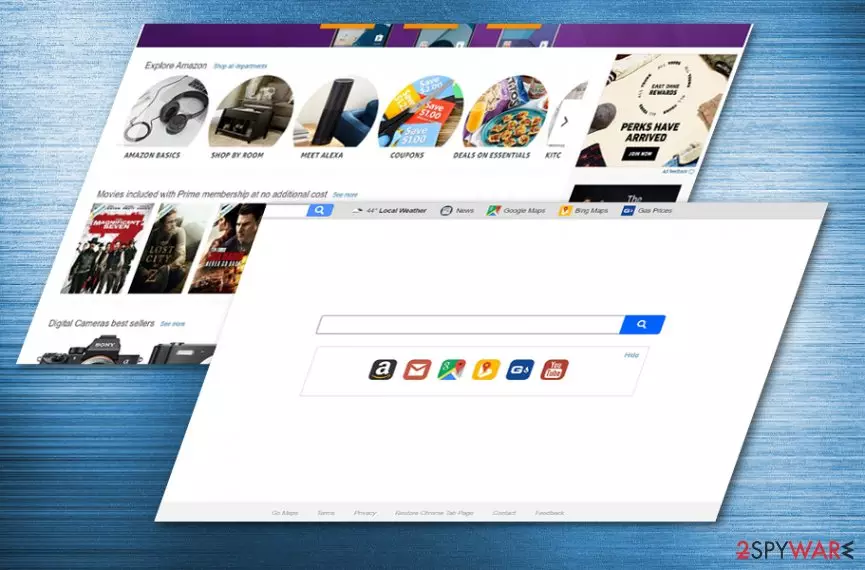
Search.hgomaps.co virus implies the name of another search tool designed by Polarity Technologies Ltd. The latter company has gained notorious popularity, as it has continued creating multiple search tools which for some or other reasons are labeled as browser hijackers.
They are not as aggressive as Cleanserp virus or other more typical browser hijackers. The search tools of this company are unlikely to occupy your hijacker. However, it is possible that you might set It accidentally when you install a new program.
Polarity search engines usually focus on these topics:
- Shopping
- Games
- Weather forecast
- News
- Multiple Email accounts
- Sports
- Movie streaming
Likewise, if you are looking for a new search engine with links to either of the above-mentioned destinations, you are likely to encounter Polarity Technologies search tool. Furthermore, since they promote Revcontent ads, likewise, the probability of encounter is higher.
Search.hgomaps.co focuses on attracting users with links to map sites. Alternatively known as Go Maps hijacker, it includes links to Local Weather, News, Google Maps, Bing Maps, and Gas Prices sites.
Speaking of the pros of search.hgomaps.co, it supports security plug-ins. Furthermore, advertising is relatively medium. On the other hand, you may dislike the fact that it collects certain information about your browsing habits and shares it with business partners.
Likewise, the number of ads might increase. Within a while, they may become more personalized. Though such pay-per-click[1] advertising is beneficial for the two parties—the developer of the search tool and service providers — the third party – users – might get bothered by the outcomes of clicking on such notification.
The case of Taboola ads[2] revealed that it is not so difficult to get to a scam site even clicking on a notification on a legitimate site. Lastly, you may be bothered by occasional search.hgomaps.co redirect.
Due to the possibility to get directed to a poorly protected sponsored site, it is recommended to eliminate the PUP. You can perform search.hgomaps.co removal faster with FortectIntego or MalwarebytesMalwarebytes.
PUP transmission trends
You can find the PUP on its legitimate site. In addition, it is possible that you may get redirected there after you click on a specific link on a sponsored website. There is no information about “search.hgomaps.co hijack.”
In other words, there are no reports yet that the PUP is promoted as an add-on to other free programs. In any case, remain vigilant while installing freeware. Opt for “Advanced” settings and deselect optional tools. Now let us discuss how you can quickly remove search.hgomaps.co.
Delete search.hgomaps.co from the main browsers
It is quite easy to get rid of the hijacker. You can remove search.hgomaps.co virus with the assistance of manual instructions shown below. Alternatively, there is a faster solution. Anti-malware tool helps perform search.hgomaps.co removal faster. You can combine these two methods to ensure that no web scripts remain. This hijacker might appear in other than English sites, for example, Portuguese or Estonian[3].
Uninstall from Windows
Uninstall from Windows 10/8:
- Type Control Panel into the Windows search box and open the result.
- Under Programs, select Uninstall a program.


Uninstall from Windows 7/XP:
- Click on Windows Start > Control Panel (Windows XP users should click on Add/Remove Programs).
- In Control Panel, select Programs > Uninstall a program.


Remove the unwanted program:
- In the Programs and Features window, look for any recently installed suspicious entries, select them, and click Uninstall.
- If User Account Control appears, click Yes to confirm, then complete the removal.


Delete from macOS
Remove the unwanted application:
- From the menu bar, select Go > Applications.
- In the Applications folder, look for any suspicious entries, then drag them to Trash (or right-click and pick Move to Trash).


Delete leftover files and folders:
- Select Go > Go to Folder.
- Enter /Library/Application Support and remove any suspicious folders related to the unwanted program.
- Repeat the same check in the /Library/LaunchAgents and /Library/LaunchDaemons folders, deleting any suspicious entries.

- Finally, empty the Trash to permanently remove the leftovers.

Reset Internet Explorer
Remove dangerous add-ons:
- Open Internet Explorer, click on the Gear icon (IE menu) on the top-right corner of the browser
- Pick Manage Add-ons.
- You will see a Manage Add-ons window. Here, look for suspicious plugins. Click on these entries and select Disable.


Change your homepage if it was altered:
- Open IE and click on the Gear icon.
- Select Internet Options.
- In the General tab, delete the Home page address and replace it by your preferred one (for example, Google.com).
- Click Apply and then select OK.


Delete temporary files:
- Press on the Gear icon and select Internet Options.
- Under Browsing history, click Delete...
- Select relevant fields and press Delete.


Reset Internet Explorer:
- Click on Gear icon > Internet options and select Advanced tab.
- Select Reset.
- In the new window, check Delete personal settings and select Reset.


Remove from Microsoft Edge
Delete unwanted extensions from MS Edge:
- Select Menu (three horizontal dots at the top-right of the browser window) and pick Extensions.
- From the list, pick the extension and click on the Gear icon.
- Click Remove.


Clear cookies and other browser data:
- Click on the Menu (three horizontal dots at the top-right of the browser window) and select Settings > Privacy, search, and services..
- Under Clear browsing data, pick Choose what to clear.
- Select Cookies and other site data and Cached images and files. (apart from passwords, although you might want to include Media licenses as well, if applicable) and click on Clear.


Restore new tab and homepage settings:
- Click the menu icon and choose Settings.
- Then find On startup section.
- Click Remove next to any suspicious startup page.
Reset MS Edge if the above steps did not work:
- Press on Ctrl + Shift + Esc to open Task Manager.
- Click on More details arrow at the bottom of the window.
- Select Details tab.
- Now scroll down and locate every entry with Microsoft Edge name in it. Right-click on each of them and select End Task to stop MS Edge from running.


Instructions for Chromium-based Edge
Delete extensions from MS Edge (Chromium):
- Open Edge and click select Settings > Extensions.
- Delete unwanted extensions by clicking Remove.


Clear cache and site data:
- Click on Menu and go to Settings.
- Select Privacy, search and services.
- Under Clear browsing data, pick Choose what to clear.
- Under Time range, pick All time.
- Select Clear now.


Reset Chromium-based MS Edge:
- Click on Menu and select Settings.
- On the left side, pick Reset settings.
- Select Restore settings to their default values.
- Confirm with Reset.
- This will disable extensions and reset startup pages but will not delete bookmarks, saved passwords, or browsing history.


Remove from Mozilla Firefox (FF)
Remove dangerous extensions:
- Open Mozilla Firefox browser and click on the Menu (three horizontal lines at the top-right of the window).
- Select Add-ons.
- In here, select the unwanted extension and click Remove.


Reset the homepage:
- Click three horizontal lines at the top right corner to open the menu.
- Choose Settings.
- Under Home, set your preferred homepage and new tab settings.
Clear cookies and site data:
- Click Menu and pick Settings.
- Go to Privacy & Security section.
- Scroll down to locate Cookies and Site Data.
- Click on Clear Data...
- Select Cookies and Site Data and Temporary cached files and pages, then click Clear.


Reset Mozilla Firefox
If clearing the browser as explained above did not help, reset Mozilla Firefox:
- Open Mozilla Firefox browser and click the Menu.
- Go to Help and then choose Troubleshooting Information.

- Under Give Firefox a tune up section, click on Refresh Firefox...
- Once the pop-up shows up, confirm the action by pressing on Refresh Firefox.



Remove from Google Chrome
Delete malicious extensions from Google Chrome:
- Open Google Chrome, click on the Menu (three vertical dots at the top-right corner) and select More tools > Extensions.
- In the newly opened window, you will see all the installed extensions. Uninstall all suspicious extensions related to the unwanted program by clicking Remove.


Clear cache and web data from Chrome:
- Click on Menu and pick Settings.
- Under Privacy and security, select Clear browsing data.
- Select Browsing history, Cookies and other site data, as well as Cached images and files.
- Click Clear data.


Change your homepage:
- Click menu and choose Settings.
- Look for a suspicious site in the On startup section.
- Click on Open a specific or set of pages and click on three dots to find the Remove option.
Reset Google Chrome:
If the previous methods did not help you, reset Google Chrome to eliminate all the unwanted components:
- Click on Menu and select Settings.
- In the Settings, scroll down and click Advanced.
- Scroll down and locate Reset and clean up section.
- Now click Restore settings to their original defaults.
- Confirm with Reset settings.


Did this guide help?
Be the first to comment