

Critical Chrome Update is the fake alert that drops Kovter.C malware on the computer
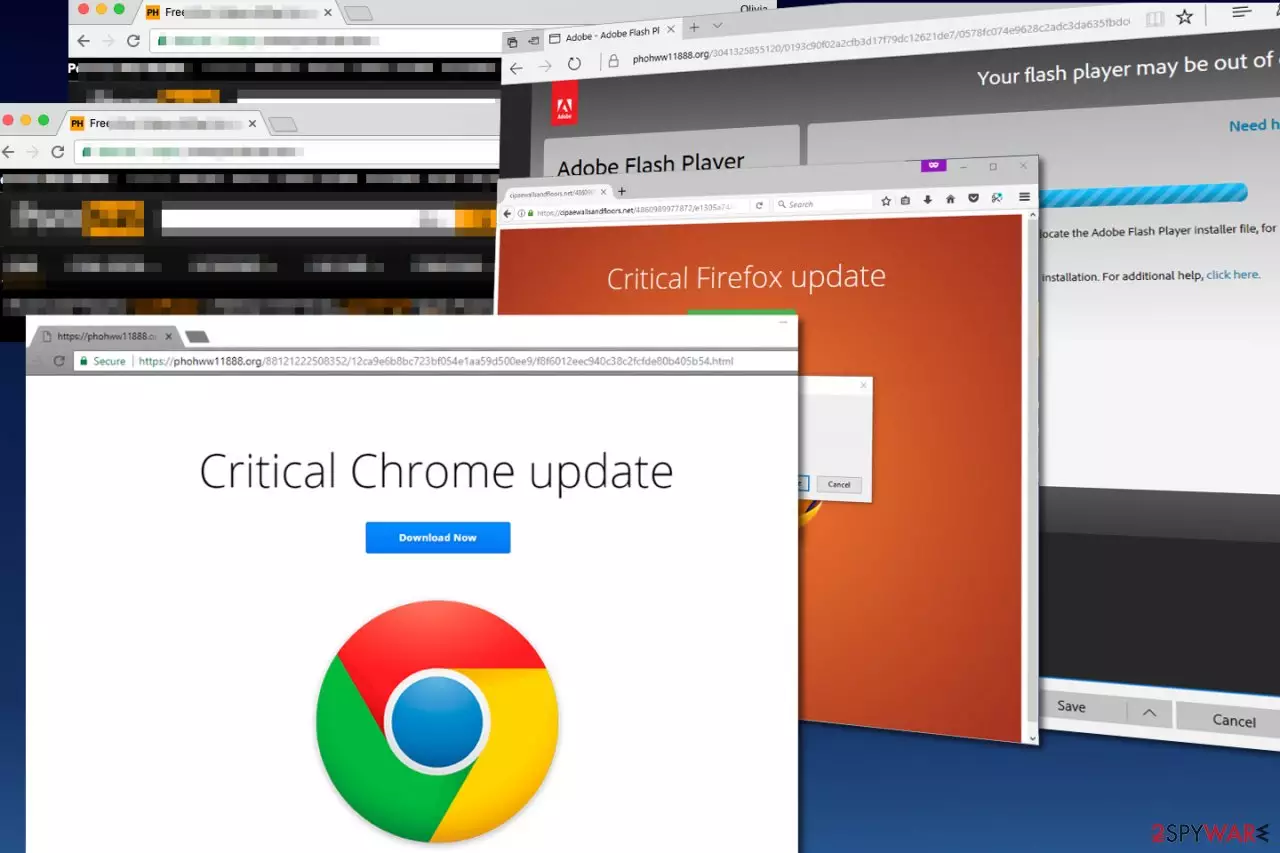
Critical Chrome Update is the scam that displays fake alerts about the needed browser or system updates and this way tricks people into installing other possibly malicious programs to the computer. If you are constantly redirected and such pop-ups go to your screen repeatedly, you should check your computer for Chrome virus – a potentially unwanted program that can be secretly running on the system.
Note that Critical Chrome Update virus is totally malicious as it can emerge on your screen after clicking on one of Traffic Junky ads.[1] This ad-supported network is known to be serving promotional content on adult-only websites, and therefore visitors of these domains fell victims to KovCoreG malvertising attack[2] that pushes Kovter virus to victims’ computer. Installation of severe malware as such can also be a result of constant alerts about alleged updates.
| Name | Critical Chrome Update scam |
|---|---|
| Category | Malware |
| Family | Chrome virus |
| Symptoms | Delivers fake alerts, warning messages claiming about needed software, updates or additional programs. Tricks into installing fake applications, rogue tools |
| Main danger | Infects the system with malware, in particular, trojans and ransom-demanding threats |
| Distribution | Software bundles, PUPs installed on the system already, deceptive ads, software cracks |
| Elimination | For removal, use a reliable anti-malware program |
Critical Chrome Update scam is a social engineering attack or a campaign based on technical support scam tactics. Unfortunately, such messages and various alerts can lead to the installation of rogue tools, applications, useless programs.
However, scams like this, in most cases, deliver messages and redirect to questionable or even malicious domains as hosts:
- iexaidlepro.org
- johphblogger-hints-and-tips.org
- tahxiintimes-niedersachsen.org
These pop-ups can also provide messages with phone numbers that claim to connect victims with the technical support team. Nevertheless, they are fake, and official technical support services are not delivering messages like this, especially are not encouraging to call questionable numbers. As a result, remove Critical Chrome Update virus without interacting and calling the provided number or contacting people behind the threat in any other way.
To go back to your previous browsing, get an automatic anti-malware tool and clean the machine fully. The proper scam removal requires tools like SpyHunterCombo Cleaner, MalwarebytesMalwarebytes so that the system gets fully recovered.

A detailed scheme of the Critical Chrome Update scam functionality
After managing to compromise the Traffic Junky ad network, which serves ads via popular adult-oriented sites such as Pornhub, cybercriminals are now capable of serving deceptive via common web pages. As a result, unsuspecting users can easily get infected with click-fraud malware known as Kovter Trojan.
Users who click on such ads are exposed to a malvertising attack that redirects them to deceptive pages that are picked based on their web browser used. Following the browser type and version, victims receive bogus offers to install one of these updates:
- Critical Chrome Update
- Critical Firefox Update
- Adobe Flash Player update (Microsoft Edge/Internet Explorer users).
The final alert is picked using a JavaScript code that is the same as the one used in Neutrino and NeutrAds.
Research reveals that the attack chain starts with a redirect from advertisingms[.]com domain which corrupts the final link and throws the victim to a compromised malware-serving site. According to Proofpoint, this domain “inserts a call hosted behind KeyCDN,” which happens to be a giant content delivery network.
Critical Chrome Update scam suggests installing an update for the popular web browser, however, instead of updating the browser, it drops a ZIP archive that contains a runme.js file. Once executed, it addresses the server responsible for the social engineering attack.[3] The .JS file the downloads two files to victim’s computer – .flv and .mp4 format file.
FLV file consists of three random digits, and the rest of them belong to an RC4 key. The MP4 record is encrypted with this key and hex-encoded. The MP4 file also stores a Powershell script that contains shellcode used to download and execute AVI file (Kovter virus).

Particular functions of the virus
Once executed, Kovter virus establishes itself into Windows Registry rather than dropping some files on the system. This way, malicious software attempts to avoid detection. Besides, the virus sets up specific autorun entries, which runs the malware as soon as the victim starts the computer.
The malware operates silently, and the only noticeable problem is a slight decrease in the computer’s performance. However, the majority of users might not suspect anything if they do not have anti-malware programs installed on their PCs.
It is possible to notice and avoid possible infections
Dieviren.de team says[4] that the trick to avoid installing the malicious Critical Chrome Update or Urgent Chrome Update, as well as malware delivered via deceptive versions of Flash Player or other well-known programs is to never install updates from random Internet sites.
Although cybercriminals use various techniques to trick victims into clicking on malicious advertisements, the method that is based on fake “updates” is actually very common and can be recognized easily. Such a technique mainly gets used to deliver more severe malware and directly infect the machine with threats.
When deceptive advertisement looks legit and includes official logos of the promoted software, it seems to be trustful and people tend to click on such content. However, you should never rely on the pop-up that claims you need to install or update anything randomly. The official software creators and providers are not showing such messages on browsers.
If you suspect that you need an update for Chrome – simply visit the official browser’s developers’ site and check whether there is an update available. However, when installing an application or direct program/ software update be aware of the additional installations. Choose Advanced or Custom options to avoid any unwanted applications.
Remove Kovter.C virus and stop the scammy messages
If you were redirected to a site containing Critical Chrome Update virus, close the web page immediately. If it downloaded the malicious ZIP file to your computer automatically, do not open it and delete it as soon as possible.
However, if you launched the deceptive record, run anti-malware software as soon as you can (ideally, do it after performing a clean system boot).
To finish the removal, update your anti-malware software and scan your computer several times. It is essential to delete Kovter Trojan as soon as possible as it can perform a series of illegal activities on your computer.
You should remove virus with updated anti-spyware to be totally sure that all the related files, applications, and even malware get eliminated during one system check.
Uninstall from Windows
Uninstall from Windows 10/8:
- Type Control Panel into the Windows search box and open the result.
- Under Programs, select Uninstall a program.


Uninstall from Windows 7/XP:
- Click on Windows Start > Control Panel (Windows XP users should click on Add/Remove Programs).
- In Control Panel, select Programs > Uninstall a program.


Remove the unwanted program:
- In the Programs and Features window, look for any recently installed suspicious entries, select them, and click Uninstall.
- If User Account Control appears, click Yes to confirm, then complete the removal.


Remove from Microsoft Edge
Delete unwanted extensions from MS Edge:
- Select Menu (three horizontal dots at the top-right of the browser window) and pick Extensions.
- From the list, pick the extension and click on the Gear icon.
- Click Remove.


Clear cookies and other browser data:
- Click on the Menu (three horizontal dots at the top-right of the browser window) and select Settings > Privacy, search, and services..
- Under Clear browsing data, pick Choose what to clear.
- Select Cookies and other site data and Cached images and files. (apart from passwords, although you might want to include Media licenses as well, if applicable) and click on Clear.


Restore new tab and homepage settings:
- Click the menu icon and choose Settings.
- Then find On startup section.
- Click Remove next to any suspicious startup page.
Reset MS Edge if the above steps did not work:
- Press on Ctrl + Shift + Esc to open Task Manager.
- Click on More details arrow at the bottom of the window.
- Select Details tab.
- Now scroll down and locate every entry with Microsoft Edge name in it. Right-click on each of them and select End Task to stop MS Edge from running.


Instructions for Chromium-based Edge
Delete extensions from MS Edge (Chromium):
- Open Edge and click select Settings > Extensions.
- Delete unwanted extensions by clicking Remove.


Clear cache and site data:
- Click on Menu and go to Settings.
- Select Privacy, search and services.
- Under Clear browsing data, pick Choose what to clear.
- Under Time range, pick All time.
- Select Clear now.


Reset Chromium-based MS Edge:
- Click on Menu and select Settings.
- On the left side, pick Reset settings.
- Select Restore settings to their default values.
- Confirm with Reset.
- This will disable extensions and reset startup pages but will not delete bookmarks, saved passwords, or browsing history.


Remove from Mozilla Firefox (FF)
Remove dangerous extensions:
- Open Mozilla Firefox browser and click on the Menu (three horizontal lines at the top-right of the window).
- Select Add-ons.
- In here, select the unwanted extension and click Remove.


Reset the homepage:
- Click three horizontal lines at the top right corner to open the menu.
- Choose Settings.
- Under Home, set your preferred homepage and new tab settings.
Clear cookies and site data:
- Click Menu and pick Settings.
- Go to Privacy & Security section.
- Scroll down to locate Cookies and Site Data.
- Click on Clear Data...
- Select Cookies and Site Data and Temporary cached files and pages, then click Clear.


Reset Mozilla Firefox
If clearing the browser as explained above did not help, reset Mozilla Firefox:
- Open Mozilla Firefox browser and click the Menu.
- Go to Help and then choose Troubleshooting Information.

- Under Give Firefox a tune up section, click on Refresh Firefox...
- Once the pop-up shows up, confirm the action by pressing on Refresh Firefox.



Remove from Google Chrome
Delete malicious extensions from Google Chrome:
- Open Google Chrome, click on the Menu (three vertical dots at the top-right corner) and select More tools > Extensions.
- In the newly opened window, you will see all the installed extensions. Uninstall all suspicious extensions related to the unwanted program by clicking Remove.


Clear cache and web data from Chrome:
- Click on Menu and pick Settings.
- Under Privacy and security, select Clear browsing data.
- Select Browsing history, Cookies and other site data, as well as Cached images and files.
- Click Clear data.


Change your homepage:
- Click menu and choose Settings.
- Look for a suspicious site in the On startup section.
- Click on Open a specific or set of pages and click on three dots to find the Remove option.
Reset Google Chrome:
If the previous methods did not help you, reset Google Chrome to eliminate all the unwanted components:
- Click on Menu and select Settings.
- In the Settings, scroll down and click Advanced.
- Scroll down and locate Reset and clean up section.
- Now click Restore settings to their original defaults.
- Confirm with Reset settings.


Delete from Safari
Remove dangerous extensions:
- Open Safari, click Safari in the menu at the top-left of the screen, and select Preferences.
- Go to the Extensions tab, look for any suspicious entries, and click Uninstall to remove them.


Clear history and website data:
- Click Safari in the menu and pick Clear History.
- Set Clear to all history and confirm with Clear History.


Reset Safari:
- Click Safari in the menu and select Preferences > Advanced.
- Enable Show Develop menu in menu bar.
- From the menu bar, click Develop and select Empty Caches.


Did this guide help?
Be the first to comment