

Mac Auto Fixer is a potentially unwanted application which claims to fix Mac-related issues
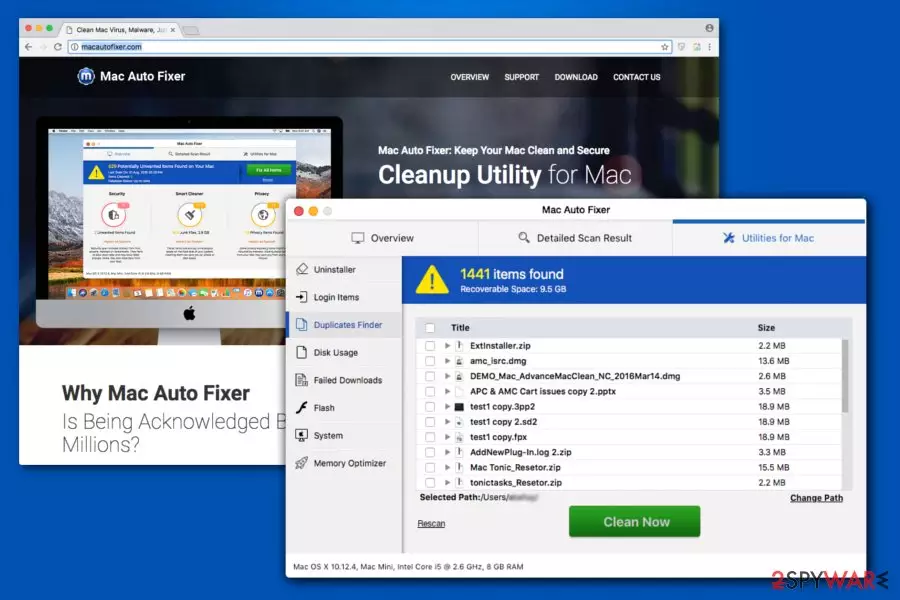
Mac Auto Fixer is an unreliable system optimization tool that was developed by an infamous developer called PCVARK. The main sign showing that your PC is infected is the Maftask task that can be found running in the computer's Activity Monitor. This potentially unwanted program (PUP)[1] is similar to Advanced Mac Cleaner, Mac Tonic, Mac Mechanic, Mac Shiny, and similar suspicious applications that all promise to help users improve their PCs' functionality. However, if you have been wondering is this program a virus, we definitely recommend you to get rid of it. Despite its attractive description, GUI, and seemingly effective functionality, this program seems to imitate its activity on the system and seeks the only aim – your money. Don't buy its useless licensed version offered as the only way to improve the computer's work! There are plenty of free programs available on the market these days.
| Name | Mac Auto Fixer |
|---|---|
| Type | System tool; PUP; adware |
| Danger level | Medium. Does not perform system changes |
| related task | Maftask |
| Symptoms | Performs questionable system scans and reports about invented malware. Offers its paid license key as the only way to fix the system |
| main dangers | Spending your money on useless software; revealing your credit card information to strangers |
| Distribution | Third-party apps; bundling distribution technique |
| Elimination | You can uninstall potentially unwanted programs manually or clean the machine with anti-malware tools |
| Repair | Do not forget to restore affected or corrupted files. Find and fix such issues with FortectIntego |
Mac Auto Fixer virus has been bothering PC users for more than a year now.[2] Unreliable system optimization tools are not malicious apps that pose serious harm to PC systems. However, they rely on misleading distribution techniques, cause fake warning messages and then start pushing their victims into buying their license. In other terms, users are not advised to keep this program on their computers as it employs misleading techniques to sell its 118 € worth of license. Besides, it is not capable of fixing Mac-related problems.
Another issue related to its distribution techniques. Note that this app can be installed on the computers together with third-party tools or via fake ads offering to check the system for free. Likewise, many people do not even notice this potentially unwanted program until it starts delivering intrusive and less than reliable Mac Auto Fixer ads and scanners that include the list of invented errors.
Once inside the system, the app performs system scans that report numerous cyber threats and errors. The list of scan results includes the following:
- Infected files;
- Junk items;
- Privacy exposing data.
According to the experts, it is not hard to check the reliability of the unwanted items found by the questionable tool. You should install an alternative optimization tool, which is known to be reliable, and run a full system scan. You can also use your own anti-virus software. Once it finishes its scan, compare its results with the ones displayed by the PUP. We can guarantee that there will be no errors similar to the ones included in the first scan.
The scan results and cyber threats detected by this program are non-existent and merely shown just to trick gullible people into purchasing the full version of the program. Likewise, Mac Auto Fixer virus term is a popular description used by people online.

Furthermore, users who have Mac Auto Fixer are disappointed as it causes unwanted redirects to other questionable sites. Be aware that the developers of this software are not responsible for the content of those websites. Thus, users might end up on malware distribution pages and infect their Mac computers with threats similar to the potentially unwanted application.
It is evident that this fraudulent system optimization tool is not worth your trust. Likewise, the best decision would be to switch to a professional security tool and remove the app without dealing with the useless software. If you want to speed up your computer's functionality, get FortectIntego or another reliable software that is capable of doing that.
For Mac Auto Fixer removal, you can use manual removal guide presented below. In case your computer is also infected with Mac Mechanic or MacShiny, you will need to uninstall them as well. Before that, launch Activity Monitor to force quit the PUP. Thus, a full system scan is recommended after uninstalling these apps as it helps you make sure that all unwanted components are gone. To prevent the reappearance of this PUP, make sure you delete the intruder together with its leftover files.
Bundling: PUPs infiltrate the system without the user's consent
There are several distribution techniques used to spread potentially unwanted programs (PUPs). Although, the most prominent and widely used one remains bundling as it does not require the user's consent to infiltrate the system. This method allows the developers to offer their questionable tools as one program with another third-party app.
However, there is a way how users can detect and reject potentially unwanted programs during the installation of freeware. The first step is to never agree with Quick or Recommended settings. Instead, you MUST pick Advanced or Custom ones as this is the only way to reveal hidden PUPs.
Keep in mind that they come as optional components. Likewise, you should attentively check each installation step and search for pre-selected items. PUPs may be marked as “I agree to install XXX,” or “Get XXX now” check-marks. De-select them and double-check your system with an antivirus.
How to remove Mac Auto Fixer from the affected PC system
If you have been wondering how to get rid of the app from your operating system, note that you are dealing with a potentially unwanted program that can run numerous tasks in the system's background to stay active. According to PC security researchers,[3] you should check the Activity Monitor on your computer to disable the virus. For that:
- Open Utilities folder and locate the Activity Monitor;
- Here, find Mac Auto Fixer, click the mouse on it and click Quit Process;
- Select the Force Quit when a pop up asking if you would like to quit the executable shows up;
Once you perform these steps, you should proceed with the traditional method to uninstall the PUP. Note that potentially unwanted programs are sneaky cyber threats that can leave related elements after inappropriate elimination. Therefore, it is essential to remove the PUP with all its components from the system. Otherwise, the application might reappear after a while.
The best option to do after you take care of Mac Auto Fixer removal is to check the system with the help of a professional security tool. The antivirus will not only uninstall the leftover files PUP but will also get rid of other potentially unwanted programs that might be present on your system. For that, check the list of our recommendations below.
Delete from macOS
Remove the unwanted application:
- From the menu bar, select Go > Applications.
- In the Applications folder, look for any suspicious entries, then drag them to Trash (or right-click and pick Move to Trash).


Delete leftover files and folders:
- Select Go > Go to Folder.
- Enter /Library/Application Support and remove any suspicious folders related to the unwanted program.
- Repeat the same check in the /Library/LaunchAgents and /Library/LaunchDaemons folders, deleting any suspicious entries.

- Finally, empty the Trash to permanently remove the leftovers.

Remove from Microsoft Edge
Delete unwanted extensions from MS Edge:
- Select Menu (three horizontal dots at the top-right of the browser window) and pick Extensions.
- From the list, pick the extension and click on the Gear icon.
- Click Remove.


Clear cookies and other browser data:
- Click on the Menu (three horizontal dots at the top-right of the browser window) and select Settings > Privacy, search, and services..
- Under Clear browsing data, pick Choose what to clear.
- Select Cookies and other site data and Cached images and files. (apart from passwords, although you might want to include Media licenses as well, if applicable) and click on Clear.


Restore new tab and homepage settings:
- Click the menu icon and choose Settings.
- Then find On startup section.
- Click Remove next to any suspicious startup page.
Reset MS Edge if the above steps did not work:
- Press on Ctrl + Shift + Esc to open Task Manager.
- Click on More details arrow at the bottom of the window.
- Select Details tab.
- Now scroll down and locate every entry with Microsoft Edge name in it. Right-click on each of them and select End Task to stop MS Edge from running.


Instructions for Chromium-based Edge
Delete extensions from MS Edge (Chromium):
- Open Edge and click select Settings > Extensions.
- Delete unwanted extensions by clicking Remove.


Clear cache and site data:
- Click on Menu and go to Settings.
- Select Privacy, search and services.
- Under Clear browsing data, pick Choose what to clear.
- Under Time range, pick All time.
- Select Clear now.


Reset Chromium-based MS Edge:
- Click on Menu and select Settings.
- On the left side, pick Reset settings.
- Select Restore settings to their default values.
- Confirm with Reset.
- This will disable extensions and reset startup pages but will not delete bookmarks, saved passwords, or browsing history.


Remove from Mozilla Firefox (FF)
Remove dangerous extensions:
- Open Mozilla Firefox browser and click on the Menu (three horizontal lines at the top-right of the window).
- Select Add-ons.
- In here, select the unwanted extension and click Remove.


Reset the homepage:
- Click three horizontal lines at the top right corner to open the menu.
- Choose Settings.
- Under Home, set your preferred homepage and new tab settings.
Clear cookies and site data:
- Click Menu and pick Settings.
- Go to Privacy & Security section.
- Scroll down to locate Cookies and Site Data.
- Click on Clear Data...
- Select Cookies and Site Data and Temporary cached files and pages, then click Clear.


Reset Mozilla Firefox
If clearing the browser as explained above did not help, reset Mozilla Firefox:
- Open Mozilla Firefox browser and click the Menu.
- Go to Help and then choose Troubleshooting Information.

- Under Give Firefox a tune up section, click on Refresh Firefox...
- Once the pop-up shows up, confirm the action by pressing on Refresh Firefox.



Remove from Google Chrome
Delete malicious extensions from Google Chrome:
- Open Google Chrome, click on the Menu (three vertical dots at the top-right corner) and select More tools > Extensions.
- In the newly opened window, you will see all the installed extensions. Uninstall all suspicious extensions related to the unwanted program by clicking Remove.


Clear cache and web data from Chrome:
- Click on Menu and pick Settings.
- Under Privacy and security, select Clear browsing data.
- Select Browsing history, Cookies and other site data, as well as Cached images and files.
- Click Clear data.


Change your homepage:
- Click menu and choose Settings.
- Look for a suspicious site in the On startup section.
- Click on Open a specific or set of pages and click on three dots to find the Remove option.
Reset Google Chrome:
If the previous methods did not help you, reset Google Chrome to eliminate all the unwanted components:
- Click on Menu and select Settings.
- In the Settings, scroll down and click Advanced.
- Scroll down and locate Reset and clean up section.
- Now click Restore settings to their original defaults.
- Confirm with Reset settings.


Delete from Safari
Remove dangerous extensions:
- Open Safari, click Safari in the menu at the top-left of the screen, and select Preferences.
- Go to the Extensions tab, look for any suspicious entries, and click Uninstall to remove them.


Clear history and website data:
- Click Safari in the menu and pick Clear History.
- Set Clear to all history and confirm with Clear History.


Reset Safari:
- Click Safari in the menu and select Preferences > Advanced.
- Enable Show Develop menu in menu bar.
- From the menu bar, click Develop and select Empty Caches.


Did this guide help?
Be the first to comment