

Mao1.club is the program that causes redirects to dubious websites and fills in-browser search results with advertisements instead of valuable results
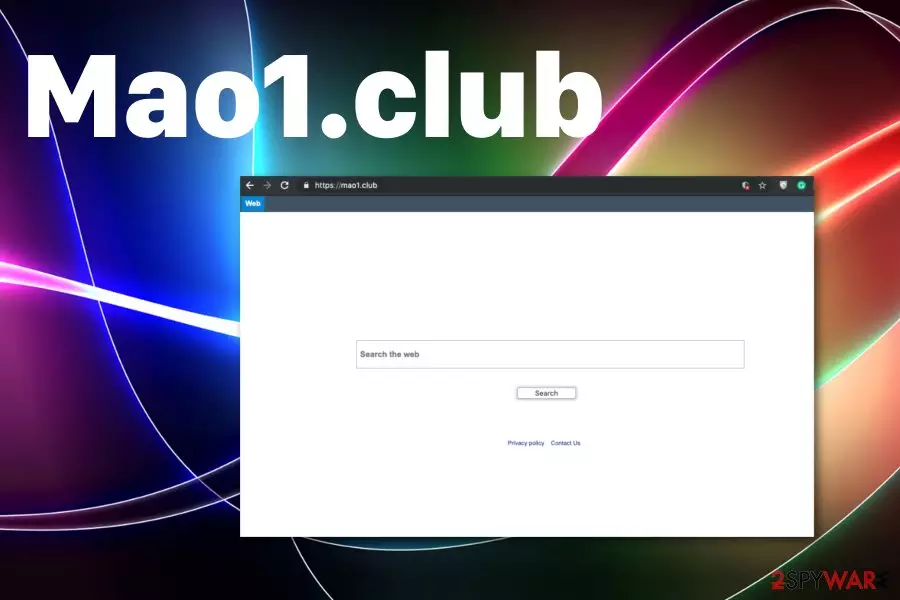
Mao1.club is the fake search engine that aims to trick people into interaction with shady pop-ups and websites by redirecting victims to malware pages. The site changes victims' browser settings and makes homepage, new tab and search engine set to its page, so all searches initiated on Mozilla Firefox, Google Chrome, Internet Explorer, or other browsers go to the ad-supported site. Instead of searching the internet via Google Search, this website delivers external links brought by Mao1.club search that also is known as Searchgg Custom Search.
All these results delivered by a hijack show irrelevant pages filled with in-text ads and hyperlinks. Many people claim that this issue, unfortunately, is not easily fixable. It is because potentially unwanted programs like this browser hijacker can install other applications and even change startup preferences or registry entries to ensure the persistence on the targeted machine. This is the reason why Mao1.club removal requires professional anti-malware tools.
Although it seems that the hijack is not malicious, QxSearch is the company that releases various PUPs to the internet to redirect your traffic and make money. All these hijackers can appear on your screen, additionally to Mao1.club PUP:
| Name | Mao1.club |
|---|---|
| Type | Browser hijacker[1] |
| Developer | QxSearch |
| Category | Potentially unwanted program[2] |
| Symptoms | Commercial content coming to the screen, redirects to suspicious pages, all in-browser searches delivering altered results |
| Purpose | Redirect online traffic to sponsored sites |
| Main danger | Tracks data and shares with third-party advertisers, might lead to privacy issues or even identity theft |
| Distribution | Software bundles, promotional content, deceptive advertisements |
| Elimination | Install anti-malware and remove Mao1.club. Try FortectIntego for system cleaning |
Mao1.club virus is the cyber threat that belongs to a category of potentially unwanted programs. This type of intruder has a few features unifying all browser-based threats:
- changed web browsers' homepage, new tab settings;
- in-browser search provider set to Mao1.club;
- modified preferences of the startup;
- advertisements injected on pages they shouldn't appear;
- pop-up ads, banners filling up the screen;
- additional browser content installed without users permission or knowledge;
- slow running machine and browser freezes.
Although these are the most common Mao1.club features, all of the symptoms can only be noticed when the machine is already infected and affected. However, potentially unwanted programs infiltrate machines using various deceptive techniques, which means that you cannot notice when and where this threat came from.
Since Mao1.club got installed without your knowledge and permission, you cannot delete it yourself. It is possible to remove potentially unwanted programs manually, but there is a risk that other applications get installed too. For this reason, you need to terminate the main PUP and related data with the help of professional anti-malware tools.

When Mao1.club changes various settings and preferences on the machine and does that without your approval or knowledge, it significantly affects the speed and performance of the PC. Additionally, it makes the elimination process difficult too.
You should rely on expert[3] opinion and get professional anti-malware tool for the proper Mao1.club removal. This is the method that we also recommend using since potentially unwanted programs come with other applications and can install them directly on the machine.
Also, another huge reason to remove Mao1.club as soon as possible is the data tracking issue that puts a risk on your personal information like IP address, location, email address, or even a full name. This problem is disclosed in the Privacy policy section of this fake search engine. The tracking cookie policy of the hijack states:
Cookies. When you use the Site, we may assign your computer one or more cookies, to facilitate access to our Site and to personalize your online experience. A cookies is a small piece of data that is stored in a user's computer for record keeping purposes. Through the use of a cookie, we may automatically collect information about you online activity in our Site, suce as the pages you visit, the links you click, and the actions you take within the Site. Most systems automatically accept cookies, but you can usually modify your browser setting to decline cookies. If you choose to decline cookies, please note that you may not be able to sign in or use some of the interactive features offered on or via the Site.
Common web infections are spread across the internet as free software
Various advertisements loading pages online are not uncommon, especially on social media or sites that already relates to advertisers. However, such content is harmless until you start visiting those pages continuously or click on every pop-up ad and banner that appears. Such commercial content can be filled with malicious material or lead to direct installs of rogue tools and potentially unwanted programs.
Nevertheless, the main technique used to distribute browser hijackers, toolbars, adware, or rogue system tools is software bundling. This is a marketing method that allows freeware providers to pack their products with PUPs and deliver those unwanted apps as a part of the installation setup.
Choosing Advanced or Custom installation options during such downloads allows seeing all the included programs and de-selecting unwanted programs when you don't need them. Going for recommended or quick installs automatically download all included apps.
Get rid of this Mao1.club virus and other potentially unwanted programs to reach wanted content online
To remove Mao1.club completely from the machine, you need to find all programs and files installed by the PUP itself or automatically during the infiltration. Unfortunately, doing this manually takes a long time and cannot ensure the full virus damage elimination.
However, automatic Mao1.club removal with anti-malware tools can give you the advantage of cleaning the damage, deleting associated files, and eliminating the main PUP. Download a trustworthy program and scan the system thoroughly to end all suspicious processes.
Uninstall from Windows
Uninstall from Windows 10/8:
- Type Control Panel into the Windows search box and open the result.
- Under Programs, select Uninstall a program.


Uninstall from Windows 7/XP:
- Click on Windows Start > Control Panel (Windows XP users should click on Add/Remove Programs).
- In Control Panel, select Programs > Uninstall a program.


Remove the unwanted program:
- In the Programs and Features window, look for any recently installed suspicious entries, select them, and click Uninstall.
- If User Account Control appears, click Yes to confirm, then complete the removal.


Delete from macOS
Remove the unwanted application:
- From the menu bar, select Go > Applications.
- In the Applications folder, look for any suspicious entries, then drag them to Trash (or right-click and pick Move to Trash).


Delete leftover files and folders:
- Select Go > Go to Folder.
- Enter /Library/Application Support and remove any suspicious folders related to the unwanted program.
- Repeat the same check in the /Library/LaunchAgents and /Library/LaunchDaemons folders, deleting any suspicious entries.

- Finally, empty the Trash to permanently remove the leftovers.

Reset Internet Explorer
Remove dangerous add-ons:
- Open Internet Explorer, click on the Gear icon (IE menu) on the top-right corner of the browser
- Pick Manage Add-ons.
- You will see a Manage Add-ons window. Here, look for suspicious plugins. Click on these entries and select Disable.


Change your homepage if it was altered:
- Open IE and click on the Gear icon.
- Select Internet Options.
- In the General tab, delete the Home page address and replace it by your preferred one (for example, Google.com).
- Click Apply and then select OK.


Delete temporary files:
- Press on the Gear icon and select Internet Options.
- Under Browsing history, click Delete...
- Select relevant fields and press Delete.


Reset Internet Explorer:
- Click on Gear icon > Internet options and select Advanced tab.
- Select Reset.
- In the new window, check Delete personal settings and select Reset.


Remove from Microsoft Edge
Delete unwanted extensions from MS Edge:
- Select Menu (three horizontal dots at the top-right of the browser window) and pick Extensions.
- From the list, pick the extension and click on the Gear icon.
- Click Remove.


Clear cookies and other browser data:
- Click on the Menu (three horizontal dots at the top-right of the browser window) and select Settings > Privacy, search, and services..
- Under Clear browsing data, pick Choose what to clear.
- Select Cookies and other site data and Cached images and files. (apart from passwords, although you might want to include Media licenses as well, if applicable) and click on Clear.


Restore new tab and homepage settings:
- Click the menu icon and choose Settings.
- Then find On startup section.
- Click Remove next to any suspicious startup page.
Reset MS Edge if the above steps did not work:
- Press on Ctrl + Shift + Esc to open Task Manager.
- Click on More details arrow at the bottom of the window.
- Select Details tab.
- Now scroll down and locate every entry with Microsoft Edge name in it. Right-click on each of them and select End Task to stop MS Edge from running.


Instructions for Chromium-based Edge
Delete extensions from MS Edge (Chromium):
- Open Edge and click select Settings > Extensions.
- Delete unwanted extensions by clicking Remove.


Clear cache and site data:
- Click on Menu and go to Settings.
- Select Privacy, search and services.
- Under Clear browsing data, pick Choose what to clear.
- Under Time range, pick All time.
- Select Clear now.


Reset Chromium-based MS Edge:
- Click on Menu and select Settings.
- On the left side, pick Reset settings.
- Select Restore settings to their default values.
- Confirm with Reset.
- This will disable extensions and reset startup pages but will not delete bookmarks, saved passwords, or browsing history.


Remove from Mozilla Firefox (FF)
Remove dangerous extensions:
- Open Mozilla Firefox browser and click on the Menu (three horizontal lines at the top-right of the window).
- Select Add-ons.
- In here, select the unwanted extension and click Remove.


Reset the homepage:
- Click three horizontal lines at the top right corner to open the menu.
- Choose Settings.
- Under Home, set your preferred homepage and new tab settings.
Clear cookies and site data:
- Click Menu and pick Settings.
- Go to Privacy & Security section.
- Scroll down to locate Cookies and Site Data.
- Click on Clear Data...
- Select Cookies and Site Data and Temporary cached files and pages, then click Clear.


Reset Mozilla Firefox
If clearing the browser as explained above did not help, reset Mozilla Firefox:
- Open Mozilla Firefox browser and click the Menu.
- Go to Help and then choose Troubleshooting Information.

- Under Give Firefox a tune up section, click on Refresh Firefox...
- Once the pop-up shows up, confirm the action by pressing on Refresh Firefox.



Remove from Google Chrome
Delete malicious extensions from Google Chrome:
- Open Google Chrome, click on the Menu (three vertical dots at the top-right corner) and select More tools > Extensions.
- In the newly opened window, you will see all the installed extensions. Uninstall all suspicious extensions related to the unwanted program by clicking Remove.


Clear cache and web data from Chrome:
- Click on Menu and pick Settings.
- Under Privacy and security, select Clear browsing data.
- Select Browsing history, Cookies and other site data, as well as Cached images and files.
- Click Clear data.


Change your homepage:
- Click menu and choose Settings.
- Look for a suspicious site in the On startup section.
- Click on Open a specific or set of pages and click on three dots to find the Remove option.
Reset Google Chrome:
If the previous methods did not help you, reset Google Chrome to eliminate all the unwanted components:
- Click on Menu and select Settings.
- In the Settings, scroll down and click Advanced.
- Scroll down and locate Reset and clean up section.
- Now click Restore settings to their original defaults.
- Confirm with Reset settings.


Delete from Safari
Remove dangerous extensions:
- Open Safari, click Safari in the menu at the top-left of the screen, and select Preferences.
- Go to the Extensions tab, look for any suspicious entries, and click Uninstall to remove them.


Clear history and website data:
- Click Safari in the menu and pick Clear History.
- Set Clear to all history and confirm with Clear History.


Reset Safari:
- Click Safari in the menu and select Preferences > Advanced.
- Enable Show Develop menu in menu bar.
- From the menu bar, click Develop and select Empty Caches.


Did this guide help?
Be the first to comment