

ExpandedSkill is a malicious program that is designed to infiltrate Mac operating systems
ExpandedSkill is yet another member of the broad Adload adware family, which targets Macs exclusively. Like its predecessors ExploreParameter or SectionBrowser, the app uses an icon that consists of a magnifying glass in the teal or green background. Initially labeled as adware,[1] ExpandedSkill is a multi-functional threat that is capable of many things.
The injection is performed as soon as the permission to install the app is granted – typically by deceiving users into doing so. In most cases, people download the app within software bundle packages downloaded from torrent or similar insecure sites after they are tricked by fake Flash Player update prompts.
Once inside the system, the ExpandedSkill virus appends an extension to Safari, Google Chrome, Mozilla Firefox, or another web browser, and changes the homepage/net tab address to Safe Finder or another search provider. Searchers performed via hijacked browsers are altered, as users can see a multitude of sponsored links and ads. Since the app is installed with elevated permissions on the system, users might also see other unwanted extensions or apps installed on their macOS without permission.
| Name | ExpandedSkill |
| Type | Mac virus, adware, browser hijacker |
| Danger level | Medium to high – abuses AppleScript to remain on the system as long as possible |
| Malware family | Adload – a broad adware campaign that targets Mac users exclusively |
| Distribution | The app is usually not installed purposely: it is either installed via software bundle packages when rushing the installation of freeware/pirated installers or after being tricked by fake updates |
| Symptoms | Unknown browser extension installed on the system that is impossible to delete; homepage and new tab address altered to Safe Finder or another provider; increased amount of advertisements; browser redirects bring to potentially dangerous sites |
| Removal | The easiest way to eliminate unwarned and malicious software on Macs is by performing a full system scan with SpyHunterCombo Cleaner or MalwarebytesMalwarebytes security software. Alternatively, you can attempt to terminate the infection manually – we provide more details below |
| Optimization | For best performance and system remediation, we recommend using FortectIntego |
Adload malware family is among the most prominent macOS infections spread mostly via fake Flash Player updates or suspicious installers. While pirated apps are mostly being downloaded on purpose (and system warnings ignored), fake updates can be encountered on random websites around the web. Nonetheless, each time for the infiltration of the ExpandedSkill virus to be successful, users need to provide their AppleID credentials.
Even though adware is a huge problem for Apple, most of it is relatively harmless and can be eliminated just like any other app. However, ExpandedSkill removal might be a much more difficult task, as it abuses the built-in AppleScript in order to get installed on the system with elevated permissions. This allows the threat to inject malicious files into ApplicationSupport, Library, and other folders and establish a malicious profile.
Due to advanced functionality, the virus might install other unwanted or malicious applications on a compromised computer. Thus, users might find unknown browser extensions, fake security tools, and other unwanted software on their machines. To make matters worse, ExpandedSkill presence might indicate that your macOS is also infected with Shlayer Trojan or CrescentCore malware.
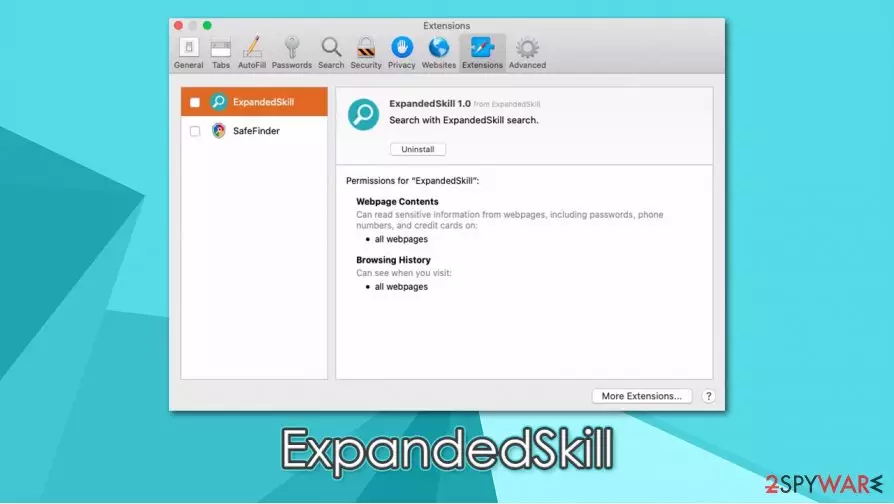
It is also very important to remove ExpandedSkill due to its information tracking capabilities. As previously mentioned, the infection changes web browser settings without permission and sets the homepage to something else – typical behavior of a browser hijacker. However, the attached extension is capable of tracking users' sensitive information, as can be seen by viewing it on the browser:
ExpandedSkill
Permissions for “ExpandedSkill ”:
Webpage contents
Can read sensitive information from webpages, including passwords, phone numbers, and credit cards on all webpagesBrowsing history
Can see when you visit all webpages
As evident, there is no need for a browser extension to have permission to harvest details such as credit cards or passwords. This data can later be sold on the underground forums for profits or used to break into other user accounts. As a result, affected users could suffer from financial losses, become targets of phishing attacks, or even have their identity stolen.

Since the malicious app established several components within the system for persistence, all attempts to move it to Trash might fail. Thus, the best way to uninstall ExpandedSkill is by performing a full system scan with anti-malware solutions such as SpyHunterCombo Cleaner or MalwarebytesMalwarebytes. Nonetheless, we also provide the instructions on how to delete associated files manually – check down below.
Note that you should also reset all the installed web browsers and perform further checks with FortectIntego for the best results.
Mac users are falling victims of adware campaigns: learn how to avoid that
Security researchers[2] have been warning users about the increased number of threats that are targeting Mac devices. Indeed, the 2019 study showed that Mac malware production had outpaced Windows,[3] which is a very unsettling revelation. The increase in threats targeting these operating systems is not surprising, considering that they became more popular in the past decade, making it a much more attractive choice for cybercriminals.
The prevalence of Mac malware is also caused by deceptive malware infiltration techniques, and fake Flash updates are among the most common ways to get infected. Users are typically tricked into downloading and installing malicious payload themselves (hence, they bypass the built-in defenses), believing that what they are installing is a required multimedia player. However, Flash is outdated software that is no longer required, especially if modern browsers, such as Google Chrome, are used.
We must stress that many users get infected with malware after downgliding software cracks or similar unsafe files. You should never attempt to download pirated software, as it is not only illegal but can easily infect you with various malicious applications.

Delete ExpandedSkill from your Mac
Most browser hijackers and adware can be easily eliminated – all users have to do is move the unwanted item to Trash. However, ExpandedSkill removal can be a real pain, as victims soon notice that the threat comes back and that the browser extension is there to stay. If you want to find all the relevant components yourself, it might be difficult. We recommend checking the following folders on your Mac:
- System Preferences > Accounts> Login Items
- System Preferences > Users&Groups > Profiles
- ~/Library/LaunchAgents
- ~/Library/Application Support
- ~/Library/LaunchDaemons
If you are not sure which files are related to malware or if you want a quick solution, you should rely on powerful anti-malware. It will scan the device fully, remove ExpandedSkill profiles and other files, and ensure that no unwanted activities continue. Nonetheless, we still advise you to reset the web browsers after the threat is terminated.
Delete from macOS
Remove the unwanted application:
- From the menu bar, select Go > Applications.
- In the Applications folder, look for any suspicious entries, then drag them to Trash (or right-click and pick Move to Trash).


Delete leftover files and folders:
- Select Go > Go to Folder.
- Enter /Library/Application Support and remove any suspicious folders related to the unwanted program.
- Repeat the same check in the /Library/LaunchAgents and /Library/LaunchDaemons folders, deleting any suspicious entries.

- Finally, empty the Trash to permanently remove the leftovers.

Remove from Mozilla Firefox (FF)
Remove dangerous extensions:
- Open Mozilla Firefox browser and click on the Menu (three horizontal lines at the top-right of the window).
- Select Add-ons.
- In here, select the unwanted extension and click Remove.


Reset the homepage:
- Click three horizontal lines at the top right corner to open the menu.
- Choose Settings.
- Under Home, set your preferred homepage and new tab settings.
Clear cookies and site data:
- Click Menu and pick Settings.
- Go to Privacy & Security section.
- Scroll down to locate Cookies and Site Data.
- Click on Clear Data...
- Select Cookies and Site Data and Temporary cached files and pages, then click Clear.


Reset Mozilla Firefox
If clearing the browser as explained above did not help, reset Mozilla Firefox:
- Open Mozilla Firefox browser and click the Menu.
- Go to Help and then choose Troubleshooting Information.

- Under Give Firefox a tune up section, click on Refresh Firefox...
- Once the pop-up shows up, confirm the action by pressing on Refresh Firefox.



Remove from Google Chrome
Delete malicious extensions from Google Chrome:
- Open Google Chrome, click on the Menu (three vertical dots at the top-right corner) and select More tools > Extensions.
- In the newly opened window, you will see all the installed extensions. Uninstall all suspicious extensions related to the unwanted program by clicking Remove.


Clear cache and web data from Chrome:
- Click on Menu and pick Settings.
- Under Privacy and security, select Clear browsing data.
- Select Browsing history, Cookies and other site data, as well as Cached images and files.
- Click Clear data.


Change your homepage:
- Click menu and choose Settings.
- Look for a suspicious site in the On startup section.
- Click on Open a specific or set of pages and click on three dots to find the Remove option.
Reset Google Chrome:
If the previous methods did not help you, reset Google Chrome to eliminate all the unwanted components:
- Click on Menu and select Settings.
- In the Settings, scroll down and click Advanced.
- Scroll down and locate Reset and clean up section.
- Now click Restore settings to their original defaults.
- Confirm with Reset settings.


Delete from Safari
Remove dangerous extensions:
- Open Safari, click Safari in the menu at the top-left of the screen, and select Preferences.
- Go to the Extensions tab, look for any suspicious entries, and click Uninstall to remove them.


Clear history and website data:
- Click Safari in the menu and pick Clear History.
- Set Clear to all history and confirm with Clear History.


Reset Safari:
- Click Safari in the menu and select Preferences > Advanced.
- Enable Show Develop menu in menu bar.
- From the menu bar, click Develop and select Empty Caches.


Did this guide help?
Be the first to comment