

OperativeMachine – adware that redirects all search inquiries through Yahoo search
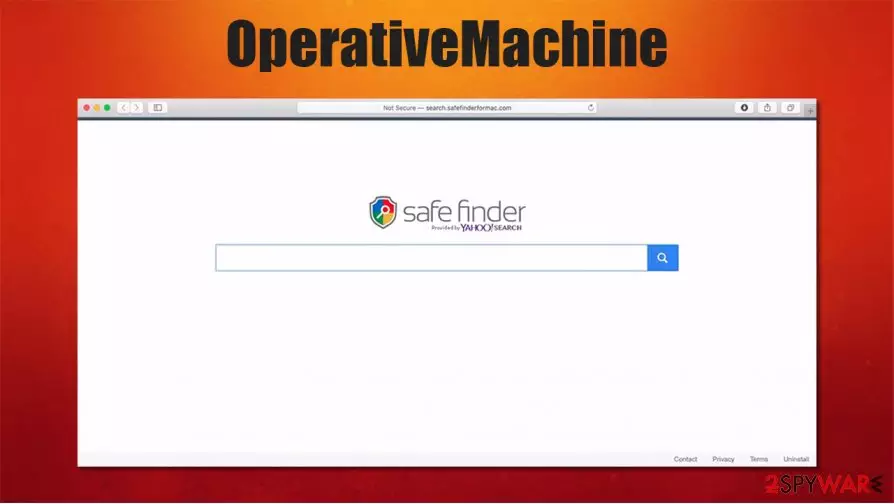
OperativeMachine is a browser hijacker[1] with adware-like qualities that changes certain browser settings, such as default search engine, homepage, new tab, to generate revenue through affiliated site promotions. It could also redirect to third-party websites that push unwanted software installations, fake updates, and so on.
Furthermore, the intruder can collect various browsing and anonymous information, such as geolocation, IP addresses, search inquiries, visited sites, etc. However, since this app belongs to the Adload adware family that targets Macs, it may also steal some personal data.
Once installed, the OperativeMachine virus inserts various components into macOS, including login items, profiles, .plist files, etc. Additionally, it also installs an extension on Safari, Google Chrome, or another web browser, which often promotes dubious search tools such as Safe Finder.
| name | OperativeMachine |
|---|---|
| type | Browser hijacker/adware/Mac virus |
| Family | Adload |
| Distribution | Software bundles, deceptive ads |
| Browser changes | Home page, new tab, and default search engine settings are changed. All search inquiries go through search.yahoo.com |
| Symptoms | Noticeably slower device performance, more than usual advertisements, redirects to unfamiliar websites |
| Risks | Privacy issues, additional PUP installation, identity theft |
| Removal | Users can uninstall OperativeMachine from any browser with our free guide provided at the bottom of this article |
| System Health | System repair tools like the FortectIntego app should be used to restore any changes that the browser hijacker might have caused to the system settings |
Browser hijackers, such as Zwinky, Candy-box.biz, HomeTab, and others, can be spread in many ways. Some are advertised to increase your privacy by redirecting you through various pages before landing on an affiliate one (but actually, it collects your data instead of hiding it), others get installed on devices with freeware or software bundles.
Whatever the case is, it's unwise to keep using these types of programs, no matter how convincing their ads sound. Users will only see more ads, as browser hijackers generate revenue from three affairs:
- Showing all kinds of ads, e.g., gambling, adult content, fake software, etc.
- Redirecting or opening new pages where its users are pushed to install some unwanted software.
- Promoting affiliated search engines search results
If you decide that you don't want to keep using this browser intruder and want to remove OperativeMachine from your device, then go straight to the bottom of this article, where we provide a free tutorial on how to remove it from any browser. Afterward, you should scan your system with trustworthy anti-malware software like SpyHunterCombo Cleaner or MalwarebytesMalwarebytes to make sure no additional PUPs or malicious software got to your device.

When OperativeMachine removal is done, experts[2] highly recommend performing a system repair with powerful system tune-up tools such as the FortectIntego app to revert any changes that the browser intruder might have implemented to your device's system settings and files.
Avoid PUPs by being attentive to what's installed on your devices
As we've mentioned in the first chapter of this article, there's more than one way to get potentially unwanted programs[3] such as browser hijackers installed on your devices, but one of the most prominent methods for their distribution is software bundling.
People rarely read Terms & Conditions or pay attention to what's being installed on their devices when they agree with the Express or Standard installation. And here's where PUPs get installed on their devices because all boxes opting in for the installation are always pre-selected. It's very simple to avoid these types of programs. Here's what you need to do:
- When installing software, always choose the Advanced or Custom installation option
- Go step-by-step, don't rush, and see what other software is offered and selected for installation
- Deselect all pre-ticked boxes of software that you don't want
- Remember this short manual and always use it when installing software/freeware bundles.

Instructions on how to remove OperativeMachine from various browsers
Keeping browser hijackers in a computer or a cell phone can only cause trouble. Don't believe deceptive advertisements that say that these apps will increase your privacy while browsing as they do the exact opposite by collecting your private and browsing information.
Remove OperativeMachine from your devices with our free guide provided below. To make sure no additional PUPs or malware got installed while you were using the browser intruder, perform a full system scan with professional antimalware software.
To ensure the stability and top performance of your machines, after OperativeMachine removal, we recommend a system repair with system tune-up tools to revert any changes the PUP has made to the system registry or other core settings with a push of a button.
Delete from macOS
Remove the unwanted application:
- From the menu bar, select Go > Applications.
- In the Applications folder, look for any suspicious entries, then drag them to Trash (or right-click and pick Move to Trash).


Delete leftover files and folders:
- Select Go > Go to Folder.
- Enter /Library/Application Support and remove any suspicious folders related to the unwanted program.
- Repeat the same check in the /Library/LaunchAgents and /Library/LaunchDaemons folders, deleting any suspicious entries.

- Finally, empty the Trash to permanently remove the leftovers.

Remove from Mozilla Firefox (FF)
Remove dangerous extensions:
- Open Mozilla Firefox browser and click on the Menu (three horizontal lines at the top-right of the window).
- Select Add-ons.
- In here, select the unwanted extension and click Remove.


Reset the homepage:
- Click three horizontal lines at the top right corner to open the menu.
- Choose Settings.
- Under Home, set your preferred homepage and new tab settings.
Clear cookies and site data:
- Click Menu and pick Settings.
- Go to Privacy & Security section.
- Scroll down to locate Cookies and Site Data.
- Click on Clear Data...
- Select Cookies and Site Data and Temporary cached files and pages, then click Clear.


Reset Mozilla Firefox
If clearing the browser as explained above did not help, reset Mozilla Firefox:
- Open Mozilla Firefox browser and click the Menu.
- Go to Help and then choose Troubleshooting Information.

- Under Give Firefox a tune up section, click on Refresh Firefox...
- Once the pop-up shows up, confirm the action by pressing on Refresh Firefox.



Remove from Google Chrome
Delete malicious extensions from Google Chrome:
- Open Google Chrome, click on the Menu (three vertical dots at the top-right corner) and select More tools > Extensions.
- In the newly opened window, you will see all the installed extensions. Uninstall all suspicious extensions related to the unwanted program by clicking Remove.


Clear cache and web data from Chrome:
- Click on Menu and pick Settings.
- Under Privacy and security, select Clear browsing data.
- Select Browsing history, Cookies and other site data, as well as Cached images and files.
- Click Clear data.


Change your homepage:
- Click menu and choose Settings.
- Look for a suspicious site in the On startup section.
- Click on Open a specific or set of pages and click on three dots to find the Remove option.
Reset Google Chrome:
If the previous methods did not help you, reset Google Chrome to eliminate all the unwanted components:
- Click on Menu and select Settings.
- In the Settings, scroll down and click Advanced.
- Scroll down and locate Reset and clean up section.
- Now click Restore settings to their original defaults.
- Confirm with Reset settings.


Delete from Safari
Remove dangerous extensions:
- Open Safari, click Safari in the menu at the top-left of the screen, and select Preferences.
- Go to the Extensions tab, look for any suspicious entries, and click Uninstall to remove them.


Clear history and website data:
- Click Safari in the menu and pick Clear History.
- Set Clear to all history and confirm with Clear History.


Reset Safari:
- Click Safari in the menu and select Preferences > Advanced.
- Enable Show Develop menu in menu bar.
- From the menu bar, click Develop and select Empty Caches.


Did this guide help?
Be the first to comment