

Yourlandsecurity.com – a scam website forcing to install potentially unwanted programs
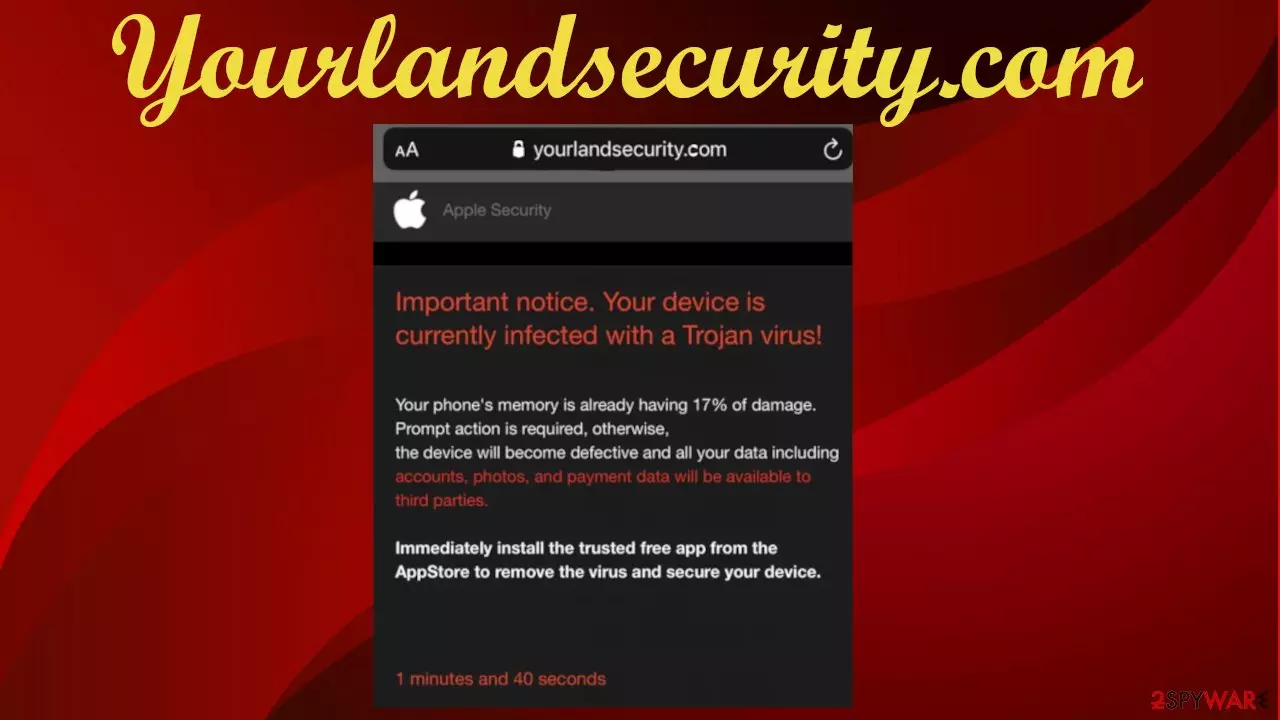
Yourlandsecurity.com is a fake error portal to which you might get redirected through deceptive ads or if an adware is installed on your device. This scam page can show various misleading messages. At the time of our research, it was claiming that our iPhones were infected with a Trojan[1] and that if a security tool of their choice won't be installed promptly, the phones will be defective and all personal data available to third-parties.
Please don't believe the fake Yourlandsecurity.com pop-up, as it is pure lies. This phishing website is presenting false claims to push worthless affiliated software. Usually, when such tools are downloaded, they will find an imaginary infection by showing false-positive results and force you to buy their useless licensed version.
If you're suddenly redirected to this website, that means your device is infected with a potentially unwanted program (PUP) such as adware. By reading this article, you'll learn how it functions, its spreading techniques, how to eliminate it and get your device back to a pre-contamination phase.
| name | Yourlandsecurity.com |
|---|---|
| Type | Mac virus, adware, scam website |
| IP address | 167.71.172.5 |
| Fake error message | Your device is infected with a Trojan, multiple viruses, etc. |
| Purpose | Force downloading of affiliated apps that most likely are useless PUPs |
| Symptoms | Slower Mac or iPhone performance, slower browsing speeds, irritating ads |
| Risks | Adware causing redirects and deceptive ads might lead to financial losses, privacy issues, malware infections |
| Distribution | Freeware, software bundling,[2] fake Flash Player updates, and alike |
| Removal | Use reliable anti-malware tools to scan your device and eliminate any suspicious files, including PUPs and malware |
| Repair | System tune-up tools such as the all-in-one FortectIntego software should be used to wipe out all tracking cookies and restore device settings |
Yourlandsecurity.com virus isn't an isolated incidence. There are many phishing portals like this, including OperativeUnit virus, Alert-info.space virus, ProtocolPort virus, etc. Their main goal is to scare you that there's truly something wrong with your device and that you must download an app to fix it.
Yourlandsecurity.com scam site and similar ones usually push various worthless anti-malware detection apps, adblockers, and apps alike. None of them are capable of doing what they are supposed to. After installing such software, you will be shortly asked to buy its licensed version that won't do anything too.
As we've stated before, Yourlandsecurity.com redirect can be caused by a couple of things, such as mistyping an address, clicking on deceptive ads/links on shady websites, but most likely an adware infection. These PUPs get revenue from redirecting to affiliated sites, promoting other PUPs, and showing you various ads in many forms, including:
- pop-ups,
- banners,
- overlays,
- in-text adds,
- notifications, etc.
The worst thing about these as is that, in most cases, they are deceptive, meaning that the shown ad has no relations with the website you'll be redirected to when it's clicked. Since PUP developers don't mind promoting hazardous sites, you might be rerouted to websites with various malicious contents and intents.

Therefore, we urge you to scan your device with trustworthy anti-malware software immediately. Free security tools such as SpyHunterCombo Cleaner and MalwarebytesMalwarebytes will remove Yourlandsecurity.com along with any PUPs, malware, and suspicious files. Please remember to use your AV tool at least once a week and update its virus database regularly.
Reliable security tools are great for Yourlandsecurity.com removal, but they won't delete tracking cookies and restore corrupted or in any other way damaged system files/settings. Thus IT experts[3] highly recommend using the FortectIntego repair tool to fix any system-related issues.
Adware and other PUPs can be delivered through fake updates and deceptive ads
iPhones and Mac computers aren't immune from various infections. Potentially unwanted program developers and operators use various tricks to install their creations without users even noticing it. One of the most popular ways to do that is through fake Flash Player installers or updates.
Pop-ups to update or install this software can appear out of the blue while visiting questionable pages. As soon as the user agrees to continue with either of those processes, adware, browser hijackers, or other PUPs are installed behind their backs.

Deceptive pop-ups and other forms of ads might also infect your device with junkware. Ads claiming that your software is outdated, that your device has virus infections are pure lies. No website can determine either of those things. Please don't believe ads to keep your device virus-free.
Dependable security tools will quickly and safely remove Yourlandsecurity.com virus
To keep their devices clean, people should make a habit of scanning their devices with security tools at least once a week. Proper anti-malware software should be acquired to prevent from visiting shady websites and block various infections at the doorstep.
To remove Yourlandsecurity.com automatically, you have to launch your AV tool and update its virus database first. Then perform a full system scan. When it's finished, select to eliminate any potentially unwanted programs, malware, and suspicious files that it identified.
Infections do a lot of damage to different system files and settings. That may result in the exhibition of abnormal behavior, such as freezing, severe lag, crashing, etc. To restore your device's health and eradicate any tracking cookies, you should perform system diagnostics with compatible tools.
Delete from macOS
Remove the unwanted application:
- From the menu bar, select Go > Applications.
- In the Applications folder, look for any suspicious entries, then drag them to Trash (or right-click and pick Move to Trash).


Delete leftover files and folders:
- Select Go > Go to Folder.
- Enter /Library/Application Support and remove any suspicious folders related to the unwanted program.
- Repeat the same check in the /Library/LaunchAgents and /Library/LaunchDaemons folders, deleting any suspicious entries.

- Finally, empty the Trash to permanently remove the leftovers.

Remove from Mozilla Firefox (FF)
Remove dangerous extensions:
- Open Mozilla Firefox browser and click on the Menu (three horizontal lines at the top-right of the window).
- Select Add-ons.
- In here, select the unwanted extension and click Remove.


Reset the homepage:
- Click three horizontal lines at the top right corner to open the menu.
- Choose Settings.
- Under Home, set your preferred homepage and new tab settings.
Clear cookies and site data:
- Click Menu and pick Settings.
- Go to Privacy & Security section.
- Scroll down to locate Cookies and Site Data.
- Click on Clear Data...
- Select Cookies and Site Data and Temporary cached files and pages, then click Clear.


Reset Mozilla Firefox
If clearing the browser as explained above did not help, reset Mozilla Firefox:
- Open Mozilla Firefox browser and click the Menu.
- Go to Help and then choose Troubleshooting Information.

- Under Give Firefox a tune up section, click on Refresh Firefox...
- Once the pop-up shows up, confirm the action by pressing on Refresh Firefox.



Remove from Google Chrome
Delete malicious extensions from Google Chrome:
- Open Google Chrome, click on the Menu (three vertical dots at the top-right corner) and select More tools > Extensions.
- In the newly opened window, you will see all the installed extensions. Uninstall all suspicious extensions related to the unwanted program by clicking Remove.


Clear cache and web data from Chrome:
- Click on Menu and pick Settings.
- Under Privacy and security, select Clear browsing data.
- Select Browsing history, Cookies and other site data, as well as Cached images and files.
- Click Clear data.


Change your homepage:
- Click menu and choose Settings.
- Look for a suspicious site in the On startup section.
- Click on Open a specific or set of pages and click on three dots to find the Remove option.
Reset Google Chrome:
If the previous methods did not help you, reset Google Chrome to eliminate all the unwanted components:
- Click on Menu and select Settings.
- In the Settings, scroll down and click Advanced.
- Scroll down and locate Reset and clean up section.
- Now click Restore settings to their original defaults.
- Confirm with Reset settings.


Delete from Safari
Remove dangerous extensions:
- Open Safari, click Safari in the menu at the top-left of the screen, and select Preferences.
- Go to the Extensions tab, look for any suspicious entries, and click Uninstall to remove them.


Clear history and website data:
- Click Safari in the menu and pick Clear History.
- Set Clear to all history and confirm with Clear History.


Reset Safari:
- Click Safari in the menu and select Preferences > Advanced.
- Enable Show Develop menu in menu bar.
- From the menu bar, click Develop and select Empty Caches.


Did this guide help?
Be the first to comment