

Ctcodeinfo.com is the browser hijacker that adds Fake Google Translate extension and installs other PUPs on the machine
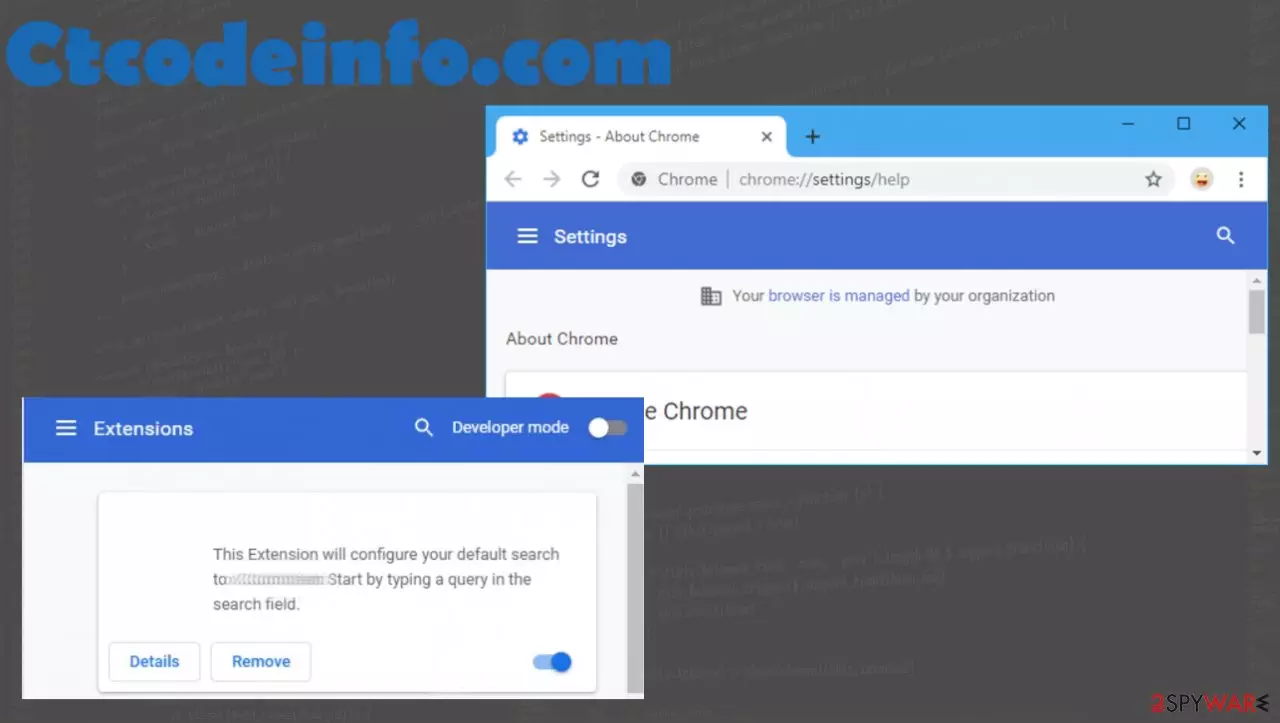
Ctcodeinfo.com is a program that aims to redirect users' online traffic, so third-party sites can collect views and page visits freely. When the browsing experience is affected, and search results are altered, you can be sure that the browser hijacker or a redirect virus is the one affecting your machine. Unfortunately, this potentially unwanted program is even more annoying and intrusive. It adds Fake Google Translate extension and other browser plugins from the same family of threats to control more activities on the system.
There are various issues that this Ctcodeinfo.com browser hijacker triggers, including the added Google Chrome feature – managed by your organization that is not related to any organization or your employers. This is the feature used by PUP developers and managers. So follow the guide below that shows how to remove this PUP from the system properly.
| Name | Ctcodeinfo.com |
|---|---|
| Type | Browser hijacker,[1] redirect virus |
| Additional issues | The PUP triggers the direct installation of other browser extensions and potentially unwanted programs |
| Distribution | Deceptive sites, advertisements, freeware installers, and fake Flash Player update or install ads are the most common distribution ways |
| Serving IP address | 155.138.226.36 |
| DETECTIONS | Avast (Win32:PWSX-gen [Trj]), BitDefender (Gen:Variant.Zusy.371633), ESET-NOD32 (Multiple Detections), Kaspersky (UDS:Trojan.Win32.Injuke.gen), Microsoft (Trojan:Win32/Stealer.KA!MTB) |
| Removal | The program can be fully eliminated by running a tool like anti-malware. So you can remove virus automatically |
| System repair | As for the issues triggered with the speed and performance of your device, FortectIntego is the solution since the app can find and repair damage or file corruption caused by the PUP |
It is one of many browser hijackers related to the changes done on the Chrome browser. Searchmy.co and Conf Search are one of those threats that alter settings on the browser and lead to other issues related to internet activities. The particular potentially unwanted programs can directly access information about your browsing habits and collect them for later purposes.

Third-party advertisers and PUP creators make sure that sites like Ctcodeinfo.com and other PUPs display as many commercial pop-ups, banners, redirects as possible, and controls the traffic to needed sites on the web. This is the browser hijacker, so it can change settings and preferences like:
- homepage;
- new tab;
- search engine.
The intruder also manages to add other extensions, apps, and add-ons on the browser, so Ctcodeinfo.com is the only site that people manage to visit. It is known that this specific address is set to reroute all searches and show information related to promotional content.

You should remove hijacker as soon as possible, so anything unwanted and possibly dangerous like malicious content and damage can be avoided. Hijackers tend to promote other browser-based threats and even alter settings, system folders to install and run such intruders.
To fight all the intruders at the same time, make sure to employ anti-malware tools like SpyHunterCombo Cleaner or MalwarebytesMalwarebytes during the removal process. Even though this is not a virus or malware, you should uninstall any related programs and pieces, so the system is clear and can run smoothly.
The Ctcodeinfo.com browser hijacker is the one responsible for any issues with the machine, especially when it comes to internet speed and web browser behavior. For example, the system can get affected too once PUP, like this hijack, alters any files or entries in the registry.
For that reason of possible virus damage, many experts[2] offer to trust applications designed to fix virus damage that a PUP caused. FortectIntego is one of the tools that can offer help because this app is created to find affected files, registry entries, and other parts that require fixing.
Deceiving material online ends in PUP installations
The content that your screen displays can be related to various malicious programs or creators, so it is not safe to continuously surf those pages. Additionally, deceptive pages can trigger promotional advertisements and other material that leads to performance or even security issues.
Free software installers and other false promotions can trigger the direct download of the PUP setup. It is known that redirects from legitimate-looking web stores and other freeware sites show the installation of the bundle with this browser hijacker.
Unfortunately, the setup file is detected as malicious by various AV engines.[3] This fact should encourage you to pay closer attention to details. We always note how important it is to choose the Advanced or Custom options during the program installations, so make sure to do so every time you download any application or even browser extension.
The full Browser Hijacker termination is a quick process
Once the system is affected by a PUP, the computer can get extremely slow and the machine performs poorly. These are the indications of a browser hijacker because redirects, constant advertisements, reroutes, and online traffic control affect the computer significantly not only your time on the machine.
When you fully remove the Ctcodeinfo.com browser hijacker and want to check for additional damage, you should run this program. Another good tip is to reset your web browser completely to default or clear each of them manually one by one, so there are no rogue add-ons or extensions left over.
After the removal, you might want to alter the settings on your browsers. For that, you can either rely on the guide below or use tips and solutions listed in the fix for “some settings are managed by your organization”. Do not forget to run a check for system alterations and possible damage to avoid additional infections in the future.
Uninstall from Windows
Uninstall from Windows 10/8:
- Type Control Panel into the Windows search box and open the result.
- Under Programs, select Uninstall a program.


Uninstall from Windows 7/XP:
- Click on Windows Start > Control Panel (Windows XP users should click on Add/Remove Programs).
- In Control Panel, select Programs > Uninstall a program.


Remove the unwanted program:
- In the Programs and Features window, look for any recently installed suspicious entries, select them, and click Uninstall.
- If User Account Control appears, click Yes to confirm, then complete the removal.


Delete from macOS
Remove the unwanted application:
- From the menu bar, select Go > Applications.
- In the Applications folder, look for any suspicious entries, then drag them to Trash (or right-click and pick Move to Trash).


Delete leftover files and folders:
- Select Go > Go to Folder.
- Enter /Library/Application Support and remove any suspicious folders related to the unwanted program.
- Repeat the same check in the /Library/LaunchAgents and /Library/LaunchDaemons folders, deleting any suspicious entries.

- Finally, empty the Trash to permanently remove the leftovers.

Remove from Microsoft Edge
Delete unwanted extensions from MS Edge:
- Select Menu (three horizontal dots at the top-right of the browser window) and pick Extensions.
- From the list, pick the extension and click on the Gear icon.
- Click Remove.


Clear cookies and other browser data:
- Click on the Menu (three horizontal dots at the top-right of the browser window) and select Settings > Privacy, search, and services..
- Under Clear browsing data, pick Choose what to clear.
- Select Cookies and other site data and Cached images and files. (apart from passwords, although you might want to include Media licenses as well, if applicable) and click on Clear.


Restore new tab and homepage settings:
- Click the menu icon and choose Settings.
- Then find On startup section.
- Click Remove next to any suspicious startup page.
Reset MS Edge if the above steps did not work:
- Press on Ctrl + Shift + Esc to open Task Manager.
- Click on More details arrow at the bottom of the window.
- Select Details tab.
- Now scroll down and locate every entry with Microsoft Edge name in it. Right-click on each of them and select End Task to stop MS Edge from running.


Instructions for Chromium-based Edge
Delete extensions from MS Edge (Chromium):
- Open Edge and click select Settings > Extensions.
- Delete unwanted extensions by clicking Remove.


Clear cache and site data:
- Click on Menu and go to Settings.
- Select Privacy, search and services.
- Under Clear browsing data, pick Choose what to clear.
- Under Time range, pick All time.
- Select Clear now.


Reset Chromium-based MS Edge:
- Click on Menu and select Settings.
- On the left side, pick Reset settings.
- Select Restore settings to their default values.
- Confirm with Reset.
- This will disable extensions and reset startup pages but will not delete bookmarks, saved passwords, or browsing history.


Remove from Mozilla Firefox (FF)
Remove dangerous extensions:
- Open Mozilla Firefox browser and click on the Menu (three horizontal lines at the top-right of the window).
- Select Add-ons.
- In here, select the unwanted extension and click Remove.


Reset the homepage:
- Click three horizontal lines at the top right corner to open the menu.
- Choose Settings.
- Under Home, set your preferred homepage and new tab settings.
Clear cookies and site data:
- Click Menu and pick Settings.
- Go to Privacy & Security section.
- Scroll down to locate Cookies and Site Data.
- Click on Clear Data...
- Select Cookies and Site Data and Temporary cached files and pages, then click Clear.


Reset Mozilla Firefox
If clearing the browser as explained above did not help, reset Mozilla Firefox:
- Open Mozilla Firefox browser and click the Menu.
- Go to Help and then choose Troubleshooting Information.

- Under Give Firefox a tune up section, click on Refresh Firefox...
- Once the pop-up shows up, confirm the action by pressing on Refresh Firefox.



Remove from Google Chrome
Delete malicious extensions from Google Chrome:
- Open Google Chrome, click on the Menu (three vertical dots at the top-right corner) and select More tools > Extensions.
- In the newly opened window, you will see all the installed extensions. Uninstall all suspicious extensions related to the unwanted program by clicking Remove.


Clear cache and web data from Chrome:
- Click on Menu and pick Settings.
- Under Privacy and security, select Clear browsing data.
- Select Browsing history, Cookies and other site data, as well as Cached images and files.
- Click Clear data.


Change your homepage:
- Click menu and choose Settings.
- Look for a suspicious site in the On startup section.
- Click on Open a specific or set of pages and click on three dots to find the Remove option.
Reset Google Chrome:
If the previous methods did not help you, reset Google Chrome to eliminate all the unwanted components:
- Click on Menu and select Settings.
- In the Settings, scroll down and click Advanced.
- Scroll down and locate Reset and clean up section.
- Now click Restore settings to their original defaults.
- Confirm with Reset settings.


Delete from Safari
Remove dangerous extensions:
- Open Safari, click Safari in the menu at the top-left of the screen, and select Preferences.
- Go to the Extensions tab, look for any suspicious entries, and click Uninstall to remove them.


Clear history and website data:
- Click Safari in the menu and pick Clear History.
- Set Clear to all history and confirm with Clear History.


Reset Safari:
- Click Safari in the menu and select Preferences > Advanced.
- Enable Show Develop menu in menu bar.
- From the menu bar, click Develop and select Empty Caches.


Did this guide help?
Be the first to comment