

Tackis.xyz – a dangerous website claiming that your Apple device is infected with viruses
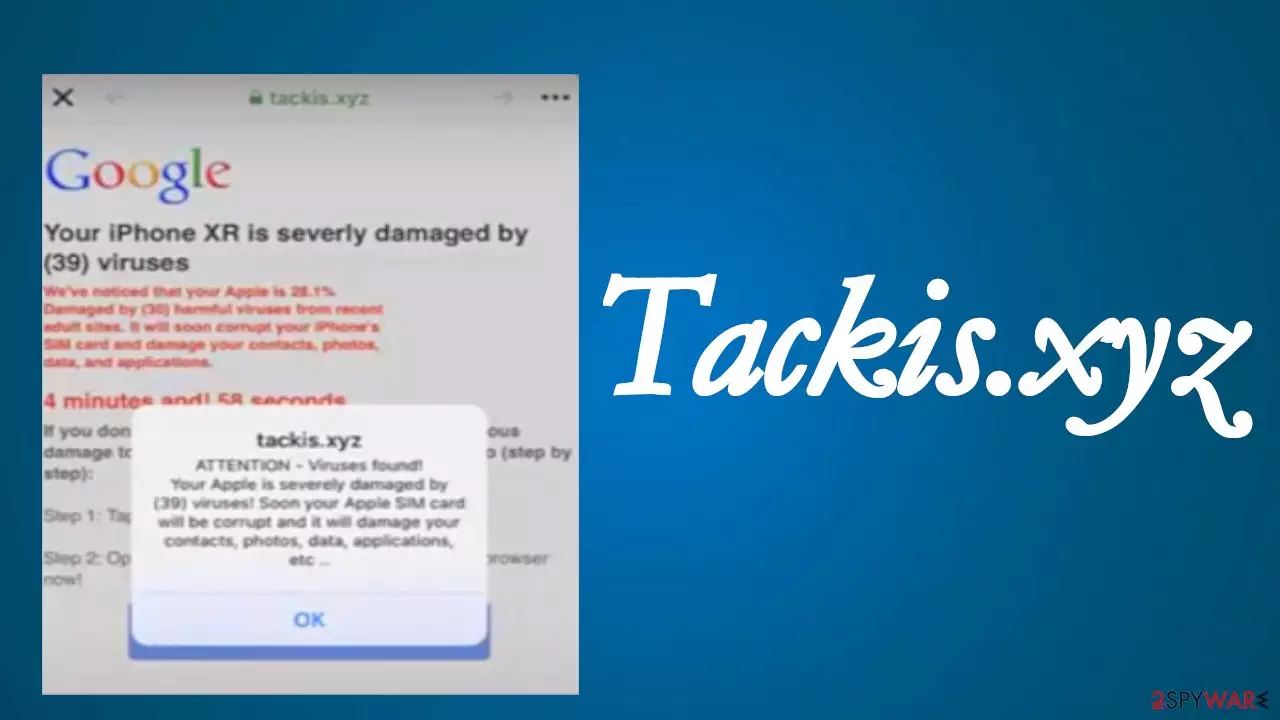
Tackis.xyz is a dubious portal that tries to scare you into downloading worthless apps or even malware. It does that by claiming that your iPhone (or possibly other Apple products) is infected with 39 viruses. Please rest assured that there is no malware on your device, and these claims are fake. No website is able to determine whether your device, whether Windows, Mac, or Android, is infected with any kinds of viruses. These sites are scams.
Red flags are raised when you see the second part of the message, which states that thirty viruses damage your device, so there's an inconsistency with the initial suggested amount. Please don't click the “Repair Now” button as then you might download potentially unwanted programs (PUPs) or infect your computer with real malware.
If you didn't click on any links or ads on shady portals or mistype Tackis.xyz address, then your device in use is infected with adware[1] that causes redirects to such hazardous pages. It was reported that Calendar virus might also cause redirects. By reading this article, you will find out how similar threats function, how they're spread, how to remove them once and for all, and recover your device to a pre-contamination phase.
| name | Tackis.xyz |
|---|---|
| Type | Mac virus, adware |
| IP address | 172.67.189.184 |
| False statement | Your iPhone is severly damaged by (39) viruses. Although other variations are possible |
| Symptoms | When a Mac is infected with adware or similar PUPs, its performance is decreased along with the browsing speed. Sudden redirects to untrustworthy sites happen, and you see more than usual ads |
| Risks | Malware infections, PUP installation, financial losses, identity theft |
| Distribution | Fake Flash Player updates, push notification viruses, deceptive ads, software bundles |
| Elimination | All cyber threats can be safely removed by using trustworthy anti-malware software |
| System repair | All infections leave their traces on the system files and settings, and because of that, your device might crash, freeze, or exhibit other system failures. Fix all system-related issues with the powerful FortectIntego system diagnostics tool |
There was a time when Mac and iPhone users were safe from PUPs and malware, but those days are gone. Alert-info.space virus, ProtocolPort virus, Tionscalen.top virus, Tackis.xyz virus are just a few examples of viruses designed specifically for people using Apple products.
The main goal of such misleading portals is to scare you into downloading whatever the site developers offer. Commonly, it's potentially unwanted programs, such as fake anti-malware software. It will show predetermined or false positive Mac or iPhone scan results.
Then it will claim that you need to purchase its licensed version to fix all the imaginary problems that it finds. If you do, you will lose your hard-earned money as the paid versions are as useless as the free ones. The promised functionality is fictional, and you'll be stuck with a fake security tool that doesn't protect your device.
Apart from such useless software, developers of Tackis.xyz could also force you to download fake system optimizers, adware, browser hijackers, other PUPs, or even hazardous malware, such as Trojans,[2] keyloggers, etc. Therefore, you should never trust such pages.

If you did and downloaded some shady software, you can remove it alongside adware that most likely caused the initial redirect to Tackis.xyz by performing a full system scan with a trustworthy security tool such as MalwarebytesMalwarebytes or SpyHunterCombo Cleaner. Proper anti-malware software would have blocked the article's culprit page and installation of any PUPs.
Since all infections and shady websites leave their traces on your infected device, you need to clean it up and resolve any system-related irregularities that they may have caused. According to cyber specialists,[3] the best all-in-one tool for such a task is the time-proven FortectIntego software.
Stay away from deceptive ads and Flash Player updates
There are tons of shady sites that offer amazing tools that will enhance your browsing experience by boosting the internet connection or safety and privacy or software that will improve your device's performance tenfold. Other like the article's culprit can claim that your device has malware and that only their software can remove it.
All these claims are pure lies, created to trick you into downloading PUPs, such as adware, browser hijackers, rogue system tools, and others. You should only install software that's time-proven. Thus before getting any new app, please do a detailed web search or check if we haven't written about it.

Some untrustworthy websites can claim that your Flash Player is out of date. Please never trust such portals and the ads/prompts as Adobe discontinued the Flash Player. Within the fake installer, there might be PUPs or, even worse – severe malware.
Instructions to remove Tackis.xyz virus from your infected iPhone, iPad, or Mac
Apple merchandise is no longer safe from malware and PUPs. That's why if you have such a product, you have to take care of its security. Default security tools should be used with professional anti-malware software to achieve the best protection level.
You should use such tools to remove adware and Tackis.xyz from your Apple device. All you have to do is perform a full system scan and let the anti-malware software do the dirty work for you. Please remember to update virus signatures so your security tool could protect your system from the latest malware, phishing pages, tech support scams, PUPs, etc.
Once the adware removal is finished, your device in use should never again redirect you to deceptive pages like Tackis.xyz. But to ensure that it runs smoothly, you should consider running system diagnostics with compatible system repair software.
Delete from macOS
Remove the unwanted application:
- From the menu bar, select Go > Applications.
- In the Applications folder, look for any suspicious entries, then drag them to Trash (or right-click and pick Move to Trash).


Delete leftover files and folders:
- Select Go > Go to Folder.
- Enter /Library/Application Support and remove any suspicious folders related to the unwanted program.
- Repeat the same check in the /Library/LaunchAgents and /Library/LaunchDaemons folders, deleting any suspicious entries.

- Finally, empty the Trash to permanently remove the leftovers.

Remove from Mozilla Firefox (FF)
Remove dangerous extensions:
- Open Mozilla Firefox browser and click on the Menu (three horizontal lines at the top-right of the window).
- Select Add-ons.
- In here, select the unwanted extension and click Remove.


Reset the homepage:
- Click three horizontal lines at the top right corner to open the menu.
- Choose Settings.
- Under Home, set your preferred homepage and new tab settings.
Clear cookies and site data:
- Click Menu and pick Settings.
- Go to Privacy & Security section.
- Scroll down to locate Cookies and Site Data.
- Click on Clear Data...
- Select Cookies and Site Data and Temporary cached files and pages, then click Clear.


Reset Mozilla Firefox
If clearing the browser as explained above did not help, reset Mozilla Firefox:
- Open Mozilla Firefox browser and click the Menu.
- Go to Help and then choose Troubleshooting Information.

- Under Give Firefox a tune up section, click on Refresh Firefox...
- Once the pop-up shows up, confirm the action by pressing on Refresh Firefox.



Remove from Google Chrome
Delete malicious extensions from Google Chrome:
- Open Google Chrome, click on the Menu (three vertical dots at the top-right corner) and select More tools > Extensions.
- In the newly opened window, you will see all the installed extensions. Uninstall all suspicious extensions related to the unwanted program by clicking Remove.


Clear cache and web data from Chrome:
- Click on Menu and pick Settings.
- Under Privacy and security, select Clear browsing data.
- Select Browsing history, Cookies and other site data, as well as Cached images and files.
- Click Clear data.


Change your homepage:
- Click menu and choose Settings.
- Look for a suspicious site in the On startup section.
- Click on Open a specific or set of pages and click on three dots to find the Remove option.
Reset Google Chrome:
If the previous methods did not help you, reset Google Chrome to eliminate all the unwanted components:
- Click on Menu and select Settings.
- In the Settings, scroll down and click Advanced.
- Scroll down and locate Reset and clean up section.
- Now click Restore settings to their original defaults.
- Confirm with Reset settings.


Delete from Safari
Remove dangerous extensions:
- Open Safari, click Safari in the menu at the top-left of the screen, and select Preferences.
- Go to the Extensions tab, look for any suspicious entries, and click Uninstall to remove them.


Clear history and website data:
- Click Safari in the menu and pick Clear History.
- Set Clear to all history and confirm with Clear History.


Reset Safari:
- Click Safari in the menu and select Preferences > Advanced.
- Enable Show Develop menu in menu bar.
- From the menu bar, click Develop and select Empty Caches.


Did this guide help?
Be the first to comment