

Having In-page-push.com can give you headaches

Push notification spam is a growing problem on the internet. Websites designed for the sole purpose of sending ads keep appearing every day. Creators generate revenue for every ad a user clicks on.[1] Advertisements sent by web pages like In-page-push.com are unsafe because they are not reviewed by anyone.
Among legitimate ads, users would receive some from shady sources. This is a potential security risk 'cause they can contain links leading to suspicious websites where users might download malicious programs or give away their personal information. For this reason, people should not keep push notifications turned on from fake websites.
Usually, people do not find this page themselves. The most common reasons why users ended up there are redirects[2] from other rogue websites or adware infection.[3] What is more, it uses social engineering tactics to trick people into allowing the notifications themselves, so after they start experiencing the symptoms, they do not know the reason behind it.
Other fake websites, just like In-page-push.com, use a few different methods that work. These sites usually have only one page and one clear message, which sounds something like “Press the “Allow” button to…” and the rest is your imagination. They can write anything after that, and it will fool careless individuals who do not read everything or do not understand what push notifications are.
| NAME | In-page-push.com |
| TYPE | Push notification spam; adware |
| DISTRIBUTION | Shady websites; freeware installations |
| SYMPTOMS | Pop-up ads and banners start appearing even when the browser is closed |
| DANGERS | Advertisements can lead to dangerous websites where people can give out their personal information or download malicious software |
| ELIMINATION | Manual removal can be accomplished via browser settings |
| FURTHER STEPS | It is a good idea to use a maintenance tool like FortectIntego to get rid of any damage left completely |
As people spend more and more time on their devices, online sales have increased dramatically, especially since the pandemic started. But along with that came an opportunity for individuals who want to exploit that. Online scams and cyber attacks have also been on the rise, so there are two sides to this digital world we live in.
As we said before, fake websites go extinct after exposure, new ones replace them every day, and there does not seem to be an end to this activity soon as they are so easily produced.

Ways people get wrapped up in spam
Social engineering is used to manipulate people by praying on human vulnerabilities. In-page-push.com and websites just like it use fake captcha verifications, images of loading screens, files waiting for download to trick them into clicking the “Allow” button. A constant urge to rush in this fast-paced life makes them blind to the obvious – all of it is fake.
A special example of how smoothly this operation can work are illegal streaming sites because they are filled with redirects and deceptive ads. Very often, when people want to watch a movie or TV show for free, they end up on sites like 123movies.co and Movie4k.to. Next to the video screen, buttons can appear saying “Download now.” But they are not real. These are ads that redirect you to another page. If that site says, “Your download is ready, click “Allow” to download your file,” they got you.
Without realizing that they clicked on an ad that opened a completely unrelated page, users click the button. Of course, they do not receive any files or additional content. Confused, they probably close that window and proceed searching for other ways to get what they want.
The problem then can deepen further as they start receiving commercial content from unknown sources. They will be met with more deceptive ads trying to lure them in.
Online scams
Fake errors, flash player updates, safety warnings, lottery winnings, surveys are all created to either take your information from you or make you download potentially unwanted programs, malware. The individuals that usually fall for these are not particularly technologically savvy people.
Flash player has been extinct since 2020 and was replaced by HTML5[4] (or other modern technologies) because of its many flaws and vulnerabilities. So you should never believe it if a website is telling you your Flash Player is out of date or that you do not have it and need to download it.
Warnings about your personal information being in danger are also most certainly not real. They work so well because they show your already publicly available information like location and IP address to scare you into downloading possibly malicious software that is supposedly will protect you.
Sorry to disappoint; you will never be the lucky visitor who made the 9.68-billionth search. Giant companies like Google, Microsoft, or Apple do not pick random people on the internet to be gifted with new iPhones, computers, or cash prizes just because. Although sometimes scams like this say you need to complete a survey to receive it. Know that if it seems too good to be true, it probably is.
If you have seen these or different ads appear on your screen from In-page-push.com, you may remove it manually by going to your browser settings. This will be made easy with our detailed guide for the most widely used browsers.
Google Chrome (desktop):
- Open Google Chrome browser and go to Menu > Settings.
- Scroll down and click on Advanced.
- Locate the Privacy and security section and pick Site Settings > Notifications.

- Look at the Allow section and look for a suspicious URL.
- Click the three vertical dots next to it and pick Block. This should remove unwanted notifications from Google Chrome.



Google Chrome (Android):
- Open Google Chrome and tap on Settings (three vertical dots).
- Select Notifications.
- Scroll down to Sites section.
- Locate the unwanted URL and toggle the button to the left (Off setting).


Mozilla Firefox:
- Open Mozilla Firefox and go to Menu > Options.
- Click on Privacy & Security section.
- Under Permissions, you should be able to see Notifications. Click Settings button next to it.

- In the Settings – Notification Permissions window, click on the drop-down menu by the URL in question.
- Select Block and then click on Save Changes. This should remove unwanted notifications from Mozilla Firefox.



Safari:
- Click on Safari > Preferences…
- Go to Websites tab and, under General, select Notifications.
- Select the web address in question, click the drop-down menu and select Deny.


MS Edge:
- Open Microsoft Edge, and click the Settings and more button (three horizontal dots) at the top-right of the window.
- Select Settings and then go to Advanced.
- Under Website permissions, pick Manage permissions and select the URL in question.
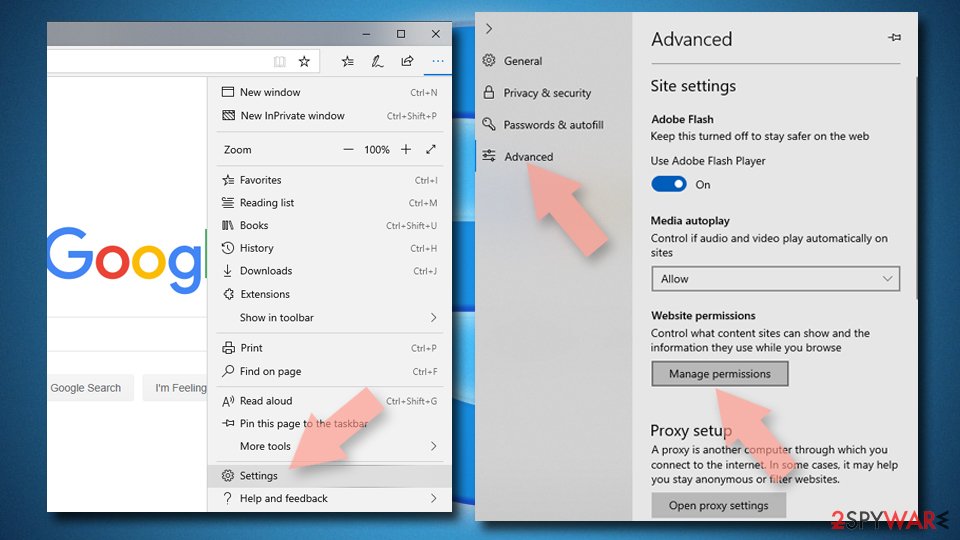
- Toggle the switch to the left to turn notifications off on Microsoft Edge.



MS Edge (Chromium):
- Open Microsoft Edge, and go to Settings.
- Select Site permissions.
- Go to Notifications on the right.
- Under Allow, you will find the unwanted entry.
- Click on More actions and select Block.


Internet Explorer:
- Open Internet Explorer, and click on the Gear icon at the top-right on the window.
- Select Internet options and go to Privacy tab.
- In the Pop-up Blocker section, click on Settings.
- Locate web address in question under Allowed sites and pick Remove.


Additional removal and remediation options
The manual removal may not always work. The reason for this is a potentially unwanted program installed in your system. These apps may appear as handy tools, or you might have downloaded them together with freeware from unofficial sources and have no idea about it.
In this case, manual removal can be more tricky if you are unsure about what program is responsible for this behavior. It is best to use professional security software like SpyHunterCombo Cleaner or MalwarebytesMalwarebytes, which can scan your system, locate and eliminate them automatically. They can also prevent such installations in the future by warning you about suspicious-looking programs. If you still want to proceed with manual removal, you can do so by following our step-by-step guide below for macOS and Windows systems.
After successful removal, it would be great to take care of your browsers completely by using FortectIntego, which will clear any data left automatically, so you do not have to worry about it.
Uninstall from Windows
Uninstall from Windows 10/8:
- Type Control Panel into the Windows search box and open the result.
- Under Programs, select Uninstall a program.


Uninstall from Windows 7/XP:
- Click on Windows Start > Control Panel (Windows XP users should click on Add/Remove Programs).
- In Control Panel, select Programs > Uninstall a program.


Remove the unwanted program:
- In the Programs and Features window, look for any recently installed suspicious entries, select them, and click Uninstall.
- If User Account Control appears, click Yes to confirm, then complete the removal.


Delete from macOS
Remove the unwanted application:
- From the menu bar, select Go > Applications.
- In the Applications folder, look for any suspicious entries, then drag them to Trash (or right-click and pick Move to Trash).


Delete leftover files and folders:
- Select Go > Go to Folder.
- Enter /Library/Application Support and remove any suspicious folders related to the unwanted program.
- Repeat the same check in the /Library/LaunchAgents and /Library/LaunchDaemons folders, deleting any suspicious entries.

- Finally, empty the Trash to permanently remove the leftovers.

Remove from Microsoft Edge
Delete unwanted extensions from MS Edge:
- Select Menu (three horizontal dots at the top-right of the browser window) and pick Extensions.
- From the list, pick the extension and click on the Gear icon.
- Click Remove.


Clear cookies and other browser data:
- Click on the Menu (three horizontal dots at the top-right of the browser window) and select Settings > Privacy, search, and services..
- Under Clear browsing data, pick Choose what to clear.
- Select Cookies and other site data and Cached images and files. (apart from passwords, although you might want to include Media licenses as well, if applicable) and click on Clear.


Restore new tab and homepage settings:
- Click the menu icon and choose Settings.
- Then find On startup section.
- Click Remove next to any suspicious startup page.
Reset MS Edge if the above steps did not work:
- Press on Ctrl + Shift + Esc to open Task Manager.
- Click on More details arrow at the bottom of the window.
- Select Details tab.
- Now scroll down and locate every entry with Microsoft Edge name in it. Right-click on each of them and select End Task to stop MS Edge from running.


Instructions for Chromium-based Edge
Delete extensions from MS Edge (Chromium):
- Open Edge and click select Settings > Extensions.
- Delete unwanted extensions by clicking Remove.


Clear cache and site data:
- Click on Menu and go to Settings.
- Select Privacy, search and services.
- Under Clear browsing data, pick Choose what to clear.
- Under Time range, pick All time.
- Select Clear now.


Reset Chromium-based MS Edge:
- Click on Menu and select Settings.
- On the left side, pick Reset settings.
- Select Restore settings to their default values.
- Confirm with Reset.
- This will disable extensions and reset startup pages but will not delete bookmarks, saved passwords, or browsing history.


Remove from Mozilla Firefox (FF)
Remove dangerous extensions:
- Open Mozilla Firefox browser and click on the Menu (three horizontal lines at the top-right of the window).
- Select Add-ons.
- In here, select the unwanted extension and click Remove.


Reset the homepage:
- Click three horizontal lines at the top right corner to open the menu.
- Choose Settings.
- Under Home, set your preferred homepage and new tab settings.
Clear cookies and site data:
- Click Menu and pick Settings.
- Go to Privacy & Security section.
- Scroll down to locate Cookies and Site Data.
- Click on Clear Data...
- Select Cookies and Site Data and Temporary cached files and pages, then click Clear.


Reset Mozilla Firefox
If clearing the browser as explained above did not help, reset Mozilla Firefox:
- Open Mozilla Firefox browser and click the Menu.
- Go to Help and then choose Troubleshooting Information.

- Under Give Firefox a tune up section, click on Refresh Firefox...
- Once the pop-up shows up, confirm the action by pressing on Refresh Firefox.



Remove from Google Chrome
Delete malicious extensions from Google Chrome:
- Open Google Chrome, click on the Menu (three vertical dots at the top-right corner) and select More tools > Extensions.
- In the newly opened window, you will see all the installed extensions. Uninstall all suspicious extensions related to the unwanted program by clicking Remove.


Clear cache and web data from Chrome:
- Click on Menu and pick Settings.
- Under Privacy and security, select Clear browsing data.
- Select Browsing history, Cookies and other site data, as well as Cached images and files.
- Click Clear data.


Change your homepage:
- Click menu and choose Settings.
- Look for a suspicious site in the On startup section.
- Click on Open a specific or set of pages and click on three dots to find the Remove option.
Reset Google Chrome:
If the previous methods did not help you, reset Google Chrome to eliminate all the unwanted components:
- Click on Menu and select Settings.
- In the Settings, scroll down and click Advanced.
- Scroll down and locate Reset and clean up section.
- Now click Restore settings to their original defaults.
- Confirm with Reset settings.


Delete from Safari
Remove dangerous extensions:
- Open Safari, click Safari in the menu at the top-left of the screen, and select Preferences.
- Go to the Extensions tab, look for any suspicious entries, and click Uninstall to remove them.


Clear history and website data:
- Click Safari in the menu and pick Clear History.
- Set Clear to all history and confirm with Clear History.


Reset Safari:
- Click Safari in the menu and select Preferences > Advanced.
- Enable Show Develop menu in menu bar.
- From the menu bar, click Develop and select Empty Caches.


Did this guide help?
Be the first to comment