

Yfetyg.com is a scam made to trick users into subscribing to intrusive notifications

Not all websites are created to be informative or useful in other ways. Cybercriminals can use the internet to host websites that are designed to scam people to achieve their goals, and Yfetyg.com belongs to the latter category. To be precise, this website uses various cheap tricks to fool visitors into subscribing to notifications.
As soon as users press the “Allow” button, they might soon notice the intrusive pop-up ads showing up at the bottom-right corner of the screen. These notifications can include links to various scam, phishing,[1] or virus-laden websites, so it is important not to click on them. Downloading something or clicking on links on websites that are being promoted is extremely dangerous, as you might end up infecting your device with malware.
The dangers also lie with Yfetyg.com redirect tendencies. It is not uncommon for a website such as this to forward users to other dubious places. For example, you could be offered to participate in a survey, or a file such as Your-File-Is-Ready-To-Download_93521.msi could be downloaded to your computer automatically.
In this instance, it is adware known as OpenSUpdater or Siggen. If you install it, your web browsing activities on Google Chrome or another browser might become a nightmare due to pop-up ads that would be shown at any time. Likewise, if you see browser redirects relatively often, likely, your system is already infected with adware, so you should check that to be sure.
| Name | Yfetyg.com |
|---|---|
| Type | Push notifications, scam, ads |
| IP address | 185.162.85.19 |
| Distribution | The notifications might start showing up as soon as the “Allow” button is pressed, although the activity might not start until much later |
| Symptoms | Intrusive pop-up ads show up on the desktop in regular intervals; upon accessing the site, redirects can trigger downloads and display other unsafe pages |
| Dangers | Clicking on links that are embedded within the notification prompt, exploring the sites these links bring to, or downloading files can be dangerous – users can get infected with malware, suffer from financial losses, or disclose their private information to cybercriminals |
| Elimination | To prevent the site from displaying notifications to you, access the site permission section via your web browser settings – you can find more details below |
| Further steps | Redirects and ads might indicate adware infection, so you should check your system with anti-malware, clean your browsers, and attempt to fix virus damage with a repair tool FortectIntego |
How push notifications work and how not to be tricked by fake prompts
Push notifications were initially released as a feature by Apple back in 2009, While it was initially limited just to applications/software installed on a particular device, browsers quickly adopted the feature, and now almost every website is keen to offer users receiving notifications – you have probably encountered them before.
In fact, the function can be useful for those who want to receive information from certain websites. In the meantime, the frequency of these notifications depends on the source that is sending them, so there is no surprise that some users found the pop-ups rather intrusive and annoying.
In the meantime, crooks quickly realized that, with the help of scam techniques, they could use the feature to promote various links directly on users' screens – all they have to do is convince visitors that the “Allow” button is designed for something else. And they did.
There are several versions of the scam that you encounter while visiting this or any other similar website. Here's one example:
Click “Allow” to verify that you are not a robot
In this case, cybercriminals imitate a well-known verification scheme used by many legitimate websites. Users can easily confuse the scam with a legitimate request and press the “Allow” button. In other cases, visitors might be shown a fake video capture or that a download is ready. All of these are fake, and you should never proceed with the request. Luckily, there is an easy way to revert this – simply check the instructions below.

There are millions of websites that are being created to scam users into subscribing to notifications – Yfetyg.com is just one of them. We previously discussed sites like Uishoaarran.top, News-puzuxi.cc, and many others. You might encounter many others in the future; you should leave those pages immediately.
Stop Yfetyg.com ads with ease
Once encountered with numerous pop-ups, users might immediately think that their systems have been infected with a virus. In fact, this is not entirely correct, as the notifications themselves are not malicious; it's just the content that is shown inside might be. In other words, the notifications are shown to you because you have (unwillingly) provided permission for the site to do so.
You should not worry too much about it, however, as this is easily reversible. Follow the instructions below – we provide them for each of the most popular web browsers.
Google Chrome (desktop):
- Open Google Chrome browser and go to Menu > Settings.
- Scroll down and click on Advanced.
- Locate Privacy and security section and pick Site Settings > Notifications.

- Look at the Allow section and look for a suspicious URL.
- Click the three vertical dots next to it and pick Block. This should remove unwanted notifications from Google Chrome.



Google Chrome (Android):
- Open Google Chrome and tap on Settings (three vertical dots).
- Select Notifications.
- Scroll down to Sites section.
- Locate the unwanted URL and toggle the button to the left (Off setting).


Mozilla Firefox:
- Open Mozilla Firefox and go to Menu > Options.
- Click on Privacy & Security section.
- Under Permissions, you should be able to see Notifications. Click Settings button next to it.

- In the Settings – Notification Permissions window, click on the drop-down menu by the URL in question.
- Select Block and then click on Save Changes. This should remove unwanted notifications from Mozilla Firefox.



Safari:
- Click on Safari > Preferences…
- Go to Websites tab and, under General, select Notifications.
- Select the web address in question, click the drop-down menu and select Deny.


MS Edge:
- Open Microsoft Edge, and click the Settings and more button (three horizontal dots) at the top-right of the window.
- Select Settings and then go to Advanced.
- Under Website permissions, pick Manage permissions and select the URL in question.
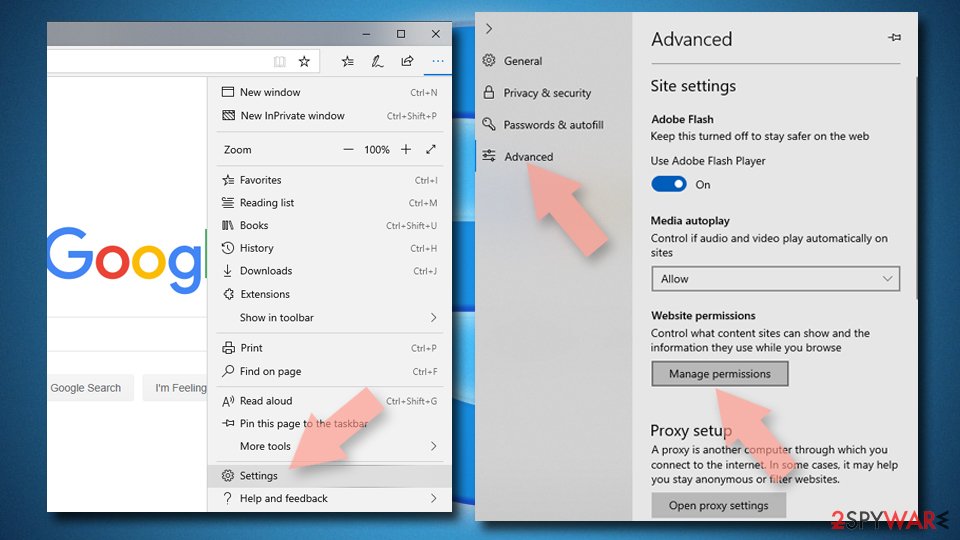
- Toggle the switch to the left to turn notifications off on Microsoft Edge.



MS Edge (Chromium):
- Open Microsoft Edge, and go to Settings.
- Select Site permissions.
- Go to Notifications on the right.
- Under Allow, you will find the unwanted entry.
- Click on More actions and select Block.


Automatic downloads can be dangerous
You might end up on the Yfetyg.com site after being redirected from another website after clicking on a link or due to an automatic URL redirect.[2] The problem with push notification scam sites is that they often continue this tendency, and users end up on many other websites designed to scam them into providing personal information, subscribing to useless services, or installing malicious programs.
In some cases, these redirects can prompt automatic downloads to your system. Never click on these files, as they can infect your system even further. You should be fine as long as you run the downloaded executable – all you have to do is delete it by pressing Shift + Del.
If you have already installed something suspicious or your browsers are commonly displaying ads and redirect you to malicious scam pages, it is time to check your device for adware and malware infections. You can do that quickly with SpyHunterCombo Cleaner anti-malware software or try to uninstall PUPs manually. The latter method can only work for a limited number of apps (those that are not malicious), while malware can usually be detected only with security software.

After eliminating all potentially unwanted programs and malware, we recommend you also clean or reset your web browsers. Adware is known to interact with browsers to produce ads, hence leftover files might result in a continuation of such activity. Besides, tracking technologies such as cookies[3] can continue to track your online data. For more details on how to take care of your browsers after the infection, check the instructions below or scan your system with a system maintenance tool FortectIntego which could do this job for you automatically.
Uninstall from Windows
Uninstall from Windows 10/8:
- Type Control Panel into the Windows search box and open the result.
- Under Programs, select Uninstall a program.


Uninstall from Windows 7/XP:
- Click on Windows Start > Control Panel (Windows XP users should click on Add/Remove Programs).
- In Control Panel, select Programs > Uninstall a program.


Remove the unwanted program:
- In the Programs and Features window, look for any recently installed suspicious entries, select them, and click Uninstall.
- If User Account Control appears, click Yes to confirm, then complete the removal.


Delete from macOS
Remove the unwanted application:
- From the menu bar, select Go > Applications.
- In the Applications folder, look for any suspicious entries, then drag them to Trash (or right-click and pick Move to Trash).


Delete leftover files and folders:
- Select Go > Go to Folder.
- Enter /Library/Application Support and remove any suspicious folders related to the unwanted program.
- Repeat the same check in the /Library/LaunchAgents and /Library/LaunchDaemons folders, deleting any suspicious entries.

- Finally, empty the Trash to permanently remove the leftovers.

Remove from Microsoft Edge
Delete unwanted extensions from MS Edge:
- Select Menu (three horizontal dots at the top-right of the browser window) and pick Extensions.
- From the list, pick the extension and click on the Gear icon.
- Click Remove.


Clear cookies and other browser data:
- Click on the Menu (three horizontal dots at the top-right of the browser window) and select Settings > Privacy, search, and services..
- Under Clear browsing data, pick Choose what to clear.
- Select Cookies and other site data and Cached images and files. (apart from passwords, although you might want to include Media licenses as well, if applicable) and click on Clear.


Restore new tab and homepage settings:
- Click the menu icon and choose Settings.
- Then find On startup section.
- Click Remove next to any suspicious startup page.
Reset MS Edge if the above steps did not work:
- Press on Ctrl + Shift + Esc to open Task Manager.
- Click on More details arrow at the bottom of the window.
- Select Details tab.
- Now scroll down and locate every entry with Microsoft Edge name in it. Right-click on each of them and select End Task to stop MS Edge from running.


Instructions for Chromium-based Edge
Delete extensions from MS Edge (Chromium):
- Open Edge and click select Settings > Extensions.
- Delete unwanted extensions by clicking Remove.


Clear cache and site data:
- Click on Menu and go to Settings.
- Select Privacy, search and services.
- Under Clear browsing data, pick Choose what to clear.
- Under Time range, pick All time.
- Select Clear now.


Reset Chromium-based MS Edge:
- Click on Menu and select Settings.
- On the left side, pick Reset settings.
- Select Restore settings to their default values.
- Confirm with Reset.
- This will disable extensions and reset startup pages but will not delete bookmarks, saved passwords, or browsing history.


Remove from Mozilla Firefox (FF)
Remove dangerous extensions:
- Open Mozilla Firefox browser and click on the Menu (three horizontal lines at the top-right of the window).
- Select Add-ons.
- In here, select the unwanted extension and click Remove.


Reset the homepage:
- Click three horizontal lines at the top right corner to open the menu.
- Choose Settings.
- Under Home, set your preferred homepage and new tab settings.
Clear cookies and site data:
- Click Menu and pick Settings.
- Go to Privacy & Security section.
- Scroll down to locate Cookies and Site Data.
- Click on Clear Data...
- Select Cookies and Site Data and Temporary cached files and pages, then click Clear.


Reset Mozilla Firefox
If clearing the browser as explained above did not help, reset Mozilla Firefox:
- Open Mozilla Firefox browser and click the Menu.
- Go to Help and then choose Troubleshooting Information.

- Under Give Firefox a tune up section, click on Refresh Firefox...
- Once the pop-up shows up, confirm the action by pressing on Refresh Firefox.



Remove from Google Chrome
Delete malicious extensions from Google Chrome:
- Open Google Chrome, click on the Menu (three vertical dots at the top-right corner) and select More tools > Extensions.
- In the newly opened window, you will see all the installed extensions. Uninstall all suspicious extensions related to the unwanted program by clicking Remove.


Clear cache and web data from Chrome:
- Click on Menu and pick Settings.
- Under Privacy and security, select Clear browsing data.
- Select Browsing history, Cookies and other site data, as well as Cached images and files.
- Click Clear data.


Change your homepage:
- Click menu and choose Settings.
- Look for a suspicious site in the On startup section.
- Click on Open a specific or set of pages and click on three dots to find the Remove option.
Reset Google Chrome:
If the previous methods did not help you, reset Google Chrome to eliminate all the unwanted components:
- Click on Menu and select Settings.
- In the Settings, scroll down and click Advanced.
- Scroll down and locate Reset and clean up section.
- Now click Restore settings to their original defaults.
- Confirm with Reset settings.


Delete from Safari
Remove dangerous extensions:
- Open Safari, click Safari in the menu at the top-left of the screen, and select Preferences.
- Go to the Extensions tab, look for any suspicious entries, and click Uninstall to remove them.


Clear history and website data:
- Click Safari in the menu and pick Clear History.
- Set Clear to all history and confirm with Clear History.


Reset Safari:
- Click Safari in the menu and select Preferences > Advanced.
- Enable Show Develop menu in menu bar.
- From the menu bar, click Develop and select Empty Caches.


Did this guide help?
Be the first to comment