

Allhotfeed.com uses deception methods to trick users into allowing push notifications
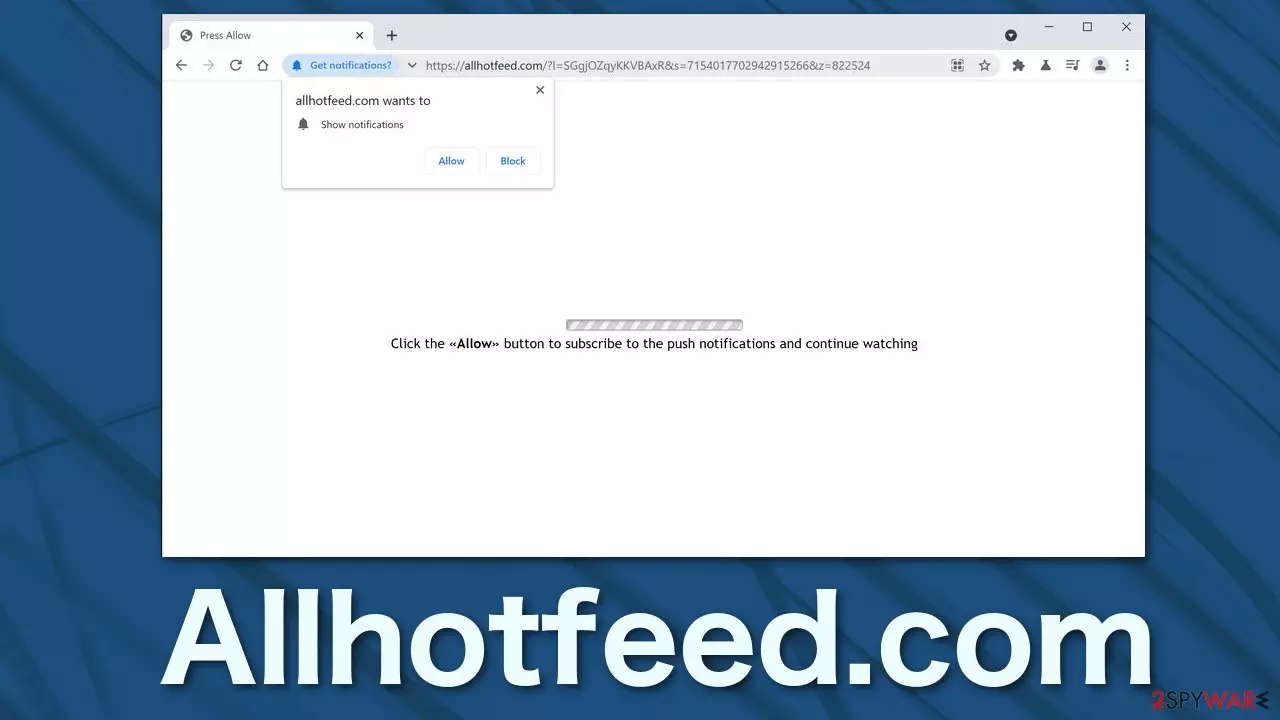
Allhotfeed.com is a fake website that is designed to infect users' browsers with annoying pop-ups. These ads are particularly intrusive because they appear even when the browser is closed. The way creators of pages like this use social engineering tactics[1] to trick them into doing it themselves leaves many people with questions. Furthermore, people do not find websites like this in their search results. Usually, they get redirected there from other already shady sites, or a potentially unwanted program caused a redirect.
There are thousands of similar websites to this one. They have only one page; they display a clear message dedicated to getting users to click the “Allow” button. The problem is, they are extremely easy to reproduce, so when one page gets discovered, a new one takes its place. Because of the sheer amount of pages like this, you might ask yourself what the reason behind it is.
You see, ads bring money because Allhotfeed.com acts as a middleman between you and advertisers. It pushes their content on your screen, so every time you click, they generate revenue. Moreover, creators do not background-check[2] all the promoters that go through their site because quantity means more cash for them. For this reason, among legitimate advertisers, ads appear, leading to questionable sources.
| NAME | Allhotfeed.com |
| TYPE | Potentially unwanted program; push notification spam |
| SYMPTOMS | An increased amount of pop-up ads, banners, and other types of commercial content |
| DANGERS | Ads shown can be deceptive and lead to dangerous sites |
| DISTRIBUTION | Other shady websites; bundled software |
| ELIMINATION | Disable push notifications via browser settings |
| FURTHER STEPS | It would be beneficial if you used a maintenance tool like FortectIntego after removal to fix any damaged files |
There are various types of fake ads that promote scams that are designed to get your personal information or make you download PUPs or malware:
- System errors: a great example of this is the Critical ERROR scam. It is designed to redirect users to a website that delivers a message warning about infection and urges them to call the provided number. On the other end, individuals pretend to be Microsoft support technicians and try to sell users security software to get their credit card information. They can also attempt to download malware.
- Danger warnings: IP address & personal information might be exposed scam. The website states that the user's IP address and personal information might be exposed. It then shows the person's location and IP address which can scare people who do not know that by default, IP addresses are publicly available to every page they visit. The scam then suggests getting “the #1 trusted VPN” to protect their privacy on the internet. This could actually be a potentially unwanted program, or even worse, malware.
- Prize winnings: $1000 Walmart Gift Card Winner ads. This scam informs people about supposed lottery winnings and encourages them to play an online game or complete a survey in order to claim the prize. The goal is to promote specific products, steal personal information, or even install malware on the victim’s computer.
- Software updates: Flash Player Update. The scheme is created to infect victims with malware. It shows a fake message that their Flash Player needs to be updated because the current version is outdated. Luckily, users do not come across this as often as before because Flash Player stopped being used in 2020.[3] Because of peoples' awareness, this scam is not as lucrative as before.

Learn to identify fake advertisements
Usually, ads created by scammers or hackers use scare tactics to manipulate people. So beware of that. If you come across something that says you need to take quick action, take a step back and think about it. It is also good to read the information once again to ensure no spelling or grammar mistakes.
Although the appearance of scams is getting more sophisticated as time goes by, it is still worth it to look at the ad or website and see if it looks professional and not half done. Scammers also quite often use big brand names to gain peoples' trust. In that case, look if the domain name matches the service, if no numbers are added, or any other slight differences. It is best to open a new tab and the brand's official website that way and compare the two.
It would help a ton if you used an adblocking add-on, this would eliminate most ads, and you would not see them at all, so you will not feel the temptation to click on random links.
Precautionary steps need to be taken if you wander off on the world wide web. The most obvious one is checking if the link is HTTP or HTTPS. Links that have the S at the end are much safer because they are encrypted. If the website does not use encryption, the data you provide to it can be accessed by anyone.
The removal process
If you have had enough annoying pop-ups and do not want to see scammy and clickbait ads on your screen, you can remove Allhotfeed.com permissions manually by going to your browser settings. Keep in mind this might not work if you have an adware infection. If removal from the browser will not work, you will have to access your programs section in the device and find it manually. If you have no idea what app is responsible for such activities, you should deploy SpyHunterCombo Cleaner or MalwarebytesMalwarebytes professional security software that will perform a full system scan and eliminate it automatically. They can also prevent such infections in the future by warning you, so it is beneficial to keep them.
After successful removal, you need to take care of your browsers separately. With the help of cookies, shady websites you visited could have collected data about your browsing behaviour, hobbies, and so on. To delete that information, use FortectIntego maintenance tool. Additional options are provided at the bottom of this post.
Google Chrome (desktop):
- Open Google Chrome browser and go to Menu > Settings.
- Scroll down and click on Advanced.
- Locate the Privacy and security section and pick Site Settings > Notifications.

- Look at the Allow section and look for a suspicious URL.
- Click the three vertical dots next to it and pick Block. This should remove unwanted notifications from Google Chrome.



Google Chrome (Android):
- Open Google Chrome and tap on Settings (three vertical dots).
- Select Notifications.
- Scroll down to Sites section.
- Locate the unwanted URL and toggle the button to the left (Off setting).


Mozilla Firefox:
- Open Mozilla Firefox and go to Menu > Options.
- Click on Privacy & Security section.
- Under Permissions, you should be able to see Notifications. Click Settings button next to it.

- In the Settings – Notification Permissions window, click on the drop-down menu by the URL in question.
- Select Block and then click on Save Changes. This should remove unwanted notifications from Mozilla Firefox.



Safari:
- Click on Safari > Preferences…
- Go to Websites tab and, under General, select Notifications.
- Select the web address in question, click the drop-down menu and select Deny.


MS Edge:
- Open Microsoft Edge, and click the Settings and more button (three horizontal dots) at the top-right of the window.
- Select Settings and then go to Advanced.
- Under Website permissions, pick Manage permissions and select the URL in question.
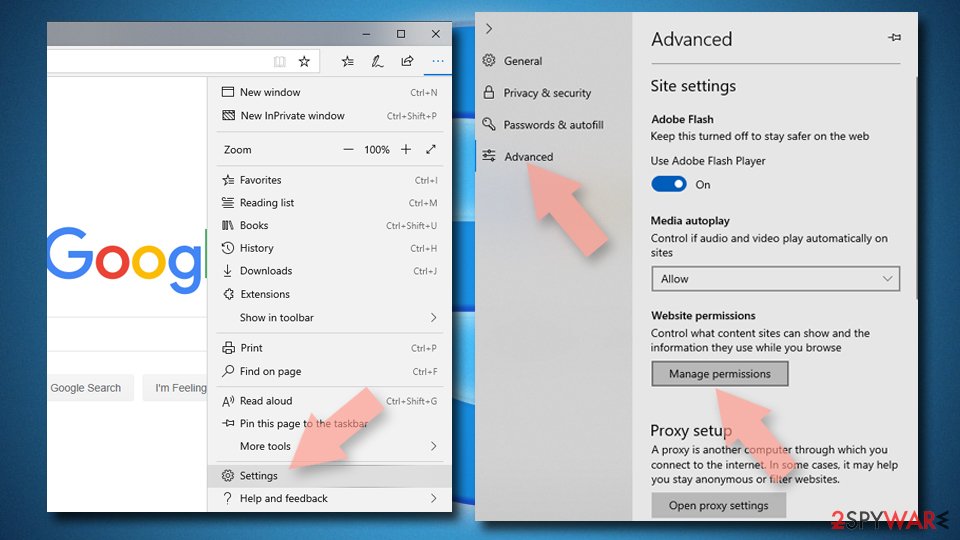
- Toggle the switch to the left to turn notifications off on Microsoft Edge.



MS Edge (Chromium):
- Open Microsoft Edge, and go to Settings.
- Select Site permissions.
- Go to Notifications on the right.
- Under Allow, you will find the unwanted entry.
- Click on More actions and select Block.


Internet Explorer:
- Open Internet Explorer, and click on the Gear icon at the top-right on the window.
- Select Internet options and go to Privacy tab.
- In the Pop-up Blocker section, click on Settings.
- Locate web address in question under Allowed sites and pick Remove.


Uninstall from Windows
Uninstall from Windows 10/8:
- Type Control Panel into the Windows search box and open the result.
- Under Programs, select Uninstall a program.


Uninstall from Windows 7/XP:
- Click on Windows Start > Control Panel (Windows XP users should click on Add/Remove Programs).
- In Control Panel, select Programs > Uninstall a program.


Remove the unwanted program:
- In the Programs and Features window, look for any recently installed suspicious entries, select them, and click Uninstall.
- If User Account Control appears, click Yes to confirm, then complete the removal.


Delete from macOS
Remove the unwanted application:
- From the menu bar, select Go > Applications.
- In the Applications folder, look for any suspicious entries, then drag them to Trash (or right-click and pick Move to Trash).


Delete leftover files and folders:
- Select Go > Go to Folder.
- Enter /Library/Application Support and remove any suspicious folders related to the unwanted program.
- Repeat the same check in the /Library/LaunchAgents and /Library/LaunchDaemons folders, deleting any suspicious entries.

- Finally, empty the Trash to permanently remove the leftovers.

Remove from Microsoft Edge
Delete unwanted extensions from MS Edge:
- Select Menu (three horizontal dots at the top-right of the browser window) and pick Extensions.
- From the list, pick the extension and click on the Gear icon.
- Click Remove.


Clear cookies and other browser data:
- Click on the Menu (three horizontal dots at the top-right of the browser window) and select Settings > Privacy, search, and services..
- Under Clear browsing data, pick Choose what to clear.
- Select Cookies and other site data and Cached images and files. (apart from passwords, although you might want to include Media licenses as well, if applicable) and click on Clear.


Restore new tab and homepage settings:
- Click the menu icon and choose Settings.
- Then find On startup section.
- Click Remove next to any suspicious startup page.
Reset MS Edge if the above steps did not work:
- Press on Ctrl + Shift + Esc to open Task Manager.
- Click on More details arrow at the bottom of the window.
- Select Details tab.
- Now scroll down and locate every entry with Microsoft Edge name in it. Right-click on each of them and select End Task to stop MS Edge from running.


Instructions for Chromium-based Edge
Delete extensions from MS Edge (Chromium):
- Open Edge and click select Settings > Extensions.
- Delete unwanted extensions by clicking Remove.


Clear cache and site data:
- Click on Menu and go to Settings.
- Select Privacy, search and services.
- Under Clear browsing data, pick Choose what to clear.
- Under Time range, pick All time.
- Select Clear now.


Reset Chromium-based MS Edge:
- Click on Menu and select Settings.
- On the left side, pick Reset settings.
- Select Restore settings to their default values.
- Confirm with Reset.
- This will disable extensions and reset startup pages but will not delete bookmarks, saved passwords, or browsing history.


Remove from Mozilla Firefox (FF)
Remove dangerous extensions:
- Open Mozilla Firefox browser and click on the Menu (three horizontal lines at the top-right of the window).
- Select Add-ons.
- In here, select the unwanted extension and click Remove.


Reset the homepage:
- Click three horizontal lines at the top right corner to open the menu.
- Choose Settings.
- Under Home, set your preferred homepage and new tab settings.
Clear cookies and site data:
- Click Menu and pick Settings.
- Go to Privacy & Security section.
- Scroll down to locate Cookies and Site Data.
- Click on Clear Data...
- Select Cookies and Site Data and Temporary cached files and pages, then click Clear.


Reset Mozilla Firefox
If clearing the browser as explained above did not help, reset Mozilla Firefox:
- Open Mozilla Firefox browser and click the Menu.
- Go to Help and then choose Troubleshooting Information.

- Under Give Firefox a tune up section, click on Refresh Firefox...
- Once the pop-up shows up, confirm the action by pressing on Refresh Firefox.



Remove from Google Chrome
Delete malicious extensions from Google Chrome:
- Open Google Chrome, click on the Menu (three vertical dots at the top-right corner) and select More tools > Extensions.
- In the newly opened window, you will see all the installed extensions. Uninstall all suspicious extensions related to the unwanted program by clicking Remove.


Clear cache and web data from Chrome:
- Click on Menu and pick Settings.
- Under Privacy and security, select Clear browsing data.
- Select Browsing history, Cookies and other site data, as well as Cached images and files.
- Click Clear data.


Change your homepage:
- Click menu and choose Settings.
- Look for a suspicious site in the On startup section.
- Click on Open a specific or set of pages and click on three dots to find the Remove option.
Reset Google Chrome:
If the previous methods did not help you, reset Google Chrome to eliminate all the unwanted components:
- Click on Menu and select Settings.
- In the Settings, scroll down and click Advanced.
- Scroll down and locate Reset and clean up section.
- Now click Restore settings to their original defaults.
- Confirm with Reset settings.


Delete from Safari
Remove dangerous extensions:
- Open Safari, click Safari in the menu at the top-left of the screen, and select Preferences.
- Go to the Extensions tab, look for any suspicious entries, and click Uninstall to remove them.


Clear history and website data:
- Click Safari in the menu and pick Clear History.
- Set Clear to all history and confirm with Clear History.


Reset Safari:
- Click Safari in the menu and select Preferences > Advanced.
- Enable Show Develop menu in menu bar.
- From the menu bar, click Develop and select Empty Caches.


Did this guide help?
Be the first to comment