

GreatSearchSport takes over your browser
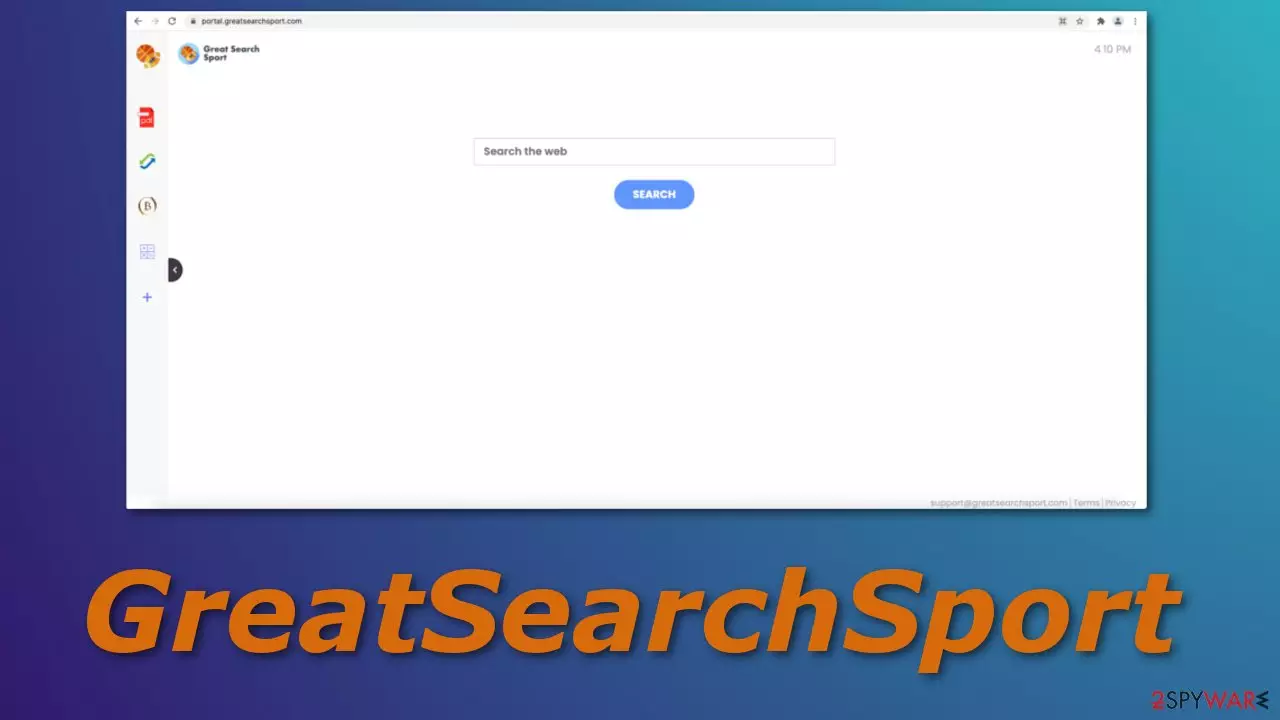
GreatSearchSport is an extension you accidentally added or a potentially unwanted program[1] you installed as bundled software. It changes the most important settings of the browser like the homepage, new tab address, and the search engine. This completely changes the web surfing experience.
The name implies that this extension should be somehow beneficial for sports fans. This is completely untrue as it does not have anything unique related to sport – no news, special search algorithm,[2] or even basic things that would represent the theme. In fact, multiple extensions look exactly the same but just with a different name.
Some of the copies we wrote about – GetMovieSearch, ProMusicSearch, and ProRadioSearch all have the same basic features to make them look more current, like a PDF file converter, currency converter, calculator, and the ability to add your favorite websites. But it is just not worth it to keep this extension attached as all of these are available with a click of a button on any search engine or even your operating system.
| NAME | GreatSearchSport |
| TYPE | Browser hijacker; potentially unwanted program |
| SYMPTOMS | Browsers' settings like the homepage, new tab address, search engine are changed; Advertisements might be inserted between search results |
| DISTRIBUTION | Freeware downloads, deceptive ads; redirects |
| DANGERS | Altered search results can misinform users; ads lead to dubious pages; browsing activity tracking |
| ELIMINATION | Remove an unwanted extension via browser settings or by deploying security software SpyHunterCombo Cleaner |
| FURTHER STEPS | Use FortectIntego for optimization and to repair any damage remaining |
The add-on in detail
The extension could have messed up your browser if you were surfing through suspicious sites that displayed deceptive ads.[3] You might have been redirected to a page that fooled you into adding it. It is also possible that this is the work of a PUP that is operating in the background on your machine.

GreatSearchSport redirects your search queries from portal.greatsearchsport.com through feed.greatsearchsport.com to one of these search engines:
- Bing
- Yahoo
- nearbyme.io
- searchlee.com
While Bing and Yahoo are well-known engines that some people use, the others are shady, unreliable, and might lead to questionable websites. You will see a lot of sponsored links at the top before you will get to unpromoted ones. On some occasions, you can also see ads injected between the search results or in the corners of the screen.
Browser hijackers rarely have their own search engines. They use already existing ones to make them functional. They generate revenue from ads you click on that were sent by them. That is their main goal – making money. This makes it difficult to navigate, as the search results you get are not always accurate.

Another way they monetize you is by collecting data about your browsing behavior – your IP address, the websites you visit, purchases you make. They then can sell that information to third parties:
By Using the Product, you may enable us or third parties to access, use, and collect a variety of information, regarding your Internet Browser, your browsing habits, and information about your computer including by usage of cookies.
This can also have a toll on your machine's performance because all the used cookies and cache are stored in your drives. We suggest using FortectIntego to automatically clear this data and fix any other damage after complete removal. This maintenance tool can also fix system errors, repair corrupted files after more serious infections, and prevent reinstallation.
If GreatSearchSport was added to your browser as an extension, it is not complicated to eliminate it manually via browser settings:
Google Chrome
- Open Google Chrome, click on the Menu (three vertical dots at the top-right corner) and select More tools > Extensions.
- In the newly opened window, you will see all the installed extensions. Uninstall all the suspicious plugins that might be related to the unwanted program by clicking Remove.


MS Edge:
- Select Menu (three horizontal dots at the top-right of the browser window) and pick Extensions.
- From the list, pick the extension and click on the Gear icon.
- Click on Uninstall at the bottom.


MS Edge (Chromium)
- Open Edge and click select Settings > Extensions.
- Delete unwanted extensions by clicking Remove.


Mozilla Firefox
- Open Mozilla Firefox browser and click on the Menu (three horizontal lines at the top-right of the window).
- Select Add-ons.
- In here, select unwanted plugin and click Remove.


Safari
- Click Safari > Preferences…
- In the new window, pick Extensions.
- Select the unwanted extension and select Uninstall.


Internet Explorer:
- Open Internet Explorer, click on the Gear icon (IE menu) on the top-right corner of the browser
- Pick Manage Add-ons.
- You will see a Manage Add-ons window. Here, look for suspicious plugins. Click on these entries and select Disable.


Potentially unwanted applications are disguised as useful tools
If you have not found the add-on in the list, you might have a PUA operating in the background performing these annoying tasks. In this case, simply changing the homepage back to the one that was before will not work. The setting will keep resetting until you remove the program responsible for this.
There are a couple of different ways this could have happened. You may have seen an advertisement for software that seemed like a handy tool, or you might not know about the existence of it at all because the app was bundled together with some other files you were downloading.
Software bundling is a common method to spread these unwanted programs. People rush through the installation process and do not notice them. Unofficial sites are the main distributors, so it is best to pay for software you want to get than risk infecting your system.
You can also choose the “Custom” or “Advanced” installation method and untick the boxes next to files that you do not need. Reading the Terms of Use and Privacy Policy is also a good idea, although it is boring. But it takes just one time, and you will know exactly what the program will be able to do and if you will need to sacrifice your privacy in order to use it.
Finding the right program to uninstall can be difficult if you do not know what you are looking for. It could be antivirus software doing this or anything you could think of, so we recommend SpyHunterCombo Cleaner or MalwarebytesMalwarebytes to do the job for you. These anti-malware tools can also prevent infections in the future by giving you a warning about a suspicious program wanting to get in.
If you want to do it yourself, here are the instructions for Windows and Mac machines:
Instructions for Windows 10/8 machines:
- Enter Control Panel into Windows search box and hit Enter or click on the search result.
- Under Programs, select Uninstall a program.

- From the list, find the entry of the suspicious program.
- Right-click on the application and select Uninstall.
- If User Account Control shows up, click Yes.
- Wait till uninstallation process is complete and click OK.



If you are Windows 7/XP user, proceed with the following instructions:
- Click on Windows Start > Control Panel located on the right pane (if you are Windows XP user, click on Add/Remove Programs).
- In Control Panel, select Programs > Uninstall a program.

- Pick the unwanted application by clicking on it once.
- At the top, click Uninstall/Change.
- In the confirmation prompt, pick Yes.
- Click OK once the removal process is finished.

Instructions for Mac machines:
- From the menu bar, select Go > Applications.
- In the Applications folder, look for all related entries.
- Click on the app and drag it to Trash (or right-click and pick Move to Trash)


To fully remove an unwanted app, you need to access Application Support, LaunchAgents, and LaunchDaemons folders and delete relevant files:
- Select Go > Go to Folder.
- Enter /Library/Application Support and click Go or press Enter.
- In the Application Support folder, look for any dubious entries and then delete them.
- Now enter /Library/LaunchAgents and /Library/LaunchDaemons folders the same way and terminate all the related .plist files.


Did this guide help?
Be the first to comment