

Eptobeemeeps.com ads can lead you to malicious websites
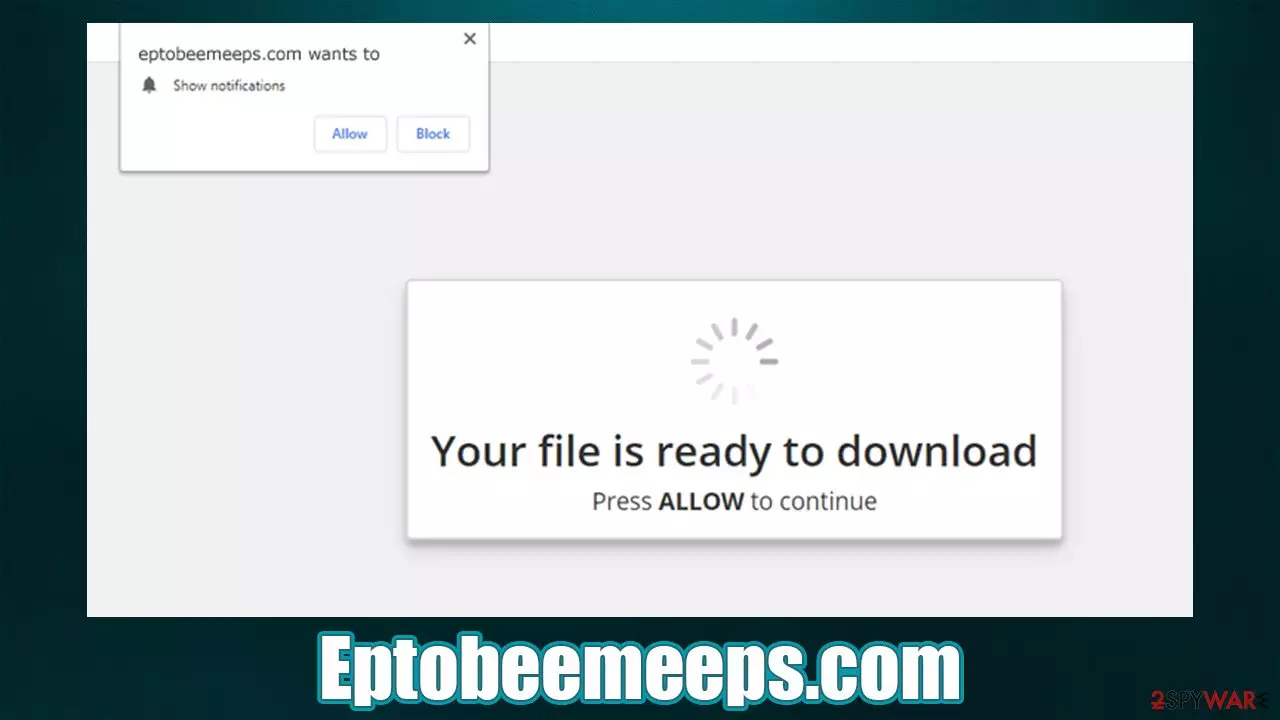
Push notifications from Eptobeemeeps.com can be extremely intrusive and annoying because they show up at random times and disrupt all activities, be it working or watching a movie on a computer. What makes matters worse is that the pop-ups often include links to potentially malicious websites where users could be tricked into installing malware or disclosing their personal details. Hence, clicking on the links provided by this website should be avoided at all costs.
The reason why you see alerts on your desktop regardless of which browser or which website is in operation is because push notifications work at the system level. In essence, you permitted the Eptobeemeeps.com site to send the information to you, be it intentionally or not.
To be precise, the unwanted activity starts as soon as you press the “Allow” button within the notification prompt. Many users are tricked by crooks, thanks to the social engineering they are using. This applies to users who have never dealt with push notification scam sites before and also those who do not know enough about how the feature functions.
If you are one of such people, you should not fret, as this situation is easily fixable. However, keep in mind that persistent redirects to malicious websites might be a sign of adware infection, so this aspect should also be investigated. Below you will find all details you would require to ensure that your system is clean and your browser no longer spams you with intrusive pop-ups all day.
| Name | Eptobeemeeps.com |
| Type | Push notifications, scam, spam |
| Distribution | The messages start flooding the screen after the allow button is pressed within the notification prompt |
| Symptoms | Intrusive desktop notifications show up on the desktop at any time, promoting websites of dubious content |
| Risks | Ads and links to sites displayed by the website might be dangerous: users might suffer from monetary losses, install malware or potentially unwanted programs on their systems, or disclose their sensitive data to cybercrooks |
| Removal | To get rid of notifications, you should access your web browser settings – check the below paragraphs for more information |
| Further steps | You should check your system for adware with SpyHunterCombo Cleaner or another security software. Also, cleaning web browsers with FortectIntego or manually is beneficial as well |
There are thousands of websites developed for nefarious purposes. We already wrote about similar scams, including Featbooksterile.com, Mportantly.online, Zationtothe.online, and many others. Fraudulent content online is not a new phenomenon, so web surfers should always be careful with the content they interact online with.
Stop the disruptive Eptobeemeeps.com pop-ups
Many users think that the intrusive pop-ups are caused by a computer infection. This is not entirely true, as push notifications are not inherently malicious, although they can be used as a tool to deliver any type of information to users, including links (never interact with these, or your system might actually get infected).
Luckily, there is an easy way to remove unwanted notifications via web browser settings.
Google Chrome:
- Open Google Chrome browser and go to Menu > Settings.
- Scroll down and click on Advanced.
- Locate the Privacy and security section and pick Site Settings > Notifications.
- Look at the Allow section and look for a suspicious URL.
- Click the three vertical dots next to it and pick Block. This should remove unwanted notifications from Google Chrome.


Mozilla Firefox:
- Open Mozilla Firefox and go to Menu > Options.
- Click on Privacy & Security section.
- Under Permissions, you should be able to see Notifications. Click the Settings button next to it.
- In the Settings – Notification Permissions window, click on the drop-down menu by the URL in question.
- Select Block and then click on Save Changes. This should remove unwanted notifications from Mozilla Firefox.


Safari:
- Click on Safari > Preferences…
- Go to the Websites tab and, under General, select Notifications.
- Select the web address in question, click the drop-down menu and select Deny.


MS Edge (Chromium):
- Open Microsoft Edge, and go to Settings.
- Select Site permissions.
- Go to Notifications on the right.
- Under Allow, you will find the unwanted entry.
- Click on More actions and select Block.


MS Edge (legacy):
- Open Microsoft Edge, and click the Settings and more button (three horizontal dots) at the top-right of the window.
- Select Settings and then go to Advanced.
- Under Website permissions, pick Manage permissions and select the URL in question.
- Toggle the switch to the left to turn notifications off on Microsoft Edge.


Scam techniques explained: how to avoid being tricked online
Push notifications are used by many websites developers legitimately. All they have to do is ask users whether they want to receive them. If they agree, the site has permission from the user to send notifications at particular time intervals – it usually includes news or new video uploads – it highly depends on the website contents.
What most people are not aware of is that scam engineers use these tools to deliver commercial content directly to users' desktops, monetizing the exposure. Advertising is a popular form of generating revenue and can be used as a great alternative for paid content. Unfortunately, crooks scam users and insert the ads into their screens in one way or another.
As we already explained, adware is one of the problems that users have to deal with when dealing with extensive ads all over the internet. Push notifications are not an infection but can be used in a very similar way. What remains is to convince users that enabling those notifications by pressing the “Allow” button is not what it actually is.

Here is when social engineering comes in. Those who do not know how push notification works are provided with misleading information on Eptobeemeeps.com or a similar website. For example, the message might say that there is a video to be watched, but only after the “Allow” button is pressed. Other times, visitors are asked to verify that they are not robots, allegedly.
Of course, all of these claims are false and should be ignored. Remember that, whatever the message on the page tells you, it's a lie. The prompt always results in the same outcome – if you click “Allow,” you provide permission for that website to deliver pop-ups. If you wish not to receive these requests at all, you can easily do that via browser settings:
- Open Google Chrome
- Go to Menu > Settings
- Scroll down to the Privacy and security section
- Select Site Settings
- Scroll down again and pick Notifications
- Choose Use quieter messaging option.
This setting will still allow you to access the prompt if clicked, but it will no longer pop up upon entering a website. You can also choose Don't allow sites to show notifications setting if you want to block it completely.
Tackle the adware and redirect problem
Finally, we should talk about adware and its impact on the system that is infected. In many cases, users confuse pop-up ads and push notifications because they look almost identical and show up above all the other windows or UI[1] elements. However, there is a fundamental difference – pop-up ads stem either from the website they are embedded in or are caused by an adware infection.
Adware is deceptive software you might not even know you have installed. This is because it is mainly spread via software bundling – a misleading marketing practice that tries to hide optional components within a single installer. You are likely to have adware installed if:
- You download freeware[2] from third-party websites and don't pay close attention to the installation process;
- The web browser redirects you to suspicious websites, and you see more ads everywhere.
Besides, adware is also known to be gathering information via cookies[3] or other tracking technologies, which might compromise your privacy in some cases. Thus, you should remove all the potentially unwanted programs or malware that could be installed on your device, and the easiest way to do it is by using SpyHunterCombo Cleaner security software. It can quickly check whether malicious programs are installed on your system and remove them automatically.
If you need a complementary tool that would clean the web browsers for you, repair malware-caused system damage, and clean various junk and caches from your system, we highly recommend using the FortectIntego utility. Below we provide more details on deleting cookies and web data manually if you wish to go that route.
Remove from Microsoft Edge
Delete unwanted extensions from MS Edge:
- Select Menu (three horizontal dots at the top-right of the browser window) and pick Extensions.
- From the list, pick the extension and click on the Gear icon.
- Click Remove.


Clear cookies and other browser data:
- Click on the Menu (three horizontal dots at the top-right of the browser window) and select Settings > Privacy, search, and services..
- Under Clear browsing data, pick Choose what to clear.
- Select Cookies and other site data and Cached images and files. (apart from passwords, although you might want to include Media licenses as well, if applicable) and click on Clear.


Restore new tab and homepage settings:
- Click the menu icon and choose Settings.
- Then find On startup section.
- Click Remove next to any suspicious startup page.
Reset MS Edge if the above steps did not work:
- Press on Ctrl + Shift + Esc to open Task Manager.
- Click on More details arrow at the bottom of the window.
- Select Details tab.
- Now scroll down and locate every entry with Microsoft Edge name in it. Right-click on each of them and select End Task to stop MS Edge from running.


Instructions for Chromium-based Edge
Delete extensions from MS Edge (Chromium):
- Open Edge and click select Settings > Extensions.
- Delete unwanted extensions by clicking Remove.


Clear cache and site data:
- Click on Menu and go to Settings.
- Select Privacy, search and services.
- Under Clear browsing data, pick Choose what to clear.
- Under Time range, pick All time.
- Select Clear now.


Reset Chromium-based MS Edge:
- Click on Menu and select Settings.
- On the left side, pick Reset settings.
- Select Restore settings to their default values.
- Confirm with Reset.
- This will disable extensions and reset startup pages but will not delete bookmarks, saved passwords, or browsing history.


Remove from Mozilla Firefox (FF)
Remove dangerous extensions:
- Open Mozilla Firefox browser and click on the Menu (three horizontal lines at the top-right of the window).
- Select Add-ons.
- In here, select the unwanted extension and click Remove.


Reset the homepage:
- Click three horizontal lines at the top right corner to open the menu.
- Choose Settings.
- Under Home, set your preferred homepage and new tab settings.
Clear cookies and site data:
- Click Menu and pick Settings.
- Go to Privacy & Security section.
- Scroll down to locate Cookies and Site Data.
- Click on Clear Data...
- Select Cookies and Site Data and Temporary cached files and pages, then click Clear.


Reset Mozilla Firefox
If clearing the browser as explained above did not help, reset Mozilla Firefox:
- Open Mozilla Firefox browser and click the Menu.
- Go to Help and then choose Troubleshooting Information.

- Under Give Firefox a tune up section, click on Refresh Firefox...
- Once the pop-up shows up, confirm the action by pressing on Refresh Firefox.



Remove from Google Chrome
Delete malicious extensions from Google Chrome:
- Open Google Chrome, click on the Menu (three vertical dots at the top-right corner) and select More tools > Extensions.
- In the newly opened window, you will see all the installed extensions. Uninstall all suspicious extensions related to the unwanted program by clicking Remove.


Clear cache and web data from Chrome:
- Click on Menu and pick Settings.
- Under Privacy and security, select Clear browsing data.
- Select Browsing history, Cookies and other site data, as well as Cached images and files.
- Click Clear data.


Change your homepage:
- Click menu and choose Settings.
- Look for a suspicious site in the On startup section.
- Click on Open a specific or set of pages and click on three dots to find the Remove option.
Reset Google Chrome:
If the previous methods did not help you, reset Google Chrome to eliminate all the unwanted components:
- Click on Menu and select Settings.
- In the Settings, scroll down and click Advanced.
- Scroll down and locate Reset and clean up section.
- Now click Restore settings to their original defaults.
- Confirm with Reset settings.


Delete from Safari
Remove dangerous extensions:
- Open Safari, click Safari in the menu at the top-left of the screen, and select Preferences.
- Go to the Extensions tab, look for any suspicious entries, and click Uninstall to remove them.


Clear history and website data:
- Click Safari in the menu and pick Clear History.
- Set Clear to all history and confirm with Clear History.


Reset Safari:
- Click Safari in the menu and select Preferences > Advanced.
- Enable Show Develop menu in menu bar.
- From the menu bar, click Develop and select Empty Caches.


Did this guide help?
Be the first to comment