

ProSearchConverters can redirect you to bogus pages
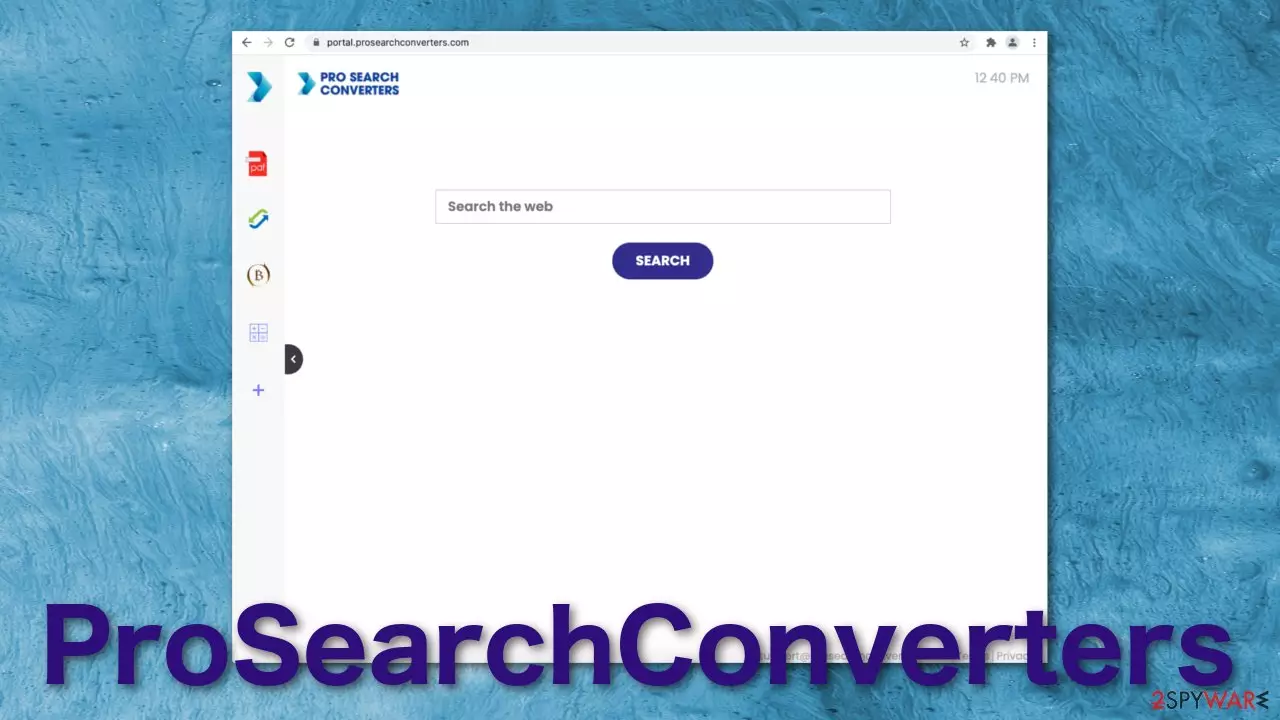
ProSearchConverters is not something you want on your browser. This extension or potentially unwanted application[1] changes various browser settings like the homepage, new tab address – that is why it is classified as a hijacker. The changes occur suddenly and unexpectedly. Most think that they have been infected with a virus. Although this is not true, the app performs many unwelcome tasks.
The name suggests that the add-on should help convert something. But that is just a randomly generated name. The authors tried making the hijacker appear useful by adding basic functions that can be accessed with a click of a button on any browser or search engine.[2]
It is not worth having this installed as it not only implements a fake search engine that might lead to dubious websites but also track browsing-related data. Furthermore, the search results may be injected with advertisements and also cause inconveniences.
| NAME | ProSearchConverters |
| TYPE | Browser hijacker, potentially unwanted program |
| SYMPTOMS | Manipulated browser settings like the homepage, search engine, new tab address; users are forced to search the internet through hijacker's engines |
| DISTRIBUTION | Deceptive pop-up ads, free software installations, questionable websites |
| DANGERS | Online activity tracking, displayed ads can redirect to dubious pages |
| ELIMINATION | You can try removing the hijacker like any other extension via browser settings or by deploying security software |
| FURTHER STEPS | FortectIntego is a repair tool that fixes any remaining damage after successful removal |
How does the add-on work?
It is unusual for people to add an extension like this one and SocialSearchConverter, BestPDFConverterSearch, BestSearchPDF on their own account. Users often want add-ons that actually provide them with some useful functions. For example, block suspicious pages, advertisements, automatically find discounts for online shopping.
The only ways people could have added ProSearchConverters are by accident, clicking on a deceptive ad, or by installing bundled software.[3] You had to be browsing through some pretty questionable sites to get yourself into this situation. Users most likely noticed that something was wrong when they opened their browser and saw portal.prosearchconverters.com URL open instead of google.com or another homepage they had.
When you type something in the search box and hit enter, it redirects queries through feed.prosearchconverters.com and displays results from a fake search engine nearbyme.io (other engines are also possible). While it can generate search results, they are inaccurate and may promote untrustworthy or even malicious content.
Hijackers seldom have their own search engines; instead, they implement already existing ones just to make them functional. The sole purpose is to monetize your browsing activity; the creators do not care about your safety or privacy.

You should be aware of potential privacy risks
Every commercial content you click on generates revenue for developers. They can also see a lot of the things you do on the internet. The Privacy Policy clearly states that your activities are not private while using their portal. What is more, it can sell that data to third parties who can use it to send you further even more personalized advertisements:
The Non-Personal Information which is being collected may include technical information automatically transmitted by the user's device (for example, type of browser, the type of the user's device and technical information pertaining to the user's device, language preferences, time stamps, clicks and visited pages, search logs, the operating system, utilized internet service provider and other similar information.
Having a PDF file converter, calculator, currency converter, and an ability to bookmark pages on the side of your homepage is simply not worth it, while having someone track your every move and put you at risk. The extension may look fun and clean because of its design, but that is just another technique to try to appear trustworthy.
This is why it is important to frequently clean your browsers' cookies and cache to delete any information websites have gathered about you. This can be made easy with a maintenance tool FortectIntego which can do this automatically. Frequently clearing cache can improve your device's performance too. Keep in mind that you should do this only after the removal is completed.
Remove the intruder from your machine
You can perform the elimination via browser settings manually:
Google Chrome
- Open Google Chrome, click on the Menu (three vertical dots at the top-right corner) and select More tools > Extensions.
- In the newly opened window, you will see all the installed extensions. Uninstall all the suspicious plugins that might be related to the unwanted program by clicking Remove.


MS Edge:
- Select Menu (three horizontal dots at the top-right of the browser window) and pick Extensions.
- From the list, pick the extension and click on the Gear icon.
- Click on Uninstall at the bottom.


MS Edge (Chromium)
- Open Edge and click select Settings > Extensions.
- Delete unwanted extensions by clicking Remove.


Mozilla Firefox
- Open Mozilla Firefox browser and click on the Menu (three horizontal lines at the top-right of the window).
- Select Add-ons.
- In here, select unwanted plugin and click Remove.


Safari
- Click Safari > Preferences…
- In the new window, pick Extensions.
- Select the unwanted extension and select Uninstall.


Internet Explorer:
- Open Internet Explorer, click on the Gear icon (IE menu) on the top-right corner of the browser
- Pick Manage Add-ons.
- You will see a Manage Add-ons window. Here, look for suspicious plugins. Click on these entries and select Disable.


Potentially unwanted applications
If it is not an extension but a PUA, it could be quite hard to determine which app is responsible for this behavior if you do not have prior experience; it could be called anything, so using security software like SpyHunterCombo Cleaner or MalwarebytesMalwarebytes would be a greater option for you. You can perform regular scans with them and detect suspicious programs. They can also prevent such infections in the future by warning you.
If you want to proceed with a manual guide, you can check the instructions for Windows and macOS below:
Instructions for Windows 10/8 machines:
- Enter Control Panel into Windows search box and hit Enter or click on the search result.
- Under Programs, select Uninstall a program.

- From the list, find the entry of the suspicious program.
- Right-click on the application and select Uninstall.
- If User Account Control shows up, click Yes.
- Wait till uninstallation process is complete and click OK.



Windows 7/XP:
- Click on Windows Start > Control Panel located on the right pane (if you are Windows XP user, click on Add/Remove Programs).
- In Control Panel, select Programs > Uninstall a program.

- Pick the unwanted application by clicking on it once.
- At the top, click Uninstall/Change.
- In the confirmation prompt, pick Yes.
- Click OK once the removal process is finished.

Mac:
- From the menu bar, select Go > Applications.
- In the Applications folder, look for all related entries.
- Click on the app and drag it to Trash (or right-click and pick Move to Trash)


To fully remove an unwanted app, you need to access Application Support, LaunchAgents, and LaunchDaemons folders and delete relevant files:
- Select Go > Go to Folder.
- Enter /Library/Application Support and click Go or press Enter.
- In the Application Support folder, look for any dubious entries and then delete them.
- Now enter /Library/LaunchAgents and /Library/LaunchDaemons folders the same way and terminate all the related .plist files.


A few things to note:
- Install software only from verified sources
- Do not click on suspicious links, ads, email attachments, etc.
- Look for grammar or spelling mistakes while browsing; if there are a lot of errors, that can be a sign of shady individuals with malicious intentions
- Keep your system and apps updated and patched
- Do not use sites that engage in illegal activities; these pages often are not regulated
Remove from Microsoft Edge
Delete unwanted extensions from MS Edge:
- Select Menu (three horizontal dots at the top-right of the browser window) and pick Extensions.
- From the list, pick the extension and click on the Gear icon.
- Click Remove.
Clear cookies and other browser data:
- Click on the Menu (three horizontal dots at the top-right of the browser window) and select Settings > Privacy, search, and services..
- Under Clear browsing data, pick Choose what to clear.
- Select Cookies and other site data and Cached images and files. (apart from passwords, although you might want to include Media licenses as well, if applicable) and click on Clear.


Restore new tab and homepage settings:
- Click the menu icon and choose Settings.
- Then find On startup section.
- Click Remove next to any suspicious startup page.
Reset MS Edge if the above steps did not work:
- Press on Ctrl + Shift + Esc to open Task Manager.
- Click on More details arrow at the bottom of the window.
- Select Details tab.
- Now scroll down and locate every entry with Microsoft Edge name in it. Right-click on each of them and select End Task to stop MS Edge from running.


Instructions for Chromium-based Edge
Delete extensions from MS Edge (Chromium):
- Open Edge and click select Settings > Extensions.
- Delete unwanted extensions by clicking Remove.
Clear cache and site data:
- Click on Menu and go to Settings.
- Select Privacy, search and services.
- Under Clear browsing data, pick Choose what to clear.
- Under Time range, pick All time.
- Select Clear now.


Reset Chromium-based MS Edge:
- Click on Menu and select Settings.
- On the left side, pick Reset settings.
- Select Restore settings to their default values.
- Confirm with Reset.
- This will disable extensions and reset startup pages but will not delete bookmarks, saved passwords, or browsing history.


Remove from Mozilla Firefox (FF)
Remove dangerous extensions:
- Open Mozilla Firefox browser and click on the Menu (three horizontal lines at the top-right of the window).
- Select Add-ons.
- In here, select the unwanted extension and click Remove.
Reset the homepage:
- Click three horizontal lines at the top right corner to open the menu.
- Choose Settings.
- Under Home, set your preferred homepage and new tab settings.
Clear cookies and site data:
- Click Menu and pick Settings.
- Go to Privacy & Security section.
- Scroll down to locate Cookies and Site Data.
- Click on Clear Data...
- Select Cookies and Site Data and Temporary cached files and pages, then click Clear.


Reset Mozilla Firefox
If clearing the browser as explained above did not help, reset Mozilla Firefox:
- Open Mozilla Firefox browser and click the Menu.
- Go to Help and then choose Troubleshooting Information.

- Under Give Firefox a tune up section, click on Refresh Firefox...
- Once the pop-up shows up, confirm the action by pressing on Refresh Firefox.



Remove from Google Chrome
Delete malicious extensions from Google Chrome:
- Open Google Chrome, click on the Menu (three vertical dots at the top-right corner) and select More tools > Extensions.
- In the newly opened window, you will see all the installed extensions. Uninstall all suspicious extensions related to the unwanted program by clicking Remove.
Clear cache and web data from Chrome:
- Click on Menu and pick Settings.
- Under Privacy and security, select Clear browsing data.
- Select Browsing history, Cookies and other site data, as well as Cached images and files.
- Click Clear data.


Change your homepage:
- Click menu and choose Settings.
- Look for a suspicious site in the On startup section.
- Click on Open a specific or set of pages and click on three dots to find the Remove option.
Reset Google Chrome:
If the previous methods did not help you, reset Google Chrome to eliminate all the unwanted components:
- Click on Menu and select Settings.
- In the Settings, scroll down and click Advanced.
- Scroll down and locate Reset and clean up section.
- Now click Restore settings to their original defaults.
- Confirm with Reset settings.


Delete from Safari
Remove dangerous extensions:
- Open Safari, click Safari in the menu at the top-left of the screen, and select Preferences.
- Go to the Extensions tab, look for any suspicious entries, and click Uninstall to remove them.
Clear history and website data:
- Click Safari in the menu and pick Clear History.
- Set Clear to all history and confirm with Clear History.


Reset Safari:
- Click Safari in the menu and select Preferences > Advanced.
- Enable Show Develop menu in menu bar.
- From the menu bar, click Develop and select Empty Caches.


Did this guide help?
Be the first to comment