

Sistheberth.xyz – a fake “Breaking news ” website that will spam you with ads
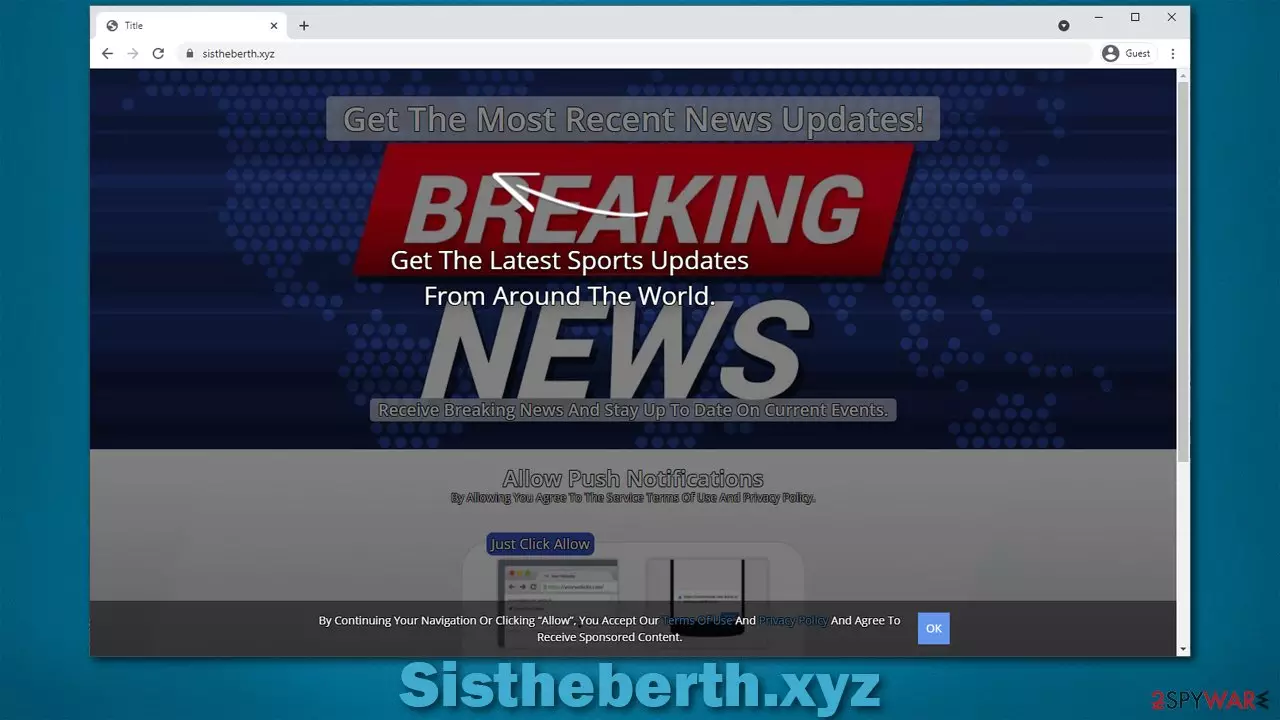
If you want to access a particular website, all you have to do is enter the address into the URL bar or click on a bookmark created before. Using this method ensures that the destination site is always correct. However, the situation is quite a bit different when browsing the web and clicking on links – these might take you somewhere you did not expect. Sistheberth.xyz is one of the websites that you might come across by accident. The purpose of it is not to be informative or useful in any other way, although one might think otherwise due to the information that is displayed on the page.
At first sight, it might look like a generic website that produces news articles – this version would only be visible if you would enter it directly. In most cases, however, this is not the sight that users see. Instead, they are presented with two elements as soon as they enter: a pop-up prompt that asks whether the user agrees for the notifications to be shown and the message/image that deceptively encourages them to pick that allow button.
Push notification scams have been particularly active in the past few years. Thousands of them a produced every day, and, unfortunately, they find many victims that get tricked by them. Sistheberth.xyz is just one of many websites but art created by unfair individuals who seek to monetize users' clicks on ads, all the while inserting them after acquiring a false affirmation from them. Without a doubt, such activity is malicious and should be treated as such.
If you are seeing Sistheberth.xyz pop-ups constantly, it must be really frustrating because if you are here, you likely don't know how to get rid of them. But do not fret, we will explain how to get rid of this unwanted activity and clean your browsers to ensure that it never returns.
| Name | Sistheberth.xyz |
|---|---|
| Type | Push notifications, ads, pop-ups |
| Appearence | Intrusive pop-ups can start showing up as soon as the “Allow” button is pressed within the notification prompt |
| Symptoms | Pop-up notifications are shown on a desktop at random times |
| Risks | Ads and links to sites displayed by the website might be dangerous: users might suffer from monetary losses, install malware or potentially unwanted programs on their systems, or disclose their sensitive data to cybercrooks |
| Removal | To block a website from showing you push notifications, you have to enter web browser settings for that. Also, if adware infection is suspected, the easiest way to get rid of it is by scanning your device with security software, such as SpyHunterCombo Cleaner |
| Additonal steps | Cleaning web browsers is just as important when dealing with potentially unwanted programs, so do so by following the instructions below or use FortectIntego for a quicker solution |
Before we proceed, we would like to explain what push notifications actually are because many people don't understand how they work, as they only see the aftermath. The truth is, you likely have encountered them before on many legitimate websites. When a website is created developers can use this API[1] if they desire so. This will show a pop-up message that asks visitors whether they want to allow or block notifications.
It was determined, however, that most users block the prompt immediately or close it altogether by pressing the X button. Although, we can't say that this feature is completely useless because it can be useful to many people, as they can receive information from websites they choose and it can be very convenient.
Unfortunately, each innovation can be exploited by cybercriminals and other unfair individuals who want to earn a quick profit from ads. Crooks realized that push notifications can be used to display links users may click, bringing revenue in the process. This way, end-users never get anything useful out of it and instead are bombarded with ads that might lead to malicious websites.
However, since they are usually tricked into subscribing, users don't know how to stop these pop-ups from being shown. This is the grand scheme of the scam, and that's how many people become victims of it. Luckily, as long as the links are not clicked, the possibility of being infected with malware is relatively low. Check the law on how to deal with ads once and for all.

Get rid of Sistheberth.xyz notifications for good
Every day crooks create websites that are designed to scam users in one way or another. For example, we have previously discussed websites like Recommend-premium-install-smart.cyou, Sincemensegment.top, Frolicpan.com, and many others. In fact, all of these sites are almost identical, as they use the same techniques to trick users and even copy one another – the same images, notifications, and scam techniques are used. Once you see a scam website of such sort, you can become very familiar with it and never make the mistake of being tricked in the future.
Here's an example of a message that scammers very commonly use:
Press “Allow” to verify, that you are not a robot
Here, you can see a perfect case of social engineering[2] – an evil art that relies on naive users or those who have less experience in the computing section. Users who get tricked confuse this notification with a legitimate request from websites that use protection to avoid bot attacks. As soon as users oblige, they grant that site permission to show notifications whenever they see fit. If you have previously struggled with a captcha code[3] – this is exactly the effect the crooks are going for.
It is not worth pressing the block button, either, as it will simply direct you to another malicious website of a similar nature where you could be persuaded to accept notifications once again, provide your personal details, or even install useless or malicious software on your system.
If you indeed enabled push notification for an undesirable website, you can easily unmake this decision. Please follow the guidelines below.
Google Chrome (desktop):
- Open Google Chrome browser and go to Menu > Settings.
- Scroll down and click on Advanced.
- Locate Privacy and security section and pick Site Settings > Notifications.
- Look at the Allow section and look for a suspicious URL.
- Click the three vertical dots next to it and pick Block. This should remove unwanted notifications from Google Chrome.


Google Chrome (Android):
- Open Google Chrome and tap on Settings (three vertical dots).
- Select Notifications.
- Scroll down to Sites section.
- Locate the unwanted URL and toggle the button to the left (Off setting).


Mozilla Firefox:
- Open Mozilla Firefox and go to Menu > Options.
- Click on Privacy & Security section.
- Under Permissions, you should be able to see Notifications. Click Settings button next to it.
- In the Settings – Notification Permissions window, click on the drop-down menu by the URL in question.
- Select Block and then click on Save Changes. This should remove unwanted notifications from Mozilla Firefox.


Safari:
- Click on Safari > Preferences…
- Go to Websites tab and, under General, select Notifications.
- Select the web address in question, click the drop-down menu and select Deny.


MS Edge (Chromium):
- Open Microsoft Edge, and go to Settings.
- Select Site permissions.
- Go to Notifications on the right.
- Under Allow, you will find the unwanted entry.
- Click on More actions and select Block.


Take care of the adware problem
Those who are suffering from push notifications are aware of how intrusive and annoying they can be. Naturally, people believe that their systems have been infected with a virus that spams them regularly. It also does not help that the contents of push notifications often include suspicious material – get-rich schemes, false virus alerts, unexpected winnings, and much more. Without a doubt, such messages should be ignored at all times.
However, it would be silly to completely disregard the possibility that a computer might be infected. We are talking about this because adware is potentially unwanted software specializing in showing users ads and might sometimes even engage in browser redirects – it might be the main reason you ended up on Sistheberth.xyz website in the first place.
Adware is commonly distributed through software bundle packages, fake updates, or is installed willingly without knowing its capabilities. Therefore, many people don't even know that it is installed on their systems. In order to find out whether or not your computer is infected, you should perform a full system scan with anti-malware software – we recommend using SpyHunterCombo Cleaner or MalwarebytesMalwarebytes.
Additionally, you should also take your time to clean your web browsers to ensure that no cookies, web beacons, and other leftovers would result in prolonged activity, which might consist of ads, redirects, and data tracking. Employ FortectIntego if you want to clean your browsers swiftly and repair any damage that could have been sustained due to malware or adware infection. Alternatively, you can use our manual instructions below.
Remove from Microsoft Edge
Delete unwanted extensions from MS Edge:
- Select Menu (three horizontal dots at the top-right of the browser window) and pick Extensions.
- From the list, pick the extension and click on the Gear icon.
- Click Remove.


Clear cookies and other browser data:
- Click on the Menu (three horizontal dots at the top-right of the browser window) and select Settings > Privacy, search, and services..
- Under Clear browsing data, pick Choose what to clear.
- Select Cookies and other site data and Cached images and files. (apart from passwords, although you might want to include Media licenses as well, if applicable) and click on Clear.


Restore new tab and homepage settings:
- Click the menu icon and choose Settings.
- Then find On startup section.
- Click Remove next to any suspicious startup page.
Reset MS Edge if the above steps did not work:
- Press on Ctrl + Shift + Esc to open Task Manager.
- Click on More details arrow at the bottom of the window.
- Select Details tab.
- Now scroll down and locate every entry with Microsoft Edge name in it. Right-click on each of them and select End Task to stop MS Edge from running.


Instructions for Chromium-based Edge
Delete extensions from MS Edge (Chromium):
- Open Edge and click select Settings > Extensions.
- Delete unwanted extensions by clicking Remove.


Clear cache and site data:
- Click on Menu and go to Settings.
- Select Privacy, search and services.
- Under Clear browsing data, pick Choose what to clear.
- Under Time range, pick All time.
- Select Clear now.


Reset Chromium-based MS Edge:
- Click on Menu and select Settings.
- On the left side, pick Reset settings.
- Select Restore settings to their default values.
- Confirm with Reset.
- This will disable extensions and reset startup pages but will not delete bookmarks, saved passwords, or browsing history.


Remove from Mozilla Firefox (FF)
Remove dangerous extensions:
- Open Mozilla Firefox browser and click on the Menu (three horizontal lines at the top-right of the window).
- Select Add-ons.
- In here, select the unwanted extension and click Remove.


Reset the homepage:
- Click three horizontal lines at the top right corner to open the menu.
- Choose Settings.
- Under Home, set your preferred homepage and new tab settings.
Clear cookies and site data:
- Click Menu and pick Settings.
- Go to Privacy & Security section.
- Scroll down to locate Cookies and Site Data.
- Click on Clear Data...
- Select Cookies and Site Data and Temporary cached files and pages, then click Clear.


Reset Mozilla Firefox
If clearing the browser as explained above did not help, reset Mozilla Firefox:
- Open Mozilla Firefox browser and click the Menu.
- Go to Help and then choose Troubleshooting Information.

- Under Give Firefox a tune up section, click on Refresh Firefox...
- Once the pop-up shows up, confirm the action by pressing on Refresh Firefox.



Remove from Google Chrome
Delete malicious extensions from Google Chrome:
- Open Google Chrome, click on the Menu (three vertical dots at the top-right corner) and select More tools > Extensions.
- In the newly opened window, you will see all the installed extensions. Uninstall all suspicious extensions related to the unwanted program by clicking Remove.


Clear cache and web data from Chrome:
- Click on Menu and pick Settings.
- Under Privacy and security, select Clear browsing data.
- Select Browsing history, Cookies and other site data, as well as Cached images and files.
- Click Clear data.


Change your homepage:
- Click menu and choose Settings.
- Look for a suspicious site in the On startup section.
- Click on Open a specific or set of pages and click on three dots to find the Remove option.
Reset Google Chrome:
If the previous methods did not help you, reset Google Chrome to eliminate all the unwanted components:
- Click on Menu and select Settings.
- In the Settings, scroll down and click Advanced.
- Scroll down and locate Reset and clean up section.
- Now click Restore settings to their original defaults.
- Confirm with Reset settings.


Delete from Safari
Remove dangerous extensions:
- Open Safari, click Safari in the menu at the top-left of the screen, and select Preferences.
- Go to the Extensions tab, look for any suspicious entries, and click Uninstall to remove them.


Clear history and website data:
- Click Safari in the menu and pick Clear History.
- Set Clear to all history and confirm with Clear History.


Reset Safari:
- Click Safari in the menu and select Preferences > Advanced.
- Enable Show Develop menu in menu bar.
- From the menu bar, click Develop and select Empty Caches.


Did this guide help?
Be the first to comment