

Offersworld4u.online is a fake website that imitates the fake verification process
Random redirects can make users end up on websites they would otherwise never visit, and Offersworld4u.online is a perfect example of that. Created by unknown malicious actors, it has no content to explore, neither does it provide anything useful to visitors. Instead, its main goal is to make users allow the notifications on the site, which allows it to send information directly to users' screens at any point after that. The pop-ups can hold any type of information, including scam messages and links that lead to potentially dangerous websites.
In order to convince people to allow this intrusive behavior, website creators use social engineering tricks. For example, they might ask to press the “Allow” button under the premise of it being a verification process – similar to captcha code. In any case, none of the users willingly subscribe to these notifications, as they do not provide anything useful or beneficial but rather can result in malware infections, data leaks, or other computer issues.
Frequent redirects to suspicious websites might also be a sign of adware or malware infection, hence this possibility should not be completely ignored. In this article, we will explain how to deal with the annoying Offersworld4u.online ads and how to take care of the adware problem.
| Name | Offersworld4u.online |
|---|---|
| Type | Push notifications, scam, ads |
| IP address | 185.224.138.144 |
| Distribution | The messages start showing up on the desktop after the allow button is pressed within the notification prompt |
| Symptoms | Pop-up notifications show up on a regular basis at the bottom-right corner of the desktop – these ads often include inappropriate, scam, phishing, or other similar content |
| risks | Ads and links to sites displayed by the website might be dangerous: users might suffer from financial losses, install malware/potentially unwanted programs on their systems, or disclose their sensitive data to cybercriminals |
| Elimination | To prevent the site from displaying notifications, access the site permission section via your web browser settings. After that, make sure you scan your computer with AV tools to check for adware/malware |
| Further steps | Cleaning web browsers is just as important when dealing with potentially unwanted programs, so do so by following the instructions below or use FortectIntego for a quicker option |
How the scam operates
The internet used to be a very different place twenty years ago – there was no Google, search results were relatively bad, and filled with malicious or inappropriate links. The lack of regulations makes it much easier for crooks to operate scams and spread malware without too many restrictions.
Luckily, the internet became something mandatory for every modern individual, and now over half of the population (4.66 billion) use it regularly.[1] This prompted rapid growth in the field and, unfortunately, cybercrooks were not the ones to miss that opportunity either. For example, with the increased demand for at-home work, the cyberattacks spiked, and more companies were infected with ransomware than in any previous year to date.
Malicious actions are performed on a much smaller scale as well. Push notification scams are very common – there are hundreds of thousands of websites dedicated just for that. Identical to Arfanbajt.xyz or Thecarriedand.xyz, Offersworld4u.online is just another addition to the unending list of scams floating online.
In order to be effective, scam operators employ various social engineering techniques and rely on visitors who are less familiar with the feature and are unaware of fake messages. Nobody would subscribe to these notifications if they would be aware of what they are actually doing.
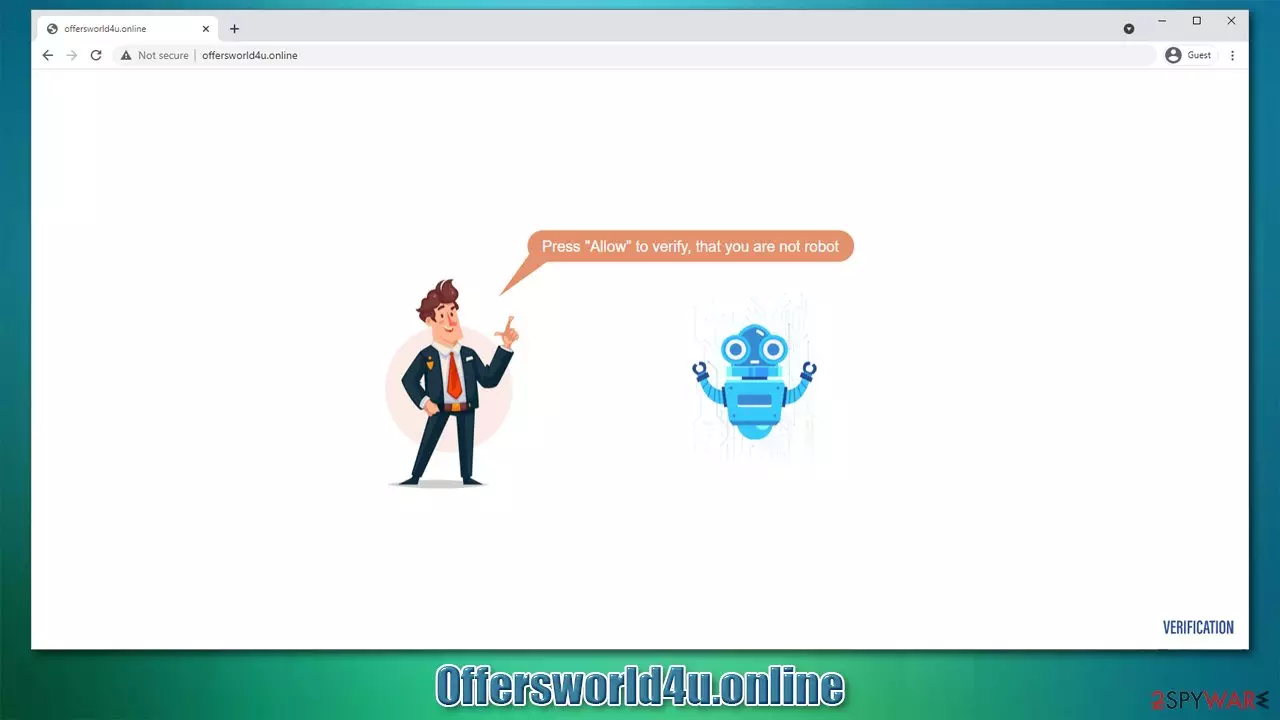
After accessing Offersworld4u.online, you are likely to see a push notification prompt that asks you to allow notifications and a message in the background, accompanied by a generic stock picture. The message reads:
Press “Allow” to verify, that you are not a robot.
Website authors are trying to use a similar technique that is used by many websites to protect themselves from incoming DDoS[2]attacks. You probably have seen captcha codes and similar methods used by various websites – and this knowledge is what criminals are trying to exploit and mislead with.

There are plenty of other messages you could encounter, e.g., that there is a video about to be played, or that there is a file to be downloaded. In some cases, it is claimed that the only way to leave the page is by allegedly hitting that “Allow” button. These are all fakes, and you should simply leave the site immediately.
If you have been tricked, you can easily remove Offersworld4u.online pop-ups from your screen by accessing your browser settings. But before that, you should make sure that there is no adware present on your machine.
What is adware and how is it related to Offersworld4u.online?
Adware belongs to a category of potentially unwanted programs. It is commonly spread via software bundles, fake updates, and similar deceptive methods, which commonly makes users install it unintentionally. In some cases, some apps might be perfectly legitimate and then suddenly go rogue while operating in the background.
Adware, while not malicious (although some security experts would argue with that), there are plenty of examples that compromise computer security and put users' privacy at risk. For example, Lenovo's pre-installed Superfish adware contained a vulnerability that could be exploited by malware creators; the company had to pay millions in fines and compensate some of the affected users.[3]
The reason why it is important is due to the fact that adware could cause redirects to potentially dangerous websites, including Offersworld4u.online. Therefore, you should waste no time and scan your device with powerful SpyHunterCombo Cleaner, MalwarebytesMalwarebytes anti-malware software. It can find all the malicious components and remove them at once.
After that, you should also clean your web browsers promptly. For that, you can follow the instructions below or employ FortectIntego for the job. The app can also fix any damaged system components automatically – malware/adware can cause crashes and errors, even after it gets removed.
Get rid of the annoying push notifications
Many users who start experiencing pop-ups at random times believe that there is a malware infection involved. They start scanning their PCs with security software but it does not make the problem go away. This is because push notifications are not related to any infection but rather permission by users to show them.
Thus, in order to eliminate these pop-ups, you should access the site settings on your browser and block the site from showing them to you. Please follow the instructions below.
Google Chrome (desktop):
- Open Google Chrome browser and go to Menu > Settings.
- Scroll down and click on Advanced.
- Locate Privacy and security section and pick Site Settings > Notifications.

- Look at the Allow section and look for a suspicious URL.
- Click the three vertical dots next to it and pick Block. This should remove unwanted notifications from Google Chrome.



Google Chrome (Android):
- Open Google Chrome and tap on Settings (three vertical dots).
- Select Notifications.
- Scroll down to Sites section.
- Locate the unwanted URL and toggle the button to the left (Off setting).


Mozilla Firefox:
- Open Mozilla Firefox and go to Menu > Options.
- Click on Privacy & Security section.
- Under Permissions, you should be able to see Notifications. Click Settings button next to it.

- In the Settings – Notification Permissions window, click on the drop-down menu by the URL in question.
- Select Block and then click on Save Changes. This should remove unwanted notifications from Mozilla Firefox.



Safari:
- Click on Safari > Preferences…
- Go to Websites tab and, under General, select Notifications.
- Select the web address in question, click the drop-down menu and select Deny.


MS Edge:
- Open Microsoft Edge, and click the Settings and more button (three horizontal dots) at the top-right of the window.
- Select Settings and then go to Advanced.
- Under Website permissions, pick Manage permissions and select the URL in question.
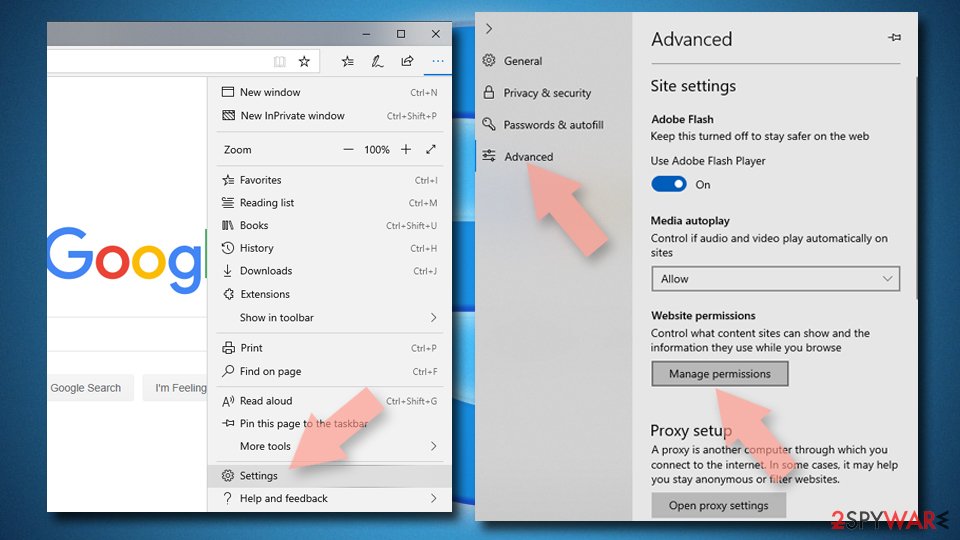
- Toggle the switch to the left to turn notifications off on Microsoft Edge.



MS Edge (Chromium):
- Open Microsoft Edge, and go to Settings.
- Select Site permissions.
- Go to Notifications on the right.
- Under Allow, you will find the unwanted entry.
- Click on More actions and select Block.


Internet Explorer:
- Open Internet Explorer, and click on the Gear icon at the top-right on the window.
- Select Internet options and go to Privacy tab.
- In the Pop-up Blocker section, click on Settings.
- Locate web address in question under Allowed sites and pick Remove.


Remove from Microsoft Edge
Delete unwanted extensions from MS Edge:
- Select Menu (three horizontal dots at the top-right of the browser window) and pick Extensions.
- From the list, pick the extension and click on the Gear icon.
- Click Remove.


Clear cookies and other browser data:
- Click on the Menu (three horizontal dots at the top-right of the browser window) and select Settings > Privacy, search, and services..
- Under Clear browsing data, pick Choose what to clear.
- Select Cookies and other site data and Cached images and files. (apart from passwords, although you might want to include Media licenses as well, if applicable) and click on Clear.


Restore new tab and homepage settings:
- Click the menu icon and choose Settings.
- Then find On startup section.
- Click Remove next to any suspicious startup page.
Reset MS Edge if the above steps did not work:
- Press on Ctrl + Shift + Esc to open Task Manager.
- Click on More details arrow at the bottom of the window.
- Select Details tab.
- Now scroll down and locate every entry with Microsoft Edge name in it. Right-click on each of them and select End Task to stop MS Edge from running.


Instructions for Chromium-based Edge
Delete extensions from MS Edge (Chromium):
- Open Edge and click select Settings > Extensions.
- Delete unwanted extensions by clicking Remove.


Clear cache and site data:
- Click on Menu and go to Settings.
- Select Privacy, search and services.
- Under Clear browsing data, pick Choose what to clear.
- Under Time range, pick All time.
- Select Clear now.


Reset Chromium-based MS Edge:
- Click on Menu and select Settings.
- On the left side, pick Reset settings.
- Select Restore settings to their default values.
- Confirm with Reset.
- This will disable extensions and reset startup pages but will not delete bookmarks, saved passwords, or browsing history.


Remove from Mozilla Firefox (FF)
Remove dangerous extensions:
- Open Mozilla Firefox browser and click on the Menu (three horizontal lines at the top-right of the window).
- Select Add-ons.
- In here, select the unwanted extension and click Remove.


Reset the homepage:
- Click three horizontal lines at the top right corner to open the menu.
- Choose Settings.
- Under Home, set your preferred homepage and new tab settings.
Clear cookies and site data:
- Click Menu and pick Settings.
- Go to Privacy & Security section.
- Scroll down to locate Cookies and Site Data.
- Click on Clear Data...
- Select Cookies and Site Data and Temporary cached files and pages, then click Clear.


Reset Mozilla Firefox
If clearing the browser as explained above did not help, reset Mozilla Firefox:
- Open Mozilla Firefox browser and click the Menu.
- Go to Help and then choose Troubleshooting Information.

- Under Give Firefox a tune up section, click on Refresh Firefox...
- Once the pop-up shows up, confirm the action by pressing on Refresh Firefox.



Remove from Google Chrome
Delete malicious extensions from Google Chrome:
- Open Google Chrome, click on the Menu (three vertical dots at the top-right corner) and select More tools > Extensions.
- In the newly opened window, you will see all the installed extensions. Uninstall all suspicious extensions related to the unwanted program by clicking Remove.


Clear cache and web data from Chrome:
- Click on Menu and pick Settings.
- Under Privacy and security, select Clear browsing data.
- Select Browsing history, Cookies and other site data, as well as Cached images and files.
- Click Clear data.


Change your homepage:
- Click menu and choose Settings.
- Look for a suspicious site in the On startup section.
- Click on Open a specific or set of pages and click on three dots to find the Remove option.
Reset Google Chrome:
If the previous methods did not help you, reset Google Chrome to eliminate all the unwanted components:
- Click on Menu and select Settings.
- In the Settings, scroll down and click Advanced.
- Scroll down and locate Reset and clean up section.
- Now click Restore settings to their original defaults.
- Confirm with Reset settings.


Delete from Safari
Remove dangerous extensions:
- Open Safari, click Safari in the menu at the top-left of the screen, and select Preferences.
- Go to the Extensions tab, look for any suspicious entries, and click Uninstall to remove them.


Clear history and website data:
- Click Safari in the menu and pick Clear History.
- Set Clear to all history and confirm with Clear History.


Reset Safari:
- Click Safari in the menu and select Preferences > Advanced.
- Enable Show Develop menu in menu bar.
- From the menu bar, click Develop and select Empty Caches.


Did this guide help?
Be the first to comment