

Jollycrowds.com tries to fool users with a fake spinning wheel to spam them with ads
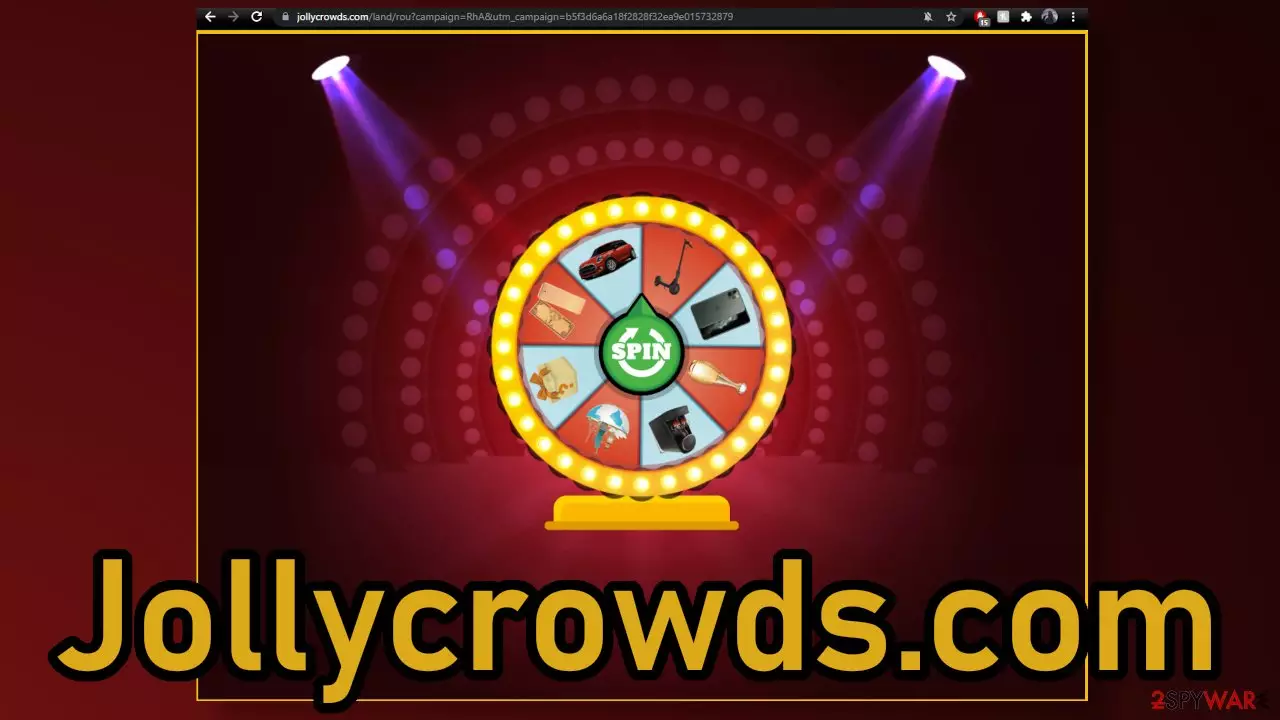
Jollycrowds.com was created to spam users with push notifications and redirect them to affiliate sites that engage in suspicious activities. When you stumble upon this site, you are met with a wheel that you can spin to supposedly win prizes. The reality is different, and there are many fake pages claiming to give away prizes to random visitors by doing nothing.
The site asks to allow push notifications, which are used to spam people with pop-up ads that may contain links leading to dangerous websites. Users put themselves at risk by clicking on risks as they can be sent to a similar giveaway site and other pages that look for ways to take advantage of Internet users. Users might suffer from monetary losses, or even identity theft[1] if they provide their personal information to cybercriminals. Other things that can happen are virus infections as fake software updates and scareware[2] are still commonly spread.
| NAME | Jollycrowds.com |
| TYPE | Push notification spam; adware |
| SYMPTOMS | The website forces redirects to affiliate domains and sends pop-up ads straight to users' screens |
| DISTRIBUTION | Shady websites, deceptive ads, redirects, freeware installations |
| DANGERS | Affiliate domains might be filled with rogue offers, can inject cookies that record browsing-related information, etc. Links embedded in the push notification prompts can also lead to dangerous websites where users are at risk of suffering from monetary losses or downloading PUPs and malware |
| ELIMINATION | Block push notifications via browser settings and check your system for adware with professional security tools |
| FURTHER STEPS | Use FortectIntego optimization tool to fix any remaining damage and increase the performance of your device |
Fake giveaways are still commonly used among scammers
As we mentioned above, when the site is first opened users can spin a wheel. After spinning the wheel, the site redirects you to a different domain – famousrewards.com, where users are informed that they have won with a message “Congratulations! Surprise gift” and a “Continue” button is provided. When users click on different buttons on this page they can also get redirected to shady sites.
In reality, there is no prize or gift to claim and it is all just a way to lure users into other associated sites. This is a common social engineering tactic[3] that fraudsters use to manipulate people. You should know, that if something seems too good to be true, it probably is. It is very unlikely that a completely unknown website is just giving away stuff for free. Sometimes even well-known company names are used to make the scam look more legitimate. We previously wrote about similar scams like the Google Prize, 5 Billionth Search, and Congratulations, you won.
Usually, these kinds of pages are hidden in already shady websites that are full of deceptive ads and sneaky redirects. There is a very slim chance that you found it through your search results. Of course, you can get redirected to questionable pages by adware that operates in your machine secretly too.

Where does Jollycrowds.com lead to?
During the investigation, the website in question led us to a different domain – pulpower.com. It seems like a suspicious site where you need to register to earn tokens to exchange them for various gifts. While looking for information on this site online, we came across a bunch of reviews on TrustPilot[4] that look overwhelmingly positive. Although, if you read them, you might get suspicious as they do not offer any actual feedback.
Most of the reviews say “Excellent!”, “Great work,” or “Outstanding service.” No one seems to be providing any information about what gifts they redeemed. You would think that if the site does what it says, people would not be able to contain their excitement and would boast about the free stuff they got. Well, unfortunately, that is not the case, and we suggest being careful about sites like this.
There are things you can do to decide if the site is trustworthy or not:
- Search for reviews. If the reviews are short and repetitive and do not offer any specific information, they are likely posted by bots.
- Explore the social media accounts provided by the site. Maybe you can find some legitimate feedback there, or learn more about the service.
- Explore the site a little. See if you can find the address of the company headquarters. If you find it, you can type it in Google Earth, and look for it on street view. Look for a company sign or anything at all associated with it in that area. If the building clearly does not house the company in question, that may be a red flag.
- Look for the owners' names. If they are not provided, that should raise some concerns.
- Read the Privacy Policy and Terms of Use. This can give you some insight into how the page operates, how it collects your information, and what can they do with it. The worst-case scenario is if the site does not have these sections at all as all pages that intend to have visitors are required to have them by GDPR law.[5]

After encounters with such websites, your activity is most likely tracked with the help of cookies. This way, pages can see your IP address, the links you click on, what you purchase, etc. We suggest using a maintenance tool like FortectIntego to get rid of them automatically. Doing this can also increase the performance of your machine as it will declutter it. The software can also fix serious damage after virus infections, like corrupted system files, registry issues, BSoDs,[6] and other errors.
Block notifications in the settings
If you see pop-ups appearing in the top corner of your screen, you can disable them by following these guides:
Google Chrome (desktop):
- Open Google Chrome browser and go to Menu > Settings.
- Scroll down and click on Advanced.
- Locate the Privacy and security section and pick Site Settings > Notifications.

- Look at the Allow section and look for a suspicious URL.
- Click the three vertical dots next to it and pick Block. This should remove unwanted notifications from Google Chrome.



Google Chrome (Android):
- Open Google Chrome and tap on Settings (three vertical dots).
- Select Notifications.
- Scroll down to Sites section.
- Locate the unwanted URL and toggle the button to the left (Off setting).


Mozilla Firefox:
- Open Mozilla Firefox and go to Menu > Options.
- Click on Privacy & Security section.
- Under Permissions, you should be able to see Notifications. Click Settings button next to it.

- In the Settings – Notification Permissions window, click on the drop-down menu by the URL in question.
- Select Block and then click on Save Changes. This should remove unwanted notifications from Mozilla Firefox.



Safari:
- Click on Safari > Preferences…
- Go to Websites tab and, under General, select Notifications.
- Select the web address in question, click the drop-down menu and select Deny.


MS Edge:
- Open Microsoft Edge, and click the Settings and more button (three horizontal dots) at the top-right of the window.
- Select Settings and then go to Advanced.
- Under Website permissions, pick Manage permissions and select the URL in question.
- Toggle the switch to the left to turn notifications off on Microsoft Edge.


MS Edge (Chromium):
- Open Microsoft Edge, and go to Settings.
- Select Site permissions.
- Go to Notifications on the right.
- Under Allow, you will find the unwanted entry.
- Click on More actions and select Block.


Internet Explorer:
- Open Internet Explorer, and click on the Gear icon at the top-right on the window.
- Select Internet options and go to Privacy tab.
- In the Pop-up Blocker section, click on Settings.
- Locate web address in question under Allowed sites and pick Remove.


If you experience more symptoms
In some cases, push notifications can be a sign of a more serious problem, which is adware.[7] You might have been redirected to this page by a program that is hiding in your system. If you recently installed some type of program from a freeware distribution site, this is very likely.
You could have downloaded the program because it was disguised as a very “handy” tool, or it was included as bundled software, and you have no idea about it. Unofficial sites distributing freeware are the main source behind this problem. The creators of the site do not disclose that and hope that most will not notice PUAs (potentially unwanted applications) in the installers.
Because of that, it is best if you choose the “Custom” or “Advanced” installation method and read the Privacy Policy, Terms of Use. The most important step is to check the list of the files. If you have seen any additional programs, just untick the boxes next to their names.
On the other hand, when a PUP is already in your system, it can be harder to locate it. It is unknown which particular program could be causing unwanted behavior, so we always suggest our readers deploy anti-malware tools like SpyHunterCombo Cleaner or MalwarebytesMalwarebytes that can scan the system automatically, detect suspicious processes in the machine and fully eliminate them.
But if you already suspect which program could be responsible, you can use our instructions for Windows and Mac machines below.
Uninstall from Windows
Uninstall from Windows 10/8:
- Type Control Panel into the Windows search box and open the result.
- Under Programs, select Uninstall a program.


Uninstall from Windows 7/XP:
- Click on Windows Start > Control Panel (Windows XP users should click on Add/Remove Programs).
- In Control Panel, select Programs > Uninstall a program.


Remove the unwanted program:
- In the Programs and Features window, look for any recently installed suspicious entries, select them, and click Uninstall.
- If User Account Control appears, click Yes to confirm, then complete the removal.


Delete from macOS
Remove the unwanted application:
- From the menu bar, select Go > Applications.
- In the Applications folder, look for any suspicious entries, then drag them to Trash (or right-click and pick Move to Trash).


Delete leftover files and folders:
- Select Go > Go to Folder.
- Enter /Library/Application Support and remove any suspicious folders related to the unwanted program.
- Repeat the same check in the /Library/LaunchAgents and /Library/LaunchDaemons folders, deleting any suspicious entries.

- Finally, empty the Trash to permanently remove the leftovers.

Did this guide help?
Be the first to comment