

Current-captcha.top is a scam website that tries to trick users into allowing push notifications
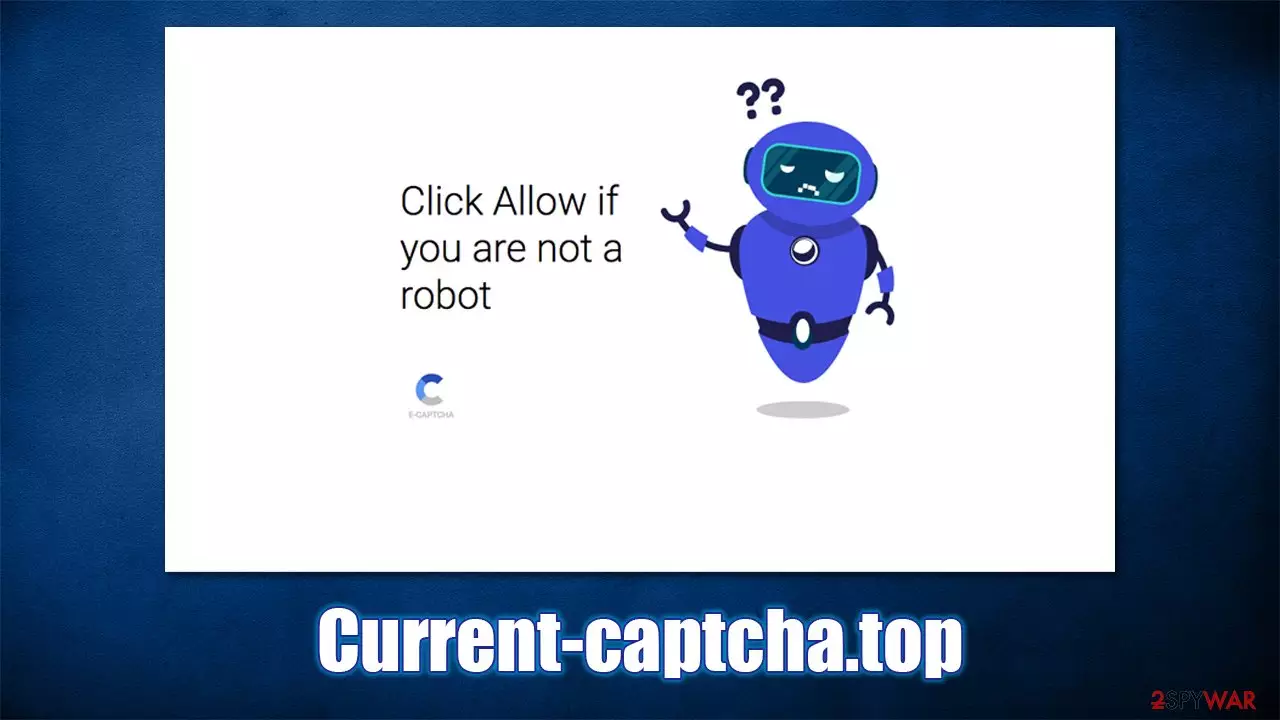
You might encounter a redirect to Current-captcha.top unexpectedly while browsing the web on Google Chrome, Mozilla Firefox, MS Edge, or Safari. Unusually, people are taken to it after they click a link on a high-risk website, although automatic redirects might also be the cause. Likewise, some adware-infected machines can also cause this behavior, so appropriate checks should be made.
As soon as users end on Current-captcha.top site, they are shown a misleading background message, claiming that users are supposed to bypass what looks like a captcha verification. To do that, they need to press the “Allow” button within the notification prompt – this is when people are misled into allowing the website to deliver push notifications.
There are several variations of the site one might encounter, sometimes users are promised an alleged video, a file to download, or even +18 content to view. These all promises are fake, as there is no other content on the page or site available. Even pressing the requested button would not provide anything useful.
Instead, users would be later shown intrusive pop-ups at random times. The notifications are shown on top of all other apps, at the bottom or top of the screen if you are using Mac. Likewise, the issue might affect mobile devices, such as tablets or phones. The appearance of the intrusive ads is not triggered by anything in particular.
Current-captcha.top ads might include links to other malicious websites, so clicking them might be dangerous. You might be asked to accept notifications from a similar scam site, such as Processing-center-wn1.click, News-lipaze.cc, or Insnarewaggled.cam. Additionally, you might also be tricked into providing your personal information, subscribing to useless services, or downloading insecure or malicious software.
Instead, we recommend checking the instructions on how to remove the unwanted notifications below. We also explain how to deal with adware,[1] if such is present on the device.
| Name | Current-captcha.top |
| Type | Push notifications, scam, ads, pop-ups |
| Distribution | The unwanted activity starts at some point after the Allow button is pressed within the notification prompt |
| Symptoms | Intrusive pop-ups show up directly on the screen, covering all the other opened apps or websites |
| Associated risks | Ads and links to sites displayed by the website might be dangerous: users might suffer from monetary losses, install malware or potentially unwanted programs on their systems, or disclose their sensitive data to cybercrooks |
| Elimination | Notifications can be disabled via the browser settings; in case you experience more ads and redirects to suspicious sites, you should also get rid of adware – use SpyHunterCombo Cleaner antivirus for quick elimination |
| Further steps | After you stop the unwanted notifications and check for adware, make sure you clean your browser from leftover files for the best results. FortectIntego can help you to reach this goal quicker |
Remove adware from your system
Users intuitively try to avoid websites that could put their cybersecurity in danger (there are always exceptions of course), so they end up on scam sites by accident. Mostly, it is a result of a click on a link somewhere – this usually occurs on less secure websites, such as torrents, illegal video streaming, X-rated, and similar. We recommend staying away from such places in general, as they are commonly used by cybercriminals to host malware, such as Efdc ransomware.
If you did not click on links or were accessing suspicious websites and ended up on Current-captcha.top suddenly, it could be that adware is installed on your system. It is a type of potentially unwanted software that spreads in software bundles or other deceptive methods, hence users are often not even aware it is present on their device.
Adware's main goal is to expose users to as many advertisements as possible, so those infected can encounter random pop-ups, redirects, deals, banners, in-text links, and similar ads while browsing the web. Thus, if you have been experiencing those symptoms, you should check your system with SpyHunterCombo Cleaner, MalwarebytesMalwarebytes, or another security software.
If you are aware of programs you have recently installed, you can get rid of them manually as well. If you need help with this, follow these steps:
Windows
- Enter Control Panel into Windows search box and hit Enter or click on the search result.
- Under Programs, select Uninstall a program.

- From the list, find the entry of the suspicious program.
- Right-click on the application and select Uninstall.
- If User Account Control shows up, click Yes.
- Wait till uninstallation process is complete and click OK.



Mac
- From the menu bar, select Go > Applications.
- In the Applications folder, look for all related entries.
- Click on the app and drag it to Trash (or right-click and pick Move to Trash)


To fully remove an unwanted app, you need to access Application Support, LaunchAgents, and LaunchDaemons folders and delete relevant files:
- Select Go > Go to Folder.
- Enter /Library/Application Support and click Go or press Enter.
- In the Application Support folder, look for any dubious entries and then delete them.
- Now enter /Library/LaunchAgents and /Library/LaunchDaemons folders the same way and terminate all the related .plist files.


After you are done, remember to clean web browsers from cookies, caches, and other web data, as otherwise, you might continue seeing ads, as well as getting tracked, will not stop. If you wish to do this automatically, employ FortectIntego PC repair and maintenance software; alternatively, you can follow the manual instructions at the very bottom of this post.
How push notification scams work
Push notifications have been quite a mystery to users since their release, considering that they only showed up on browsers in 2015. They are a part of the website creation process and are added through the API[2] – Application Programming Interface – for example, a chat function via Facebook page is also an API.
Likewise, you probably have seen plenty of requests to enable notifications once you enter a legitimate website. The feature can be useful for both users and website authors – it can deliver the most relevant information directly to the screen, making it accessible right away.
The feature did not last long before all sorts of crooks took it up for their malicious business practices. Soon after its official implementation, plenty of scam websites showed up on the internet. Their main goal – to make users click that allow button as soon as they enter. They commonly abuse the element of surprise and social engineering to make the scam be successful. Current-captcha.top is yet another example of this scheme.

Upon entering the site for one reason or another, you might be asked to enable notifications in exchange for a video or that you need to press the “Allow” button to pass the bot check that so many websites use to protect themselves from DDoS[3] attacks. However, this is not true, and the only reason for this website's existence is to make users accept the notification to be shown. As soon as they do, the goal is accomplished, and there is no more content provided.
If you did get tricked but this, you shouldn't worry too much as long as you don't click on ads that are promoted by it. All you have to do is access your browser's settings section and remove the permission to show you notifications.
Stop Current-captcha.top notifications for good
It is not difficult to stop notifications from being shown to you. However, most users who never had to deal with this issue might not know how to do that. Proceed with the steps below to remove the unwanted push notifications from your device. Likewise, you can use these instructions for any other website if you find yourself in a similar situation in the future.
Google Chrome:
- Open Google Chrome browser and go to Menu > Settings.
- Scroll down and click on Advanced.
- Locate the Privacy and security section and pick Site Settings > Notifications.
- Look at the Allow section and look for a suspicious URL.
- Click the three vertical dots next to it and pick Block. This should remove unwanted notifications from Google Chrome.


Mozilla Firefox:
- Open Mozilla Firefox and go to Menu > Options.
- Click on Privacy & Security section.
- Under Permissions, you should be able to see Notifications. Click the Settings button next to it.

- In the Settings – Notification Permissions window, click on the drop-down menu by the URL in question.
- Select Block and then click on Save Changes. This should remove unwanted notifications from Mozilla Firefox.



Safari:
- Click on Safari > Preferences…
- Go to Websites tab and, under General, select Notifications.
- Select the web address in question, click the drop-down menu and select Deny.


MS Edge:
- Open Microsoft Edge, and click the Settings and more button (three horizontal dots) at the top-right of the window.
- Select Settings and then go to Advanced.
- Under Website permissions, pick Manage permissions and select the URL in question.
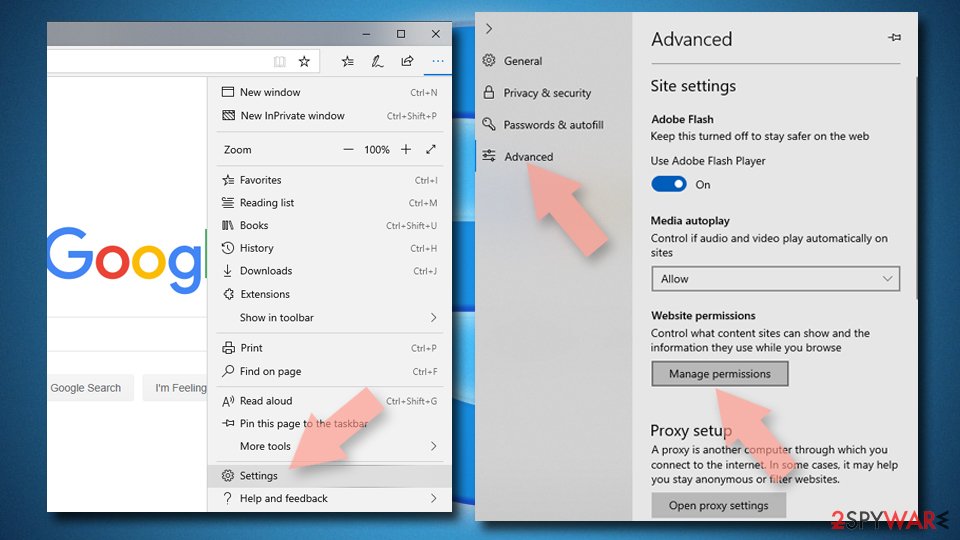
- Toggle the switch to the left to turn notifications off on Microsoft Edge.



MS Edge (Chromium):
- Open Microsoft Edge, and go to Settings.
- Select Site permissions.
- Go to Notifications on the right.
- Under Allow, you will find the unwanted entry.
- Click on More actions and select Block.


Internet Explorer:
- Open Internet Explorer, and click on the Gear icon at the top-right of the window.
- Select Internet options and go to the Privacy tab.
- In the Pop-up Blocker section, click on Settings.
- Locate web address in question under Allowed sites and pick Remove.


As previously mentioned, it is always recommended to clean your web browsers when dealing with adware or other issues within your browser.
Remove from Microsoft Edge
Delete unwanted extensions from MS Edge:
- Select Menu (three horizontal dots at the top-right of the browser window) and pick Extensions.
- From the list, pick the extension and click on the Gear icon.
- Click Remove.


Clear cookies and other browser data:
- Click on the Menu (three horizontal dots at the top-right of the browser window) and select Settings > Privacy, search, and services..
- Under Clear browsing data, pick Choose what to clear.
- Select Cookies and other site data and Cached images and files. (apart from passwords, although you might want to include Media licenses as well, if applicable) and click on Clear.


Restore new tab and homepage settings:
- Click the menu icon and choose Settings.
- Then find On startup section.
- Click Remove next to any suspicious startup page.
Reset MS Edge if the above steps did not work:
- Press on Ctrl + Shift + Esc to open Task Manager.
- Click on More details arrow at the bottom of the window.
- Select Details tab.
- Now scroll down and locate every entry with Microsoft Edge name in it. Right-click on each of them and select End Task to stop MS Edge from running.


Instructions for Chromium-based Edge
Delete extensions from MS Edge (Chromium):
- Open Edge and click select Settings > Extensions.
- Delete unwanted extensions by clicking Remove.


Clear cache and site data:
- Click on Menu and go to Settings.
- Select Privacy, search and services.
- Under Clear browsing data, pick Choose what to clear.
- Under Time range, pick All time.
- Select Clear now.


Reset Chromium-based MS Edge:
- Click on Menu and select Settings.
- On the left side, pick Reset settings.
- Select Restore settings to their default values.
- Confirm with Reset.
- This will disable extensions and reset startup pages but will not delete bookmarks, saved passwords, or browsing history.


Remove from Mozilla Firefox (FF)
Remove dangerous extensions:
- Open Mozilla Firefox browser and click on the Menu (three horizontal lines at the top-right of the window).
- Select Add-ons.
- In here, select the unwanted extension and click Remove.


Reset the homepage:
- Click three horizontal lines at the top right corner to open the menu.
- Choose Settings.
- Under Home, set your preferred homepage and new tab settings.
Clear cookies and site data:
- Click Menu and pick Settings.
- Go to Privacy & Security section.
- Scroll down to locate Cookies and Site Data.
- Click on Clear Data...
- Select Cookies and Site Data and Temporary cached files and pages, then click Clear.


Reset Mozilla Firefox
If clearing the browser as explained above did not help, reset Mozilla Firefox:
- Open Mozilla Firefox browser and click the Menu.
- Go to Help and then choose Troubleshooting Information.

- Under Give Firefox a tune up section, click on Refresh Firefox...
- Once the pop-up shows up, confirm the action by pressing on Refresh Firefox.



Remove from Google Chrome
Delete malicious extensions from Google Chrome:
- Open Google Chrome, click on the Menu (three vertical dots at the top-right corner) and select More tools > Extensions.
- In the newly opened window, you will see all the installed extensions. Uninstall all suspicious extensions related to the unwanted program by clicking Remove.


Clear cache and web data from Chrome:
- Click on Menu and pick Settings.
- Under Privacy and security, select Clear browsing data.
- Select Browsing history, Cookies and other site data, as well as Cached images and files.
- Click Clear data.


Change your homepage:
- Click menu and choose Settings.
- Look for a suspicious site in the On startup section.
- Click on Open a specific or set of pages and click on three dots to find the Remove option.
Reset Google Chrome:
If the previous methods did not help you, reset Google Chrome to eliminate all the unwanted components:
- Click on Menu and select Settings.
- In the Settings, scroll down and click Advanced.
- Scroll down and locate Reset and clean up section.
- Now click Restore settings to their original defaults.
- Confirm with Reset settings.


Delete from Safari
Remove dangerous extensions:
- Open Safari, click Safari in the menu at the top-left of the screen, and select Preferences.
- Go to the Extensions tab, look for any suspicious entries, and click Uninstall to remove them.


Clear history and website data:
- Click Safari in the menu and pick Clear History.
- Set Clear to all history and confirm with Clear History.


Reset Safari:
- Click Safari in the menu and select Preferences > Advanced.
- Enable Show Develop menu in menu bar.
- From the menu bar, click Develop and select Empty Caches.


Did this guide help?
Be the first to comment