

QuickSearchMaps changes your homepage and search provider to insert ads
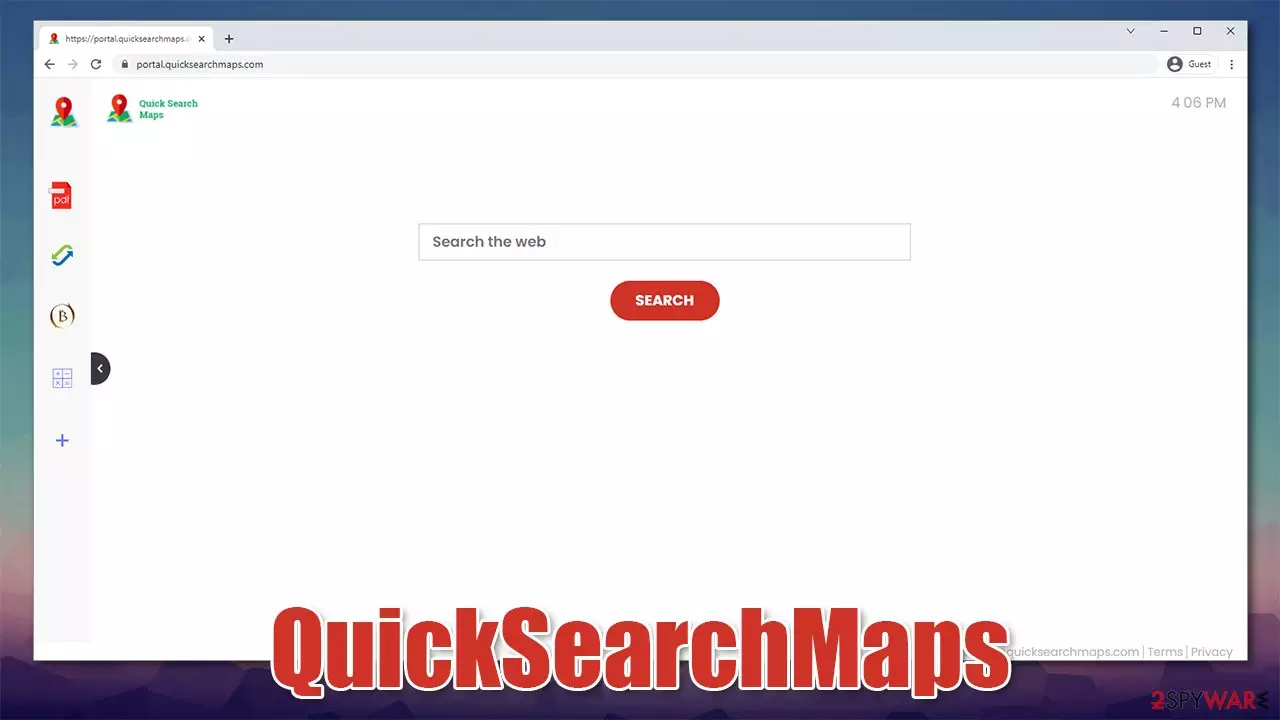
Initially, it might seem like QuickSearchMaps is a useful browser extension that could help users find their way around – be it walking in unfamiliar areas or driving around with a car. However, it shouldn't be judged by its name exclusively, as t his app is categorized as a browser hijacker which can take over Google Chrome, MS Edge, Mozilla Firefox, or any other browser as soon as is it is installed.
Not only does the app fails to provide the alleged features, but it also negatively impacts user experience due to multiple changes it initiates upon installation. First of all, it is commonly installed involuntarily when users download freeware[1] from various third-party sources. QuickSearchMaps might also be promoted on various fake or misleading websites. In other words, people do not actively look for this app but rather install it due to various unrelated reasons.
As soon as it is installed, it changes the settings of the browser, using quicksearchmaps.com as a homepage and a new tab web address. This way, users are forced to use a predetermined search box, which might look like nothing special but the results might surprise many. Instead of seeing their standard provider, people might face one of the following:
- searchlee.com
- yahoo.com
- nearbyme.io, etc.
While search results might not seem like they differ much visually, the insertion of ads at the top makes a lot of difference. In other others, QuickSearchMaps hijacker inserts its own ads at the top, all while using an alternative prover with which it is affiliated. These links might not be secure in some cases, as they might promote dubious software or attempt to attract users into subscribing to useless services.
In addition to these unwanted effects, the potentially unwanted program is likely to keep track of your web browsing activities, which could be a potential risk to your privacy. If you want to get rid of the app, you come to the right place.
| Name | QuickSearchMaps |
|---|---|
| Type | Browser hijacker |
| Distribution | Software bundles, deceptive ads, fake updates |
| Symptoms | Homepage and a new tab are altered to quicksearchmaps.com; searches are redirected to nearbyme.io, yahoo.com, searchlee.com, or another provider; ads at the top promote potentially unwanted programs, etc. |
| Risks | You might be tricked into installing insecure software or pay for useless services; privacy issues might also arise due to information gathering practices |
| Elimination | You can remove the browser extension manually, as explained below; for more malicious applications, we recommend employing SpyHunterCombo Cleaner security software |
| Further steps | Do not forget to remediate your web browsers – you can do it as we describe below or opt for a quicker solution with FortectIntego |
Software bundling: the most prevalent PUP distribution method
Potentially unwanted programs are called so for a reason, they are not usually installed on purpose. As we already mentioned, the most common reason why this happens is software bundling[2] – a deceptive practice that has been around for many years and continues to be the most successful distribution method for millions of third-party apps.
The way it works is relatively simple: several components are inserted into a standalone installer, and various tactics are used to disguise their presence. Of course, it is not done in a way that would make the practice straight out malicious to keep the regulatory bodies at bay.
For example, you might rush through the installation process of a freeware app you want to install and pick Recommended method when asked. Without you knowing, this setting does not uncover other applications that are seemingly offered to you, merely hidden by a pre-ticked box. In order to remove those ticks, you have to pick Advanced settings. There are other tricks that are used, including misleading button placement, fine print, and more.
To stay secure and avoid being fooled by such cheap tricks, always pay close attention to the installation process of new apps. Likewise, having powerful security software equipped can go a long way and protect you from potentially unwanted applications and dangerous malware.
The ever-growing browser hijacker family
QuickSearchMaps belongs to a broad family of browser hijackers that have been spreading around the internet via deceptive methods for several years now. We have recently described QuickConverterz, SocialCouponSearch, and TheSearchMaps extensions on our website – these are just a few of previously released versions from the same developer, which remains unknown. If you check the names of these apps, there's a pattern that emerges here:
- Names consist of two or three words related to various themes, search features, or some type of functionality;
- All of the apps have identical functions, despite the names inclining something different.

For example, it might initially seem like the app is capable of providing the most relevant maps functions, have some type of links or widgets. However, it couldn't be further from the truth because none of such features exist. Instead, users can access a side panel on the main page, which consists of basic tools such as a currency converter or calculator.
In fact, all of the apps mentioned previously are exactly the same, apart from their names and icons, which seem to be designed for each of them separately. This is a mere trick in order to avoid a bad reputation or detection by anti-malware. Suchlike tactics are also commonly employed by rogue anti-virus programs which are rebranded and spread as allegedly new products. Don't trust applications that use this tactic.
If you are looking for a reliable tool for your navigation, you won't find this function within this browser hijacker. Instead, your browser settings would be changed in order for you to be spammed with ads, which would always show up at the top of search results. Proceed with the instructions below if you want to get rid of all the potentially unwanted programs from your system for a better and more secure browsing experience.
Ways to remove QuickSearchMaps quickly
Some programs get installed on the system level, which means their infiltration is much deeper. Browser extensions, in the meantime, are much less impactful and are usually easy to get rid of. Nonetheless, we have previously observed hijackers applying settings that would prevent their easy removal – it is all done with the help of Group Policy modification.
Luckily, QuickSearchMaps does not use such functionality, hence removing it should not be that difficult. You should start with the browser extension since the app is installed on the browser rather than the system. If you have never dealt with this process, please follow the steps below.
Google Chrome
- Open Google Chrome, click on the Menu (three vertical dots at the top-right corner) and select More tools > Extensions.
- In the newly opened window, you will see all the installed extensions. Uninstall all the suspicious plugins that might be related to the unwanted program by clicking Remove.


MS Edge (Chromium)
- Open Edge and click select Settings > Extensions.
- Delete unwanted extensions by clicking Remove.


Mozilla Firefox
- Open Mozilla Firefox browser and click on the Menu (three horizontal lines at the top-right of the window).
- Select Add-ons.
- In here, select the unwanted plugin and click Remove.


Safari
- Click Safari > Preferences…
- In the new window, pick Extensions.
- Select the unwanted extension and select Uninstall.


It is important to note that not all potentially unwanted programs are easy to get rid of, especially if installed on the system. If you have found the QuickSearchMaps extension unexpectedly after installing a bundle package, it might be that other unwanted apps are running on your system. Likewise, if you frequent torrents and similar high-risk sites, you might be infected with malware since such places are perfect breeding grounds for malicious actors.
Therefore, you should use SpyHunterCombo Cleaner or MalwarebytesMalwarebytes anti-malware software to check your system for other potential threats. More stealthy parasites can run on the system for weeks or even months undetected due to evasion techniques. This is why it is important to perform a scan with alternative security solutions.
Finally, once you are finished with the elimination of all potentially unwanted and malicious programs, you should take your time and delete cookies, caches, and other web data from your browsers. This step is very important to ensure that the tracking activities are terminated at once. Additionally, objects such as cookies might get hijacked by cybercriminals under certain circumstances,[3] which might result in stolen sessions – it would allow crooks to access your passwords and other sensitive data.
You can get rid of the accumulated browsing data with ease by using FortectIntego – an advanced PC repair and maintenance utility that can take care of all the tedious work for you, all while keeping your system in the best condition. If you would rather do the job yourself, proceed with the following steps:
Google Chrome
- Click on Menu and pick Settings.
- Under Privacy and security, select Clear browsing data.
- Select Browsing history, Cookies and other site data, as well as Cached images and files.
- Click Clear data.


MS Edge
- Click on Menu and go to Settings.
- Select Privacy and services.
- Under Clear browsing data, pick Choose what to clear.
- Under Time range, pick All time.
- Select Clear now.


Mozilla Firefox
- Click Menu and pick Options.
- Go to Privacy & Security section.
- Scroll down to locate Cookies and Site Data.
- Click on Clear Data…
- Select Cookies and Site Data, as well as Cached Web Content and press Clear.


Safari
- Click Safari > Clear History…
- From the drop-down menu under Clear, pick all history.
- Confirm with Clear History.


Did this guide help?
Be the first to comment