

News-doronu.cc tries to fool users into thinking they are completing a captcha verification

News-doronu.cc is a page that uses social engineering tactics[1] to fool users into clicking the “Allow” button. People are asked to verify that they are not robots but what happens instead is that they start getting spammed with intrusive pop-up ads that sometimes appear even when the browser is closed. This can make a lot of users irritated if they do not know where the problem stems from.
Because the creators of the site do not care about user privacy or security, a lot of the ads can look spammy and suspicious. You might receive pop-ups that encourage you to install antivirus software, complete a survey, or claim a “free” gift. These are all attempts to lure out your personal information or trick you into downloading PUPs (potentially unwanted programs)[2] or malware.
The push notification function in browsers is a very helpful way for websites and apps to send the latest news, updates, and special offers. The opportunity to send messages and advertisements straight to users' screens was not overlooked by individuals who want to exploit others.
The FBI found that digital crime complaints increased by about 70% between 2019 and 2020. The most common were phishing attacks, non-payment or non-delivery ploys, extortion scams with romance schemes, and investment fraud attempts. 85% of attacks involved attempts to prey on the human element. That is why it is so important to be careful and make sure what you click on online is safe.
| NAME | News-doronu.cc |
| TYPE | Push notification spam; adware |
| SYMPTOMS | Pop-up ads start appearing in the corner of the screen after people click the “Allow” button |
| DISTRIBUTION | Shady websites, deceptive ads, freeware installations |
| DANGERS | Pop-ups can contain links leading to dangerous websites |
| ELIMINATION | To stop annoying pop-ups from appearing, you have to go to your browser settings |
| FURTHER STEPS | Use FortectIntego to fix any remaining damage and optimize the machine |
Push notification spam distribution methods
Users rarely find such sites in their search results. Most of the time they are advertised on other shady pages that often engage in illegal activities and are unregulated. These websites open new tabs when you click on the wrong thing, and some users might think that they need to perform the verification process to get where they wanted to but in reality, News-doronu.cc is a completely separate page that is unrelated to the previous one.
There are many other sites just like this one that preys on less IT-savvy people that are gullible. We write about them every day and some of the examples are Spotcontent.ru, Racareewitu.xyz, and Usfinf.net. The distribution techniques for all of these pages are almost always the same. The creators advertise them using deception tactics.
If you get redirected to these kinds of pages often, even when you are not browsing through suspicious websites, there is a possibility that you are infected by adware.[3] It is a type of program that generated commercial content on your machine without your knowledge. It can cause banners, surveys, pop-ups to appear, and random redirects to questionable sites.

Learn to identify suspicious pages
To keep yourself safe, you can look for signs that indicate if a page better not be trusted. A Privacy Policy is a legal agreement that explains what kinds of personal information websites gather from you, how they use this information, and how they keep it safe. The EU Data Protection Directive[4] demands that all companies operating from European Union must have a Privacy Policy to make sure personal information is both obtained and processed fairly.
If you get redirected to a page like News-doronu.cc often, you might notice that they rarely have a Privacy Policy section. Most often just the deceptive image and message are displayed. This is a sign that you should pay attention to. It is a better decision to just exit pages like this and not interact with them.
Another sign that a page is untrustworthy is in the URL. If it starts with HTTP and not with HTTPS, that means it does not have end-to-end encryption.[5] If you enter your personal information on such a page, almost anyone could access it with the right knowledge. In the past, there have been instances where hackers hijacked cookies from various sites and used them for malicious purposes.
That is why we recommend using a maintenance tool like FortectIntego that can clear your browsers automatically. It will get rid of cookies and cache so you do not have to. Because they can also cause a decrease in your machine's performance, you should notice an improvement. No matter if you visit only trustworthy sites it is suggested to delete cookies regularly to prevent them from clogging your device.
Block push notifications
Because push notifications are based on a subscription model, only users themselves can terminate the subscription. You can do that by going to your browser settings:
Google Chrome (desktop):
- Open Google Chrome browser and go to Menu > Settings.
- Scroll down and click on Advanced.
- Locate the Privacy and security section and pick Site Settings > Notifications.

- Look at the Allow section and look for a suspicious URL.
- Click the three vertical dots next to it and pick Block. This should remove unwanted notifications from Google Chrome.



Google Chrome (Android):
- Open Google Chrome and tap on Settings (three vertical dots).
- Select Notifications.
- Scroll down to Sites section.
- Locate the unwanted URL and toggle the button to the left (Off setting).


Mozilla Firefox:
- Open Mozilla Firefox and go to Menu > Options.
- Click on Privacy & Security section.
- Under Permissions, you should be able to see Notifications. Click Settings button next to it.

- In the Settings – Notification Permissions window, click on the drop-down menu by the URL in question.
- Select Block and then click on Save Changes. This should remove unwanted notifications from Mozilla Firefox.



Safari:
- Click on Safari > Preferences…
- Go to Websites tab and, under General, select Notifications.
- Select the web address in question, click the drop-down menu and select Deny.


MS Edge:
- Open Microsoft Edge, and click the Settings and more button (three horizontal dots) at the top-right of the window.
- Select Settings and then go to Advanced.
- Under Website permissions, pick Manage permissions and select the URL in question.
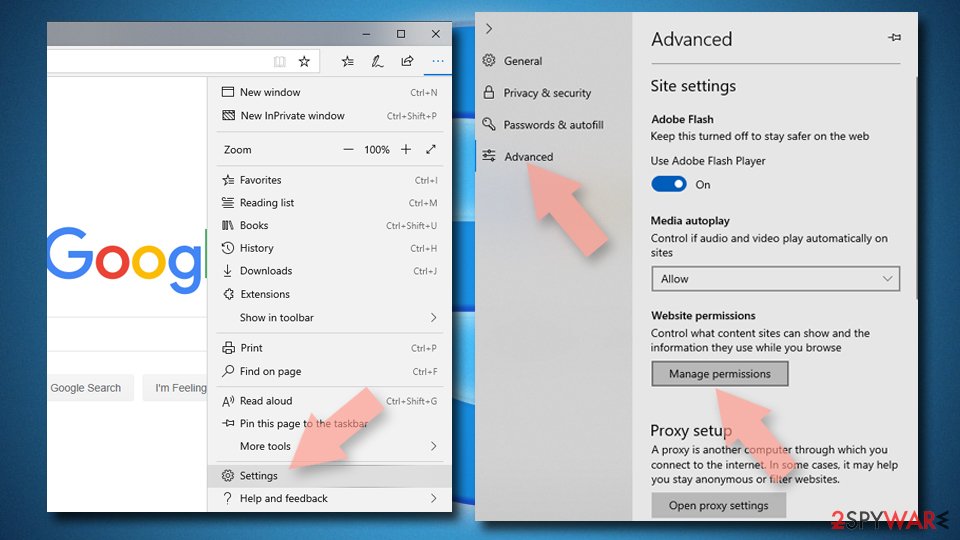
- Toggle the switch to the left to turn notifications off on Microsoft Edge.



MS Edge (Chromium):
- Open Microsoft Edge, and go to Settings.
- Select Site permissions.
- Go to Notifications on the right.
- Under Allow, you will find the unwanted entry.
- Click on More actions and select Block.


Internet Explorer:
- Open Internet Explorer, and click on the Gear icon at the top-right on the window.
- Select Internet options and go to Privacy tab.
- In the Pop-up Blocker section, click on Settings.
- Locate web address in question under Allowed sites and pick Remove.


PUPs can act without your knowledge
As we mentioned before, you could have been redirected to News-doronu.cc by adware. Applications like this can be distributed by the method known as software bundling, or they can appear as useful tools that provide many benefits, and the users download it themselves. But usually, they do not act as promoted and are not actually functional.
Instead, they perform tasks in the background, like tracking your browsing behavior, spamming you with pop-ups, and causing your browser to initiate redirects to shady pages constantly. It is not recommended to keep these apps installed on your machine as they can cause more harm than good.
The best course of action after the removal of push notification spam would be to use a professional security tool like SpyHunterCombo Cleaner, MalwarebytesMalwarebytes, or any other trusted antivirus software to try and find the PUA that could be causing the unwanted behavior. It will help you detect suspicious processes running in the background and will warn you about potential threats before you install them.
If you know exactly which program is causing the symptoms, you can also remove it yourself. The instructions for Windows and Mac machines are below this article.
Uninstall from Windows
Uninstall from Windows 10/8:
- Type Control Panel into the Windows search box and open the result.
- Under Programs, select Uninstall a program.


Uninstall from Windows 7/XP:
- Click on Windows Start > Control Panel (Windows XP users should click on Add/Remove Programs).
- In Control Panel, select Programs > Uninstall a program.


Remove the unwanted program:
- In the Programs and Features window, look for any recently installed suspicious entries, select them, and click Uninstall.
- If User Account Control appears, click Yes to confirm, then complete the removal.


Delete from macOS
Remove the unwanted application:
- From the menu bar, select Go > Applications.
- In the Applications folder, look for any suspicious entries, then drag them to Trash (or right-click and pick Move to Trash).


Delete leftover files and folders:
- Select Go > Go to Folder.
- Enter /Library/Application Support and remove any suspicious folders related to the unwanted program.
- Repeat the same check in the /Library/LaunchAgents and /Library/LaunchDaemons folders, deleting any suspicious entries.

- Finally, empty the Trash to permanently remove the leftovers.

Did this guide help?
Be the first to comment