

Tobedirectuke.com is a redirect virus related to a phenomenon known as browser hijacking
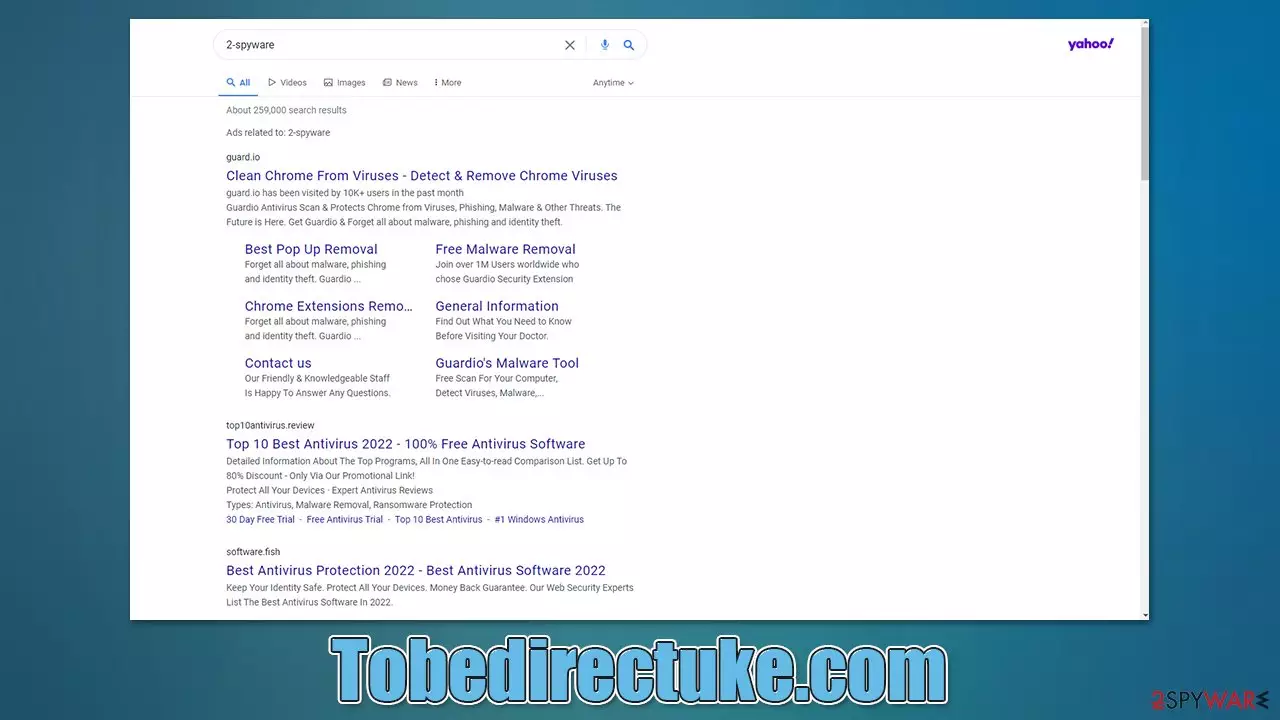
Tobedirectuke.com is a website address that you might notice popping up on your Google Chrome, Mozilla Firefox, MS Edge, or another browser. The circumstance when that happens may vary, e.g., you might encounter it when browsing insecure websites or you might also see it briefly when trying to search the web via your browser.
If you have only seen the website once or twice, you shouldn't worry much, although we strongly advise not interacting with anything it might promote. Deceptive websites are commonly associated with phishing[1] and other scam campaigns, so you might end up infecting your system with malware or disclosing your personal information to malicious parties.
In case you encounter Tobedirectuke.com redirect phenomenon rather frequently (especially when you use the URL bar or the search box), it means that there is a potentially unwanted application installed on your system. It is likely that the activity is related to an extension that managed to hijack[2] your browser.
In this case, you might notice other symptoms, such as changes to your homepage/new tab address or changes to the default search provider – Yahoo, Bing, Searchlee, and others might be used. Likewise, you might notice an increased number of advertisements not only in search results but also on all websites that you visit.
| Name | Tobedirectuke.com |
|---|---|
| Type | Adware, browser hijacker, redirect virus |
| Goal | Show advertisements which sometimes might include malicious content |
| Distribution | Software bundles, third-party websites, malicious ads |
| Dangers | Installation of potentially unwanted programs or malware, data loss, information leak, financial losses due to encountered scams |
| Removal | Uninstall unwanted applications from the system and your browser manually or employ SpyHunterCombo Cleaner, MalwarebytesMalwarebytes for an automatic option |
| Further steps | You should remove caches and other web data after the removal of malicious software to prevent data tracking with the FortectIntego repair and maintenance tool. You can also repair damaged system components with it |
How did Tobedirectuke.com enter my device?
Sometimes, it is really easy to determine which application is causing the unwanted ads and redirects on the system. This usually happens after users deliberately install an app they thought to be useful, and straight away notice the intrusive activities. Unfortunately, it is not always so apparent, and users are typically baffled about the origins of PUPs on their systems. The answer is much more simple than one might think, however.
Potentially unwanted programs that cause annoying browser issues are almost always installed by users themselves. If that happened to you, there are two likely scenarios:
- You installed it along with freeware[3] downloaded from a third-party website (software bundling technique)
- You were tricked by a fake update or another misleading advertisement.
Software bundling is one of the most common reasons for users installing apps unintentionally, which can commonly be PUPs or even malware in some cases. Third-party websites often use software bundle packages in order to profit from pay-per-install schemes, hence it is in their best interest to make users install more programs, be it intentionally or not.
For that reason, the offers to install these optional apps are commonly deceptive – pre-ticked boxes, misplaced buttons, fine print text, and similar tricks might be used to make users install PUPs. In order to avoid this, please pay close attention when installing software and always pick Advanced/Custom settings instead of Recommended settings when prompted.
To avoid being tricked by fake updates or similar download prompts, always check the URL of the page that is asking you to do so. Better more, you should always access the official website for the software and download all the updates from there.
How to get rid of Tobedirectuke.com?
The comprehensive instructions below should help you remove all potentially unwanted and malicious software from your device.
1. Check for unwanted extensions
The most common form of potentially unwanted software such as adware or browser hijackers is browser extensions. They are easy to make and can be easily branded if such action is required. Therefore, we recommend accessing the browser settings and uninstalling everything suspicious as follows:
Google Chrome
- Open Google Chrome, click on the Menu (three vertical dots at the top-right corner) and select More tools > Extensions.
- In the newly opened window, you will see all the installed extensions. Uninstall all the suspicious plugins that might be related to the unwanted program by clicking Remove.


Mozilla Firefox
- Open Mozilla Firefox browser and click on the Menu (three horizontal lines at the window's top-right).
- Select Add-ons.
- In here, select the unwanted plugin and click Remove.


MS Edge (Chromium)
- Open Edge and click select Settings > Extensions.
- Delete unwanted extensions by clicking Remove.


Safari
- Click Safari > Preferences…
- In the new window, pick Extensions.
- Select the unwanted extension and select Uninstall.


2. Uninstall programs from the system
Adware and other potentially unwanted programs that result in Tobedirectuke.com redirects might be installed on the system level – you can look for them as follows:
Windows
- Enter Control Panel into Windows search box and hit Enter or click on the search result.
- Under Programs, select Uninstall a program.

- From the list, find the entry of the suspicious program.
- Right-click on the application and select Uninstall.
- If User Account Control shows up, click Yes.
- Wait till uninstallation process is complete and click OK.



Mac
- From the menu bar, select Go > Applications.
- In the Applications folder, look for all related entries.
- Click on the app and drag it to Trash (or right-click and pick Move to Trash)


To fully remove an unwanted app, you need to access Application Support, LaunchAgents, and LaunchDaemons folders and delete relevant files:
- Select Go > Go to Folder.
- Enter /Library/Application Support and click Go or press Enter.
- In the Application Support folder, look for any dubious entries and then delete them.
- Now enter /Library/LaunchAgents and /Library/LaunchDaemons folders the same way and terminate all the related .plist files.


3. Scan for malware
Adware and other malware can be quite sneaky – it might not show up on the installed programs list and not have any active windows. This is particularly true if you do not have reputable security software running in the background or/and frequent potentially dangerous websites such as torrents. Therefore, you should perform a full system scan with SpyHunterCombo Cleaner, MalwarebytesMalwarebytes, or another powerful security tool.
4. Clean your browsers
Adware and browser hijackers monetize ads that are shown to users in one way or another. In order to achieve maximum benefits from the scheme, adware commonly collects a lot of data about online user behavior. For example, browser cookies can tell a lot about what the user likes or dislikes, making ads much more effective. It is also not uncommon to sell the gathered information to other third parties.
For that reason, we recommend cleaning web browsers from various items that potentially unwanted programs could have left. You can employ FortectIntego to do it more effectively and quickly or refer to the manual guide instead.
Google Chrome
- Click on Menu and pick Settings.
- Under Privacy and security, select Clear browsing data.
- Select Browsing history, Cookies and other site data, as well as Cached images and files.
- Click Clear data.


Mozilla Firefox
- Click Menu and pick Options.
- Go to Privacy & Security section.
- Scroll down to locate Cookies and Site Data.
- Click on Clear Data…
- Select Cookies and Site Data, as well as Cached Web Content and press Clear.


MS Edge (Chromium)
- Click on Menu and go to Settings.
- Select Privacy and services.
- Under Clear browsing data, pick Choose what to clear.
- Under Time range, pick All time.
- Select Clear now.


Safari
- Click Safari > Clear History…
- From the drop-down menu under Clear, pick all history.
- Confirm with Clear History.


Did this guide help?
Be the first to comment