

Mydefensivesoft.com is a scam website you should never download software from
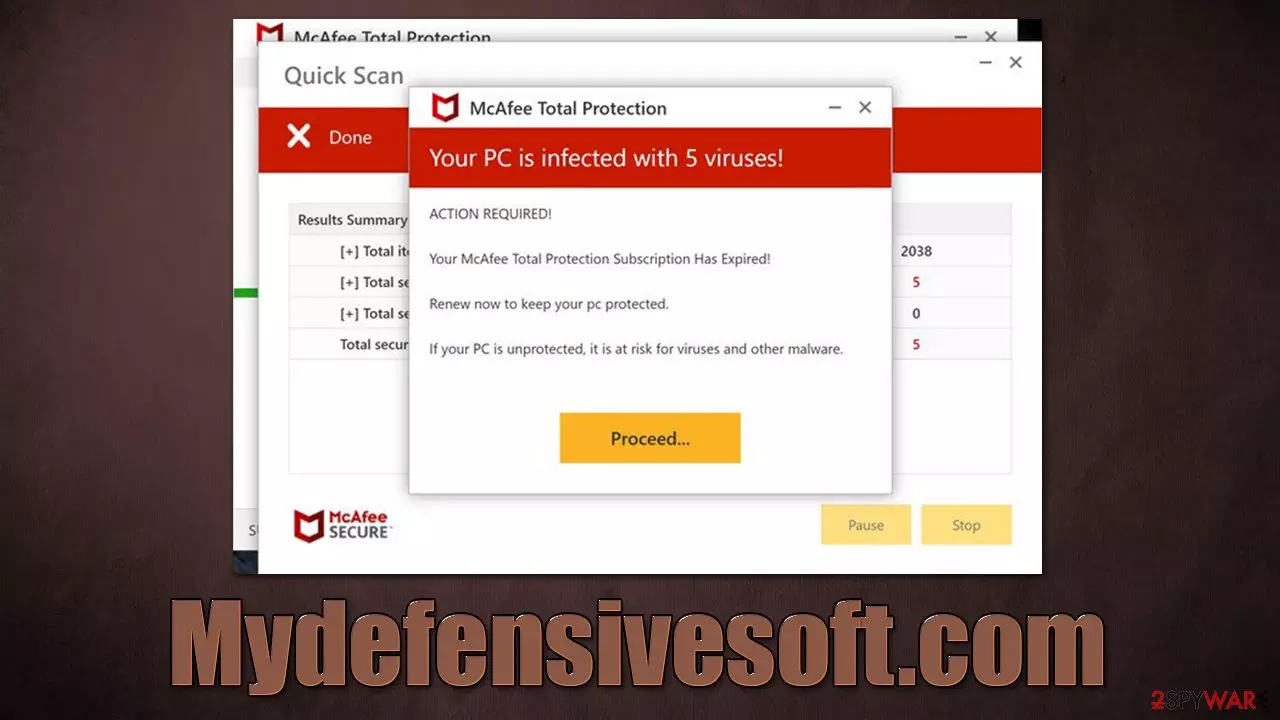
There are plenty of misleading and fake websites that try to phish users into performing actions they otherwise wouldn't, and Mydefensivesoft.com is one of such sites. The purpose of the scam is to convince visitors that their systems are infected with dangerous viruses and that the only way to eliminate them is by updating the license of security software which is alleged to be from McAfee.
The catch here is that your computer is not infected (at least not with what the fake site claims), and McAfee has nothing to do with this fake security scan. Mydefensivesoft.com simply imitates already familiar logos and other attributes in order to make people download and install software, which contributes to crooks' earnings from the scam.
If you have encountered this fake message, you should not panic or worry, as there are correct ways to check your system for infections. It is important to note that those who are constantly being redirected to phishing, spoofing,[1] and similar scam websites might be infected with malware – we will explain how to check whether it is true and will also provide the removal instructions for those affected.
| Name | Mydefensivesoft.com |
|---|---|
| Type | Scam, redirect, adware |
| Distribution | Software bundles, third-party websites, ads |
| Symptoms | Redirects to suspicious websites that accommodate commercial or scam content; fake messages that offer to download malicious software; ads plague every visited website; unknown extension or program installed on the system |
| Dangers | Installation of other potentially unwanted software or malware, personal information disclosure to cybercriminals, financial losses due to scams, etc. |
| Identical scams | P03try-c4t3g0ry.xyz, Clean-your-pc.xyz, Yourdatasecurityservice.com |
| Removal | You should not interact with scam content and instead, check your system for adware or malware infections with security software |
| Other tips | Cleaning web browsers is one of the secondary things you should do after PUP/malware removal to secure your privacy. You can use FortectIntego to do it quicker |
How you could end up on the Mydefensivesoft.com scam site
Users end up on scam websites accidentally, as they would not deliberately compromise their personal safety and computer security. However, the level of what is considered to be safe varies depending on the outlook. For example, some people deliberately visit high-risk websites, such as torrents and software cracks, despite knowing the risks of getting infected with ransomware or other malware.
These types of websites are one of the main ways how users end up encountering Mydefensivesoft.com or similar scams. Poorly protected websites are commonly booby-trapped with misleading links, fake download buttons, and malicious ads – all of these could make users visit websites they did not intend to initially.
Alternatively, redirects could also be caused by an aggressive form of adware[2] or malware – this is especially true if you have noticed deals, offers, banners, in-text links, and other types of ads are constantly showing up while browsing.
In order to get rid of adware along with redirects to scam websites, you should perform a full system scan with SpyHunterCombo Cleaner, MalwarebytesMalwarebytes, or another powerful security software. You could also look for unwanted software yourself – uninstall extensions and programs installed on the system level. However, this won't help you when dealing with more stealthy malware, as it might not show up in the installed app list or not have any visible windows.
After that, clean cookies and other browser caches[3] to avoid unwanted tracking and the returns of advertisements. For that, you can employ FortectIntego for a quicker solution. Alternatively, you could follow manual instructions below.
Google Chrome
- Click on Menu and pick Settings.
- Under Privacy and security, select Clear browsing data.
- Select Browsing history, Cookies and other site data, as well as Cached images and files.
- Click Clear data.


Mozilla Firefox
- Click Menu and pick Options.
- Go to Privacy & Security section.
- Scroll down to locate Cookies and Site Data.
- Click on Clear Data…
- Select Cookies and Site Data, as well as Cached Web Content, and press Clear.


Safari
- Click Safari > Clear History…
- From the drop-down menu under Clear, pick all history.
- Confirm with Clear History.


MS Edge (Chromium)
- Click on Menu and go to Settings.
- Select Privacy and services.
- Under Clear browsing data, pick Choose what to clear.
- Under Time range, pick All time.
- Select Clear now.


Internet Explorer
- Click on Gear icon > Internet options and select Advanced tab.
- Select Reset.
- In the new window, check Delete personal settings and select Reset.


The scam message
Upon website entry, users are presented with what looks like a virus scan performed by a reputable security vendor. Before that, users are shown briefly a fake message that warns about the alleged security alert:
Security Alert
You've visited illegal infected website
You visited unsafe site with illegal content
Your PC is at risk of being infected by viruses
To continue browsing safely – perform and antivirus scan
Without knowing that this is a scam, many users might immediately believe the notification just because of the well-known name within the security industry. All the graphical elements, such as logos or pop-up windows can be easily faked and look identical to the original ones.

Once the fake scan is complete, the results are displayed to users, claiming that several viruses have been found on the system. At the same time, the message claims that the security software license has expired, and users need to purchase a new one. Please do not engage with any of the download links, as you might download a fake version of McAfee.
Remove push notifications
In addition to fake virus infection alerts, Mydefensivesoft.com can also ask visitors to enable push notifications. This request is relatively prevalent on many websites, even legitimate ones. The main difference is that, by accepting this prompt from a fake website, you are bound to see ads instead of useful notifications – they can range from harmless ads to straight-out lies and phishing content.
If you have accidentally enabled push notifications from this website, they won't go away until you block them via the web browser settings. It is not that hard to do as long as you follow the instructions below.
Google Chrome
- Open Google Chrome browser and go to Menu > Settings.
- Scroll down and click on Advanced.
- Locate the Privacy and security section and pick Site Settings > Notifications.
- Look at the Allow section and look for a suspicious URL.
- Click the three vertical dots next to it and pick Block. This should remove unwanted notifications from Google Chrome.


Google Chrome (Android)
- Open Google Chrome and tap on Settings (three vertical dots).
- Select Notifications.
- Scroll down to the Sites section.
- Locate the unwanted URL and toggle the button to the left (Off position).


Mozilla Firefox
- Open Mozilla Firefox and go to Menu > Options.
- Click on Privacy & Security section.
- Under Permissions, you should be able to see Notifications. Click the Settings button next to it.
- In the Settings – Notification Permissions window, click on the drop-down menu by the URL in question.
- Select Block and then click on Save Changes. This should remove unwanted notifications from Mozilla Firefox.


Safari
- Click on Safari > Preferences…
- Go to the Websites tab and, under General, select Notifications.
- Select the web address in question, click the drop-down menu and select Deny.


MS Edge (Chromium)
- Open Microsoft Edge, and go to Settings.
- Select Site permissions.
- Go to Notifications on the right.
- Under Allow, you will find the unwanted entry.
- Click on More actions and select Block.


Internet Explorer
- Open Internet Explorer, and click on the Gear icon at the top-right of the window.
- Select Internet options and go to the Privacy tab.
- In the Pop-up Blocker section, click on Settings.

- Locate web address in question under Allowed sites and pick Remove.

Did this guide help?
Be the first to comment