

Noticeforyour.com ads show misleading and malicious messages with links
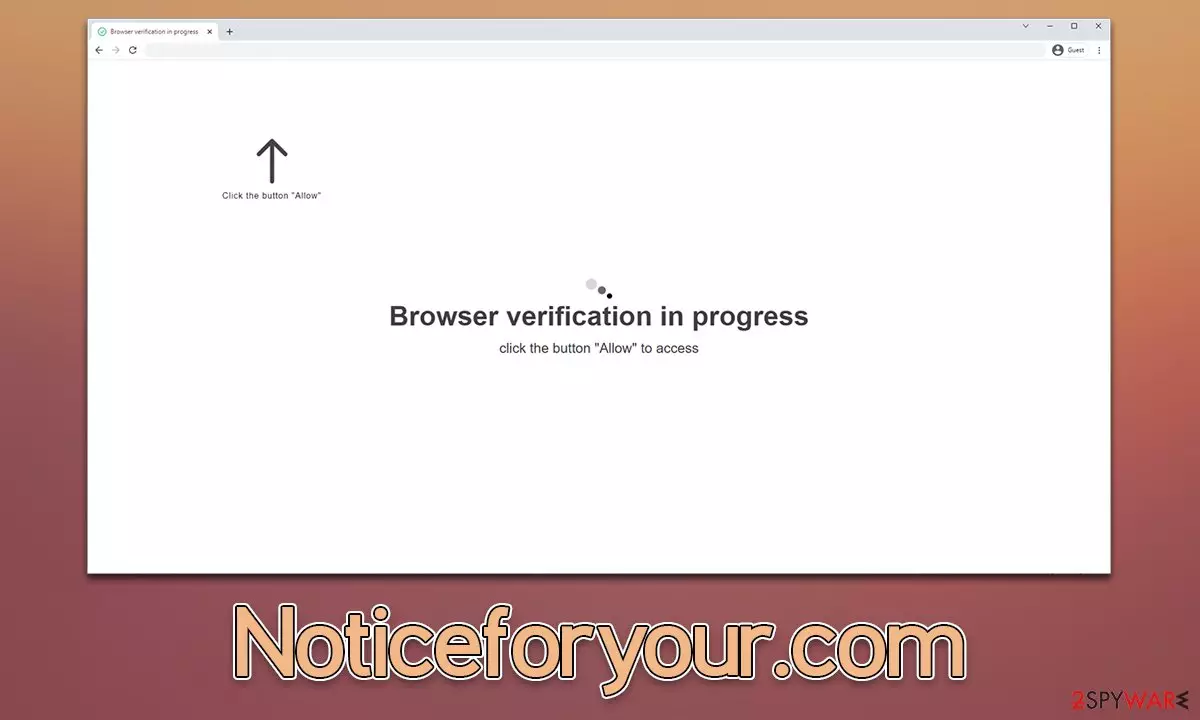
Noticeforyour.com is a fake website that attempts to trick users into subscribing to push notifications, which can later be used to earn revenue through advertisements. Unfortunately, the pop-ups that come from this website are not secure at all, with phishing messages claiming that users' systems are infected or that they can earn a large sum of money by investing in a get-rich-quick scam scheme.
We recommend not interacting with Noticeforyour.com ads in any capacity. Links can bring you to malware-laden or misleading websites, where you could be tricked in various ways. The activity can also be extremely annoying and intrusive, as push notifications run on the system level, meaning that they can show up at any time, as long as the browser is either being used or is idling in the background.
| Name | Noticeforyour.com |
| Type | Push notifications, ads, pop-ups, scam |
| Distribution | The only way the ads would start being shown is by users pressing the “Allow” button within the notification prompt |
| Symptoms | Notifications show up at the bottom-right corner of the screen – these include fraudulent content and links to potentially dangerous websites |
| Dangers | The ads shown within push notification prompts might include misleading messages and links to malicious websites. If clicked, you might end up infecting your system with malware, disclosing your personal information, or losing money |
| Removal | You can stop the unwanted notifications by accessing web browser settings. If you suspect adware infection, you should use SpyHunterCombo Cleaner security software to get rid of it |
| Tips | After removal of adware and other malicious software, you should clean your browsers with FortectIntego to avoid unwanted data tracking |
How you end up on scam websites
The Noticeforyour.com scam begins with its distribution – users need to access it first. It is evident that they would not enter websites of dubious content intentionally, so crooks rely on redirects.
Most commonly, people are rerouted after they click a link on suspicious websites (e.g., X-rated, peer-to-peer networks, software crack sites, and similar) or when they are exposed to a malicious script. To reduce the possibility of that happening, we recommend staying away from sites like these – it is easy to get infected with dangerous malware, such as ransomware, on those.
Alternatively, some people might be victims of adware,[1] which is a type of potentially unwanted software that could be already running on the affected users' machines. Since adware uses deceptive distribution techniques such as software bundles or fake updates, many users might not even know that they have it running in the background.
The easiest way to check for adware is by performing a full system scan with powerful anti-malware software, such as SpyHunterCombo Cleaner or MalwarebytesMalwarebytes. Not only can it ensure that most aggressive infections are deleted automatically from the system, but it can also serve as great protection when dealing with incoming malware attacks in the future. Once malware is deleted, we also recommend fixing damaged system files and removing trackers from browsers with FortectIntego repair and maintenance utility.
Noticeforyour.com uses various phishing messages
If you constantly see Noticeforyour.com ads on your desktop, you have likely been tricked by a fake message shown on it. Since the access to the site is often unexpected, users tend to not think much about what they have actually encountered, especially when the message tries to imitate a bypass of some type of imaginary restrictions.

Users might be told that their browsers are blocking video playback or that they need to confirm they aren't robots. Here are a few examples of messages you could expect on a push notification scam site:
- If you are 18+, click Allow
- Click Allow to start downloading
- Press “Allow” to watch the video
- Click “Allow” to win a prize and get it in our shop!
It is not difficult to see how some users could get confused as, for example, legitimate websites commonly use captcha checks to protect themselves from DDoS attacks.[2] Note that you could encounter plenty of other scam sites (Cauthaushoas.com, News-gocuco.cc, Bringmeredline.com) which use same messages and techniques.
Removal of Noticeforyour.com
The push notification feature is legitimate and is included in every modern web browser. That's why you can't eradicate it as it is an API (Application Programming Interface).[3] However, you can allow or block any website from sending you information using it – it's really easy to do, as long as you follow the instructions below.
Google Chrome
- Open the Google Chrome browser and go to Menu > Settings.
- Scroll down and click on Advanced.
- Locate the Privacy and security section and pick Site Settings > Notifications.
- Look at the Allow section and look for a suspicious URL.
- Click the three vertical dots next to it and pick Block. This should remove unwanted notifications from Google Chrome.


Mozilla Firefox
- Open Mozilla Firefox and go to Menu > Options.
- Click on Privacy & Security section.
- Under Permissions, you should be able to see Notifications. Click the Settings button next to it.
- In the Settings – Notification Permissions window, click on the drop-down menu by the URL in question.
- Select Block and then click on Save Changes. This should remove unwanted notifications from Mozilla Firefox.


Safari
- Click on Safari > Preferences…
- Go to the Websites tab and, under General, select Notifications.
- Select the web address in question, click the drop-down menu and select Deny.


MS Edge
- Open Microsoft Edge, and click the Settings and more button (three horizontal dots) at the top-right of the window.
- Select Settings and then go to Advanced.
- Under Website permissions, pick Manage permissions and select the URL in question.
- Toggle the switch to the left to turn notifications off on Microsoft Edge.


MS Edge (Chromium)
- Open Microsoft Edge, and go to Settings.
- Select Site permissions.
- Go to Notifications on the right.
- Under Allow, you will find the unwanted entry.
- Click on More actions and select Block.


Internet Explorer
- Open Internet Explorer, and click on the Gear icon at the top-right of the window.
- Select Internet options and go to the Privacy tab.
- In the Pop-up Blocker section, click on Settings.

- Locate the web address in question under Allowed sites and pick Remove.

Did this guide help?
Be the first to comment