

BlissFresh is a Mac virus that can pose danger to your computer safety
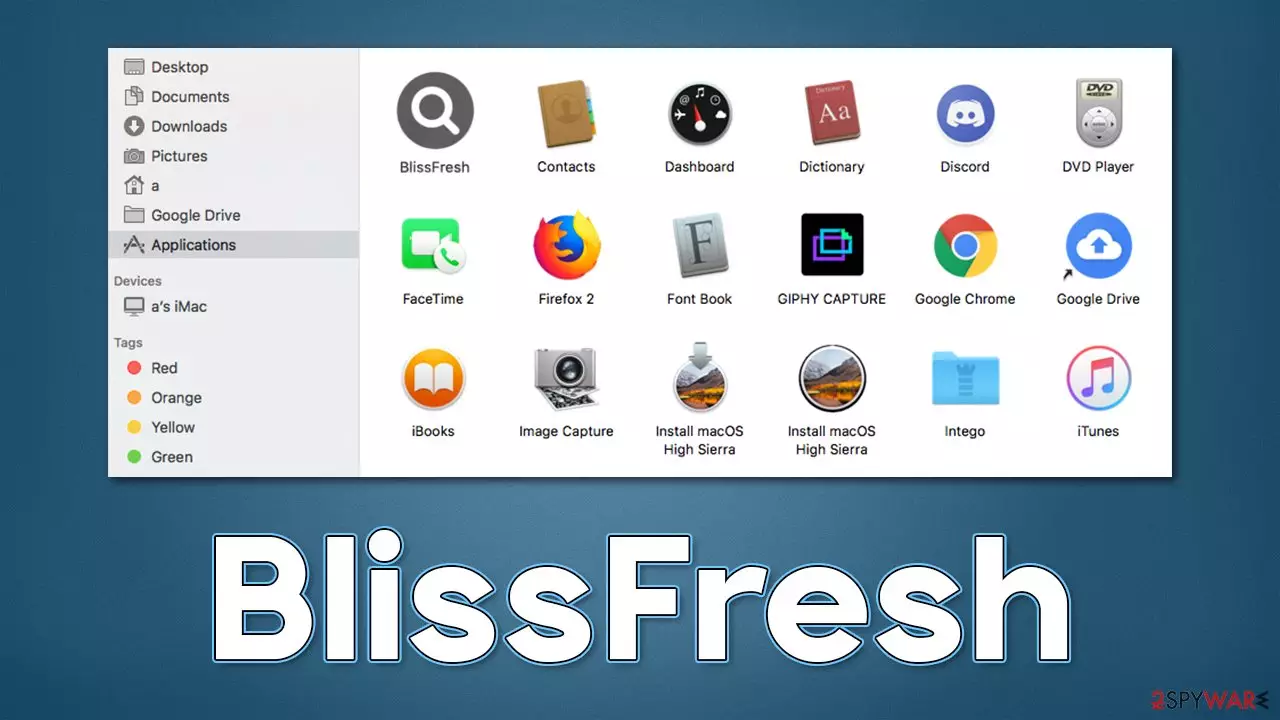
BlissFresh is a malicious Mac application that is designed to hijack web browsers, deliver intrusive ad campaigns and prevent its easy removal with effective persistence methods. The virus belongs to a broad family of Adload malware, and cybercriminals behind it already released hundreds of its versions, each being plagued with malicious traits.
Malware spreads using deceptive methods – pirated software installers and fake Flash Player updates. Even though these methods are far from sophisticated, they are extremely effective, as hundreds of users get infected with BlissFresh adware and other variants every single day.
While running on the device, the virus can expose users to various insecure material online, including phishing messages that claim malware infections, fake giveaways, get-rich-quick[1] schemes, and much more. Besides, users would constantly be harassed by pop-ups, auto-play videos, banners, and other types of ads while browsing the web via the hijacked Safari, Chrome, Firefox, or another browser.
| Name | BlissFresh |
| Type | Mac virus, adware, browser hijacker |
| Malware family | Adload |
| Distribution | Pirated application installers, fake Flash Player updates, or other fake ads |
| Symptoms | A new extension is installed on the browser, along with an application of the same name; search and browsing settings altered to an alternative search provider; new profiles and login items set up on the account; intrusive ads and redirects |
| Risks | Installation of other malware, personal data disclosure to cybercriminals, financial losses |
| Removal | The fastest way to remove Mac malware is to perform a full system scan with SpyHunterCombo Cleaner security software. We also provide a manual guide below |
| System optimization | For best performance and system remediation, employ FortectIntego. Also, cleaning web browser caches is highly advised after the elimination of malware for better privacy and security |
Adload family: a Mac problem that won't go away
While initially, many Mac users believed that malware on their systems was a myth, it is no longer the case.[2] Over the years, cybercriminals started to increasingly target this operating system due to its increased popularity. Even though it is true that Macs are less susceptible to more dangerous malware types (ransomware, rootkits, etc.), Mac's adware problem is huge, and adware targeting these machines, on average, is far more aggressive than that targeting Windows.
Adload, for example, is just one of many aggressive adware strains infect users regularly. It uses a distinctive magnifying glass icon, usually on a blue, teal, green, or gray background. The presence of this intruder can be felt almost immediately, as it changes browser settings in various ways, depending on the virus versions.
Previously, we have seen Adload variants (IndexInterface, NavigateNetwork, MemoryFunction, etc.) to change the homepage to insecure pages such as Safe Finder, reroute traffic, assign alternative search providers, and display intrusive ads at the top of search results and elsewhere.

BlissFresh might also be difficult to get rid of, as it uses the built-in AppleScript to bypass Apple's built-in defenses.[3] This allows the virus to install the extension with elevated permissions and harvest sensitive information, including credit card details and account passwords. This poses a great risk to users' privacy and computer security, so we recommend not delaying the removal process and not entering any personal details while the infection is still active.
BlissFresh effective removal methods
The BlissFresh virus consists of two main components – the browser extension and the main application. Several other files and other components are also dropped on the system, which can make manual removal ineffective if not performed well. Therefore, we recommend employing SpyHunterCombo Cleaner or MalwarebytesMalwarebytes security software to do the job for you, as it can effectively find and remove all malicious files from the system at once. It can also get rid of the annoying browser extension that is otherwise difficult to remove.
Get rid of the main app
It is not uncommon for malware to run background processes to operate as intended by its authors. Before proceeding with the removal of the main application, you should first make sure that these processes do not hinder your goal, so access the Activity Monitor and shut them down as follows:
- Open Applications folder
- Select Utilities
- Double-click Activity Monitor
- Here, look for suspicious processes related to adware and use the Force Quit command to shut them down
- Go back to the Applications folder
- Find the unwanted app in the list and move it to Trash.
This may or may not help you to eradicate the application. Regardless if you were successful in the previous step, you should now try to get rid of the persistence mechanisms that might not allow you to uninstall BlissFresh correctly:
- Go to Preferences and pick Accounts
- Click Login items and delete everything suspicious
- Next, pick System Preferences > Users & Groups
- Find Profiles and remove unwanted profiles from the list.
The PLIST files are small config files, also known as “Properly list.” They hold various user settings and hold information about certain applications.
- Select Go > Go to Folder.
- Enter /Library/Application Support and click Go or press Enter.
- In the Application Support folder, look for any dubious entries and then delete them.
- Now enter /Library/LaunchAgents and /Library/LaunchDaemons folders the same way and delete all the related .plist files.


Second task: clean your browser
If you have removed the malicious app with the help of security software as initially advised, you shouldn't worry about the browser extension, as it should be removed by anti-malware. If you rather want to attempt doing it yourself, please proceed with the steps below.
- Click Safari > Preferences…
- In the new window, pick Extensions.
- Select the unwanted extension and select Uninstall.


If you were unable to uninstall the extension in a regular way, you can reset Safari instead. It is easy to do:
- Click Safari > Preferences…
- Go to the Advanced tab.
- Tick the Show Develop menu in the menu bar.
- From the menu bar, click Develop, and then select Empty Caches.


Finally, cleaning web browsing data and cookies is important, as these can be used to insert ads or track you even after the app's removal. It can be accomplished by clearing web browser caches or employing a powerful utility FortectIntego, which can also serve as a great maintenance tool in the future.
- Click Safari > Clear History…
- From the drop-down menu under Clear, pick all history.
- Confirm with Clear History.


Check for Firefox and Chrome instructions below.
Remove from Mozilla Firefox (FF)
Remove dangerous extensions:
- Open Mozilla Firefox browser and click on the Menu (three horizontal lines at the top-right of the window).
- Select Add-ons.
- In here, select the unwanted extension and click Remove.


Reset the homepage:
- Click three horizontal lines at the top right corner to open the menu.
- Choose Settings.
- Under Home, set your preferred homepage and new tab settings.
Clear cookies and site data:
- Click Menu and pick Settings.
- Go to Privacy & Security section.
- Scroll down to locate Cookies and Site Data.
- Click on Clear Data...
- Select Cookies and Site Data and Temporary cached files and pages, then click Clear.


Reset Mozilla Firefox
If clearing the browser as explained above did not help, reset Mozilla Firefox:
- Open Mozilla Firefox browser and click the Menu.
- Go to Help and then choose Troubleshooting Information.

- Under Give Firefox a tune up section, click on Refresh Firefox...
- Once the pop-up shows up, confirm the action by pressing on Refresh Firefox.



Remove from Google Chrome
Delete malicious extensions from Google Chrome:
- Open Google Chrome, click on the Menu (three vertical dots at the top-right corner) and select More tools > Extensions.
- In the newly opened window, you will see all the installed extensions. Uninstall all suspicious extensions related to the unwanted program by clicking Remove.


Clear cache and web data from Chrome:
- Click on Menu and pick Settings.
- Under Privacy and security, select Clear browsing data.
- Select Browsing history, Cookies and other site data, as well as Cached images and files.
- Click Clear data.


Change your homepage:
- Click menu and choose Settings.
- Look for a suspicious site in the On startup section.
- Click on Open a specific or set of pages and click on three dots to find the Remove option.
Reset Google Chrome:
If the previous methods did not help you, reset Google Chrome to eliminate all the unwanted components:
- Click on Menu and select Settings.
- In the Settings, scroll down and click Advanced.
- Scroll down and locate Reset and clean up section.
- Now click Restore settings to their original defaults.
- Confirm with Reset settings.


Did this guide help?
Be the first to comment