

Lpnotonline.com ads are initiated by accepting push notifications
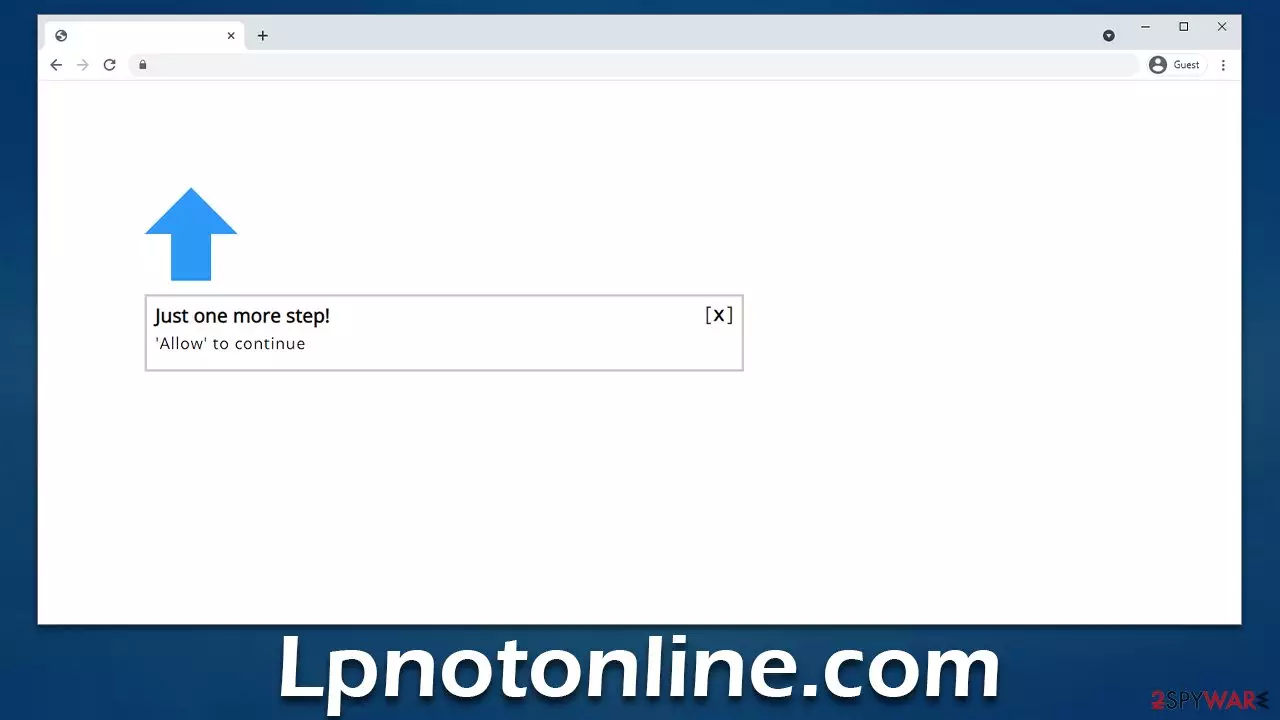
Lpnotonline.com is a scammer-created website that you may accidentally encounter online. Its main goal is to convince users that subscribing to push notifications is nothing else but a regular verification process, so they would click the “Allow” button within the notification prompt. To mislead users, an array of phishing[1] messages are used.
Those who do get tricked by the misleading statements on the site would not initially notice any significant changes, although they might be rerouted to similar scam sites, for example, Alliedowlagator.store, Politicosta.biz, or Licktaughigme.com. Only sometime later, the Lpnotonline.com ads would start showing up at random times, regardless if the browser is actively being used or which websites are being visited at the time.
| Name | Lpnotonline.com |
| Type | Push notifications, ads, pop-ups, scam |
| Distribution | The website gains access to deliver information as soon as the “Allow” button is pressed within the push notification prompt |
| Symptoms | Notifications are shown at the top of all other ads and often carry potentially dangerous content |
| Risks | If you click on links provided by the website, you might end up infecting your system with malware/PUPs, disclosing your personal information to cybercriminals, or losing money for useless services |
| Removal | To remove push notifications, access browser settings, and block the website. Then, scan your system with SpyHunterCombo Cleaner to check it for adware and other malware |
| Other tips | Cleaning web browsers is one of the secondary things you should do after PUP/malware removal to secure your privacy. You can use FortectIntego to do it quicker |
How does it all work
It is important to note that users would never intentionally access websites that are inherently harmful or completely useless. This fact is well-known by scammers, so they need to ensure that people would flock to their fake sites in some way, and usually, insecure advertising networks and malicious websites are chosen for the job.
Clicking links on high-risk websites, for example, is one of the most common reasons why users get redirected to Lpnotonline.com. Likewise, there could be automatic scripts that would initiate the redirect without users without them clicking any buttons. In some other cases, adware could also be the reason for this unexpected browser behavior.
Since people get redirected without expecting it, they tend to make more mistakes when shown a scam message. For example, these are some of the many short sentences one could expect in a scam website:
- If you are 18+, click Allow.
- Your file is ready to download. Press Allow to continue.
- Can't play this video! Perhaps your browser doesn't allow video playback. Click the Allow button to watch the video.
- Just one more step! “Allow” to continue.
- Click Allow to confirm that you are not a robot.

Crooks are trying to imply that the “Allow” button is meant for some other purpose, such as confirming one's age or that they are not robots. These procedures are actually used legitimately, and scammers are attempting to trick people into making them believe that this is just another such check. In reality, users clicking the “Allow” button would only permit the Lpnotonline.com website to deliver push notifications anytime, as long as the browser is turned on.
Effective removal of Lpnotonline.com ads
As we already mentioned, adware could be one of the reasons why one was redirected to a push notification scam site. Since these potentially unwanted programs might slip into one's system unnoticed, their presence might not be spotted for a while, as some adware is known to be operating in the background.
Therefore, we strongly advise you to perform a full system check using reputable anti-malware software, such as SpyHunterCombo Cleaner or MalwarebytesMalwarebytes. These security apps can check your device and ensure that all the malware-related files or secondary payloads are eliminated at once. After this, initiate a scan with FortectIntego to repair any damaged system sectors and remove all the trackers from your browsers for better privacy.
As soon as your system is clear from infections, it is time to remove Lpnotonline.com ads for good. To do that, you need to access browser settings and remove the correlating web address from the “Allowed” list as follows:
Google Chrome
- Open the Google Chrome browser and go to Menu > Settings.
- Scroll down and click on Advanced.
- Locate the Privacy and security section and pick Site Settings > Notifications.
- Look at the Allow section and look for a suspicious URL.
- Click the three vertical dots next to it and pick Block. This should remove unwanted notifications from Google Chrome.


Mozilla Firefox
- Open Mozilla Firefox and go to Menu > Options.
- Click on Privacy & Security section.
- Under Permissions, you should be able to see Notifications. Click the Settings button next to it.
- In the Settings – Notification Permissions window, click on the drop-down menu by the URL in question.
- Select Block and then click on Save Changes. This should remove unwanted notifications from Mozilla Firefox.


Safari
- Click on Safari > Preferences…
- Go to the Websites tab and, under General, select Notifications.
- Select the web address in question, click the drop-down menu and select Deny.


MS Edge
- Open Microsoft Edge, and click the Settings and more button (three horizontal dots) at the top-right of the window.
- Select Settings and then go to Advanced.
- Under Website permissions, pick Manage permissions and select the URL in question.
- Toggle the switch to the left to turn notifications off on Microsoft Edge.


MS Edge (Chromium)
- Open Microsoft Edge, and go to Settings.
- Select Site permissions.
- Go to Notifications on the right.
- Under Allow, you will find the unwanted entry.
- Click on More actions and select Block.


Internet Explorer
- Open Internet Explorer, and click on the Gear icon at the top-right of the window.
- Select Internet options and go to the Privacy tab.
- In the Pop-up Blocker section, click on Settings.

- Locate the web address in question under Allowed sites and pick Remove.

Tips to avoid scams online
Security experts at novirus.uk[2] advise being vigilant when dealing with redirects and suspicious messages online. These are a few tips that should help you in the future:
- Do not visit high-risk websites, such as torrents or illegal video streaming sites;
- Be wary when installing freeware,[3] as it may contain adware, which could later prompt redirects to phishing sites;
- Employ an effective ad-blocker along with other security measures, such as SpyHunterCombo Cleaner, MalwarebytesMalwarebytes, or another security software to avoid malware attacks and phishing messages online;
- Always check the URL of a website that you got redirected to, where you are asked to download something, give your personal information, or perform other actions that could be damaging if misused;
- Push notification prompt will always result in that particular website being able to send you the push notifications, regardless of what the background picture or message implies. Likewise, no reputable website would ask you to enable them in order to view its content.
Did this guide help?
Be the first to comment