

Spartan Hack ransomware is a malicious program that holds users' files hostage until a ransom is paid
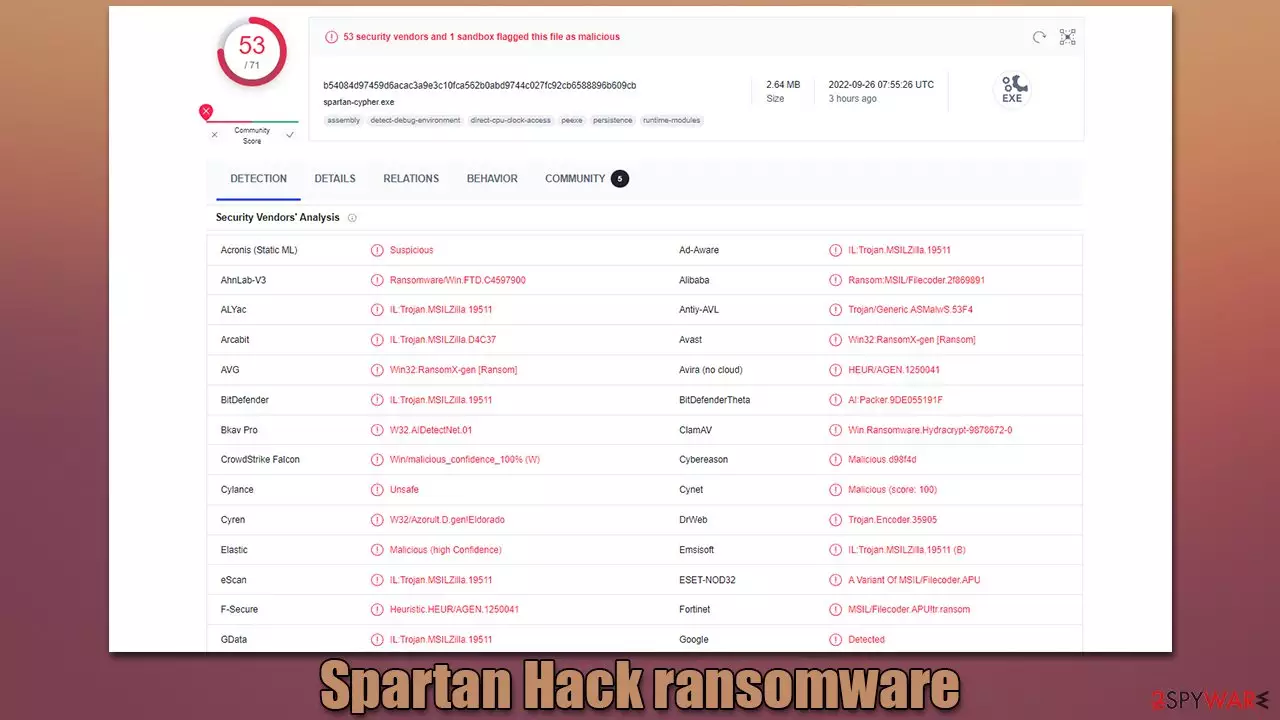
Spartan Hack is a ransomware-type virus that encrypts all personal files on Windows computers using a sophisticated encryption algorithm such as RSA. This type of virus renders photos, videos, documents, databases, and other data unusable. Each file is appended with a randomly-generated extension of four characters – it also deletes regular file icons and replaces them with blanks. This damage can be significant for people who haven't backed up their system or held important files on a separate storage device because none of the data can be used anymore.
In order to restore files back to their original form (making them usable once again), victims are asked on the read_it.txt note to contact them and send their personal ID, which is unique to every user. Of course, cybercriminals are not willing to give up the decryptor for free, and they are asked for a payment, which is meant to be delivered as a bitcoin transaction to a specified bitcoin wallet.
Contacting crooks might not be the best idea, as they might simply scam users and never provide the Spartan Hack decryptor. Instead, we recommend checking out the details about the infection below – we give several tips on how to get rid of the virus effectively and how to attempt file recovery without paying crooks.
| Name | Spartan Hack ransomware |
|---|---|
| Type | Ransomware, file-locking malware |
| File extension | Four random characters |
| Ransom note | read_it.txt |
| Malware family | Chaos |
| File Recovery | The only secure way to restore files is by using data backups. If such is not available or were encrypted as well, options for recovery are minimal – we provide all possible solutions below |
| Malware removal | Remove the computer from the network and the internet, then run a complete system scan with SpyHunterCombo Cleaner security software |
| System fix | Malware may corrupt numerous important system files, resulting in crashes, faults, and other problems, particularly if it infiltrates a system. FortectIntego PC repair is a good method of automatically replacing any damaged system files |
What is known about Spartan Hack ransomware?
Spartan Hack is just one of the thousands of malware samples that are identified as ransomware. This type of malicious software is considered to be one of the most damaging to regular computer users, as well as companies and organizations, as sensitive information is often leaked during these attacks. For regular users, the damage can be significant because invaluable files such as photos might be gone forever.
The Spartan Hack virus stems from a malware family known as Chaos, which has been observed to be closely tied to Ryuk ransomware. Threat actors behind the attacks are known to deliver numerous variants and spread them to as many users as possible – we have previously covered Virus Alert, Cheaplaminate, Pizzasucker, and a few others.
While other malware strains tend to release variants that are very similar, Chaos versions, while maintaining some patterns at times, are quite a bit different each time. For example:
- some of the versions are known to change the background wallpaper, while others don't;
- contact emails are always different from version to version;
- additional file extensions appended during the encryption process often vary, for example, Skynet and Spartan Hack append a random extension while Virus Alert uses a predetermined extension .paynow.
Also, some of the Chaos versions seem to be more developed than others. It seems like hackers are experimenting a lot and delivering variants that are not fully refined. In this case, it seems like it is exactly what's happening here with this version.

How to deal with ransomware
For those who have never encountered ransomware, it can be a very overwhelming and confusing experience. This is because, unlike other malware, the data encryption component of ransomware does not disappear after the virus is eliminated. There are also many peculiarities that users may not know about, which could result in permanent data corruption if they make incorrect moves.
Thus, it is essential to remove malware correctly. Your first goal should be to cut off the virus's ability to communicate with a remote Command & Control[1] server that attackers typically use to send out commands. If you don't do this, in some cases, additional payloads could be sent your way, leading to further problems.
- Type in Control Panel in Windows search and press Enter
- Go to Network and Internet
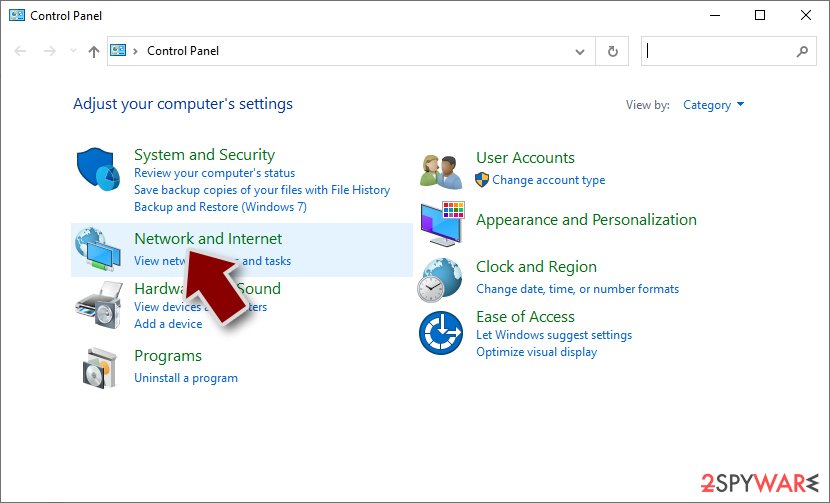
- Click Network and Sharing Center
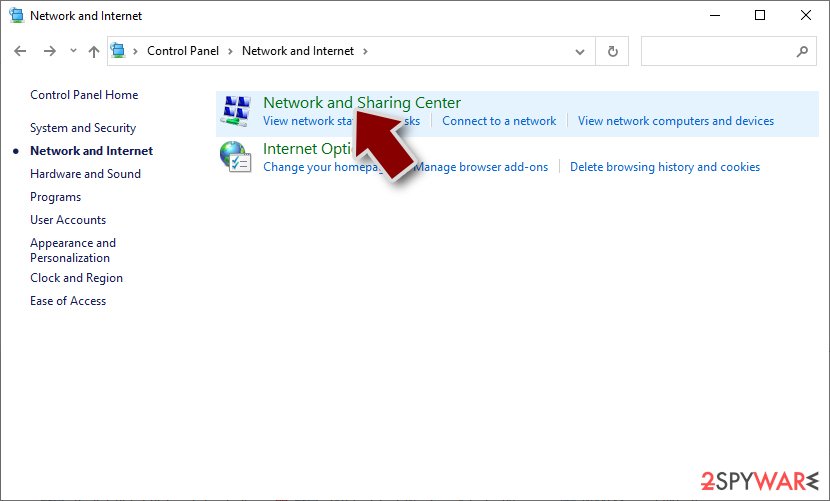
- On the left, pick Change adapter settings
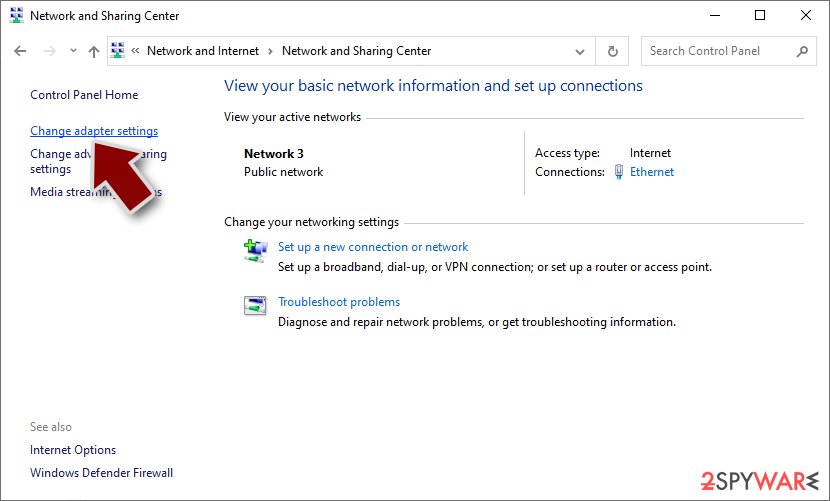
- Right-click on your connection (for example, Ethernet), and select Disable
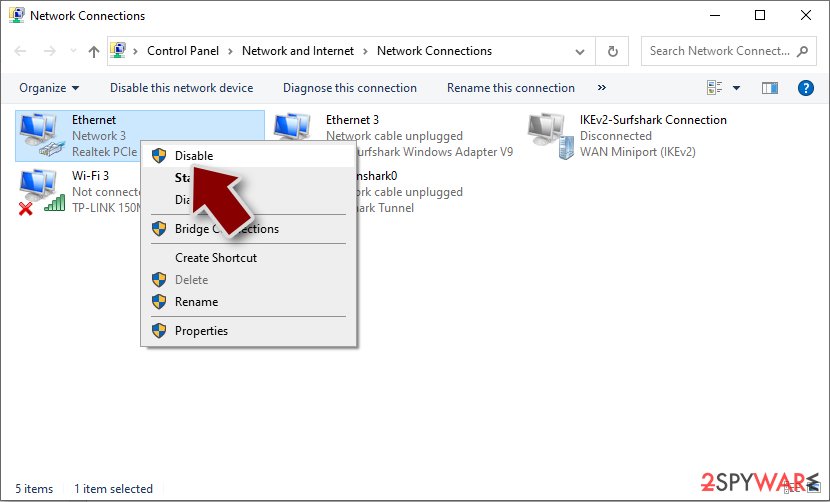
- Confirm with Yes.


After you've ruled out the system being linked to the network, use sophisticated anti-malware software and perform a comprehensive system scan with it. Security software, such as SpyHunterCombo Cleaner or MalwarebytesMalwarebytes, may discover and remove all harmful components from the system as well as any secondary payloads that may be there.
In some cases, performing a security scan may be impossible due to malware's operation in the background – accessing Safe Mode could remove these restrictions and allow you to remove ransomware without any problems. If you need help accessing it, proceed with the following steps:
Windows 7 / Vista / XP
- Click Start > Shutdown > Restart > OK.
- When your computer becomes active, start pressing the F8 button (if that does not work, try F2, F12, Del, etc. – it all depends on your motherboard model) multiple times until you see the Advanced Boot Options window.
- Select Safe Mode with Networking from the list.


Windows 10 / Windows 8
- Right-click on the Start button and select Settings.
- Scroll down to pick Update & Security.
- On the left side of the window, pick Recovery.
- Now scroll down to find the Advanced Startup section.
- Click Restart now.
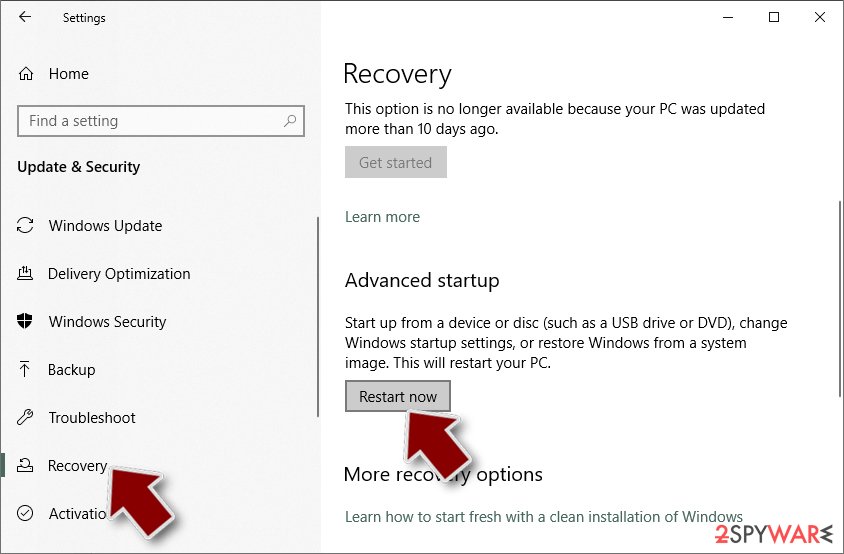
- Select Troubleshoot.
- Go to Advanced options.
- Select Startup Settings.
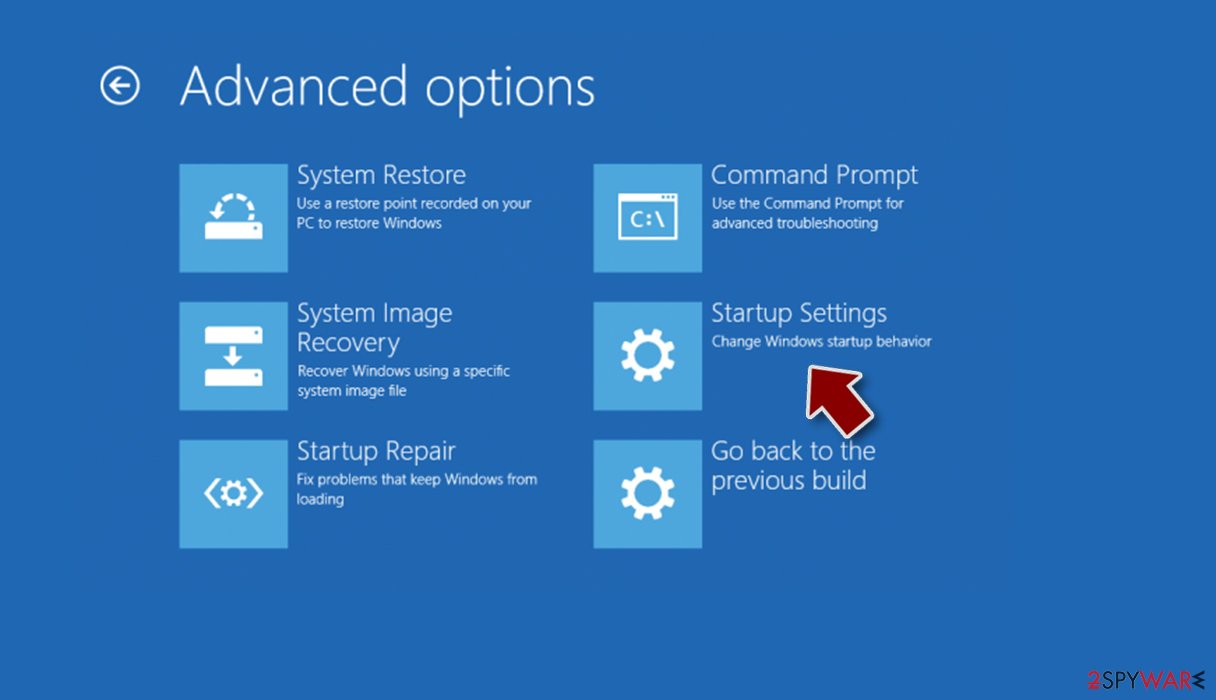
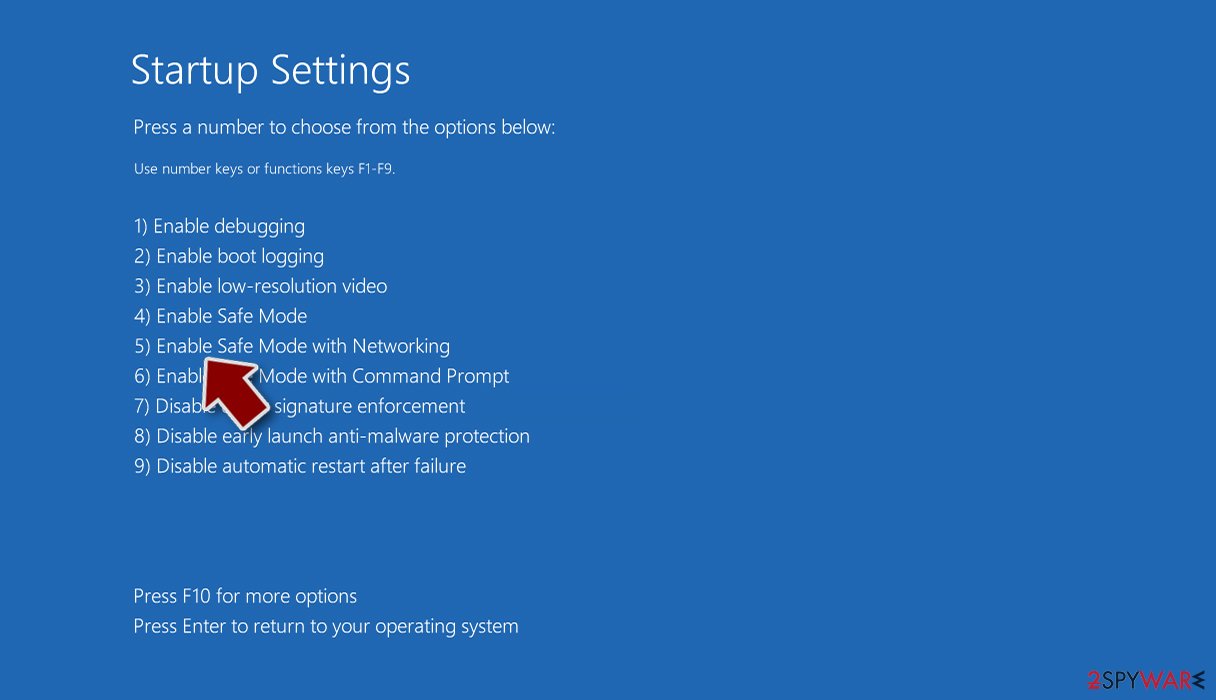
- Click Restart.
- Press 5 or click 5) Enable Safe Mode with Networking.


Recover your files
Ransomware encryption is a rather complex process that changes the way files work. Typically, ransomware only encrypts a small fraction of the data located on each file, which is enough to prevent anyone from opening them. Regardless of this, it is enough to not allow users to access their files, no matter which program they use to open them, and they would be shown a Windows error instead, claiming that files can't be opened.
Typically, encryption is easily reversible as long as the decryption key is known; unfortunately, it is in possession of cybercriminals who launched the initial attack. It is important to note that anti-malware software would not restore files back to normal, as it is simply not designed for this purpose. Instead, we recommend trying specialized software that could, in some cases, be effective.
Make sure you create backups of encrypted files, otherwise, you could lose them forever if you proceed.
- Download Data Recovery Pro.
- Double-click the installer to launch it.

- Follow on-screen instructions to install the software.
- As soon as you press Finish, you can use the app.
- Select Everything or pick individual folders where you want the files to be recovered from.
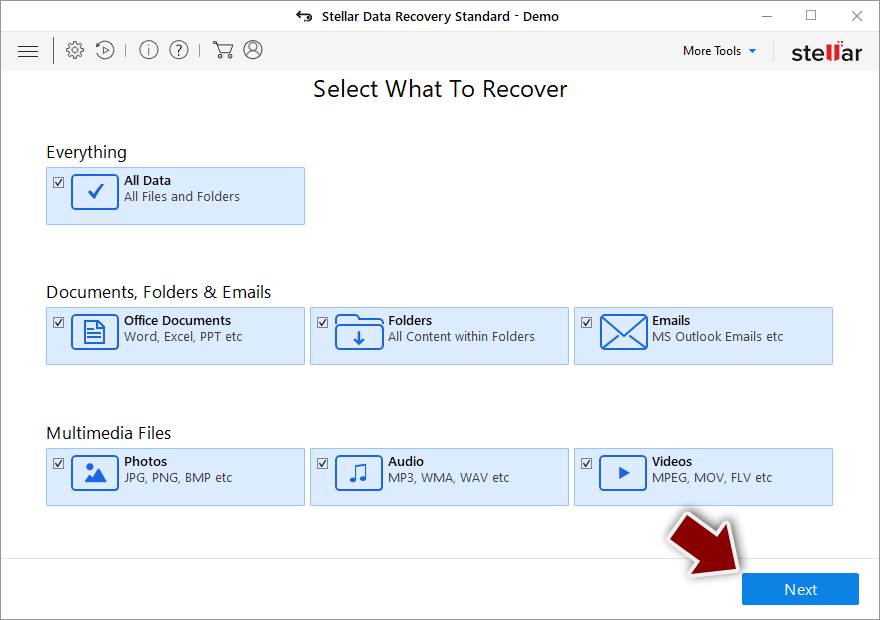
- Press Next.
- At the bottom, enable Deep scan and pick which Disks you want to be scanned.

- Press Scan and wait till it is complete.
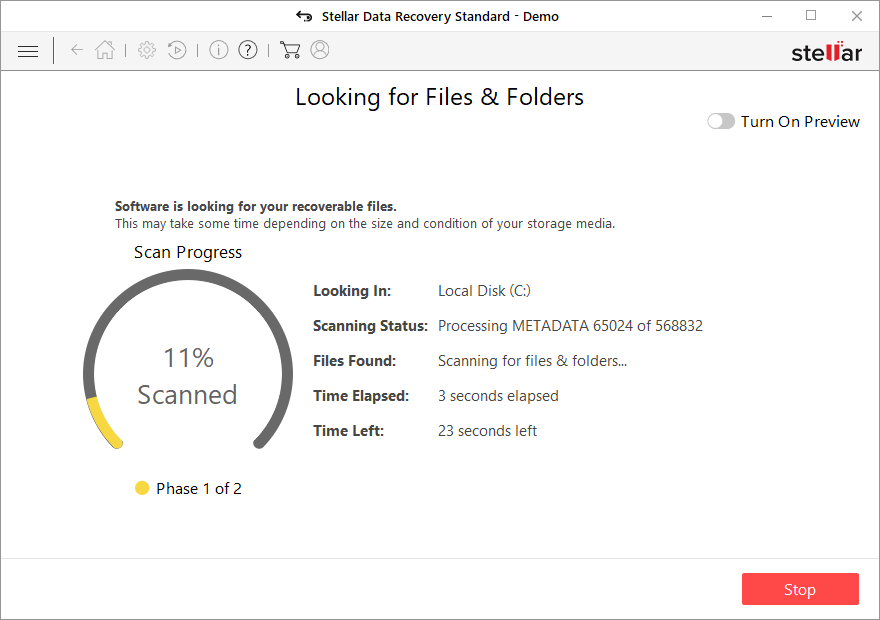
- You can now pick which folders/files to recover – don't forget you also have the option to search by the file name!
- Press Recover to retrieve your files.


Some ransomware is much more poorly constructed than others, and it contains numerous bugs.[2] Considering that the Spartan Hack virus is still in development, it could well be the case. Cybersecurity researchers may frequently develop a functioning decryptor for victims to use for free by finding such vulnerabilities. Keep in mind that this might or may not happen at all, or it might take some time. Check the following sites for new decryptors on a regular basis:
- No More Ransom Project
- Free Ransomware Decryptors by Kaspersky
- Free Ransomware Decryption Tools from Emsisoft
- Avast decryptors

Other useful tips
Ransomware is among the most damaging malware, as seen in its severe consequences on the infected system. This malware might not only spread via networks and be accompanied by additional infections, but it may also add invalid code or harm existing Windows files, resulting in BSODs[3] or other problems. As a result, we recommend using a professional PC maintenance program to fix any such issues.
- Download FortectIntego
- Click on the ReimageRepair.exe
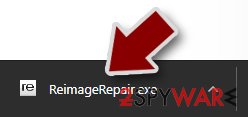
- If User Account Control (UAC) shows up, select Yes
- Press Install and wait till the program finishes the installation process
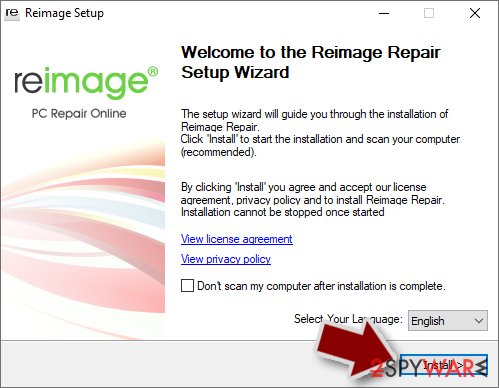
- The analysis of your machine will begin immediately
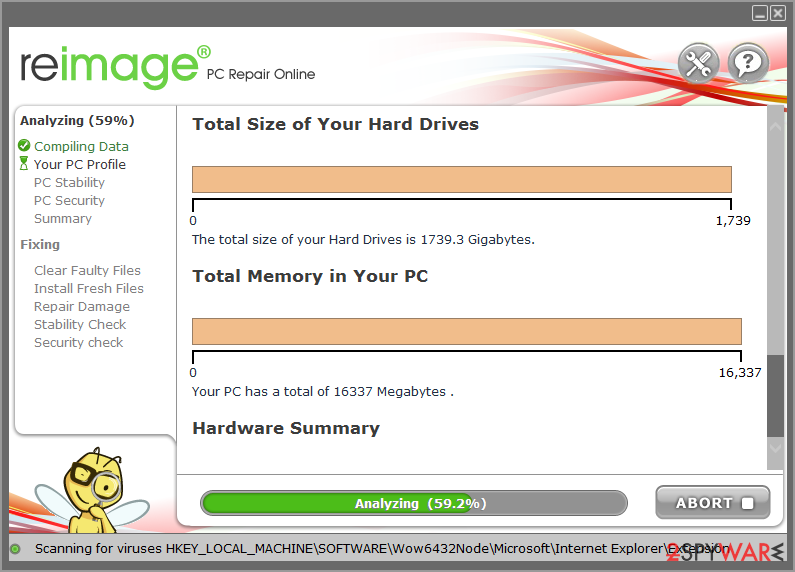
- Once complete, check the results – they will be listed in the Summary
- You can now click on each of the issues and fix them manually
- If you see many problems that you find difficult to fix, we recommend you purchase the license and fix them automatically.



Another useful tip is to ensure you maintain backups of your working files. If you have backups that are kept on a separate medium or somewhere on the cloud storage, you can be sure that the damaging effects of ransomware infection are diminished significantly. Below you will find tips on how to backup your files in several different methods, so make sure you check these instructions out.
Did this guide help?
Be the first to comment