

ExplorerIndex is a Mac virus that can steal your passwords and logins
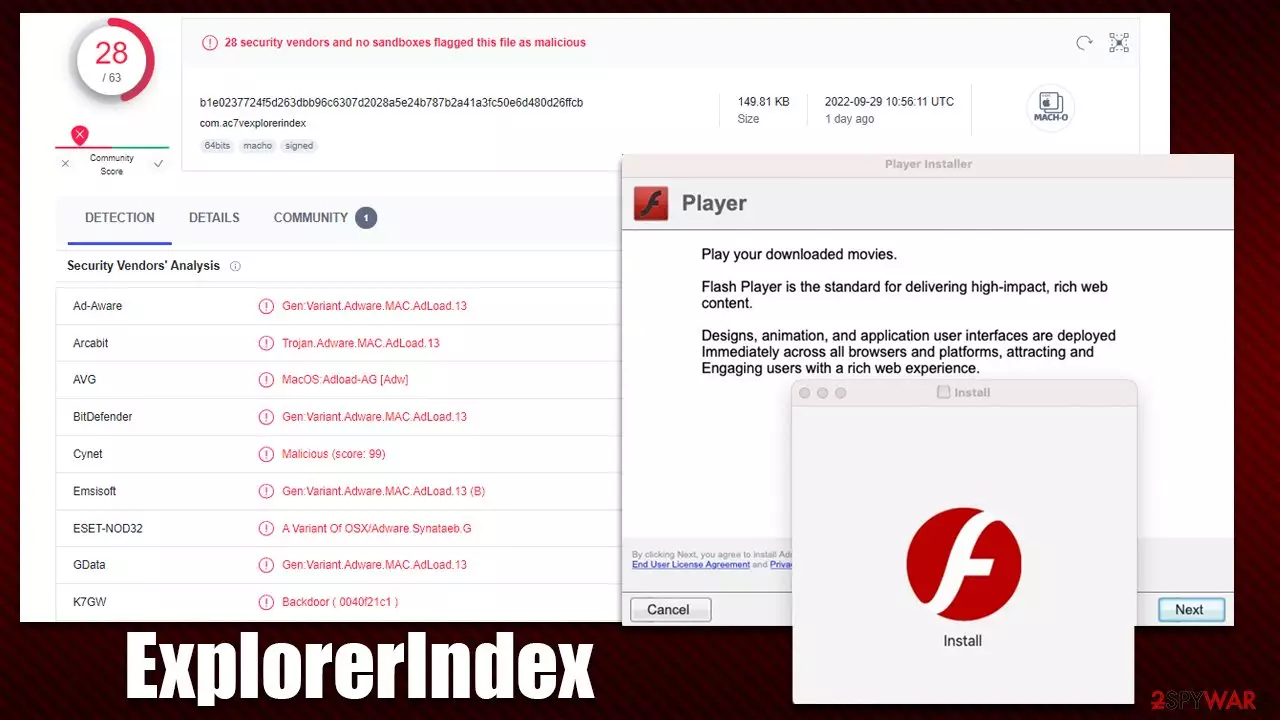
ExplorerIndex is a type of malware that affects Mac systems. It's one of the newest versions of the notorious Adload family and is often installed without the user realizing it, usually when they visit an insecure website or download a cracked application. Fake Flash Player updates[1] are one of the most common ways for macOS to get infected with malware.
The ExplorerIndex app adds its own browser extension to Safari, Chrome, or another used web browser that may become impossible to remove in a regular way. It can gather personal information, such as credit card details or passwords, for as long as it is active. Thus, it is recommended not to enter any sensitive data before the virus is fully removed.
The virus also makes changes to a user's default browser settings. These setting changes often include a new homepage and search provider alternations – Yahoo or Safe Finder are most commonly used, but this could differ depending on the virus versions and user location. Because of these changed settings, generated results from internet searches are no longer accurate since sponsored links and ads have replaced the top ones.
The ExplorerIndex may be difficult to remove manually due to its basic yet effective persistence methods. We've included detailed instructions below on removing the infection and ensuring that the device runs properly after doing so.
| Name | ExplorerIndex |
| Type | Mac virus, adware, browser hijacker |
| Malware family | Adload |
| Distribution | Users typically get infected after being tricked by a fake Flash Player update, although repacked installers from torrent sites can also be the cause of infection |
| Symptoms | Installs an extension to the browser that can not be removed; changes homepage/new tab to something else; redirects lead to potentially malicious or scam sites, promotes suspicious software, etc. |
| Risks | Installation of other malware, personal data disclosure to cybercriminals, financial losses |
| Removal | An entire system scan using SpyHunterCombo Cleaner security software is the quickest and most effective approach to remove malicious applications from Macs. Alternately, you might try to eradicate the virus manually with our instructions below |
| System optimization | For best performance and system remediation, employ FortectIntego. Also, cleaning web browser caches is highly advised after the elimination of malware for better privacy and security |
Adload is a pain to deal with, and it's been around for a while
Adload, which ExplorerIndex is a member of, is one of the most popular malware families that many people are exposed to on a daily basis. It was created at least as far back as 2017, with hundreds of modifications produced by an unknown cybercriminal group. We have recently described the newest versions, including LegionSuites, CreedNetwork, AbsoluteValue, and RankBet.
Adload versions include a distinct icon that is made up of a teal, blue, green, or green icon with a magnifying glass on it. Because malware has unrestricted access to the system with the highest permissions, it may automatically perform additional application installation without requiring user permission, so it's not unusual for many malicious programs to be installed on one infected computer.
There are also links to other malware strains, such as Bundlore and Shlayer, both of which utilize the fake Flash Player installation name “Installer.App,” suggesting that the creators of these ailments are from the same team. This may or may not be true, however, as these remain just speculations.

Remove malware from your system
Although technically simple, Adload variations nevertheless manage to outpace Apple with their persistence techniques, allowing many new versions to bypass Mac's XProtect.[2] As a result, if alternative removal techniques are not used, malware can continue operating in the background for a long time.
The removal procedure may be made much easier by using third-party security tools, such as SpyHunterCombo Cleaner or MalwarebytesMalwarebytes. Given the number of objects the virus generates after infection, manual eradication of ExplorerIndex sometimes needs advanced computer skills. The virus can just come back if you skip some of them.
Even if you choose to remove the virus manually, please make sure you clean your Safari or another browser from leftover files. Better privacy requires cookies[3] and other residual items to be removed from browser caches. You can use FortectIntego if you prefer the automatic solution.
Manual option
For the malware not to interfere with its first removal steps, you should open Activity Monitor and shut down all related processes running in the background. Proceed with the following steps:
- Open Applications folder
- Select Utilities
- Double-click Activity Monitor
- Here, look for suspicious processes and use the Force Quit command to shut them down
- Go back to the Applications folder
- Find the malicious entry and place it in Trash.


Your next target is the Login Items and unwanted Profiles created by the virus, as these elements might increase the persistence if not removed correctly:
- Go to Preferences and pick Accounts
- Click Login items and delete everything suspicious
- Next, pick System Preferences > Users & Groups
- Find Profiles and remove unwanted profiles from the list.
Finally, you should get rid of the leftover files. The PLIST files are small config files that hold various user settings and information about certain applications – they're also known as “Properly list.”
- Select Go > Go to Folder.
- Enter /Library/Application Support and click Go or press Enter.
- In the Application Support folder, look for any dubious entries and then delete them.
- Now enter /Library/LaunchAgents and /Library/LaunchDaemons folders the same way and terminate all the related .plist files.


When you've completed the removal of the main app, uninstall the extension that uses the magnifying glass icon on gray background in Safari, Chrome, or another used browser.
Safari
- Click Safari > Preferences…
- In the new window, pick Extensions.
- Select the unwanted extension and select Uninstall.


Google Chrome
- Open Google Chrome, click on the Menu (three vertical dots at the top-right corner) and select More tools > Extensions.
- In the newly opened window, you will see all the installed extensions. Uninstall all the suspicious plugins that might be related to the unwanted program by clicking Remove.


After you've gotten rid of the extension, make sure all of your local file caches are deleted, or monitoring activities may continue. You can accomplish this effectively with FortectIntego software, which may also be used to remove various junk from your computer and improve its performance. If you'd rather perform it manually, follow these steps:
Safari
- Click Safari > Clear History…
- From the drop-down menu under Clear, pick all history.
- Confirm with Clear History.


Google Chrome
- Click on Menu and pick Settings.
- Under Privacy and security, select Clear browsing data.
- Select Browsing history, Cookies and other site data, as well as Cached images and files.
- Click Clear data.


Did this guide help?
Be the first to comment