

1more ransomware is a malicious Windows program whose goal is to extort money from users
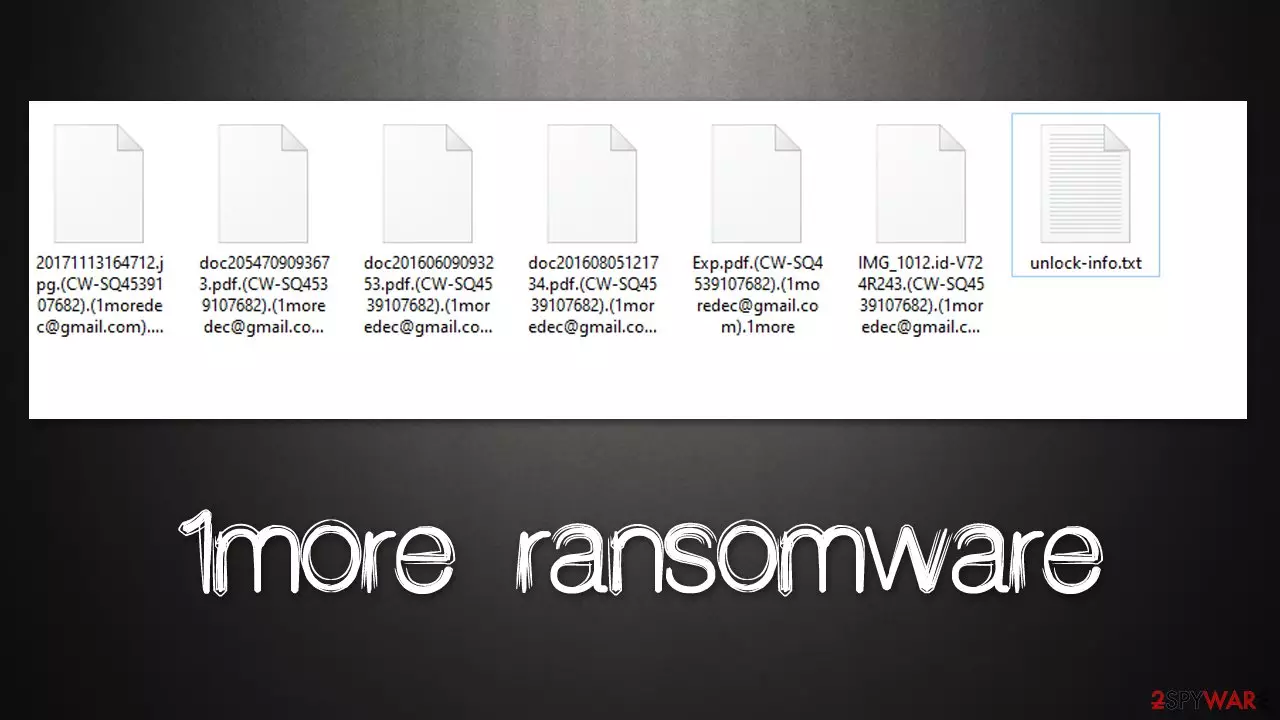
1more ransomware is a ransomware-type virus that targets users of Windows operating systems. Ransomware is one of the most devastating computer infections out there, as it locks all personal files on the machine and then demands ransom for decryption software, which is not even guaranteed to work.
In the case of the 1more virus, a combination of RSA and AES encryption algorithms[1] is used to lock all data on the system. After this process is finished, victims would find that all their files have been stripped of their original icons, and a special extension is appended to each of them – “.[ID].1moredec@gmail.com.1more.”
If you tried to open any of the files, you wouldn't be able to, regardless of which application you would attempt to open it with – Windows would simply deliver an error that claims the type of file can't be opened. While data is encrypted, it is not corrupted, and cybercriminals are offering a decryptor – not for free, of course.
In the ransom note unlock-info.txt, which is delivered shortly after malware finishes its job, crooks claim that users have to pay ransom in bitcoin. For communication purposes, they provide two contact addresses – 1moredec@gmail.com and 1moredec@mailfence.com, although we do not recommend writing emails to hackers, as they can never be trusted.
First detected at the end of July 2022, this malware is a member of the VoidCrypt/Void ransomware family, with numerous releases before this one – Linda, Moonshadow, and Gilfillan are just a few examples we have already covered. As usual, we will provide more details about malware's operation and guide you through its removal and data recovery process.
| Name | 1more virus |
|---|---|
| Type | Ransomware, file-locking virus |
| File extension | .[ID].1moredec@gmail.com.1more |
| Ransom note | unlock-info.txt |
| Contact | 1moredec@gmail.com, 1moredec@mailfence.com |
| Family | VoidCrypt |
| File Recovery | The only secure way to restore files is by using data backups. If such is not available or were encrypted as well, options for recovery are minimal – we provide all possible solutions below |
| Malware removal | Disconnect the computer from the network and internet and then perform a full system scan with SpyHunterCombo Cleaner security software |
| System fix | Once installed on the system, malware might seriously damage some system files, resulting in crashes, errors, and other stability issues. You can employ FortectIntego PC repair to fix any of such damage automatically by replacing system corruption |
The ransom note and what to expect
A ransom note is particularly important to cybercriminals, as it delivers all the crucial information which contains contact details, which increases the chance of victims paying the ransom. As a general rule, the note is either placed on the desktop or even opens automatically after data encryption is finished.
In this case, users are provided a note which is very typical of VoidCrypt versions and reads as follows:
All your files have been encrypted!
All your files have been encrypted due to a security problem with your PC. If you want to restore them, write us to the e-mail; 1moredec@gmail.com Write this ID in the title of your message : CW-SQ4539107682
In case of no answer in 24 hours write us to theese e-mails: 1moredec@mailfence.com
You have to pay for decryption in Bitcoins. The price depends on how fast you write to us. After payment we will send you the decryption tool that will decrypt all your files.Free decryption as guarantee
Before paying you can send us up to 1 file for free decryption. The total size of files must be less than 1Mb (non archived), and files should not contain valuable information. (databases,backups, large excel sheets, etc.)How to obtain Bitcoins
The easiest way to buy bitcoins is LocalBitcoins site. You have to register, click 'Buy bitcoins', and select the seller by payment method and price.
https://localbitcoins.com/buy_bitcoins
Also you can find other places to buy Bitcoins and beginners guide here:
http://www.coindesk.com/information/how-can-i-buy-bitcoins/
It is not surprising that 1more ransomware authors are offering users the test decryption service. By doing so, they attempt to win users' trust and increase the chances of them paying in the hopes of retrieving their data.

While there have been plenty of cases where users actually received a working decryptor from cybercriminals behind ransomware, there is never a guarantee that it would happen to you. Therefore, paying the ransom is relatively risky and is not recommended by security researchers and the authorities. Instead, we recommend proceeding with malware removal and alternative methods of data recovery.
Step 1. Remove malware
Most users who get infected with ransomware straight out panic once they realize that their files can no longer be opened and used. While the reaction is understandable, it will not solve anything, as the infection has already occurred. Due to this panic state, some victims may make mistakes when dealing with the situation, which may lead to even more damage and permanent data loss. Therefore, it is important to take the correct steps in the correct order.
Often, cybercriminals establish a remote connection with the affected Windows machine with the so-called Command & Control server. Communication happens over the internet, so it is important that the device is disconnected from any networked connections. Here's how to do that quickly and efficiently:
- Type in Control Panel in Windows search and press Enter
- Go to Network and Internet
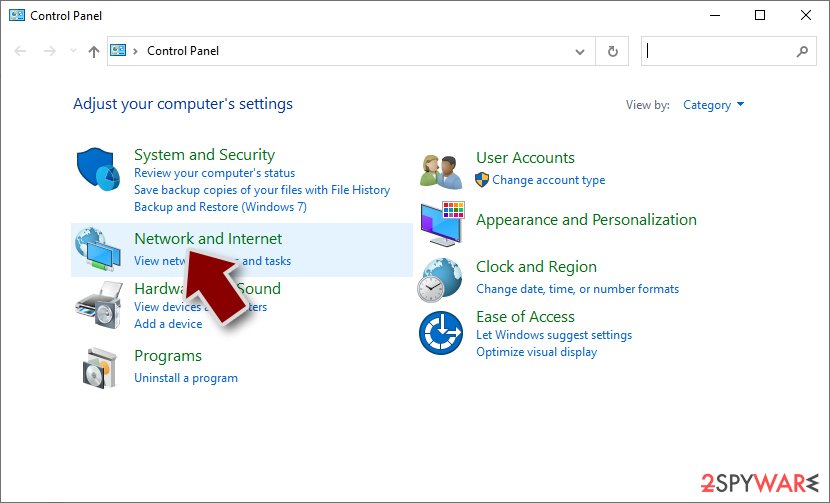
- Click Network and Sharing Center
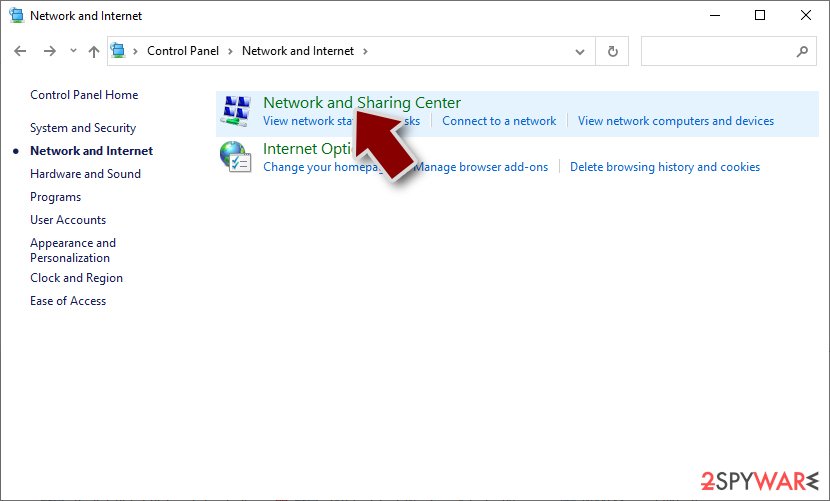
- On the left, pick Change adapter settings
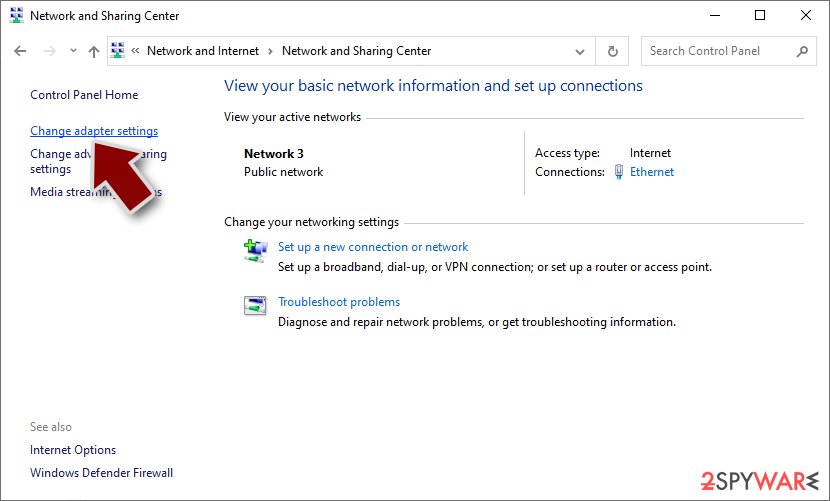
- Right-click on your connection (for example, Ethernet), and select Disable
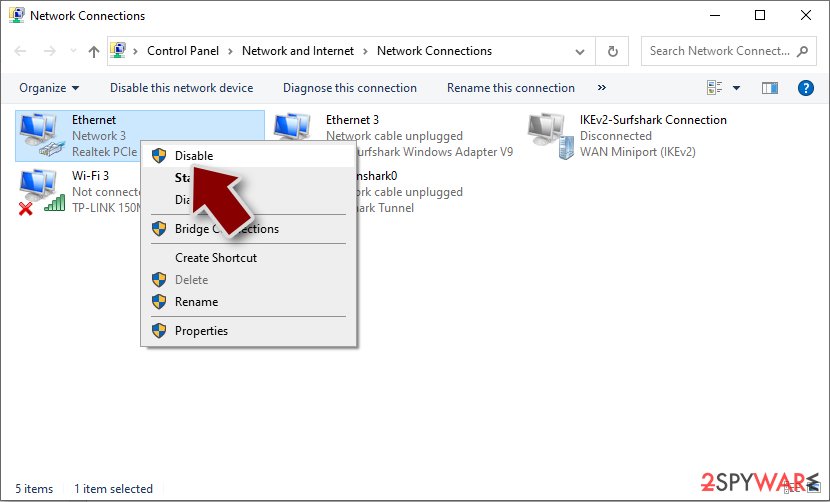
- Confirm with Yes.


As soon as the network connection is severed, the attackers can no longer communicate with the affected device, which is a good time to begin 1more ransomware removal. The only way to effectively eliminate all the malicious files and the infection from the system is by performing a full system scan with powerful anti-malware software, such as SpyHunterCombo Cleaner or MalwarebytesMalwarebytes.
In some cases, malware may start tampering with the deletion process, interfering with security software's operation. If that is the case, you should access Safe Mode and perform the full system scan from there. If you need help reaching Safe Mode, you can check the instructions at the bottom of this post.
Data recovery explained
There are two types of people when it comes to dealing with ransomware – those who think that their files are permanently lost and those who believe that they can recover everything as soon as they get rid of the malware by performing a full system scan. None of these groups of people are right.
First of all, data affected by fully-working ransomware is never corrupted but rather locked. Imagine it as a password that is unique to every victim and is extremely complex, consisting of randomly-generated alphanumeric characters. This makes it almost impossible for any computer currently in existence to successfully computer the correct password. In other words, only cybercriminals have access to the password and use this to their advantage.
Unfortunately, running a full system scan with security software would not result in data recovery, as the files would remain locked. At the same time, paying criminals is highly risky and may add to damages already suffered – losing money on top of locked files is a disaster. Unfortunately, there are plenty of users who suffer from these consequences.
Therefore, we recommend you employ alternative solutions for this problem – try data recovery software first:
- Download Data Recovery Pro.
- Double-click the installer to launch it.

- Follow on-screen instructions to install the software.
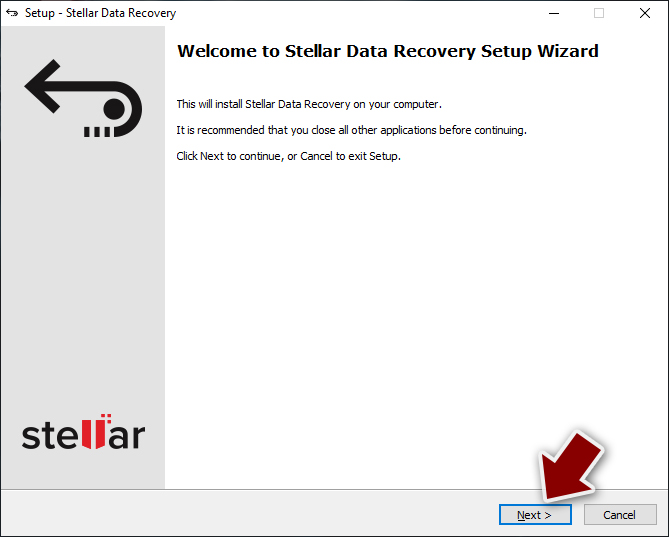
- As soon as you press Finish, you can use the app.
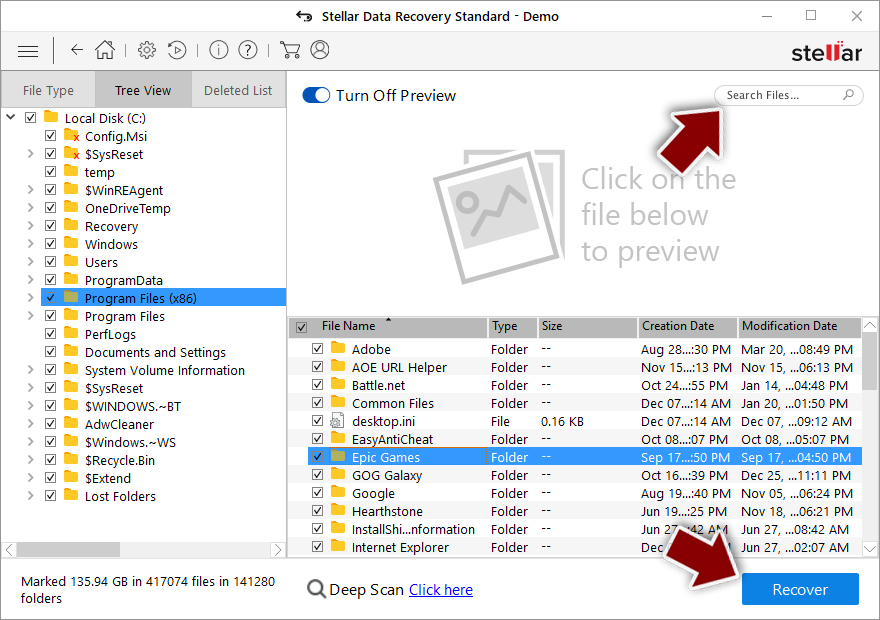
- Select Everything or pick individual folders which you want the files to be recovered from.
- Press Next.
- At the bottom, enable Deep scan and pick which Disks you want to be scanned.

- Press Scan and wait till it is complete.
- You can now pick which folders/files to recover – don't forget you also have the option to search by the file name!
- Press Recover to retrieve your files.


The above method may not always work, or at least not for all personal files. Unfortunately, the options are relatively limited at this point, and your best bet is to wait for a free decryptor that could be created by security researchers from security vendors. These links could help you find a decrytpion tool, although keep in mind that this scenario is not guaranteed and only possible if a flaw is found in ransomware's encryption process or if attackers' servers are seized[2] by authorities.
- No More Ransom Project
- Free Ransomware Decryptors by Kaspersky
- Free Ransomware Decryption Tools from Emsisoft
- Avast decryptors

Other useful tips
Ransomware is relatively unique when it comes to its operation. Data stealers, backdoors, and other similar infections operate silently so that users would not be able to delete them easily. Unlike these, ransomware does not hide its presence as soon as it finishes the encryption process.
Regardless, malware can still cause various issues when it comes to system operation, so we recommend running a scan with a powerful PC repair tool FortectIntego, as it can find and fix these irregularities. Otherwise, after malware removal, you may face stability issues such as system crashes with BSODs,[3] errors, and other failures.
We also recommend reporting the ordeal to your local authorities, as it can increase the chances of cybersecurity researchers creating a decryption tool. Also, don't forget to create working backups of your files to avoid ransomware effects in the future. Most importantly, ensure you are running SpyHunterCombo Cleaner, MalwarebytesMalwarebytes, or another powerful anti-malware to prevent intrusions.
Did this guide help?
Be the first to comment