

Browser-shielding.com is a scam website that tries to convince users about virus infections
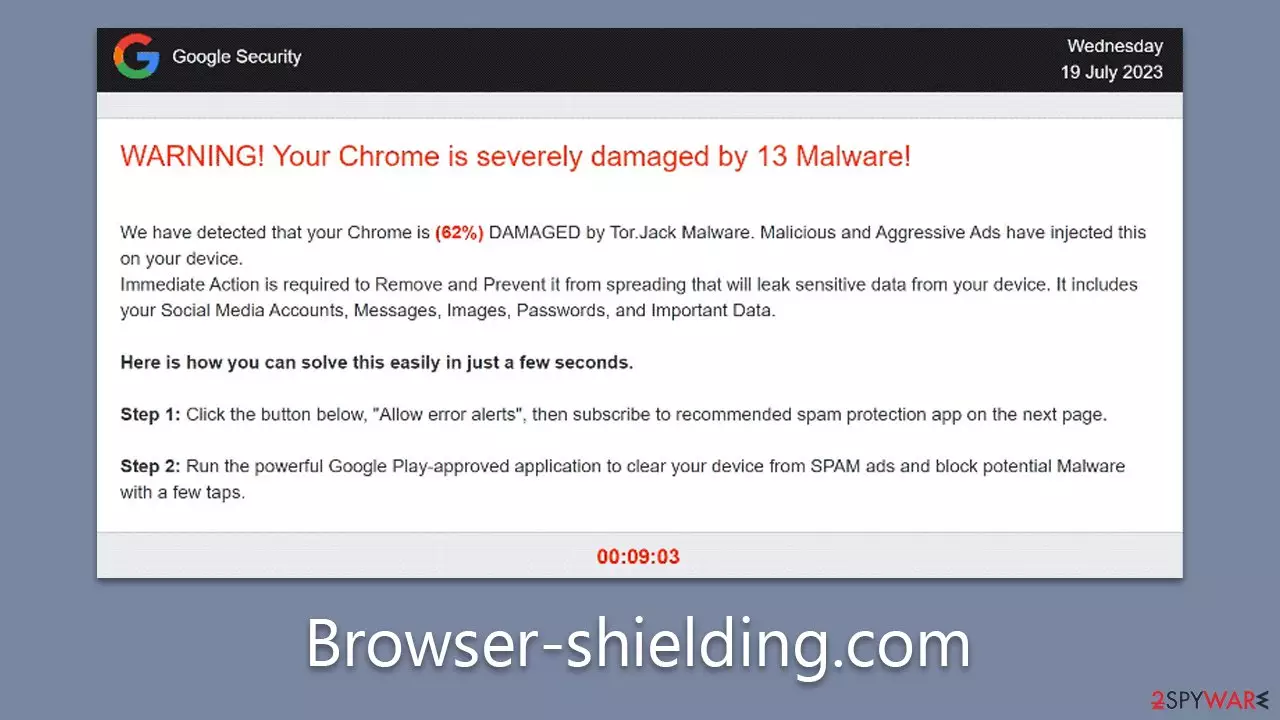
Browser-shielding.com is a fraudulent website known for generating an array of deceptive security messages to manipulate unsuspecting internet users. Among the myriad of fictitious alerts, one widespread scam is the “Your Chrome is severely damaged by 13 malware” message.
This scheme falsely alerts users that their systems are compromised by malware and suggests downloading a purported removal tool as a preventative measure against further damage. These claims, however, are entirely fallacious and are primarily designed to trick users into unnecessary actions. Detailed insights about Browser-shielding.com and its malicious operations will be provided in the following sections.
Although the phishing messages hosted by Browser-shielding.com are fraudulent, it's critical to understand that such deceptive tactics can be indicative of possible adware or other infections. Thus, users should ensure to regularly check their systems for potential security threats.
| Name | Browser-shielding.com |
| Type | Redirect, scam, phishing, adware |
| Distribution | Software bundling, redirects, misleading ads |
| Operation | Claims that Chrome browser has been damaged by malware. It then asks users to download a fake security tool to remove it. Also asks to enable push notifications |
| Risks | Fake messages usually aim for users to download potentially unwanted or malicious programs, steal their personal information or trick them into subscribing to useless services |
| Removal | Avoid any link clicks or downloads on scam sites and instead, scan your system with reputable anti-malware tools |
| Other tips | To remove caches and other web data to prevent data tracking, use the FortectIntego repair and maintenance tool. It can also repair damaged system components |
How users end up on suspicious sites
Users often inadvertently stumble upon the Browser-shielding.com website, typically due to underlying adware or through interactions with compromised websites or suspicious platforms, including torrent download sites or unauthorized streaming services. These platforms are frequently teeming with dubious links that, when clicked, can lead to harmful websites like Browser-shielding.com. They are a common hotbed for various online threats due to their unregulated nature and propensity to host unsafe content.
Adware, or advertising-supported software, can also cause unsolicited redirections to such sites. Adware is often bundled with free software and installed on a user's system without explicit knowledge. Once installed, it can hijack browsers, redirect users to fraudulent sites, or display unwanted advertisements.
To safeguard against such threats, users should exhibit caution when navigating the web. This includes avoiding unverified websites, being careful with the software downloaded, and scrutinizing the legitimacy of links before clicking. Regular system scans with a reliable antivirus solution can also help detect and remove any potential adware.
The scam engineering
Online scams employ various tactics to deceive users, and the Browser-shielding.com scam is no exception. By leveraging social engineering techniques, this scam targets the vulnerabilities of users, manipulating them into taking actions that could lead to security compromises. A specific deceptive message that users might encounter on this site reads as follows:
WARNING! Your Chrome is severely damaged by 13 Malware!
We have detected that your Chrome is (62%) DAMAGED by Tor.Jack Malware. Malicious and Aggressive Ads have injected this on your device.
Immediate Action is required to Remove and Prevent it from spreading that will leak sensitive data from your device. It includes your Social Media Accounts, Messages, Images, Passwords, and Important Data.Here is how you can solve this easily in just a few seconds.
Step 1: Click the button below, “Allow error alerts,” then subscribe to recommended spam protection app on the next page.
Step 2: Run the powerful Google Play-approved application to clear your phone from SPAM ads and block potential Malware with a few taps.
Clean my Device
Detected By: Google
There are several red flags that can help users identify the dubious nature of this message:
- Unsolicited Alerts. Legitimate companies generally don't provide unsolicited warnings about device health. Such unexpected alerts can be an immediate red flag indicating a scam.
- Vague Threats. The message warns about a specific malware, “Tor.Jack,” without providing substantial information about its nature. Real security software would provide more concrete details about any detected threat.
- False Affiliations. The message alleges that the issue is “Detected By: Google,” implying an affiliation with Google, which is not the case. Scammers often falsely associate themselves with trusted entities to gain users' trust.
- Urgency and Fear Tactics. The inclusion of an on-screen timer and warnings about potential data leaks are tactics designed to create a sense of urgency and panic, encouraging users to act quickly without thinking.
- Promotion of Specific Software. The message not only identifies a supposed threat but also provides a specific solution, promoting a “powerful Google Play-approved application.” This can be seen as an attempt to manipulate users into downloading possibly harmful software.
- Request for Subscription. Asking users to subscribe to a “recommended spam protection app” can be a ploy to trick users into sharing personal information, opening the door to potential identity theft or other forms of cyber exploitation.

Recognizing the red flags associated with online scams is an essential skill for all internet users. This knowledge can provide a critical line of defense against the deceptive tactics employed by scam websites such as Browser-shielding.com. It's important to remember that legitimate alerts from trusted companies generally do not employ tactics such as the creation of panic through an on-screen timer or vague, unspecific threats.
Moreover, genuine alerts would never promote the download of specific applications or request users to subscribe to services in the manner observed in the scam message. Any attempts to associate the scam with trusted entities, such as Google in this case, should also raise immediate suspicion. Such associations are often falsely claimed to build a sense of trust and reliability in the minds of unsuspecting users.
Finally, while it is essential to act promptly in the face of potential cyber threats, one should always verify the authenticity of the alerts before proceeding. Making decisions in haste, especially under the influence of fear or panic, could lead to undesirable consequences such as personal data leakage or further system compromise.
What to do now?
The alarming message presented by Browser-shielding.com does not reflect the actual security state of your computer, although it could suggest the presence of adware. If you've encountered this scam, running a thorough system scan using reputable anti-malware tools, such as SpyHunterCombo Cleaner or MalwarebytesMalwarebytes, is advisable. These programs can detect and eliminate any potential threats present on your system.
In addition to anti-malware scans, using a system optimization tool like FortectIntego can be beneficial. This can help you clean browser caches to prevent tracking, as well as repair any damage caused by malware. If you prefer to tackle the issue manually, detailed instructions are provided below this article.
If you've been tricked by the scam message, downloaded and installed the recommended software, provided your personal information, or paid any fake fees online, immediate action should be taken. Firstly, uninstall any dubious software that was downloaded as a result of the scam.
Secondly, if any personal information was shared, consider changing your passwords and monitoring your accounts for unusual activity. If any payments were made, contacting your bank immediately is crucial to mitigate any potential financial loss. Providing them with as much information as possible about the fraudulent transaction will assist their investigation.
Remember, your first line of defense against such online scams is vigilance and knowledge about cyber threats. Always exercise caution when dealing with unexpected or suspicious online messages.
Uninstall from Windows
Uninstall from Windows 10/8:
- Type Control Panel into the Windows search box and open the result.
- Under Programs, select Uninstall a program.


Uninstall from Windows 7/XP:
- Click on Windows Start > Control Panel (Windows XP users should click on Add/Remove Programs).
- In Control Panel, select Programs > Uninstall a program.


Remove the unwanted program:
- In the Programs and Features window, look for any recently installed suspicious entries, select them, and click Uninstall.
- If User Account Control appears, click Yes to confirm, then complete the removal.


Delete from macOS
Remove the unwanted application:
- From the menu bar, select Go > Applications.
- In the Applications folder, look for any suspicious entries, then drag them to Trash (or right-click and pick Move to Trash).


Delete leftover files and folders:
- Select Go > Go to Folder.
- Enter /Library/Application Support and remove any suspicious folders related to the unwanted program.
- Repeat the same check in the /Library/LaunchAgents and /Library/LaunchDaemons folders, deleting any suspicious entries.

- Finally, empty the Trash to permanently remove the leftovers.

Remove from Microsoft Edge
Delete unwanted extensions from MS Edge:
- Select Menu (three horizontal dots at the top-right of the browser window) and pick Extensions.
- From the list, pick the extension and click on the Gear icon.
- Click Remove.


Clear cookies and other browser data:
- Click on the Menu (three horizontal dots at the top-right of the browser window) and select Settings > Privacy, search, and services..
- Under Clear browsing data, pick Choose what to clear.
- Select Cookies and other site data and Cached images and files. (apart from passwords, although you might want to include Media licenses as well, if applicable) and click on Clear.


Restore new tab and homepage settings:
- Click the menu icon and choose Settings.
- Then find On startup section.
- Click Remove next to any suspicious startup page.
Reset MS Edge if the above steps did not work:
- Press on Ctrl + Shift + Esc to open Task Manager.
- Click on More details arrow at the bottom of the window.
- Select Details tab.
- Now scroll down and locate every entry with Microsoft Edge name in it. Right-click on each of them and select End Task to stop MS Edge from running.


Instructions for Chromium-based Edge
Delete extensions from MS Edge (Chromium):
- Open Edge and click select Settings > Extensions.
- Delete unwanted extensions by clicking Remove.


Clear cache and site data:
- Click on Menu and go to Settings.
- Select Privacy, search and services.
- Under Clear browsing data, pick Choose what to clear.
- Under Time range, pick All time.
- Select Clear now.


Reset Chromium-based MS Edge:
- Click on Menu and select Settings.
- On the left side, pick Reset settings.
- Select Restore settings to their default values.
- Confirm with Reset.
- This will disable extensions and reset startup pages but will not delete bookmarks, saved passwords, or browsing history.


Remove from Mozilla Firefox (FF)
Remove dangerous extensions:
- Open Mozilla Firefox browser and click on the Menu (three horizontal lines at the top-right of the window).
- Select Add-ons.
- In here, select the unwanted extension and click Remove.


Reset the homepage:
- Click three horizontal lines at the top right corner to open the menu.
- Choose Settings.
- Under Home, set your preferred homepage and new tab settings.
Clear cookies and site data:
- Click Menu and pick Settings.
- Go to Privacy & Security section.
- Scroll down to locate Cookies and Site Data.
- Click on Clear Data...
- Select Cookies and Site Data and Temporary cached files and pages, then click Clear.


Reset Mozilla Firefox
If clearing the browser as explained above did not help, reset Mozilla Firefox:
- Open Mozilla Firefox browser and click the Menu.
- Go to Help and then choose Troubleshooting Information.

- Under Give Firefox a tune up section, click on Refresh Firefox...
- Once the pop-up shows up, confirm the action by pressing on Refresh Firefox.



Remove from Google Chrome
Delete malicious extensions from Google Chrome:
- Open Google Chrome, click on the Menu (three vertical dots at the top-right corner) and select More tools > Extensions.
- In the newly opened window, you will see all the installed extensions. Uninstall all suspicious extensions related to the unwanted program by clicking Remove.


Clear cache and web data from Chrome:
- Click on Menu and pick Settings.
- Under Privacy and security, select Clear browsing data.
- Select Browsing history, Cookies and other site data, as well as Cached images and files.
- Click Clear data.


Change your homepage:
- Click menu and choose Settings.
- Look for a suspicious site in the On startup section.
- Click on Open a specific or set of pages and click on three dots to find the Remove option.
Reset Google Chrome:
If the previous methods did not help you, reset Google Chrome to eliminate all the unwanted components:
- Click on Menu and select Settings.
- In the Settings, scroll down and click Advanced.
- Scroll down and locate Reset and clean up section.
- Now click Restore settings to their original defaults.
- Confirm with Reset settings.


Delete from Safari
Remove dangerous extensions:
- Open Safari, click Safari in the menu at the top-left of the screen, and select Preferences.
- Go to the Extensions tab, look for any suspicious entries, and click Uninstall to remove them.


Clear history and website data:
- Click Safari in the menu and pick Clear History.
- Set Clear to all history and confirm with Clear History.


Reset Safari:
- Click Safari in the menu and select Preferences > Advanced.
- Enable Show Develop menu in menu bar.
- From the menu bar, click Develop and select Empty Caches.


Did this guide help?
Be the first to comment