

Chrominio virus is a pop-up message that offers the installation of questionable programs
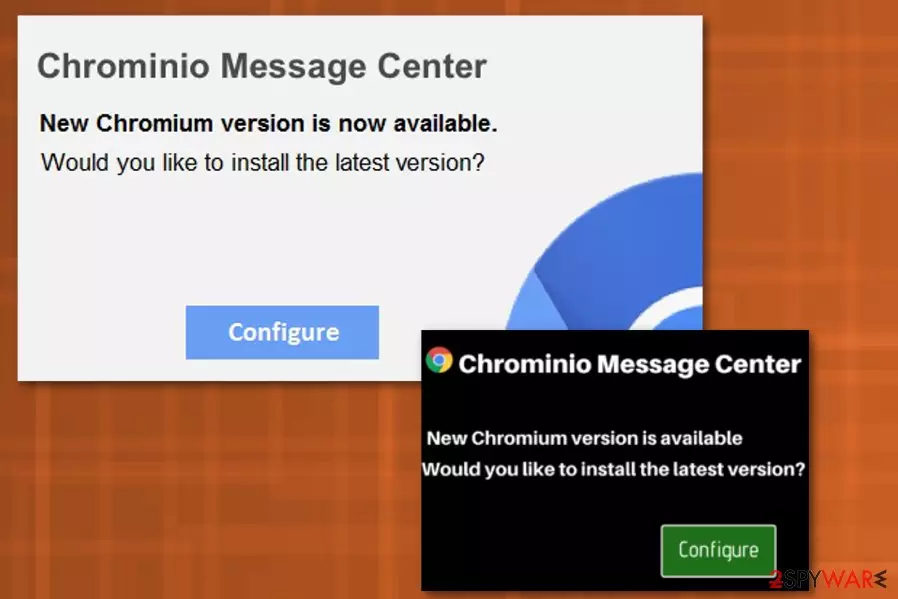
Chrominio Message Center virus is an adware[1] program and one of the variants of Chromium virus. The bogus pop-up displays a message urging users to update Chromium. However, victims are then led to questionable websites which promote fake software, such as optimization tools, add-ons, toolbars, browser extensions and similar.
Additionally, adware can initiate various other sponsored content by showing deceitful search results, displaying ads which are embedded directly into Google Chrome, Mozilla Firefox or another browser, as well as redirect users to dangerous domains.
| Name | Chrominio Message Center virus |
|---|---|
| Associated with | Chromium virus |
| Type | Adware |
| Danger level | Medium. Can install fake utilities, but does not damage system directly |
| Symptoms | Displays pop-up ads with fake tool purchasing suggestions |
| Distribution | Software bundling, malicious websites, pop-up ads |
| Elimination | You can uninstall potentially unwanted apps manually or by performing a full system scan with anti-malware software |
There are multiple posts on Google forums[2] complaining about the suspicious message. For example, the topic states “Is Chrominio Message Center your work?.” It is evident that users are confused about whether or not Google and Chrome are related to these bogus pop-ups. We can assure you that is not the case, and these fake alerts have nothing to do with respectable organization. Additionally, users said that scanning machine with anti-malware software detected many issues, and soon after they got rid of adware programs.
The annoying alert can be triggered at any time during web browsing sessions. Because the pop-up shows up unexpectedly and appears to have all legitimate logos of Chromium (a legitimate, open-source browsing tool released by Google), users can get confused and perceive this hoax for a real message. The window has no “X” button to close it, and the only one available is “Configure.”
The following message appears in the pop-up window:
Chromino Message Center
New Chromium version is available
Would you like to install the latest version?
[configure] button
If users click on the “Configure” button they are either prompted to enter their personal details, such as name, email, or even banking details; or offered bogus software, which is utterly useless. Additionally, users may accidentally subscribe to services they do not need, and their credit card will be billed (typically an amount of around $50) monthly or even weekly. Unfortunately, victims don't even realize they accept it themselves. Therefore, be vigilant online – learn to recognize scams.

Chrominio virus was created for one goal – to generate revenue from innocent users. Every time the user is tricked into installing the suspicious application, the developer of adware receives financial benefit. This type is scheme is called pay-per-install,[3] and benefits bogus software developers, as well as adware authors. Thus, do not delay virus removal, do not let crooks monetize on your compromised browsing experience.
Adware programs typically collect a variety of non-personally identifiable information (in some cases, some dubious software may collect sensitive information – security experts call it spyware), and this app is not an exception. The program can:
- supervise your activity on Twitter or other social media;
- access your search history and check which sales, deals, and offers you prefer;
- see your preferred movies, games or music;
- see information about your internet provider, and your IP address.
This information is later used for advertisement purposes. Virusai.lt[4] team wants you to know that publisher creates, adjusts and modifies their content based on your preferences in order to trick you. This way, advertisers can ensure that the products you love will be purchased from them instead of legitimate retailers.
You should remove Chrominio virus from your computer along with all the related components. The best way to do this is by using FortectIntego or other anti-malware software. These professional programs can scan your whole system and remove any threats, including those that adware may have installed without your knowledge.

Adware can be hidden inside software bundles
Potentially unwanted programs are created to benefit its developers and not the end users. Therefore, victims of adware do not intentionally inject their devices with unwanted advertisement pest that spams them all day – no person would like that. Thus, questionable software authors employ software bundling to infiltrate as many computers as possible.
This marketing technique allows freeware and shareware developers to add optional components into installers and hide them within Advanced or Custom installation mode. It is very common for users not to pay much attention when installing free applications, as they want to be done with it as soon as possible. Because of that, they always pick Recommended or Quick installation mode which results in adware or other PUP installation.
After selecting Advanced settings, make sure you remove all ticks next to optimization tools, browser extensions, PDF creators and other questionable applications. We can ensure you that most of the offered programs are useless and will only clutter your PC with junk.
Simple way to get rid of unwanted programs quickly
To remove Chrominio virus properly, you should employ professional anti-malware tool and perform a full system scan. This option allows you to effortlessly detect any components that adware could have installed and eliminate all of them quickly.

If you are a computer-savvy individual, you can also try manual virus elimination. This method can be a bit lengthy, and it also requires your full attention. After performing complete adware elimination, you have to make sure that all browser settings are set to default, as some PUPs change them without warning. Thus, scroll down and see how to set all installed browsers back to default.
Uninstall from Windows
Uninstall from Windows 10/8:
- Type Control Panel into the Windows search box and open the result.
- Under Programs, select Uninstall a program.


Uninstall from Windows 7/XP:
- Click on Windows Start > Control Panel (Windows XP users should click on Add/Remove Programs).
- In Control Panel, select Programs > Uninstall a program.


Remove the unwanted program:
- In the Programs and Features window, look for any recently installed suspicious entries, select them, and click Uninstall.
- If User Account Control appears, click Yes to confirm, then complete the removal.


Delete from macOS
Remove the unwanted application:
- From the menu bar, select Go > Applications.
- In the Applications folder, look for any suspicious entries, then drag them to Trash (or right-click and pick Move to Trash).


Delete leftover files and folders:
- Select Go > Go to Folder.
- Enter /Library/Application Support and remove any suspicious folders related to the unwanted program.
- Repeat the same check in the /Library/LaunchAgents and /Library/LaunchDaemons folders, deleting any suspicious entries.

- Finally, empty the Trash to permanently remove the leftovers.

Remove from Microsoft Edge
Delete unwanted extensions from MS Edge:
- Select Menu (three horizontal dots at the top-right of the browser window) and pick Extensions.
- From the list, pick the extension and click on the Gear icon.
- Click Remove.


Clear cookies and other browser data:
- Click on the Menu (three horizontal dots at the top-right of the browser window) and select Settings > Privacy, search, and services..
- Under Clear browsing data, pick Choose what to clear.
- Select Cookies and other site data and Cached images and files. (apart from passwords, although you might want to include Media licenses as well, if applicable) and click on Clear.


Restore new tab and homepage settings:
- Click the menu icon and choose Settings.
- Then find On startup section.
- Click Remove next to any suspicious startup page.
Reset MS Edge if the above steps did not work:
- Press on Ctrl + Shift + Esc to open Task Manager.
- Click on More details arrow at the bottom of the window.
- Select Details tab.
- Now scroll down and locate every entry with Microsoft Edge name in it. Right-click on each of them and select End Task to stop MS Edge from running.


Instructions for Chromium-based Edge
Delete extensions from MS Edge (Chromium):
- Open Edge and click select Settings > Extensions.
- Delete unwanted extensions by clicking Remove.


Clear cache and site data:
- Click on Menu and go to Settings.
- Select Privacy, search and services.
- Under Clear browsing data, pick Choose what to clear.
- Under Time range, pick All time.
- Select Clear now.


Reset Chromium-based MS Edge:
- Click on Menu and select Settings.
- On the left side, pick Reset settings.
- Select Restore settings to their default values.
- Confirm with Reset.
- This will disable extensions and reset startup pages but will not delete bookmarks, saved passwords, or browsing history.


Remove from Mozilla Firefox (FF)
Remove dangerous extensions:
- Open Mozilla Firefox browser and click on the Menu (three horizontal lines at the top-right of the window).
- Select Add-ons.
- In here, select the unwanted extension and click Remove.


Reset the homepage:
- Click three horizontal lines at the top right corner to open the menu.
- Choose Settings.
- Under Home, set your preferred homepage and new tab settings.
Clear cookies and site data:
- Click Menu and pick Settings.
- Go to Privacy & Security section.
- Scroll down to locate Cookies and Site Data.
- Click on Clear Data...
- Select Cookies and Site Data and Temporary cached files and pages, then click Clear.


Reset Mozilla Firefox
If clearing the browser as explained above did not help, reset Mozilla Firefox:
- Open Mozilla Firefox browser and click the Menu.
- Go to Help and then choose Troubleshooting Information.

- Under Give Firefox a tune up section, click on Refresh Firefox...
- Once the pop-up shows up, confirm the action by pressing on Refresh Firefox.



Remove from Google Chrome
Delete malicious extensions from Google Chrome:
- Open Google Chrome, click on the Menu (three vertical dots at the top-right corner) and select More tools > Extensions.
- In the newly opened window, you will see all the installed extensions. Uninstall all suspicious extensions related to the unwanted program by clicking Remove.


Clear cache and web data from Chrome:
- Click on Menu and pick Settings.
- Under Privacy and security, select Clear browsing data.
- Select Browsing history, Cookies and other site data, as well as Cached images and files.
- Click Clear data.


Change your homepage:
- Click menu and choose Settings.
- Look for a suspicious site in the On startup section.
- Click on Open a specific or set of pages and click on three dots to find the Remove option.
Reset Google Chrome:
If the previous methods did not help you, reset Google Chrome to eliminate all the unwanted components:
- Click on Menu and select Settings.
- In the Settings, scroll down and click Advanced.
- Scroll down and locate Reset and clean up section.
- Now click Restore settings to their original defaults.
- Confirm with Reset settings.


Delete from Safari
Remove dangerous extensions:
- Open Safari, click Safari in the menu at the top-left of the screen, and select Preferences.
- Go to the Extensions tab, look for any suspicious entries, and click Uninstall to remove them.


Clear history and website data:
- Click Safari in the menu and pick Clear History.
- Set Clear to all history and confirm with Clear History.


Reset Safari:
- Click Safari in the menu and select Preferences > Advanced.
- Enable Show Develop menu in menu bar.
- From the menu bar, click Develop and select Empty Caches.


Did this guide help?
Be the first to comment