

Colambia ransomware is a type of malicious software that specializes in locking data on the system
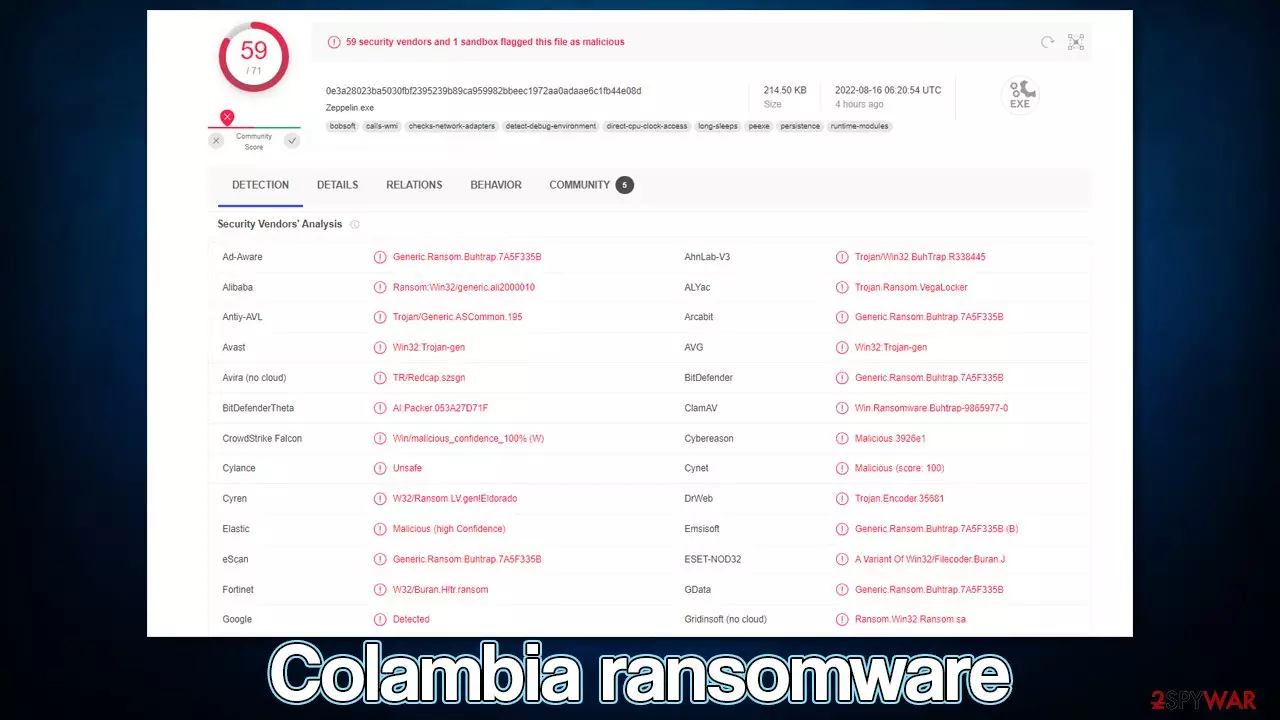
Colambia is a ransomware-type infection that stems from a well-established family known as Zeppelin. First spotted in the middle of August 2022, this malware variant managed to infect hundreds of people worldwide. It uses a combination of RSA and AES encryption algorithms to lock all pictures, videos, documents, and other files, which results in them becoming inaccessible – victims can't modify or even open any of the affected data.
During the encryption, the virus removes all the regular file icons and replaces them with blanks, also appending a .colambia[ID] extension to each – this is one of the main symptoms of a ransomware attack.
Malware then immediately delivers a ransom note !!! ALL YOUR FILES ARE ENCRYPTED !!!.TXT, which provides all the essential information needed to perform a payment. According to the note, users have to write an email to royroy@cock.li or colambia@tutanota.com with their unique ID, which would follow up by payment in bitcoin, the amount of which would be specified later. However, we strongly advise not contacting cybercriminals and using the removal instructions below.
| Name | Colambia virus |
|---|---|
| Type | Ransomware, file-locking malware |
| File extension | Each of the files are appended with “.colambia.[ID]” file extension |
| Malware family | Zeppelin |
| Ransom note | !!! ALL YOUR FILES ARE ENCRYPTED !!!.TXT – dropped on the desktop and other locations on the affected system |
| Contact | royroy@cock.li and colambia@tutanota.com |
| File Recovery | The only secure way to restore files is by using data backups. If such is not available or were encrypted as well, options for recovery are very limited – we provide all possible solutions below |
| Malware removal | Disconnect the computer from the network and internet and then perform a full system scan with SpyHunterCombo Cleaner security software |
| System fix | Once installed on the system, malware might seriously damage some system files, resulting in crashes, errors, and other stability issues. You can employ FortectIntego PC repair to fix any of such damage automatically by replacing system corruption |
The ransom note
As soon as data encryption is finished, there is no longer any point in hiding from users that a ransomware infection took place. In fact, it's the opposite; cybercriminals behind the attack make sure that the ransom note is shown directly to users, and it reads the following:
!!! ALL YOUR FILES ARE ENCRYPTED !!!
All your files, documents, photos, databases and other important files are encrypted.
You are not able to decrypt it by yourself! The only method of recovering files is to purchase an unique private key.
Only we can give you this key and only we can recover your files.To be sure we have the decryptor and it works you can send an email: royroy@cock.li and decrypt one file for free.
But this file should be of not valuable!Do you really want to restore your files?
Write to email: royroy@cock.li
Reserved email: colambia@tutanota.com1. Visit https://tox.chat/download.html
2. Download and install qTOX on your PC.
3. Open it, click “New Profile” and create profile.
4. Click “Add friends” button and search our contact – 126E30C4CC9DE90F79D1FA90830FDC2069A2E981ED26B6DC148DA8827FB3D63A1B46CFDEC191Your personal ID:
Attention!
* Do not rename encrypted files.
* Do not try to decrypt your data using third party software, it may cause permanent data loss.
* Decryption of your files with the help of third parties may cause increased price (they add their fee to our) or you can become a victim of a scam.
Remember, cybercriminals are not obliged to tell you the truth, as they simply don't care and may never deliver the promised decryption tool. Therefore, we recommend not using the provided contacts to communicate with Colambia ransomware authors, as they might convince you to pay and even demand larger sums later.

How does ransomware spread?
In order to avoid being infected, it is important to know how ransomware spreads. There are multiple ways how users could get infected with this devastating virus, although the most common tactic is spam email and repacked software.
Email spam was found to be very effective in spreading malware many years ago and remains that to this day. Bots are used to spread spam which usually comprises of an infected attachment and fake phishing[1] message. If the attachment is opened (and especially if macros are run via the documents), the malicious payload is downloaded from cybercriminals' servers and installed on the machine within just a few seconds.
Alternatively, another very popular method of spreading ransomware is by using peer-to-peer networks[2] or similar insecure websites that spread software cracks or pirated installers. For example, a very successful ransomware strain known as Djvu and its latest variants (Qqlo, Cceo, Qqmt) are extremely successful by being spread this way.
Malware removal
Many users who get infected with ransomware are experiencing it for the first time, so it is sometimes really unclear what to do next. It is important not to take wrong actions, as it may result in permanent data loss, as well as financial losses.
The first task after being infected is to remove the Colambia virus from the system. It is important to note that some ransomware deletes itself after the encryption process is finished, so you might not find anything. However, it is not always the case, and ransomware is often spread bundled with other malware.
Therefore, you should download and install SpyHunterCombo Cleaner, MalwarebytesMalwarebytes, or another reputable security software and perform a full system scan with it. Before doing that, you should disconnect your computer from the internet to ensure the virus can no longer communicate with remote C&C servers[3] controlled by the attackers.
If malware is stubborn or is tampering with anti-virus software, you should access Safe Mode and perform the elimination from there. Here's how:
Windows 7 / Vista / XP
- Click Start > Shutdown > Restart > OK.
- When your computer becomes active, start pressing the F8 button (if that does not work, try F2, F12, Del, etc. – it all depends on your motherboard model) multiple times until you see the Advanced Boot Options window.
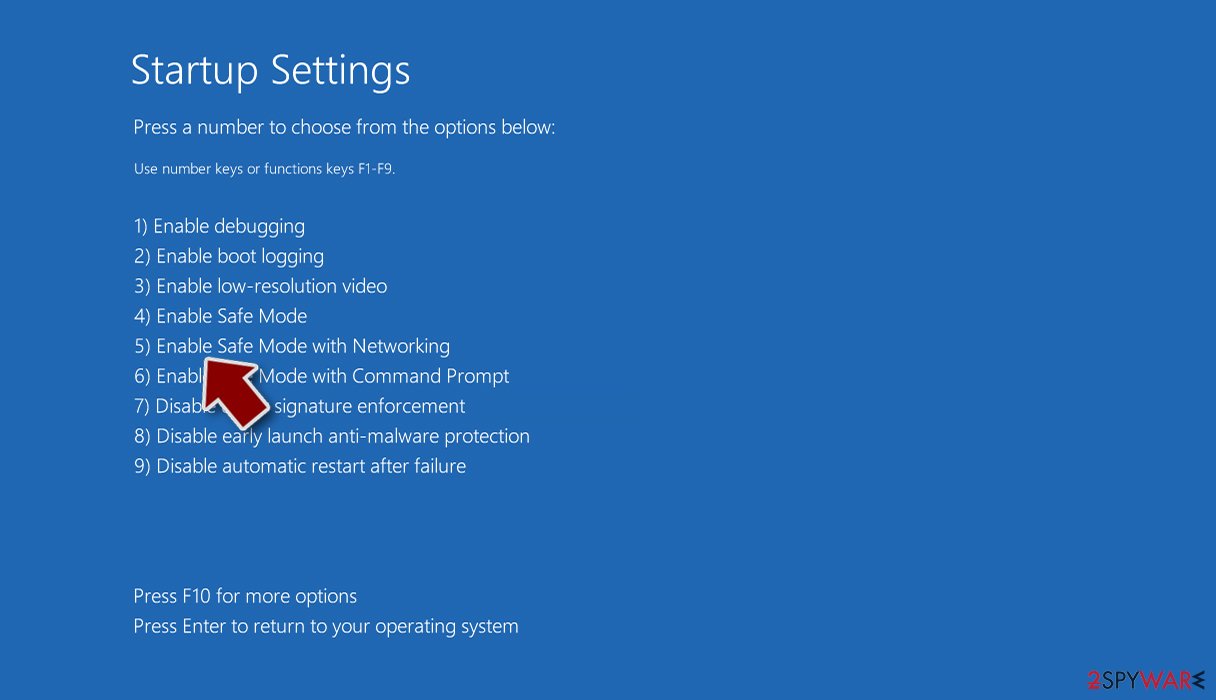
- Select Safe Mode with Networking from the list.


Windows 10 / Windows 8
- Right-click on the Start button and select Settings.
- Scroll down to pick Update & Security.
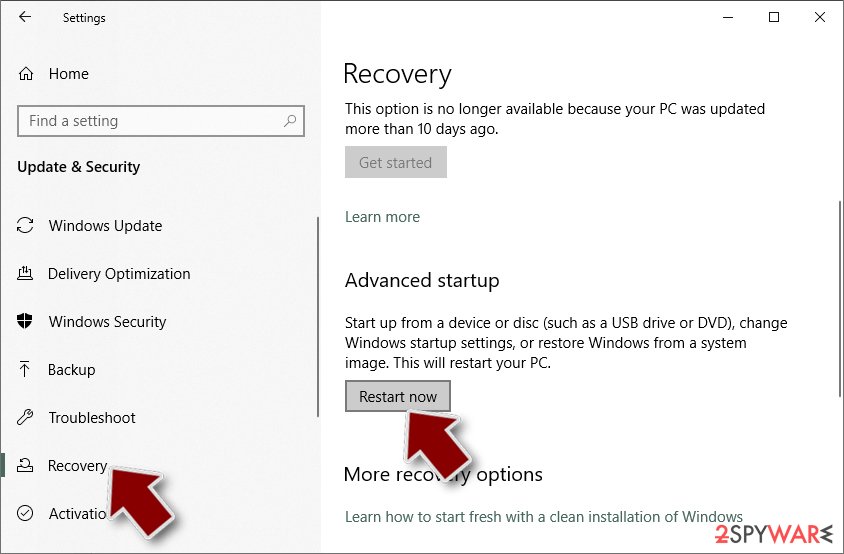
- On the left side of the window, pick Recovery.
- Now scroll down to find the Advanced Startup section.
- Click Restart now.
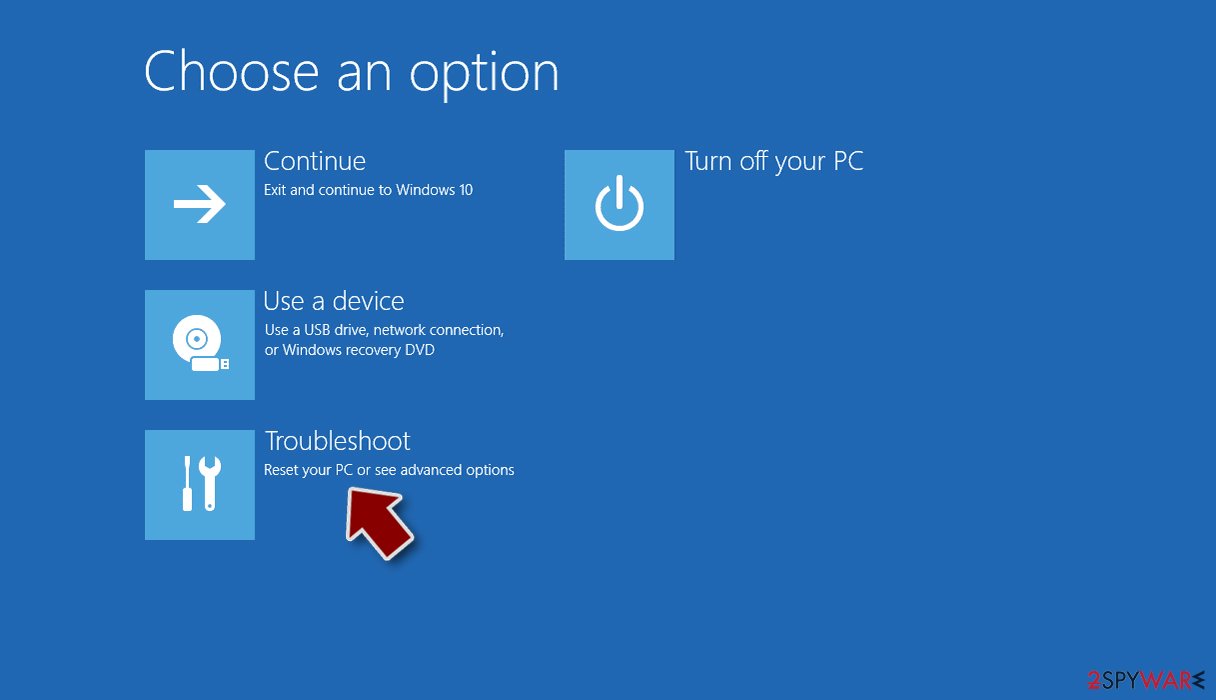
- Select Troubleshoot.
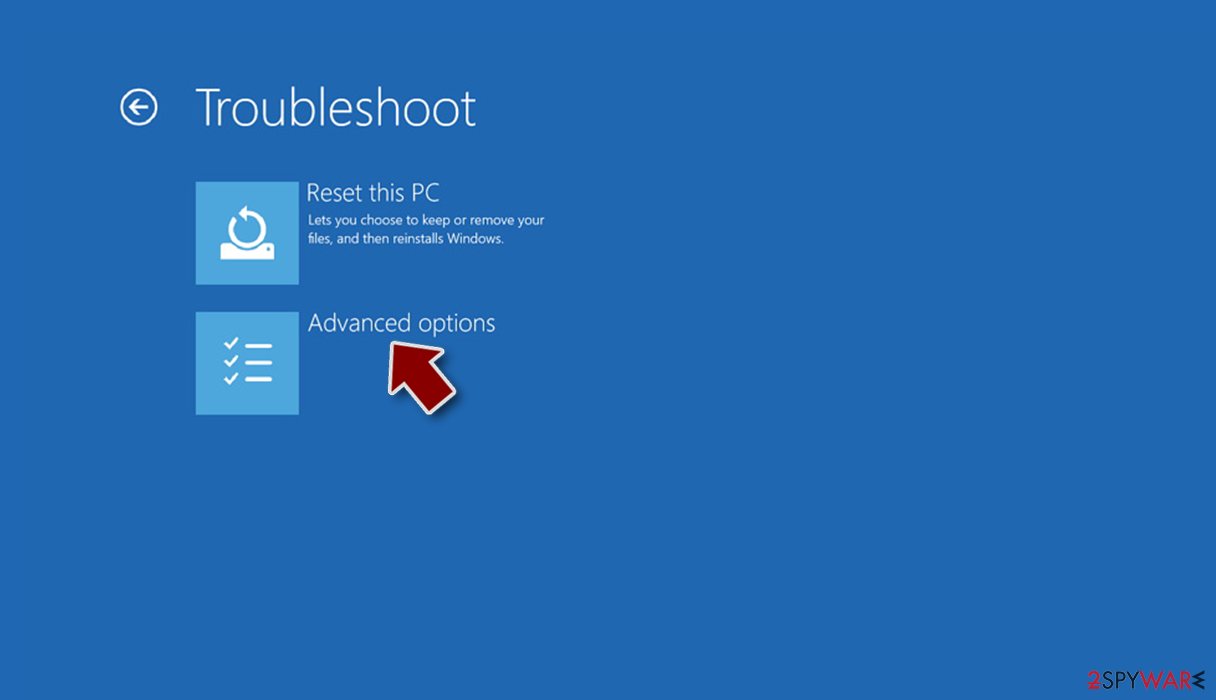
- Go to Advanced options.
- Select Startup Settings.
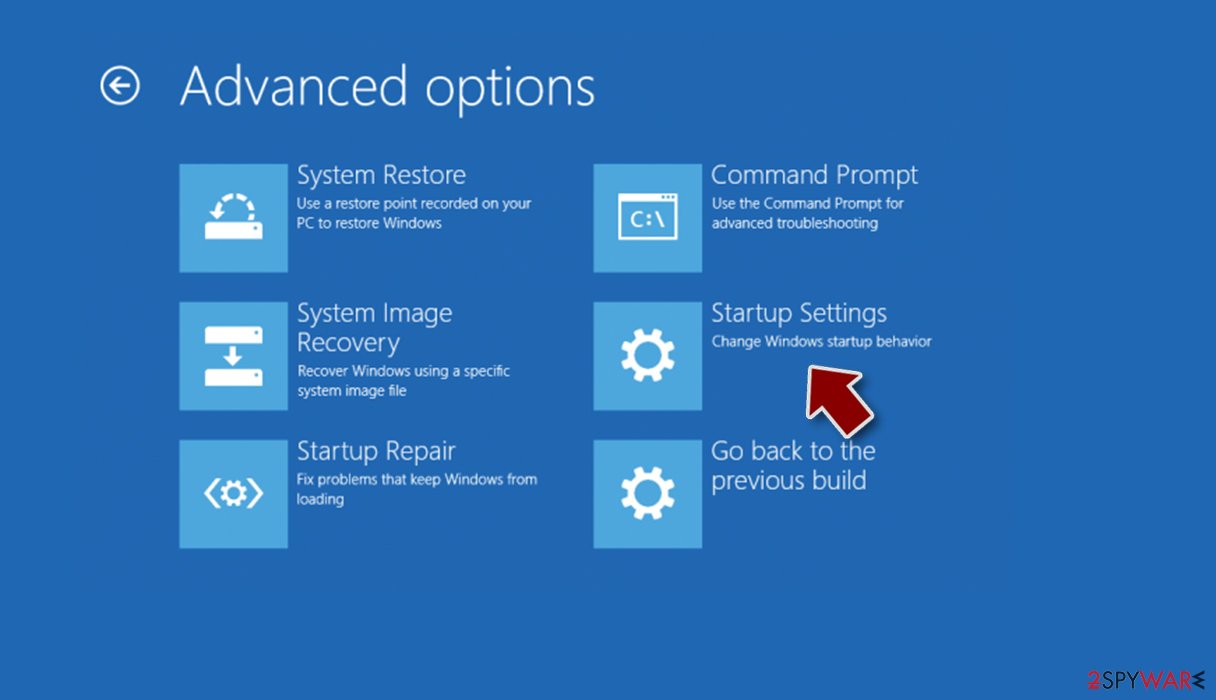
- Click Restart.
- Press 5 or click 5) Enable Safe Mode with Networking.


Data recovery options
Once you are sure that your system is clean from ransomware and other malware infections, you can attempt to restore the locked data. As we already mentioned, paying cybercriminals is a bad idea, as it may result in you losing your money in addition to files. There are a few pointers you should pay attention to before proceeding:
- If you don't have backups of your files, you should make a copy of the encrypted ones – simply transfer them over to a USB drive or upload them to online cloud storage.
- Anti-malware software can't and won't restore your files, as its job is to remove malware, which is an entirely different process to file encryption or decryption.
- While the decryption solution below might not work, for now, it could be possible in the future if security researchers find bugs within the encryption process of Colambia ransomware.
- We recommend you run a scan with the FortectIntego PC repair tool to avoid reinstallation of the operating system – it can find and repair malware-damaged system files automatically for you.
Decryption tools might also be created for certain ransomware strains thanks to the efforts of security researchers. In some cases, law authorities seize the servers of malicious actors,[2] which allows the keys to be released by the public – reputable security vendors usually do this. Here are a few links you might find helpful:
- No More Ransom Project
- Free Ransomware Decryptors by Kaspersky
- Free Ransomware Decryption Tools from Emsisoft
- Avast decryptors

In case there is no decryptor available, which is usually true with new malware strains, you should not give up just yet. A special data recovery software might still be useful. Malware might fail to remove Shadow Copies from the system, which would allow the recovery of previous versions of files. Proceed with the following steps:
- Download Data Recovery Pro.
- Double-click the installer to launch it.

- Follow on-screen instructions to install the software.
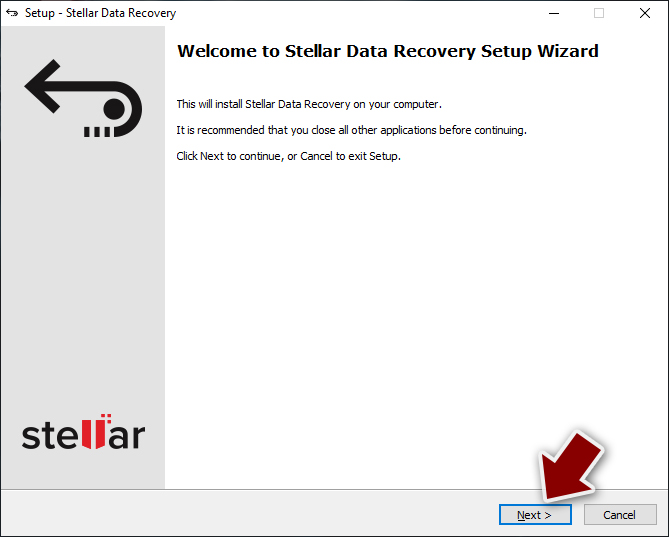
- As soon as you press Finish, you can use the app.
- Select Everything or pick individual folders where you want the files to be recovered from.
- Press Next.
- At the bottom, enable Deep scan and pick which Disks you want to be scanned.

- Press Scan and wait till it is complete.
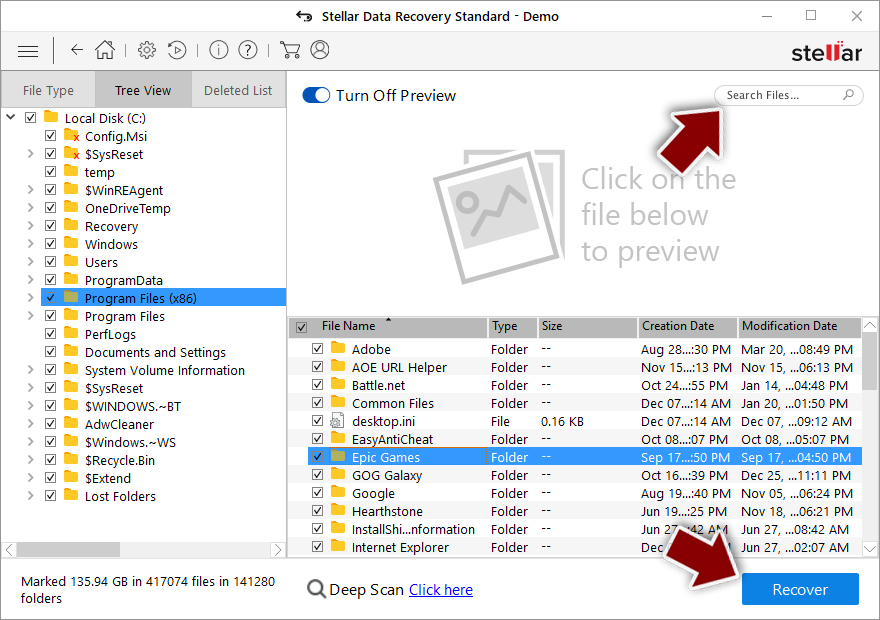
- You can now pick which folders/files to recover – don't forget you also have the option to search by the file name!
- Press Recover to retrieve your files.


Did this guide help?
Be the first to comment