

com.apple.tcc is the Mac malware that appears in the directory and alters particular permissions
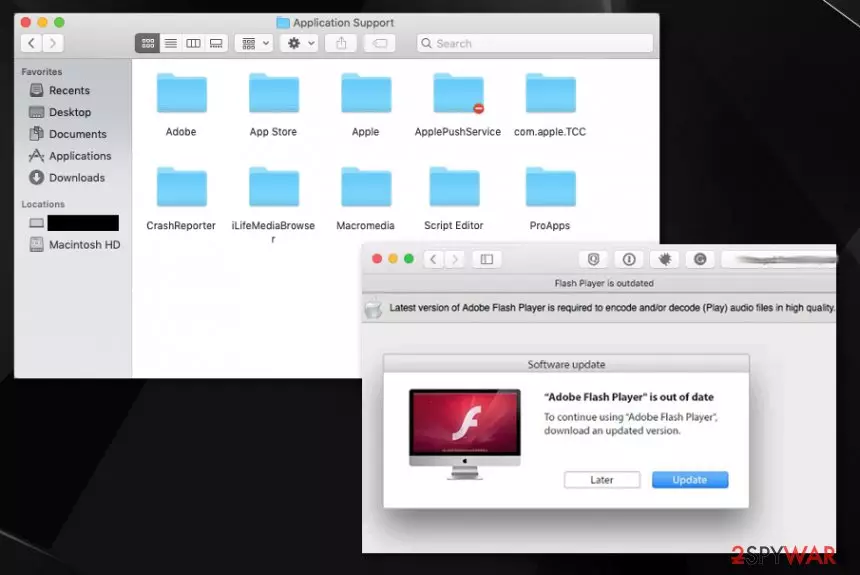
The folder com.apple.tcc can be found on Library, particularly in Application Support, and creates most of the questions when the user cannot access content on the said folder, and it is strange not to have the permission for such content on your machine.[1] TCC system[2] indicates that this is the database storing privacy and security related settings from system preferences, so generally, people shouldn't be concerned with the folder. It should manage the third-party application access to sensitive users information.
Unfortunately, it can serve for cybercriminals and help them achieve malicious activities. There are some reasons to call com.apple.tcc a virus because it may not only be related to adware or potentially unwanted programs but also target people, cause serious damage to their devices.
| Name | com.apple.tcc |
|---|---|
| Type | Mac malware/ Potentially unwanted program |
| Danger | The folder and its contents can be set to spread malware around or allow cybercriminals to get access to the infected system, inject various scripts, and so on |
| Affected system | Mac OS |
| Distribution | The folder is related to applications that focus on PUP bundling and fraudulent techniques. This app ends up on the system when fake update messages and other deceptive online content leads to the installation of shady programs, and those scripts can then freely run on the machine affecting all the crucial functions, browsing online |
| Elimination | com.apple.tcc removal is not that easy like any other PUP elimination, so the best way is to find all malware-related programs using anti-malware tool and terminate them as suggested by the software |
| Repair | Get FortectIntego and run it on the machine to find other parts of the system folder or even settings, files that got affected by the virus and fix the damage |
com.apple.tcc can possibly be used as a potentially unwanted application like fake cleaners or adware programs. If it gains access to the infected system, it can damage various processes and run malicious activities. It the PUP injects malicious ads on websites and delivers users other similar content, victims can get exposed to malware-laced material.
com.apple.tcc can collect details about the person, and particular privileges are needed for such behavior. All the specific details about your preferences and information regarding e-commerce, interests help advertisers to deliver more personalized and targeted material that helps to collect data further and generate revenue.[3]
Misconfiguring the contents of the com.apple.tcc folder can make the program harmful, and those permissions regarding privacy or security accessible for third-party actors. This is a possible attack vector that can become useful to bypass System Integrity protection or macOS security features and safe-guard systems.
It is quite possible that malware related to these suspicious activities and the questionable application folder can re-appear repeatedly, so com.apple.tcc removal process gets frustrating when malicious symptoms come back after some time and continue to affect your time on the machine, browsing the web functions.
Unfortunately, such macOS Bundlore virus-related threats can propagate via shady downloads of media players, updaters, fake system tools. You may install com.apple.tcc PUP yourself when fake Flash Player updates appear on the browser and get pushed directly to you, so the machine gets infected without you even realizing what happened. 
In addition to stealthy infiltration com.apple.tcc manages to add other programs and tools on the machine, including files in crucial parts of the system, for example. The intruder can be set to spread shady applications and damage the machine, so you should take these permissions obtained by the PUP into consideration.
The adware that is responsible for the appearance of this suspicious folder com.apple.tcc can also:
- install browser-based applications;
- download system tools;
- show fake updates and installation suggestions;
- hijack internet browsing tools;
- change startup preferences and registry entries.
You shouldn't remove com.apple.tcc manually by dragging the folder to trash or deleting it. Since silent intruders infiltrate systems and establish persistence by altering settings and adding files, go for the system checking method first. Getting the anti-malware tool and checking the machine for PUPs, viruses, different malware can help to tackle the issue with these permissions and avoid serious damage.
After the full system check, AV programs should indicate what you should do and help cleaning the affected machine. Then get a system repair tool or a cleaner, something like FortectIntego and run an additional check on the device. This way you can ensure that anything related to com.apple.tcc or the main PUP that caused all the browsing-related issues gets fully terminated, and there are no changes or files left that could affect the renewal of infection.
Malicious server connections allow PUPs to load additional apps
Propagation of such programs and macOS-based threats, in most cases, relies on shady downloads and software updates. Flash Players, other programs, and apps get promoted, so PUP silently infiltrates the computer and makes needed alterations. These changes allow the program to freely connect to the remote server and further run on the device.
Once the program is on the machine, it can download and run advertising related applications, inject malware on the plagued host or impact the machine with nasty connections and viruses. Secondary payloads get executed, and the machine acts as a tool for spam delivery.
You should avoid clicking on anything suspicious, especially when the pop-up or redirect goes out of nowhere. Also, when you install anything on the PC, make sure to rely on Advanced or Custom options during the installation, so all included programs are shown and can be controlled by you.
Get rid of the program that manages com.apple.tcc folder and other PUPs
com.apple.tcc virus is the name created by users who notice the folder with a “do not enter” sign on their machine that should mean that the content is not accessible for the user. There is no particular information on why the user cannot access material in the Application folder, so these modifications may cause malfunctions and disrupt the performance of the computer.
You may try to remove com.apple.tcc by dragging the folder in Trash or deleting it, but such interference may damage some programs or affect application privileges. You may trigger secondary payloads, backdoor viruses, or malicious activities by interfering with the shady material.
It is advised to go for automatic anti-malware tools and rely on the proper com.apple.tcc removal method that checks for various PUP files, associated programs, and changes possibly made on the device. By running the AV tool on your system, you can check many PUP hiding places and terminate the threat once and for all.
Delete from macOS
Remove the unwanted application:
- From the menu bar, select Go > Applications.
- In the Applications folder, look for any suspicious entries, then drag them to Trash (or right-click and pick Move to Trash).


Delete leftover files and folders:
- Select Go > Go to Folder.
- Enter /Library/Application Support and remove any suspicious folders related to the unwanted program.
- Repeat the same check in the /Library/LaunchAgents and /Library/LaunchDaemons folders, deleting any suspicious entries.

- Finally, empty the Trash to permanently remove the leftovers.

Remove from Mozilla Firefox (FF)
Remove dangerous extensions:
- Open Mozilla Firefox browser and click on the Menu (three horizontal lines at the top-right of the window).
- Select Add-ons.
- In here, select the unwanted extension and click Remove.


Reset the homepage:
- Click three horizontal lines at the top right corner to open the menu.
- Choose Settings.
- Under Home, set your preferred homepage and new tab settings.
Clear cookies and site data:
- Click Menu and pick Settings.
- Go to Privacy & Security section.
- Scroll down to locate Cookies and Site Data.
- Click on Clear Data...
- Select Cookies and Site Data and Temporary cached files and pages, then click Clear.


Reset Mozilla Firefox
If clearing the browser as explained above did not help, reset Mozilla Firefox:
- Open Mozilla Firefox browser and click the Menu.
- Go to Help and then choose Troubleshooting Information.

- Under Give Firefox a tune up section, click on Refresh Firefox...
- Once the pop-up shows up, confirm the action by pressing on Refresh Firefox.



Remove from Google Chrome
Delete malicious extensions from Google Chrome:
- Open Google Chrome, click on the Menu (three vertical dots at the top-right corner) and select More tools > Extensions.
- In the newly opened window, you will see all the installed extensions. Uninstall all suspicious extensions related to the unwanted program by clicking Remove.


Clear cache and web data from Chrome:
- Click on Menu and pick Settings.
- Under Privacy and security, select Clear browsing data.
- Select Browsing history, Cookies and other site data, as well as Cached images and files.
- Click Clear data.


Change your homepage:
- Click menu and choose Settings.
- Look for a suspicious site in the On startup section.
- Click on Open a specific or set of pages and click on three dots to find the Remove option.
Reset Google Chrome:
If the previous methods did not help you, reset Google Chrome to eliminate all the unwanted components:
- Click on Menu and select Settings.
- In the Settings, scroll down and click Advanced.
- Scroll down and locate Reset and clean up section.
- Now click Restore settings to their original defaults.
- Confirm with Reset settings.


Delete from Safari
Remove dangerous extensions:
- Open Safari, click Safari in the menu at the top-left of the screen, and select Preferences.
- Go to the Extensions tab, look for any suspicious entries, and click Uninstall to remove them.


Clear history and website data:
- Click Safari in the menu and pick Clear History.
- Set Clear to all history and confirm with Clear History.


Reset Safari:
- Click Safari in the menu and select Preferences > Advanced.
- Enable Show Develop menu in menu bar.
- From the menu bar, click Develop and select Empty Caches.


Did this guide help?
Be the first to comment