

DNS Unlocker Version 1.4 – adware that reroutes your traffic to affiliated and potentially dangerous sites
DNS, which stands for 'domain name system,' is explained as a human-readable website address. In fact, we access those addresses every day, for example, google.com, facebook.com, twitter.com, and so on. Nevertheless, DNS encompasses another factor that is much more readable for the PC's system, an IP address.
Thus, when we speak about DNS servers, we refer to the composition of the website address and IP address that it is located to. There are:
Many countries have decided to block arbitrarily websites access by blacklisting domains on local DNS servers.
It means that due to various factors, some DNS can be blocked and not allowed to access particular sites.
Luckily, many programs are supposed to allow users to connect to a particular DNS server to provide access to the blocked domains. The examples include:
- DNS Unblocker
- DNS-Locker
- DNS Unlocker
- DNS Keeper, and many others.
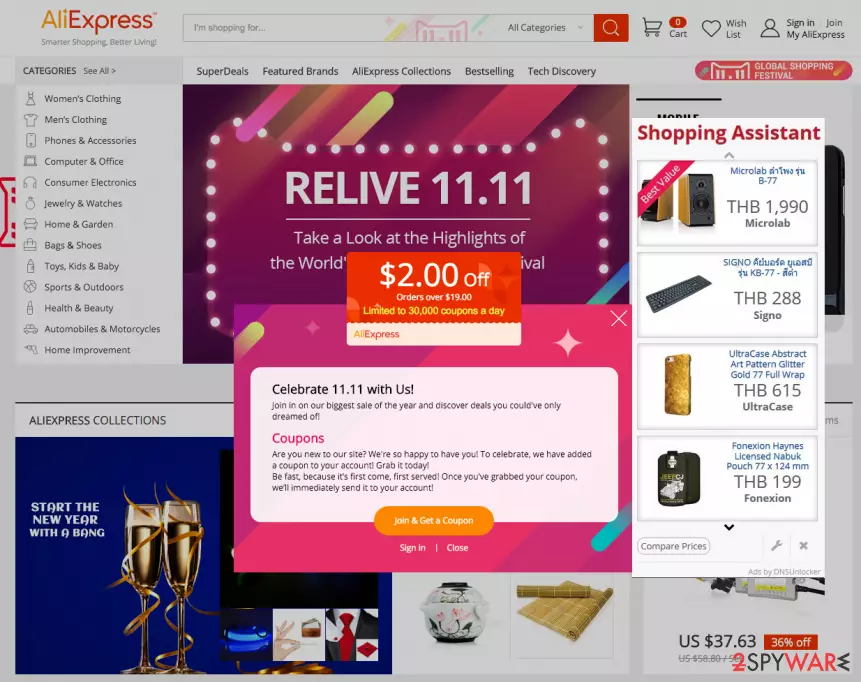
DNS Unlocker Version 1.4 is the newest member of DNS unlocking related apps. However, there have been several concerns from users, as they claimed that the app also brought in numerous ads, including pop-ups, redirects, in-text links, etc. Without a doubt, this program can easily be categorized as adware.
What does DNS Unlocker Version 1.4 malware promise and what it does
DNS Unlocker Version 1.4 is usually installed, believing that it will provide Netflix access from the outside of the actual location. Unfortunately, but all that this DNS Unlocker version 1.4 offers are just bogus promises because this program is adware and potentially unwanted program (PUP).
One of its main tasks is to corrupt web traffic and make people visit predetermined websites that belong to its sponsored partners. For this purpose, it corrupts settings on Chrome, Firefox, IE, and Safari. It then starts displaying commercial and non-commercial advertisements (pop-ups, banners, interstitials, textual links, full-page ads, etc.). To make them different from the others, they are typically marked as:
“Ads by DNS Unlocker Version 1.4,” “DNS Unlocker Version 1.4 Ads,” “Powered by DNS Unlocker Version 1.4,” and so on.
People complain about DNS Unlocker Version 1.4 ads popping up whenever they want and wherever they like. The bigger problem is related to the content that those ads may be filled with. According to malware analysts, those pop-ups may contain links to unsafe websites visiting, leading to further infections. Therefore, you are strongly recommended using DNS Unlocker Version 1.4 removal tool, such as FortectIntego, and get rid of it once and for all.
DNS Unlocker Version 1.4 installs cookies to collect user data
DNS Unlocker Version 1.4 malware spreads filled with cookies. Once installed, it drops those cookies on all web browsers that are installed on a target computer. Although this adware is not set to collect personally non-identifiable information, it may gather such information as:
- search queries;
- pages viewed and clicked on;
- data typed in them;
- IP address;
- PC's location;
- email address, and so on.
Such data can cause various issues, including email spamming, misleading advertising, and DNS Unlocker Version 1.4 redirects to unsafe domains.
Uninstall DNS Unlocker Version 1.4
You can perform DNS Unlocker Version 1.4 removal both manually and automatically. The guide is given down below. However, we highly recommend you to remove it using a reliable anti-malware. This way, your computer will be fixed completely.
Besides, if you want to protect your computer from potentially unwanted programs, you have to remember that adware, browser hijackers, and other PUPs can be installed along with other freeware.
Therefore, whenever you decide to install free software on your machine, make sure that you opt for an Advanced/Custom installation option and carefully check whether your selected program contains attachments.
If you find an add-on, toolbar, plug-in, or extension set by default, make sure that you untick each of them. Otherwise, the DNS Unlocker Version 1.4 virus may start disrupting your browsing activities.
Uninstall from Windows
Uninstall from Windows 10/8:
- Type Control Panel into the Windows search box and open the result.
- Under Programs, select Uninstall a program.


Uninstall from Windows 7/XP:
- Click on Windows Start > Control Panel (Windows XP users should click on Add/Remove Programs).
- In Control Panel, select Programs > Uninstall a program.


Remove the unwanted program:
- In the Programs and Features window, look for any recently installed suspicious entries, select them, and click Uninstall.
- If User Account Control appears, click Yes to confirm, then complete the removal.


Delete from macOS
Remove the unwanted application:
- From the menu bar, select Go > Applications.
- In the Applications folder, look for any suspicious entries, then drag them to Trash (or right-click and pick Move to Trash).


Delete leftover files and folders:
- Select Go > Go to Folder.
- Enter /Library/Application Support and remove any suspicious folders related to the unwanted program.
- Repeat the same check in the /Library/LaunchAgents and /Library/LaunchDaemons folders, deleting any suspicious entries.

- Finally, empty the Trash to permanently remove the leftovers.

Reset Internet Explorer
Remove dangerous add-ons:
- Open Internet Explorer, click on the Gear icon (IE menu) on the top-right corner of the browser
- Pick Manage Add-ons.
- You will see a Manage Add-ons window. Here, look for suspicious plugins. Click on these entries and select Disable.


Change your homepage if it was altered:
- Open IE and click on the Gear icon.
- Select Internet Options.
- In the General tab, delete the Home page address and replace it by your preferred one (for example, Google.com).
- Click Apply and then select OK.


Delete temporary files:
- Press on the Gear icon and select Internet Options.
- Under Browsing history, click Delete...
- Select relevant fields and press Delete.


Reset Internet Explorer:
- Click on Gear icon > Internet options and select Advanced tab.
- Select Reset.
- In the new window, check Delete personal settings and select Reset.


Remove from Microsoft Edge
Delete unwanted extensions from MS Edge:
- Select Menu (three horizontal dots at the top-right of the browser window) and pick Extensions.
- From the list, pick the extension and click on the Gear icon.
- Click Remove.


Clear cookies and other browser data:
- Click on the Menu (three horizontal dots at the top-right of the browser window) and select Settings > Privacy, search, and services..
- Under Clear browsing data, pick Choose what to clear.
- Select Cookies and other site data and Cached images and files. (apart from passwords, although you might want to include Media licenses as well, if applicable) and click on Clear.


Restore new tab and homepage settings:
- Click the menu icon and choose Settings.
- Then find On startup section.
- Click Remove next to any suspicious startup page.
Reset MS Edge if the above steps did not work:
- Press on Ctrl + Shift + Esc to open Task Manager.
- Click on More details arrow at the bottom of the window.
- Select Details tab.
- Now scroll down and locate every entry with Microsoft Edge name in it. Right-click on each of them and select End Task to stop MS Edge from running.


Instructions for Chromium-based Edge
Delete extensions from MS Edge (Chromium):
- Open Edge and click select Settings > Extensions.
- Delete unwanted extensions by clicking Remove.


Clear cache and site data:
- Click on Menu and go to Settings.
- Select Privacy, search and services.
- Under Clear browsing data, pick Choose what to clear.
- Under Time range, pick All time.
- Select Clear now.


Reset Chromium-based MS Edge:
- Click on Menu and select Settings.
- On the left side, pick Reset settings.
- Select Restore settings to their default values.
- Confirm with Reset.
- This will disable extensions and reset startup pages but will not delete bookmarks, saved passwords, or browsing history.


Remove from Mozilla Firefox (FF)
Remove dangerous extensions:
- Open Mozilla Firefox browser and click on the Menu (three horizontal lines at the top-right of the window).
- Select Add-ons.
- In here, select the unwanted extension and click Remove.


Reset the homepage:
- Click three horizontal lines at the top right corner to open the menu.
- Choose Settings.
- Under Home, set your preferred homepage and new tab settings.
Clear cookies and site data:
- Click Menu and pick Settings.
- Go to Privacy & Security section.
- Scroll down to locate Cookies and Site Data.
- Click on Clear Data...
- Select Cookies and Site Data and Temporary cached files and pages, then click Clear.


Reset Mozilla Firefox
If clearing the browser as explained above did not help, reset Mozilla Firefox:
- Open Mozilla Firefox browser and click the Menu.
- Go to Help and then choose Troubleshooting Information.

- Under Give Firefox a tune up section, click on Refresh Firefox...
- Once the pop-up shows up, confirm the action by pressing on Refresh Firefox.



Remove from Google Chrome
Delete malicious extensions from Google Chrome:
- Open Google Chrome, click on the Menu (three vertical dots at the top-right corner) and select More tools > Extensions.
- In the newly opened window, you will see all the installed extensions. Uninstall all suspicious extensions related to the unwanted program by clicking Remove.


Clear cache and web data from Chrome:
- Click on Menu and pick Settings.
- Under Privacy and security, select Clear browsing data.
- Select Browsing history, Cookies and other site data, as well as Cached images and files.
- Click Clear data.


Change your homepage:
- Click menu and choose Settings.
- Look for a suspicious site in the On startup section.
- Click on Open a specific or set of pages and click on three dots to find the Remove option.
Reset Google Chrome:
If the previous methods did not help you, reset Google Chrome to eliminate all the unwanted components:
- Click on Menu and select Settings.
- In the Settings, scroll down and click Advanced.
- Scroll down and locate Reset and clean up section.
- Now click Restore settings to their original defaults.
- Confirm with Reset settings.


Delete from Safari
Remove dangerous extensions:
- Open Safari, click Safari in the menu at the top-left of the screen, and select Preferences.
- Go to the Extensions tab, look for any suspicious entries, and click Uninstall to remove them.


Clear history and website data:
- Click Safari in the menu and pick Clear History.
- Set Clear to all history and confirm with Clear History.


Reset Safari:
- Click Safari in the menu and select Preferences > Advanced.
- Enable Show Develop menu in menu bar.
- From the menu bar, click Develop and select Empty Caches.


Did this guide help?
7 comments
judaslrs
This just popped up on many sites yesterday. No new downloads. Very intrusive and annoying. Anyone know how to get rid of it?
Pppperter
I had been infected with DNS Unlocker Version 1.4 malware too. Ive received so many popups that it became impossible to browse normally. Ive cheched the system with Norton and Avast but they showed me nothing. then I have started looking for a problem by myself and found this pest simply sitting in programs list. Uninstalled it and disabled the extension on Chrome. Seems that helped. No more ads.
Witchecrasft
Its some kind of mystery! ive checked all my freewares but somehow DNS Unlocker Version 1.4 started popping up all of a sudden. I can t browser. HELP. can someone provide me with the links or something to the DNS Unlocker Version 1.4 removal tool that is free?
Duy Phuong
this extension does not work as extension. it another silly adware that floods ads and obstruct browsing. i literally needed DNS Unlocker. Sadly, DNS Unlocker Version 1.4 is fake. Has anyone tried any programs for unlocking DNS?
dreake12
DNS Unlocker Version 1.4 rogue! Chanced my browsers settings and slowed down the machine. nothing to praise for. Deleted asap.
davidglance
I dont know how this got installed... too suspicious. virus like?
Larry
Using Windows 7, I just did a system restore to a point before the infection occurred and then manually removed the directory with the offending program. Type "recover" in the "search programs and files" box on the lower left as you click on the task bar. This will bring up the restore dialog. I hope this helps someone.