

F.txt.js is the suspicious installation that triggers ad-tracking and other intrusive functions
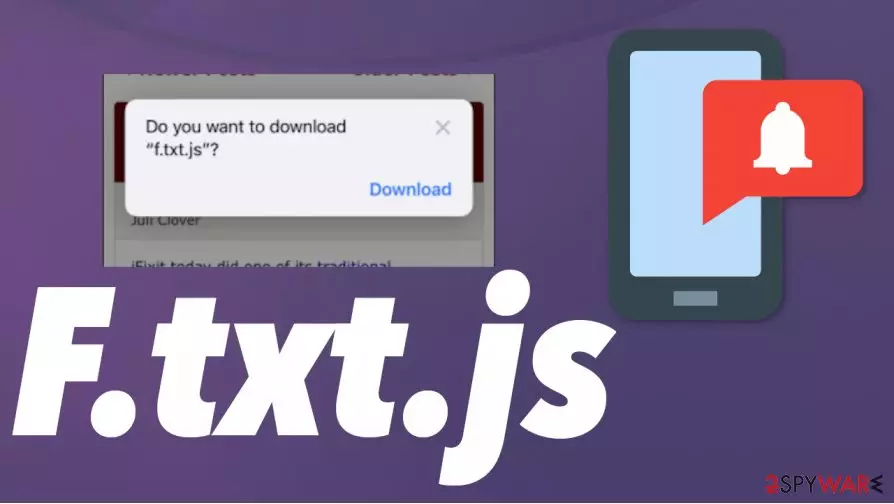
The particular issue is related to the F.txt.js download message that gets delivered on the web browser like Safari or Google Chrome. This is the problem that occurs on Mac computer, iPads, iPhones, other Apple devices, so this is the particular thing for this OS. However, there are many sites and pop-ups like this that trigger unwanted changes, shady installations, and so on.
You should ignore these messages and remove the main PUP, which most likely triggers all the ad injector and adware-type symptoms. F.txt.js virus is related to mano domains associated with double-clicking campaigns and malicious advertisements thatcrete tons of ads ont he screen and redirects through Ad.doubleclick.net and other pages.
| Name | F.txt.js |
|---|---|
| Type | Mac malware/ Redirect virus |
| Associated | Ad.doubleclick.net intrusive advertising campaigns |
| Issues | The main problem regarding this infection is the continuous redirecting function and commercial content pop-ups, possible malware downloads |
| Distribution | The file gets downloaded from deceiving sites, but the PUP that controls such behavior can also get installed during insecure download processes |
| Elimination | F.txt.js removal should include anti-malware tools for better results |
| Repair | Make the system clear of virus traces and working properly again with applications like FortectIntego |
F.txt.js can have various associated sites, files, and potentially unwanted programs, so you should ignore those messages, pop-ups, banners, and continuous redirects, so you can get rid of the intruder properly. This issue can be related to various platforms form gaming services, social media to streaming sites, and pages that promote software or different domains.
F.txt.js is the particular ad injector that outs advertisements on various pages, injects banners, triggers pop-ups another commercial material to trigger redirects to sponsored sites, and third-party services where clicks and views get monetized.[2] This is a common technique used among adware-type intruders and potentially unwanted programs that rely on affecting web browsing activities.
This F.txt.js virus can be classified as outright malware because the file that gets distributed triggers downloads and other processes. It seems that the program can be removed easily, but there are issues that infection can create on the machine, so computer or mobile device running on macOS or iOS gets significantly slower and cannot be used without crashes and freezes.
F.txt.js creates issues on the Mozilla Firefox browser, Google Chrome, and on various iOS devices including iPhone and iPad. These Apple products propapbly are the most affected by the shady pop-up message and similar programs. It is more difficult to get rid of the adware and redirecting threats when the mobile device screen gets filled with pop-ups and banners without any X buttons that could provide the opportunity to exit thesegoogleads.g.doubleclick.net advertisements.

This attack involving the installation messages and even direct drops of the F.txt.js file can lead to page-redirecting and even malware-spreading behavior. Even though this is a non-typical issue, the behavior is related to adware-type infections, similar campaigns when pay-per-click is the main method and function.
If you decide to remove F.txt.js, you should rely on the fact that this is not only the web browser intruder, the system gets significantly affected too. Run SpyHunterCombo Cleaner or MalwarebytesMalwarebytes on the machine, so all possibly malicious programs get eliminated automatically. When you get exposed to many sites that deliver shady messages, you can receive more dangerous threats.
Also, even though you may think that F.txt.js removal is the needless thing and your macOS device os iPhone,iPad is immune to threats, there are some functions that these threats may interfere with and damage further. You should take those additional changes and damage risks into consideration and run a tool like FortectIntego that can find and possibly fix such files for you.

Shady injectors get distributed via platforms and direct pop-ups
Publishing services, platforms, and web browsers can be involved in such PUP distribution because third-party companies, commercial content creators, other sponsors can lead to shady cyber infection installations. Ad injectors can be a part of an advertising campaign that is approved, so people or even distributors do not know that there are any issues.
PUPs inject themselves on those browsers and change the website code, so the ad is not determined as non-legitimate. These pop-ups lead to the download of these shady files when the user clicks on the content unknowingly.
There are tons of web browser intruders that can trigger this behavior, so you should avoid installing anything from the web and try to choose Advanced or Custom options when you can. This is how you, as a user, can take care of the security.
Clear the system to eliminate F.txt.js and any other shady JavaScrip or malicious files
F.txt.js virus is a part of the double-click advertisement campaign or adware-type intruder that triggers issues on the macOS devices or iPhones, iPads, and so on. This fact makes it less dangerous or damaging to the system, but this is still a security concern.
If you get offered or asked to download F.txt.js on iPhone or iPad, you should ignore those messages and try to eliminate the intruder itself properly as soon as possible. You can achieve the goal of clering the system by running an AV tool that is compatible with the particular OS, so try to use a trustworthy source for the tool installation.
F.txt.js removal process should be as important as removing other cyber threats because keeping such intruder for a long time can lead to serious issues that damage your machine significantly. Make sure to rely on good sources and reliable programs and get a tool designed to find and eliminate PUPs, computer viruses.
When you remove F.txt.js, do not forget about system issues that PUPs can trigger on various operating systems and devices. Tools like system optimizers or PC repair applications can indicate program and data damage or even fix that automatically fo you.
Delete from macOS
Remove the unwanted application:
- From the menu bar, select Go > Applications.
- In the Applications folder, look for any suspicious entries, then drag them to Trash (or right-click and pick Move to Trash).


Delete leftover files and folders:
- Select Go > Go to Folder.
- Enter /Library/Application Support and remove any suspicious folders related to the unwanted program.
- Repeat the same check in the /Library/LaunchAgents and /Library/LaunchDaemons folders, deleting any suspicious entries.

- Finally, empty the Trash to permanently remove the leftovers.

Remove from Mozilla Firefox (FF)
Remove dangerous extensions:
- Open Mozilla Firefox browser and click on the Menu (three horizontal lines at the top-right of the window).
- Select Add-ons.
- In here, select the unwanted extension and click Remove.


Reset the homepage:
- Click three horizontal lines at the top right corner to open the menu.
- Choose Settings.
- Under Home, set your preferred homepage and new tab settings.
Clear cookies and site data:
- Click Menu and pick Settings.
- Go to Privacy & Security section.
- Scroll down to locate Cookies and Site Data.
- Click on Clear Data...
- Select Cookies and Site Data and Temporary cached files and pages, then click Clear.


Reset Mozilla Firefox
If clearing the browser as explained above did not help, reset Mozilla Firefox:
- Open Mozilla Firefox browser and click the Menu.
- Go to Help and then choose Troubleshooting Information.

- Under Give Firefox a tune up section, click on Refresh Firefox...
- Once the pop-up shows up, confirm the action by pressing on Refresh Firefox.



Remove from Google Chrome
Delete malicious extensions from Google Chrome:
- Open Google Chrome, click on the Menu (three vertical dots at the top-right corner) and select More tools > Extensions.
- In the newly opened window, you will see all the installed extensions. Uninstall all suspicious extensions related to the unwanted program by clicking Remove.


Clear cache and web data from Chrome:
- Click on Menu and pick Settings.
- Under Privacy and security, select Clear browsing data.
- Select Browsing history, Cookies and other site data, as well as Cached images and files.
- Click Clear data.


Change your homepage:
- Click menu and choose Settings.
- Look for a suspicious site in the On startup section.
- Click on Open a specific or set of pages and click on three dots to find the Remove option.
Reset Google Chrome:
If the previous methods did not help you, reset Google Chrome to eliminate all the unwanted components:
- Click on Menu and select Settings.
- In the Settings, scroll down and click Advanced.
- Scroll down and locate Reset and clean up section.
- Now click Restore settings to their original defaults.
- Confirm with Reset settings.


Delete from Safari
Remove dangerous extensions:
- Open Safari, click Safari in the menu at the top-left of the screen, and select Preferences.
- Go to the Extensions tab, look for any suspicious entries, and click Uninstall to remove them.


Clear history and website data:
- Click Safari in the menu and pick Clear History.
- Set Clear to all history and confirm with Clear History.


Reset Safari:
- Click Safari in the menu and select Preferences > Advanced.
- Enable Show Develop menu in menu bar.
- From the menu bar, click Develop and select Empty Caches.


Did this guide help?
Be the first to comment