

GGR ransomware – a dangerous computer infection that might result in permanent file loss
Most users have many personal files on their computers – photos, videos, personal documents, projects, and much more, and not many believe that they could one day simply lose access to them. Unfortunately, that happens when GGR ransomware breaks into a Windows computer and encrypts all personal files located on it.
While applications or particular videos can be re-downloaded from the internet, personal files are sometimes invaluable, which is one of the main reasons ransomware is so devastating. It is important to note that the files do not get corrupted but rather encrypted with RSA and AES[1] encryption algorithm. Some other malware strains are known to be buggy or purposely malicious and can destroy files beyond repair.
GGR virus belongs to the VoidCrypt ransomware family that is quite extensive – the most recent versions are Temlown and RTX. While relatively similar in their functionality, these variants have a few differences as well.
As soon as malware infects the machine, it drops many malicious files and alters the way Windows works in a way. The data encryption process usually lasts only some seconds (unless there is a lot of data on the drive), so interrupting it becomes almost impossible. As a result, victims notice the infection only after they see that their files have lost their original icons, were appended with the .[Loberoper@gmail.com][MJ-random].GGR extension and can no longer be opened.
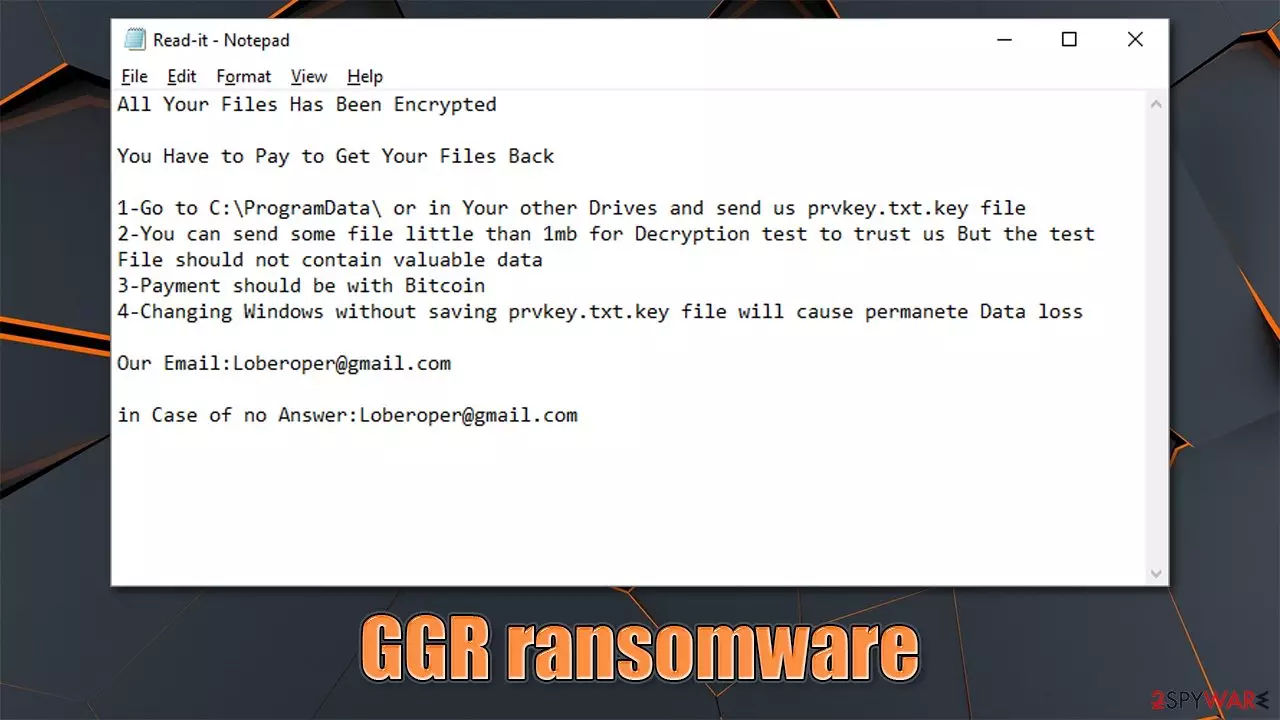
Additionally, a ransom note – Read-it.txt – is created on the desktop, it can be accessed by users easily. These notes are commonly delivered by ransomware in order to make victims aware of what happened to their files and how are they supposed to act in order to recover them. Cybercriminals claim that the payment should be in Bitcoin and that users should write an email to Loberoper@gmail.com to cooperate.
Cybersecurity experts strongly advise against communicating with the attackers, as there is a chance of being scammed and lose money as well.
| Name | GGR ransomware |
|---|---|
| Type | Ransomware, data locking virus |
| Malware family | VoidCrypt |
| Encryption method | AES + RSA |
| File extension | .[Loberoper@gmail.com][MJ-random].GGR; example of an encrypted file: file.jpg.[Loberoper@gmail.com][MJ-WA9473106825].GGR |
| Related files | Read-it.txt, prvkey.txt |
| File Recovery | If no backups are available, recovering data is almost impossible. We recommend you try alternative methods, which we list below |
| Malware removal | Perform a full system scan with powerful security software |
| System fix | Malware can seriously tamper with Windows systems, causing errors, crashes, lag, and other stability issues after it is terminated. To remediate the OS and avoid its reinstallation, we recommend scanning it with the FortectIntego repair tool |
Avoid paying the ransom
As we already mentioned, a ransom note serves as a message from the attackers that informs people about the situation. Unlike with other malicious infections that attempt to be hidden from users' eyes as much as possible, it is not the main goal of ransomware. Cybercriminals want users to find their contact details and other relevant information because it increases the chances of them receiving the payment.
The ransom note delivered by GGR ransomware does not differ from the most recent VoidCrypt versions. In fact, it is more of a copy, although the contact email varies:
All Your Files Has Been Encrypted
You Have to Pay to Get Your Files Back
1-Go to C:\ProgramData\ or in Your other Drives and send us prvkey.txt.key file
2-You can send some file little than 1mb for Decryption test to trust us But the test File should not contain valuable data
3-Payment should be with Bitcoin
4-Changing Windows without saving prvkey.txt.key file will cause permanete Data lossOur Email:Loberoper@gmail.com
in Case of no Answer:Loberoper@gmail.com
Criminals are asking for users to retrieve the prvkey.txt.key file from ProgramData location and include it within the email. This file is likely to include a private key used for file recovery, so it is good to copy it to a secure location (for example, a USB flash drive) before proceeding with anything else.

Malware authors also offer a free decryption service – a typical tactic used by many other ransomware strains. This is meant to create a false sense of security and allegedly guarantee that a decryption tool for the locked data truly exists. Despite this, there are several reasons you should avoid the payment:
- The decryptor might be buggy[2] and fail to work;
- Cybercriminals might never send you the tool after the payment;
- The decryptor might be infected with other malware;
- Successful payments only motivate ransomware authors to continue their job, providing that the illegal business model works well.
Thus, instead of trusting the attackers, treat them as criminals and avoid contact at all costs. If you have no other choice but to pay, be warned about the negative consequences of this decision. Even if you decide to pay the ransom, we strongly recommend you first try alternative methods for data recovery.
Step 1. Backup your encrypted files and remove malware from your system
Most ransomware self-destructs after they encrypt all files, although they can leave various malicious modules behind. Besides, ransomware is commonly spread with other malware; other strains might continue running in the background and encrypting all the incoming files.
File encryption and ransomware infection are two independent processes (although the latter would not be possible without the former). However, it is important to understand that malware performs various changes within a Windows operating system, changing the way it works.
If you try using recovery or anti-malware software immediately, you might cause permanent damage to files. To avoid infecting your external storage device, we recommend you access Safe Mode and retrieve the files from there:
Windows 7 / Vista / XP
- Click Start > Shutdown > Restart > OK.
- When your computer becomes active, start pressing F8 button (if that does not work, try F2, F12, Del, etc. – it all depends on your motherboard model) multiple times until you see the Advanced Boot Options window.
- Select Safe Mode with Networking from the list.


Windows 10 / Windows 8
- Right-click on Start button and select Settings.
- Scroll down to pick Update & Security.
- On the left side of the window, pick Recovery.
- Now scroll down to find Advanced Startup section.
- Click Restart now.
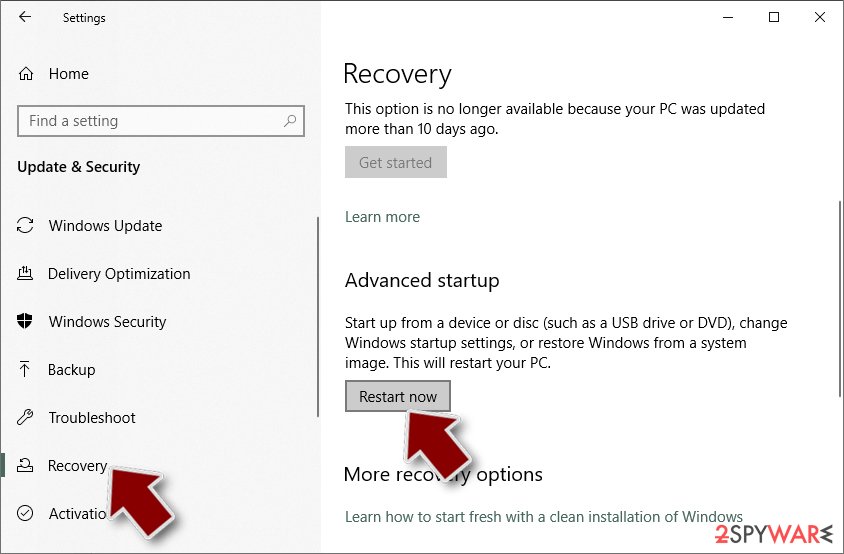
- Select Troubleshoot.
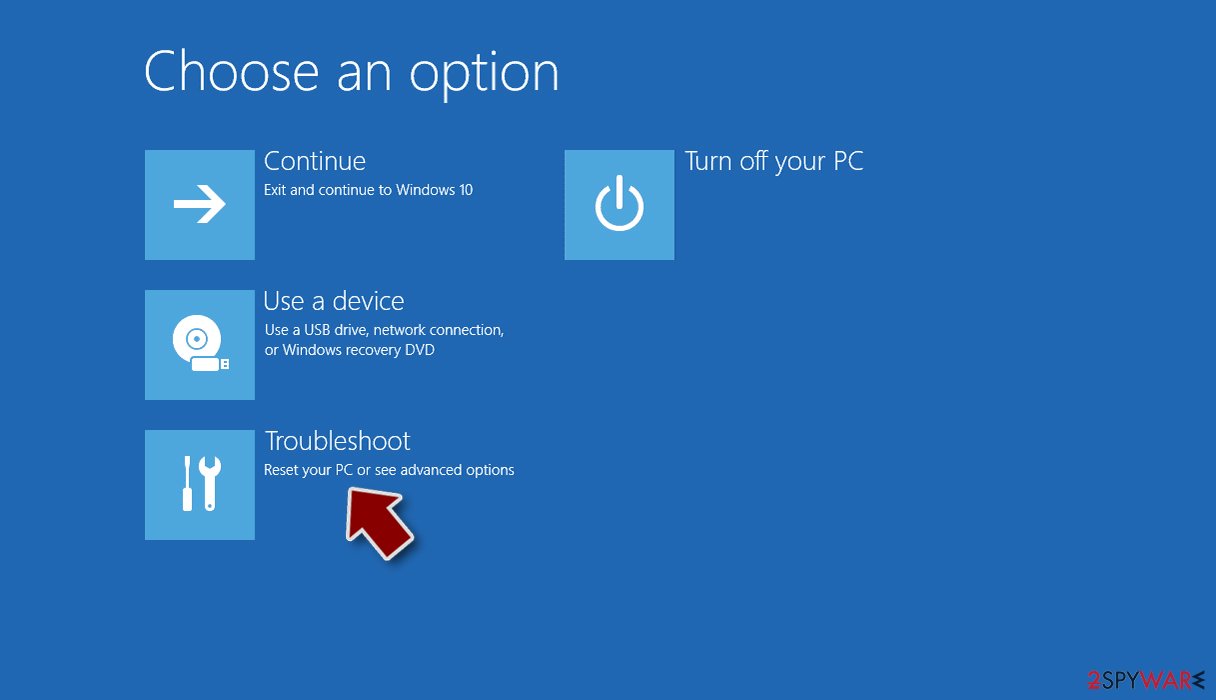
- Go to Advanced options.
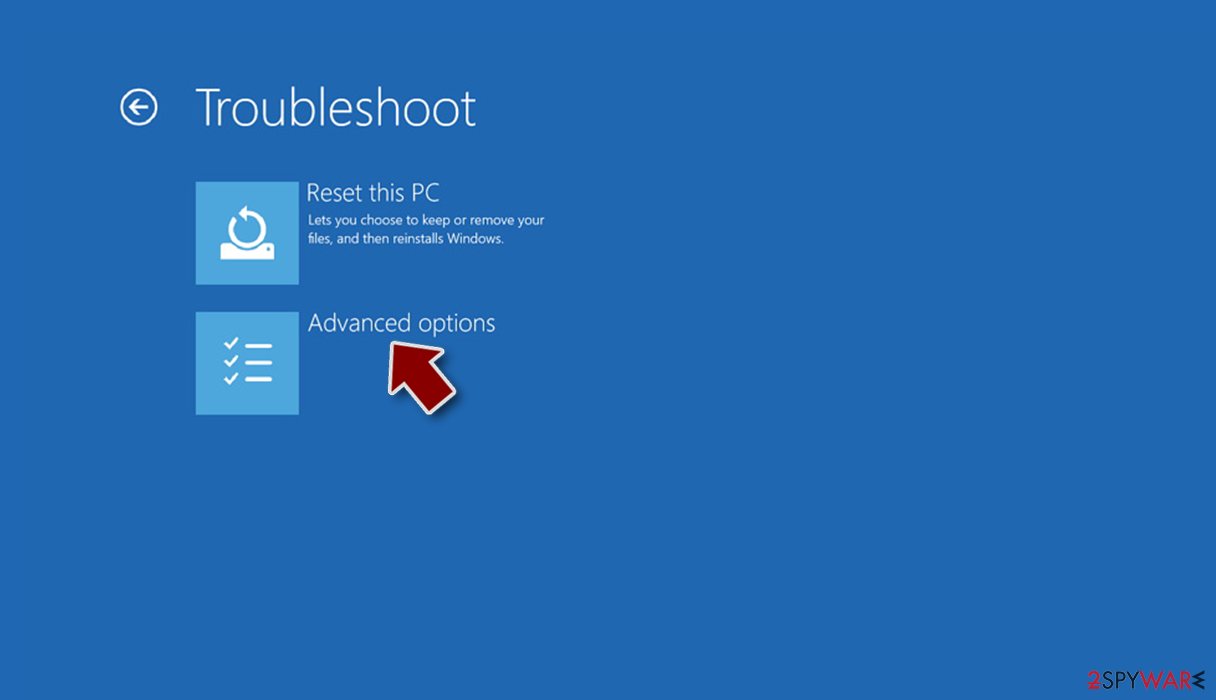
- Select Startup Settings.
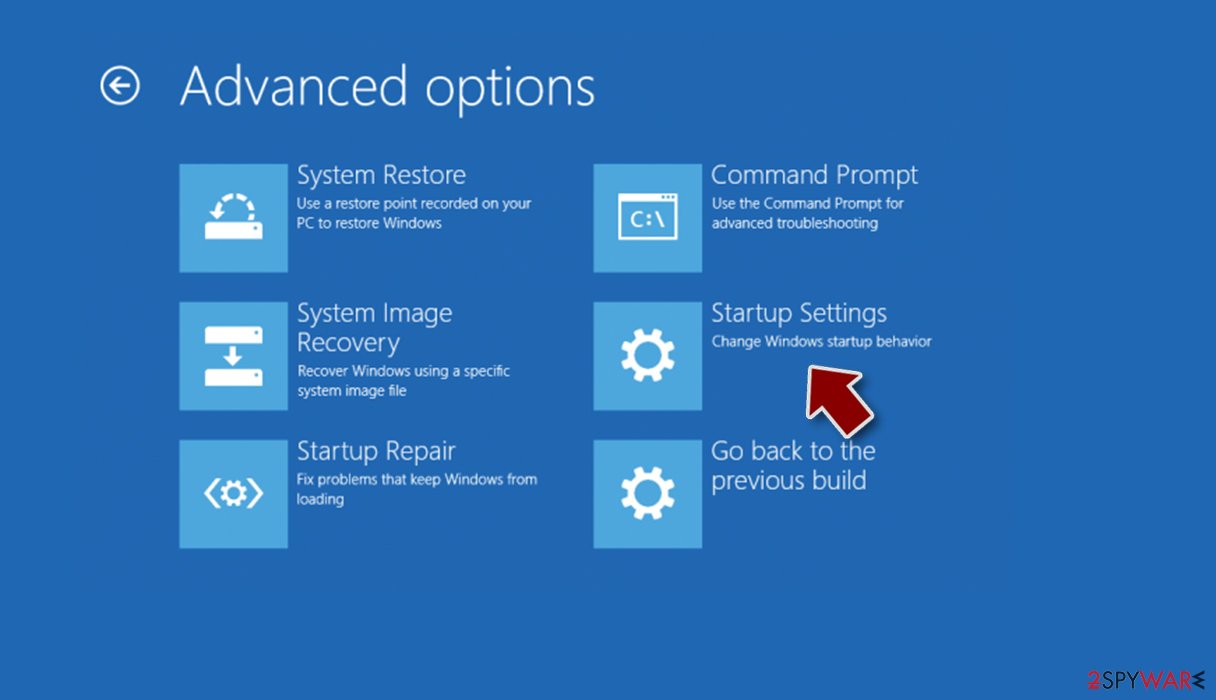
- Click Restart.
- Press 5 or click 5) Enable Safe Mode with Networking.
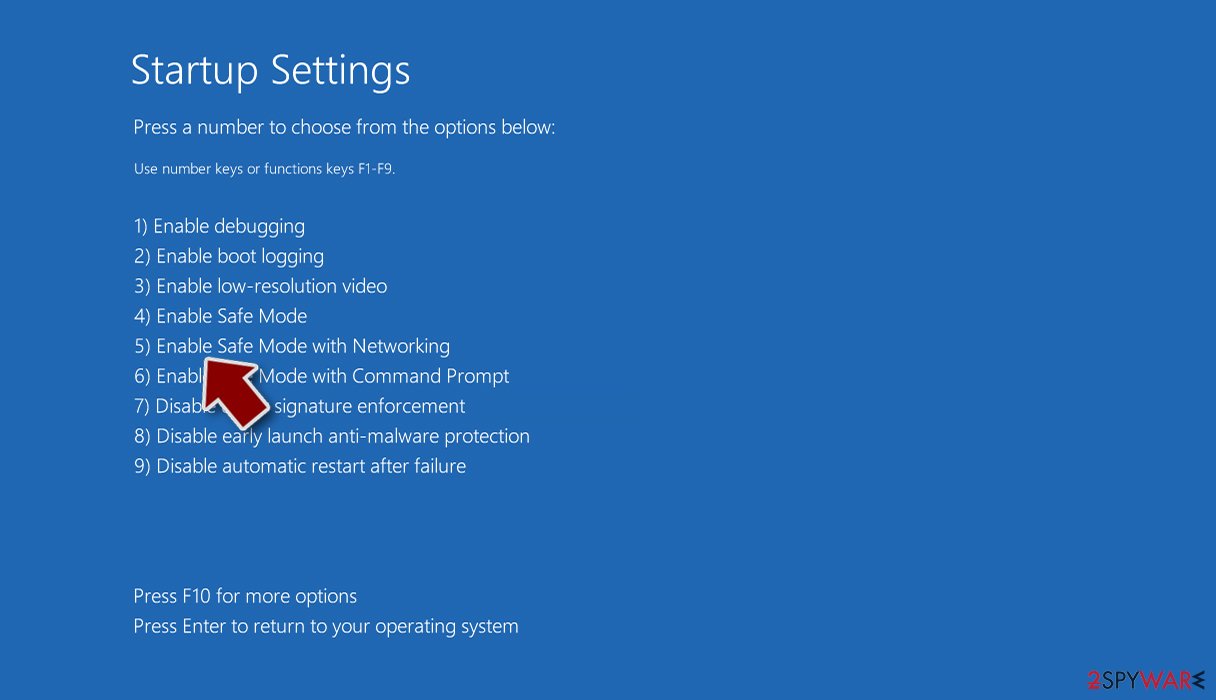


Once in Safe Mode, connect the USB flash or other storage device to your computer and transfer your valuable files over. This way, you'll guarantee that antivirus or recovery software can't damage the files in any way.
After that, load back to normal mode and use SpyHunterCombo Cleaner, MalwarebytesMalwarebytes, or another security software to remove all the malicious files from the system. If the virus blocks you from using anti-malware tools, you should go back to Safe Mode and initiate the scan from there. Note that you might have to first use the installer from the portable drive for this.
Step 2. Try to recover your files
If you have backups for your files, it's brilliant news – you beat the GGR ransomware as long as you removed it from your system with security software. Unfortunately, most victims don't prepare reliable backups of their most important files, which is really bad news in general.
Nonetheless, you should not panic, as not everything is lost, and you should avoid paying the ransom. Instead, you should try using recovery software.
Use recovery software
- Download Data Recovery Pro.
- Double-click the installer to launch it.

- Follow on-screen instructions to install the software.
- As soon as you press Finish, you can use the app.
- Select Everything or pick individual folders where you want the files to be recovered from.
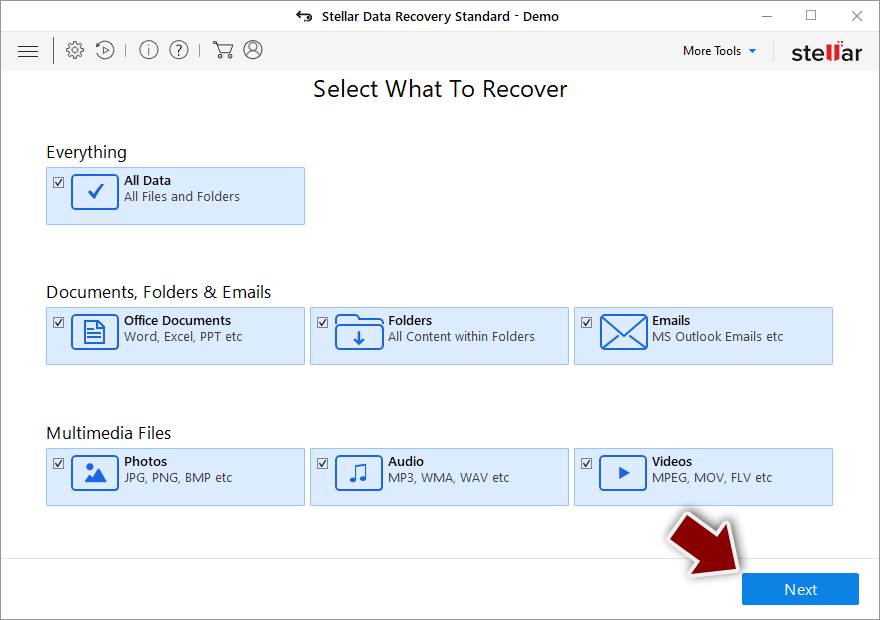
- Press Next.
- At the bottom, enable Deep scan and pick which Disks you want to be scanned.

- Press Scan and wait till it is complete.
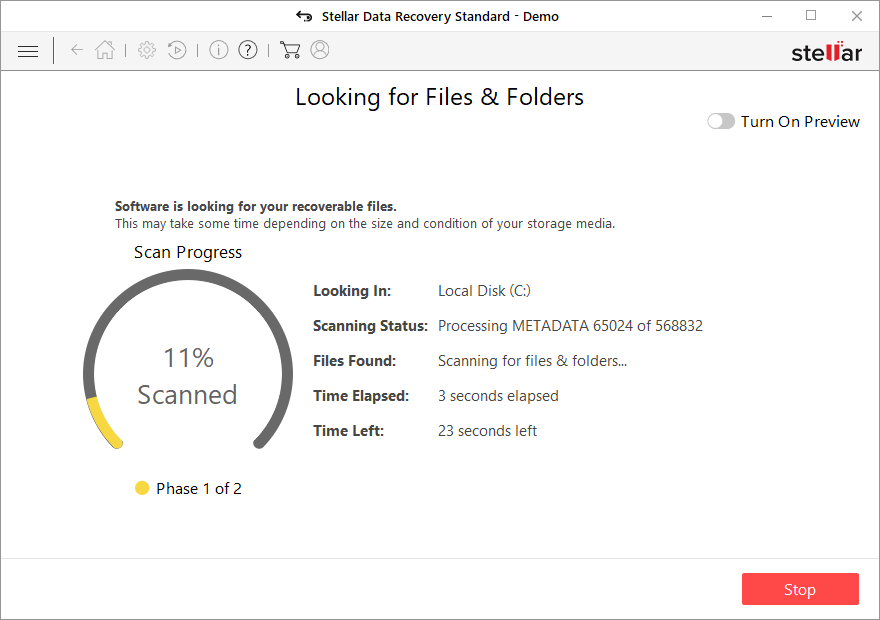
- You can now pick which folders/files to recover – don't forget you also have the option to search by the file name!
- Press Recover to retrieve your files.


Find a decryptor
Ransomware's encryption is usually secure, which means that it uses a complex encryption key unique to each victim. It makes the decryption without the key particularly difficult. However, sometimes the servers of ransomware authors are seized by the law authorities (recently happened to Clop ransomware gang),[3] which allows victims to recover their data for free. Also, security experts might find some flaws in malware – we have previously seen free decryption tools from vendors like Emsisoft or Kaspersky.
While it might take a while before the decryption tool is created for this particular virus version, you should keep an eye on the following websites:
- No More Ransom Project
- Free Ransomware Decryptors by Kaspersky
- Free Ransomware Decryption Tools from Emsisoft
- Avast decryptors

Step 3. Repair damaged system files
Once a computer is infected with malware, its system is changed to operate differently. For example, an infection can alter the Windows registry database, damage vital bootup, and other sections, delete or corrupt DLL files, etc. Once a system file is damaged by malware, antivirus software is not capable of doing anything about it, leaving it just the way it is. Consequently, users might experience performance, stability, and usability issues, to the point where a full Windows reinstallation is required.
Therefore, we highly recommend using a one-of-a-kind, patented technology of FortectIntego repair. Not only can it fix virus damage after the infection, but it can also remove malware that has already broken into the system thanks to several engines used by the program. Besides, the application can also fix various Windows-related issues that are not caused by malware infections, for example, Blue Screen errors, freezes, registry errors, damaged DLLs, etc.
- Download the application by clicking on the link above
- Click on the ReimageRepair.exe

- If User Account Control (UAC) shows up, select Yes
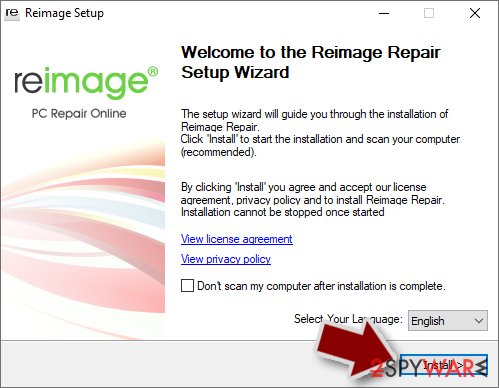
- Press Install and wait till the program finishes the installation process
- The analysis of your machine will begin immediately
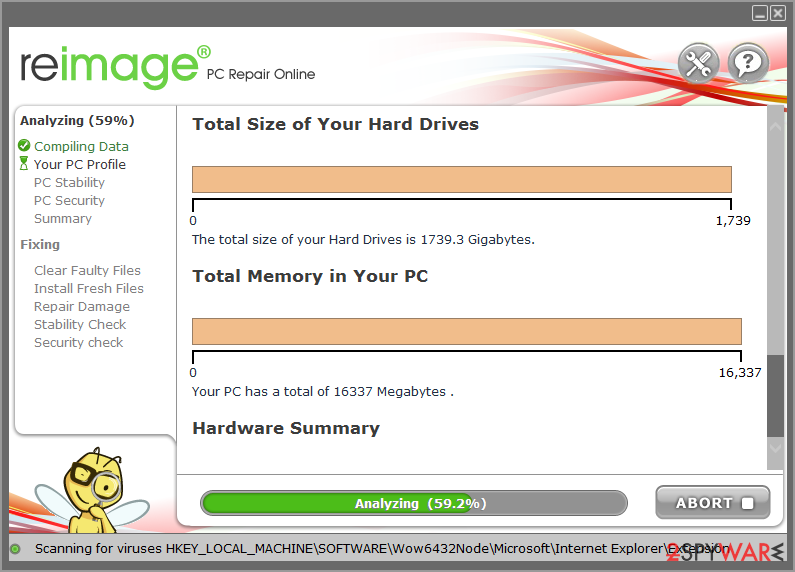
- Once complete, check the results – they will be listed in the Summary
- You can now click on each of the issues and fix them manually
- If you see many problems that you find difficult to fix, we recommend you purchase the license and fix them automatically.



Finally, check out below for more information on how to backup files securely on your device to prevent the devastating consequences of a ransomware infection. Also, it would be great if you take your time and report the incident to the authorities – we provide all the links.
Did this guide help?
Be the first to comment