

Gsearch is a legitimate browser extension that can hijack web browsers and redirect web traffic to affiliated domains
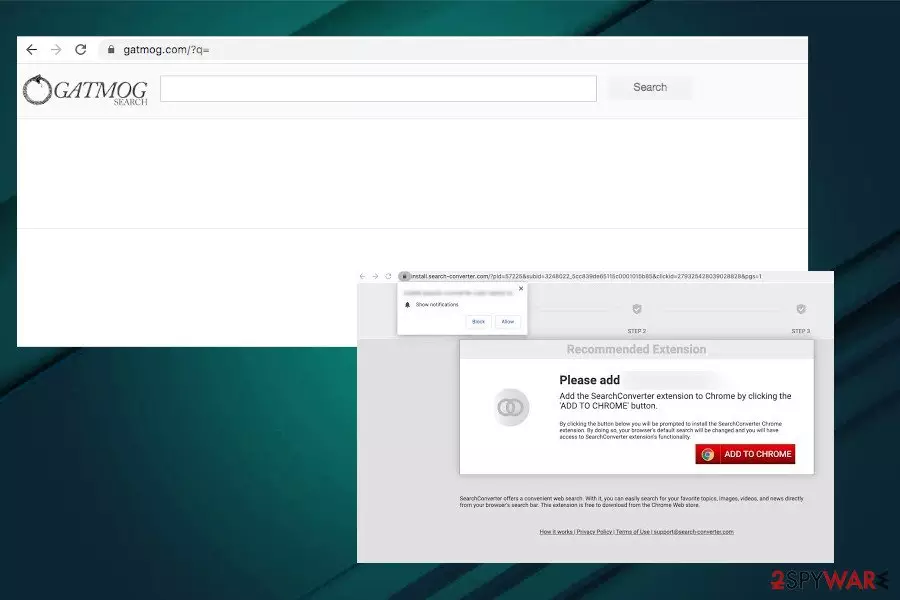
Gsearch (your antivirus can detect it as Gsearch.A) is a potentially unwanted program[1], which has been accused of lots of suspicious and totally annoying activities. No matter that it is not considered a virus, you should be very careful with this application and think twice before downloading it to your PC system.
If this program manages to enter your device, it may easily hijack each of your web browsers (Internet Explorer, Google Chrome, Mozilla Firefox, etc.). It is compatible with all types of OS, including Mac OS, Windows OS, and Android. It can alter the start page, the default search engine, the new tab page, and other browser settings. Typically, it sets the gatmog.com search engine as default claiming that it's an innovative and more comfortable way of web browsing.
These changes are initiated for a reason – once this program finishes its work, it gets the ability to start promoting affiliate websites. For that, it may show you altered search results, display annoying pop-up ads, and cause other unwanted activities. That's why security experts have included Gsearch virus to the category of browser hijackers and potentially unwanted programs (PUPs).
| Name | Gsearch |
| Classification | Browser hijacker/Potentially Unwanted Application (PUA) |
| Related | Upon installation, the extension promotes gatmog.com search engine |
| Symptoms | Browser hijacker exhibits intrusive behavior during users' web browsing activities. It alters web browser's settings (start page, search provider, new tab URL, enables push notifications, etc.) and seeks to increase the traffic to the affiliate sites |
| Elimination | PUP removal can be initiated manually (step-by-step guide submitted below) or automatically using a professional security program. After malware elimination, the web browser's reset is recommended |
| Fixing the damage | Run a scan with FortectIntego repair tool to fix the system changes |
If you have already noticed that instead of visiting Yahoo, Bing, Google, or MSN you are redirected to Gsearch and another unfamiliar website, it's a sign that you have recently installed a freeware bundle and allowed the unwanted application to enter the machine. To prevent all unwanted activities that it may be set to perform, it's advisable to check your computer with a reliable anti-spyware. This will help you to remove all potentially unwanted programs, such as this browser hijacker and other untrustworthy apps that may be running in the background.
For Gsearch virus removal we highly recommend using the most professional AV engine[2], which features the latest virus definitions. Upon the elimination, run a full scan with FortectIntego repair tool to fix altered Windows registry entries and Temp folder content. Please, be very careful with this search engine because, as we have already mentioned before, it may show you sponsored search results, thus there's a high risk of being exposed to untrustworthy websites.

In addition to misleading search results, the Gsearch is collaborating with third parties that aim at gathering as much information about people's web browsing activities as possible. To harvest web browsing history, this tool drops tracking cookies and web beacons. The software subsequently starts recording information like:
User IP Address – For combating spam and fraud and to serve relevant web and ad results based on user’s country/location
Search Term – To improve search results
However, there's no guarantee that it won't start leaking more personal information that you disclose during your searches. Thus, we strongly do not recommend trusting third-party search providers, especially the ones you know nothing about. They may be used for promoting phishing sites. Employ a reliable security tool and remove Gsearch virus to strengthen your security.
PUPs hijack web browsers right after freeware installation
Technically, the browser hijacker is not a virus, meaning that it can't infiltrate your computer thru security vulnerabilities, RDPs, or other highly suspicious means. Nevertheless, there are lots of online discussions were people express their concern about the unexpected manifestation of such applications.
In reality, all users who claim that browser hijackers were installed on their computers against their will are not right. According to NoVirus.uk[3] experts, PUPs are usually distributed via freeware bundles, so before finding the web browser hijacked, they must have downloaded a freeware.

The so-called bundling distribution technique is widely used by third-party software developers and advertising companies. This method allows for spreading unwanted applications widely because they can be easily disguised under Quick or Basic installation setup as pre-default additional components.
Fortunately, you can prevent the infiltration of unwanted extensions that eventually hijack web browsers. For that, you should start monitoring every freeware's installation. Always check the reviews of the program that you are trying to download to your computer or another device. Also, select the Custom or Advanced installation option in order to see what optional components are hiding behind the setup. If you see any mentions about extensions, add-ons, etc., you should either uncheck such sentences or stop the installation of this program that is trying to trick you.
Gsearch virus removal options
If Gsearch appeared on your computer, you should use a guide that is given below. If it has hijacked your tablet or mobile device, please follow these steps:
- Go to Settings.
- Once there, click on Apps or Application manager (this may differ depending on your device).
- Here, look for Gsearch and another suspicious app (s) and uninstall all of them.
If you are blocked, reboot your Android device into Safe Mode and try again. For Safe Mode, follow these steps:
- Find the power button and press it for a couple of seconds until you see a menu. Tap the Power off.
- Once you see a dialog window that offers you to reboot your Android to Safe Mode, select this option and OK.
- Now uninstall Gsearch and other suspicious applications.
If this failed to work for you, just turn off your device and then turn it on. Once it becomes active, try pressing and holding Menu, Volume Down, Volume Up or Volume Down and Volume Up together to see Safe Mode.
Uninstall from Windows
Uninstall from Windows 10/8:
- Type Control Panel into the Windows search box and open the result.
- Under Programs, select Uninstall a program.


Uninstall from Windows 7/XP:
- Click on Windows Start > Control Panel (Windows XP users should click on Add/Remove Programs).
- In Control Panel, select Programs > Uninstall a program.


Remove the unwanted program:
- In the Programs and Features window, look for any recently installed suspicious entries, select them, and click Uninstall.
- If User Account Control appears, click Yes to confirm, then complete the removal.


Delete from macOS
Remove the unwanted application:
- From the menu bar, select Go > Applications.
- In the Applications folder, look for any suspicious entries, then drag them to Trash (or right-click and pick Move to Trash).


Delete leftover files and folders:
- Select Go > Go to Folder.
- Enter /Library/Application Support and remove any suspicious folders related to the unwanted program.
- Repeat the same check in the /Library/LaunchAgents and /Library/LaunchDaemons folders, deleting any suspicious entries.

- Finally, empty the Trash to permanently remove the leftovers.

Reset Internet Explorer
Remove dangerous add-ons:
- Open Internet Explorer, click on the Gear icon (IE menu) on the top-right corner of the browser
- Pick Manage Add-ons.
- You will see a Manage Add-ons window. Here, look for suspicious plugins. Click on these entries and select Disable.


Change your homepage if it was altered:
- Open IE and click on the Gear icon.
- Select Internet Options.
- In the General tab, delete the Home page address and replace it by your preferred one (for example, Google.com).
- Click Apply and then select OK.


Delete temporary files:
- Press on the Gear icon and select Internet Options.
- Under Browsing history, click Delete...
- Select relevant fields and press Delete.


Reset Internet Explorer:
- Click on Gear icon > Internet options and select Advanced tab.
- Select Reset.
- In the new window, check Delete personal settings and select Reset.


Remove from Microsoft Edge
Delete unwanted extensions from MS Edge:
- Select Menu (three horizontal dots at the top-right of the browser window) and pick Extensions.
- From the list, pick the extension and click on the Gear icon.
- Click Remove.


Clear cookies and other browser data:
- Click on the Menu (three horizontal dots at the top-right of the browser window) and select Settings > Privacy, search, and services..
- Under Clear browsing data, pick Choose what to clear.
- Select Cookies and other site data and Cached images and files. (apart from passwords, although you might want to include Media licenses as well, if applicable) and click on Clear.


Restore new tab and homepage settings:
- Click the menu icon and choose Settings.
- Then find On startup section.
- Click Remove next to any suspicious startup page.
Reset MS Edge if the above steps did not work:
- Press on Ctrl + Shift + Esc to open Task Manager.
- Click on More details arrow at the bottom of the window.
- Select Details tab.
- Now scroll down and locate every entry with Microsoft Edge name in it. Right-click on each of them and select End Task to stop MS Edge from running.


Instructions for Chromium-based Edge
Delete extensions from MS Edge (Chromium):
- Open Edge and click select Settings > Extensions.
- Delete unwanted extensions by clicking Remove.


Clear cache and site data:
- Click on Menu and go to Settings.
- Select Privacy, search and services.
- Under Clear browsing data, pick Choose what to clear.
- Under Time range, pick All time.
- Select Clear now.


Reset Chromium-based MS Edge:
- Click on Menu and select Settings.
- On the left side, pick Reset settings.
- Select Restore settings to their default values.
- Confirm with Reset.
- This will disable extensions and reset startup pages but will not delete bookmarks, saved passwords, or browsing history.


Remove from Mozilla Firefox (FF)
Remove dangerous extensions:
- Open Mozilla Firefox browser and click on the Menu (three horizontal lines at the top-right of the window).
- Select Add-ons.
- In here, select the unwanted extension and click Remove.


Reset the homepage:
- Click three horizontal lines at the top right corner to open the menu.
- Choose Settings.
- Under Home, set your preferred homepage and new tab settings.
Clear cookies and site data:
- Click Menu and pick Settings.
- Go to Privacy & Security section.
- Scroll down to locate Cookies and Site Data.
- Click on Clear Data...
- Select Cookies and Site Data and Temporary cached files and pages, then click Clear.


Reset Mozilla Firefox
If clearing the browser as explained above did not help, reset Mozilla Firefox:
- Open Mozilla Firefox browser and click the Menu.
- Go to Help and then choose Troubleshooting Information.

- Under Give Firefox a tune up section, click on Refresh Firefox...
- Once the pop-up shows up, confirm the action by pressing on Refresh Firefox.



Remove from Google Chrome
Delete malicious extensions from Google Chrome:
- Open Google Chrome, click on the Menu (three vertical dots at the top-right corner) and select More tools > Extensions.
- In the newly opened window, you will see all the installed extensions. Uninstall all suspicious extensions related to the unwanted program by clicking Remove.


Clear cache and web data from Chrome:
- Click on Menu and pick Settings.
- Under Privacy and security, select Clear browsing data.
- Select Browsing history, Cookies and other site data, as well as Cached images and files.
- Click Clear data.


Change your homepage:
- Click menu and choose Settings.
- Look for a suspicious site in the On startup section.
- Click on Open a specific or set of pages and click on three dots to find the Remove option.
Reset Google Chrome:
If the previous methods did not help you, reset Google Chrome to eliminate all the unwanted components:
- Click on Menu and select Settings.
- In the Settings, scroll down and click Advanced.
- Scroll down and locate Reset and clean up section.
- Now click Restore settings to their original defaults.
- Confirm with Reset settings.


Delete from Safari
Remove dangerous extensions:
- Open Safari, click Safari in the menu at the top-left of the screen, and select Preferences.
- Go to the Extensions tab, look for any suspicious entries, and click Uninstall to remove them.


Clear history and website data:
- Click Safari in the menu and pick Clear History.
- Set Clear to all history and confirm with Clear History.


Reset Safari:
- Click Safari in the menu and select Preferences > Advanced.
- Enable Show Develop menu in menu bar.
- From the menu bar, click Develop and select Empty Caches.


Did this guide help?
Be the first to comment