

InitialSprint mac virus can change your browser settings, display ads and install other PUPs
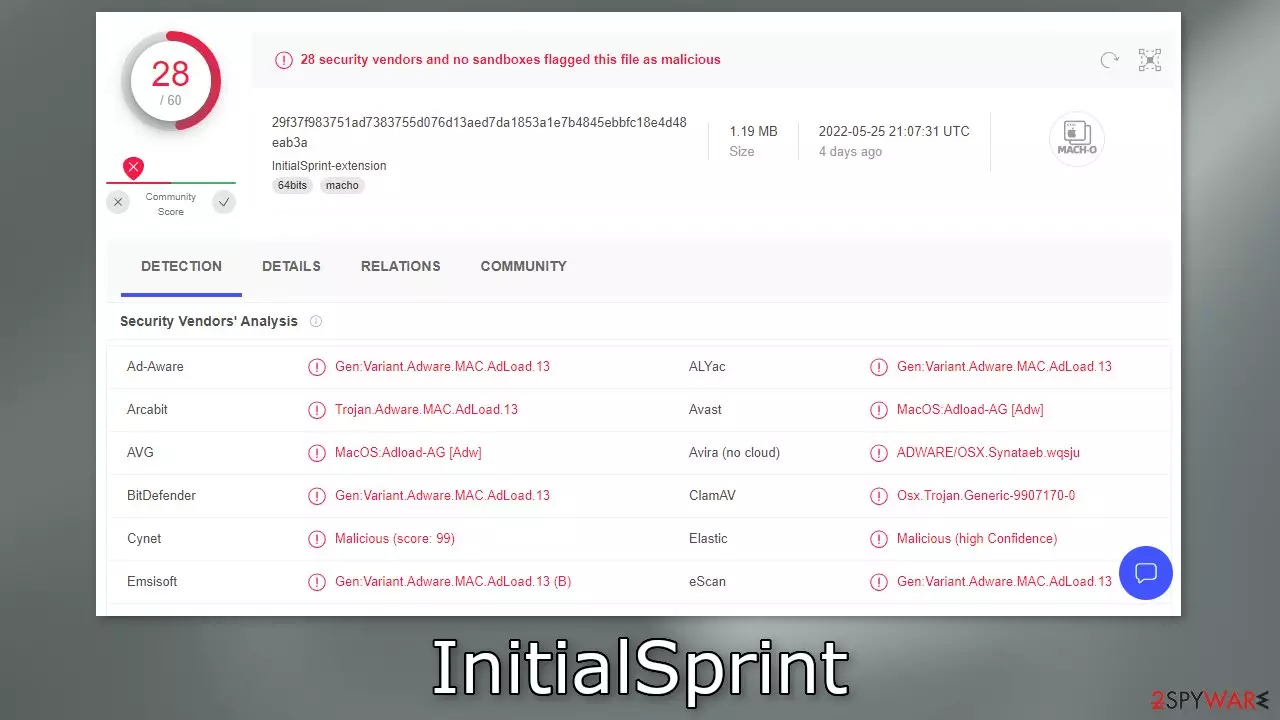
InitialSprint is a mac virus that belongs to the Adload malware family. It has hijacking and adware[1] capabilities which means it can change the main settings of the browser, like the homepage, new tab address, and search engine. It can also cause an increased amount of commercial content on the machine, like pop-ups, banners, and redirects.
However, adware created for mac devices is much more aggressive than adware developed to infect Windows machines. It can gain administrator passwords, and automatically install PUPs (potentially unwanted programs)[2] or even malware without the users' knowledge.
Victims usually do not know about the infection until the malicious program already starts making changes. Users can find the main file in their “Applications” folder. All Adload viruses have the same icon – a magnifying glass inside a green, teal, or grey background.
The view that mac machines cannot be infected is outdated. Adload developers have figured out ways to bypass Apple's own security system XProtect.[3] All they had to do was remove a single strand from the code. That is why it is so important to know about how these threats are spread to prevent them.
| NAME | InitialSprint |
| TYPE | Adware, browser hijacker, mac virus |
| MALWARE FAMILY | Adload |
| SYMPTOMS | Changed homepage and new tab address, a different search engine; redirects to shady websites; unknown programs and browser tools installed |
| DISTRIBUTION | Fake software updates, deceptive ads, software installations from peer-to-peer file-sharing platforms |
| DANGERS | Altered search results can lead to dangerous websites; pop-up ads might be promoting scams; the virus can install other PUPs or even malware without the users' knowledge |
| ELIMINATION | Eliminating this Mac virus manually can be complicated if you do not have experience. The most effective way to remove it is with a professional security tool that can scan your system to delete every related file |
| FURTHER STEPS | FortectIntego should be used to completely wipe out any data left and fix the remaining damage |
Distribution methods
InitialSprint and other Adload viruses like DesignPaper, MajorSector, and DigitalPaper are usually installed by users unknowingly. The virus is often disguised as something else. Crooks often use social engineering techniques to make it look like a software update. For example, even though Flash Player was discontinued in 2020 and replaced by HTML5, users still fall for prompts that say they need to update their Flash Player to access media content.
Another common way mac adware is spread is through “cracked” software[4] distribution sites and torrent pages. They are the perfect breeding ground for malicious programs. There is no way to know if the programs you want to install are safe and it is also illegal which can lead to serious consequences.

The obvious thing to do would be to implement some habits while using the device, to prevent this from happening again. Do not trust external sources with updates. Always go to the official sources to find out if you really need an update. Do not fall for random pop-ups and redirects. You should also use only official app stores and developer sites to download software. It might get costly but you may save in the long run by keeping your system running smoothly.
Another important thing that many do not realize is keeping the operating system and software updated. Hackers often use software vulnerabilities to deliver malicious programs. Software developers regularly release important security patches that fix these holes that can be exploited by threat actors.[5]
Remove the InitialSprint mac virus
Manual removal may be a race against time. With launch agents, daemons, and cronjobs, it can sometimes take several attempts because they can manage to re-write deleted components back. You should not do this yourself unless you know what you are doing and what kind of files you need to delete.
Some of the files can have a .plist extension, a standard settings' file, also known as a “properties file,” used by macOS applications. It contains properties and configuration settings for various programs. The app also uses different persistence techniques and drops many files across the system, complicating browser extension and application removal.
To keep your mind at peace, we recommend using professional anti-malware tools SpyHunterCombo Cleaner or MalwarebytesMalwarebytes, which can detect unwanted programs and eradicate them. You also do not know if the virus installed any additional malicious programs, so this is the safest way to ensure the system is clean.
If you still want to try and delete it manually, proceed with these steps:
- Open Applications folder
- Select Utilities
- Double-click Activity Monitor
- Here, look for suspicious processes related to adware and use Force Quit command to shut them down
- Go back to the Applications folder
- Find InitialSprint in the list and move it to Trash
If you are unable to shut down the related processes or can't move the app to Trash, you should look for malicious profiles and login items:
- Go to Preferences and select Accounts
- Click Login items and delete everything suspicious
- Next, pick System Preferences > Users & Groups
- Find Profiles and remove unwanted profiles from the list
There are likely to be more .plist files hiding in the following locations – delete them all:
- Select Go > Go to Folder.
- Enter /Library/Application Support and click Go or press Enter.
- In the Application Support folder, look for any suspicious entries and then delete them.
- Now enter /Library/LaunchAgents and /Library/LaunchDaemons folders the same way and terminate all the related .plist files.


The manual elimination process might not always result in total virus removal. Therefore, we still strongly suggest you perform a scan with security software.
Remove the browser extension added by adware
An extension to your browser is also added by InitialSprint that starts performing all sorts of unwanted tasks. It possibly collects sensitive data and sends it to tracking servers. Some of the data that could be exposed is – IP address, user name, macOS version, browser versions, computer ID, items in the “Applications” folder, a list of agents, daemons, and system configuration profiles.
It would help if you removed the add-on as soon as possible after the dangerous files are eliminated from your system. You can delete cookies and cache automatically with the help of FortectIntego. It will also fix any damaged files and system errors, so you should notice an improvement in the machine's performance.
If you prefer doing this yourself without additional help, here are the instructions. You will find guides for Google Chrome and Mozilla Firefox at the bottom of this article:
- Click Safari > Preferences…
- In the new window, pick Extensions.
- Select the unwanted extension and select Uninstall.


Cookies and website data:
- Click Safari > Clear History…
- From the drop-down menu under Clear, pick all history.
- Confirm with Clear History.
The simplest and quickest solution to this is completely resetting Safari:
- Click Safari > Preferences…
- Go to Advanced tab.
- Tick the Show Develop menu in the menu bar.
- From the menu bar, click Develop, and then select Empty Caches.


Remove from Mozilla Firefox (FF)
Remove dangerous extensions:
- Open Mozilla Firefox browser and click on the Menu (three horizontal lines at the top-right of the window).
- Select Add-ons.
- In here, select the unwanted extension and click Remove.


Reset the homepage:
- Click three horizontal lines at the top right corner to open the menu.
- Choose Settings.
- Under Home, set your preferred homepage and new tab settings.
Clear cookies and site data:
- Click Menu and pick Settings.
- Go to Privacy & Security section.
- Scroll down to locate Cookies and Site Data.
- Click on Clear Data...
- Select Cookies and Site Data and Temporary cached files and pages, then click Clear.


Reset Mozilla Firefox
If clearing the browser as explained above did not help, reset Mozilla Firefox:
- Open Mozilla Firefox browser and click the Menu.
- Go to Help and then choose Troubleshooting Information.

- Under Give Firefox a tune up section, click on Refresh Firefox...
- Once the pop-up shows up, confirm the action by pressing on Refresh Firefox.



Remove from Google Chrome
Delete malicious extensions from Google Chrome:
- Open Google Chrome, click on the Menu (three vertical dots at the top-right corner) and select More tools > Extensions.
- In the newly opened window, you will see all the installed extensions. Uninstall all suspicious extensions related to the unwanted program by clicking Remove.


Clear cache and web data from Chrome:
- Click on Menu and pick Settings.
- Under Privacy and security, select Clear browsing data.
- Select Browsing history, Cookies and other site data, as well as Cached images and files.
- Click Clear data.


Change your homepage:
- Click menu and choose Settings.
- Look for a suspicious site in the On startup section.
- Click on Open a specific or set of pages and click on three dots to find the Remove option.
Reset Google Chrome:
If the previous methods did not help you, reset Google Chrome to eliminate all the unwanted components:
- Click on Menu and select Settings.
- In the Settings, scroll down and click Advanced.
- Scroll down and locate Reset and clean up section.
- Now click Restore settings to their original defaults.
- Confirm with Reset settings.


Did this guide help?
Be the first to comment