

Ios-protection.com is the mobile iOS threat that triggers warnings about false malware infections
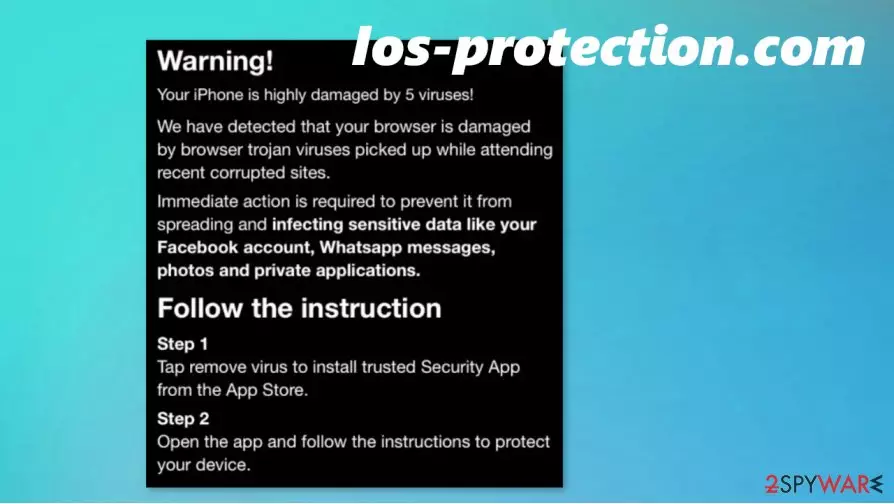
Ios-protection.com is the adware-type intruder that targets mobile phones with false messages stating about infections and triggers exposure to the possibly dangerous material. The pop-up message states to be from Apple Security and claims that 5 mobile threats have damaged the system. This scam tries to encourage people to click the Remove Virus button that immediately redirects to the malicious installation of a fake security tool. Such behavior might lead to direct malware download and system infiltration.
This is the method to push a so-called Security App. In most cases, such pop-ups spread malicious tools that can even be related to trojans or more damaging viruses. The particular Ios-protection.com scam pop-up states about possibly compromised social media accounts, sensitive data loss, and other private information corruption. Do not fall for the trick and avoid installing any shady tool.
| Name | Ios-protection.com |
|---|---|
| Type | Mobile threat/ scam |
| Symptoms | The pop-up with a false warning about malware damage appears on the screen, various redirects and advertisements get displayed on the web browser application, the system gets slower |
| Target | iOS devices |
| Distribution | It mainly spreads like other PUPs – via software bundling and deceptive, misleading websites |
| Elimination | Make sure to remove Ios-protection.com using compatible AV tools, so the threat that possibly runs is terminated |
| Repair | You should consider the system repair procedure since the PUP runs in the background. There are tools like FortectIntego that can be useful for macOS and iOS machines |
Ios-protection.com virus itself is not a virus, and those pop-ups, warnings, alerts are not stating the truth about the system and infection possibilities. It is believed that macOS is immune to threats[1] of various types, but it is not true. Any system and any device can get infected by a cyber threat, including iOS.
Especially when people are not paying enough attention to details and going for torrent, pirating services,[2] sites that provide free software, applications, games. These pages and shady providers might have relations with third-party PUP developers or even malicious actors. This is how you end up with the threat that triggers Ios-protection.com alerts.
You should consider that and remove Ios-protection.com as soon as possible. Visiting this site, clicking on those pop-ups, or even installing the promotional tool can lead to damage that is not possible to repair. There is no guarantee that third-party, sponsored, promotional content is not laced with malicious scripts or cannot lead to the dangerous material.
Stay away from any interaction with the site and additional pop-ups, ignore those messages, and make sure to get a professional, trustworthy anti-malware tool that is compatible with iOS. We can recommend SpyHunterCombo Cleaner or MalwarebytesMalwarebytes, for the job, but feel free to choose an application that you can trust for Ios-protection.com removal.

Don't forget that there are particular adware program and a PUP that possibly runs on the system and controls the behavior of Ios-protection.com and other websites, applications. You need to eliminate the threat and try to repair any issues that infection creates. FortectIntego can help you with that.
Ios-protection.com is no trojan or malware, but there is a possibility to receive additional viruses when you do not pay attention to redirects and other content that these scams trigger to appear. Experts[3] recommend getting if of anything suspicious immediately. But is not easy when the pop-up appears fullscreen.
Ios-protection.com can interfere with many settings, preferences, alter functionalities, so rely on the proper anti-malware tool, security application, and avoid any content that raises questions.
Deceptive content leads to infections on various systems
The pop-up and alert that possibly resembles a real OS security warning can be triggered by the malicious website itself or by the PUP infection that runs in the background. These types of computer threats can infiltrate the machine without any permissions required, and users do not notice the infections.
However, the infiltration can be avoided when the user pays attention to things like security of the site or torrent platform, pirating site, p2p sharing service. You can fall for the trick of a deceptive site or misleading website and install the PUP yourself. You can unknowingly allow download of the PUP. Always pay attention to suspicious pages and go for Advanced or Custom installation options.
Ios-protection.com virus termination includes full system scans
Even though this is mobile malware, you can receive such messages on all devices and types of operating systems. You might not need to perform Ios-protection.com removal in particular, but other scams and adware-type threats spread around quickly and interfere with various everyday tasks and features.
You need to pay attention when you remove Ios-protection.com too. If you rely on the AV tool it is important to look at the results of the full system scan and search for a particular indication of a program that you might have installed before. This is how the PUP landed on the system. Of course, this is not the most important thing. The issue is to clear the system fully and repair affected parts.
Delete from macOS
Remove the unwanted application:
- From the menu bar, select Go > Applications.
- In the Applications folder, look for any suspicious entries, then drag them to Trash (or right-click and pick Move to Trash).


Delete leftover files and folders:
- Select Go > Go to Folder.
- Enter /Library/Application Support and remove any suspicious folders related to the unwanted program.
- Repeat the same check in the /Library/LaunchAgents and /Library/LaunchDaemons folders, deleting any suspicious entries.

- Finally, empty the Trash to permanently remove the leftovers.

Remove from Mozilla Firefox (FF)
Remove dangerous extensions:
- Open Mozilla Firefox browser and click on the Menu (three horizontal lines at the top-right of the window).
- Select Add-ons.
- In here, select the unwanted extension and click Remove.


Reset the homepage:
- Click three horizontal lines at the top right corner to open the menu.
- Choose Settings.
- Under Home, set your preferred homepage and new tab settings.
Clear cookies and site data:
- Click Menu and pick Settings.
- Go to Privacy & Security section.
- Scroll down to locate Cookies and Site Data.
- Click on Clear Data...
- Select Cookies and Site Data and Temporary cached files and pages, then click Clear.


Reset Mozilla Firefox
If clearing the browser as explained above did not help, reset Mozilla Firefox:
- Open Mozilla Firefox browser and click the Menu.
- Go to Help and then choose Troubleshooting Information.

- Under Give Firefox a tune up section, click on Refresh Firefox...
- Once the pop-up shows up, confirm the action by pressing on Refresh Firefox.



Remove from Google Chrome
Delete malicious extensions from Google Chrome:
- Open Google Chrome, click on the Menu (three vertical dots at the top-right corner) and select More tools > Extensions.
- In the newly opened window, you will see all the installed extensions. Uninstall all suspicious extensions related to the unwanted program by clicking Remove.


Clear cache and web data from Chrome:
- Click on Menu and pick Settings.
- Under Privacy and security, select Clear browsing data.
- Select Browsing history, Cookies and other site data, as well as Cached images and files.
- Click Clear data.


Change your homepage:
- Click menu and choose Settings.
- Look for a suspicious site in the On startup section.
- Click on Open a specific or set of pages and click on three dots to find the Remove option.
Reset Google Chrome:
If the previous methods did not help you, reset Google Chrome to eliminate all the unwanted components:
- Click on Menu and select Settings.
- In the Settings, scroll down and click Advanced.
- Scroll down and locate Reset and clean up section.
- Now click Restore settings to their original defaults.
- Confirm with Reset settings.


Delete from Safari
Remove dangerous extensions:
- Open Safari, click Safari in the menu at the top-left of the screen, and select Preferences.
- Go to the Extensions tab, look for any suspicious entries, and click Uninstall to remove them.


Clear history and website data:
- Click Safari in the menu and pick Clear History.
- Set Clear to all history and confirm with Clear History.


Reset Safari:
- Click Safari in the menu and select Preferences > Advanced.
- Enable Show Develop menu in menu bar.
- From the menu bar, click Develop and select Empty Caches.


Did this guide help?
Be the first to comment