

Lok ransomware locks your files and demands ransom for their return
If your files can no longer be opened and have a .lok extensions attached to them, you have been infected with ransomware. Ransomware is one of the most dangerous computer infections out there because it commonly results in users losing their pictures, documents, videos, and other personal data forever, although the outcome can be completely different under particular circumstances.
Lok ransomware is a new strain that was first noticed in January of 2022 and didn't seem to be connected to any previous strain. Just like any other malware of this type, it is likely to be spread via the most common distribution methods such as fake updates, malspam,[1] software vulnerabilities,[2] repacked software, cracks, and similar. Regardless of which method is used, users are always ticked into installing malware without realizing what they have done.
Once installed, the malware begins to initiate changes within the Windows machine before it proceeds to its main goal. These modifications serve as grounds that enable data encryption, during which all personal files are stripped of their regular icons and appended with the .(ID)(pedarsaggg@onionmail.org).lok extension. Suchlike data can no longer be accessed or modified by the users.
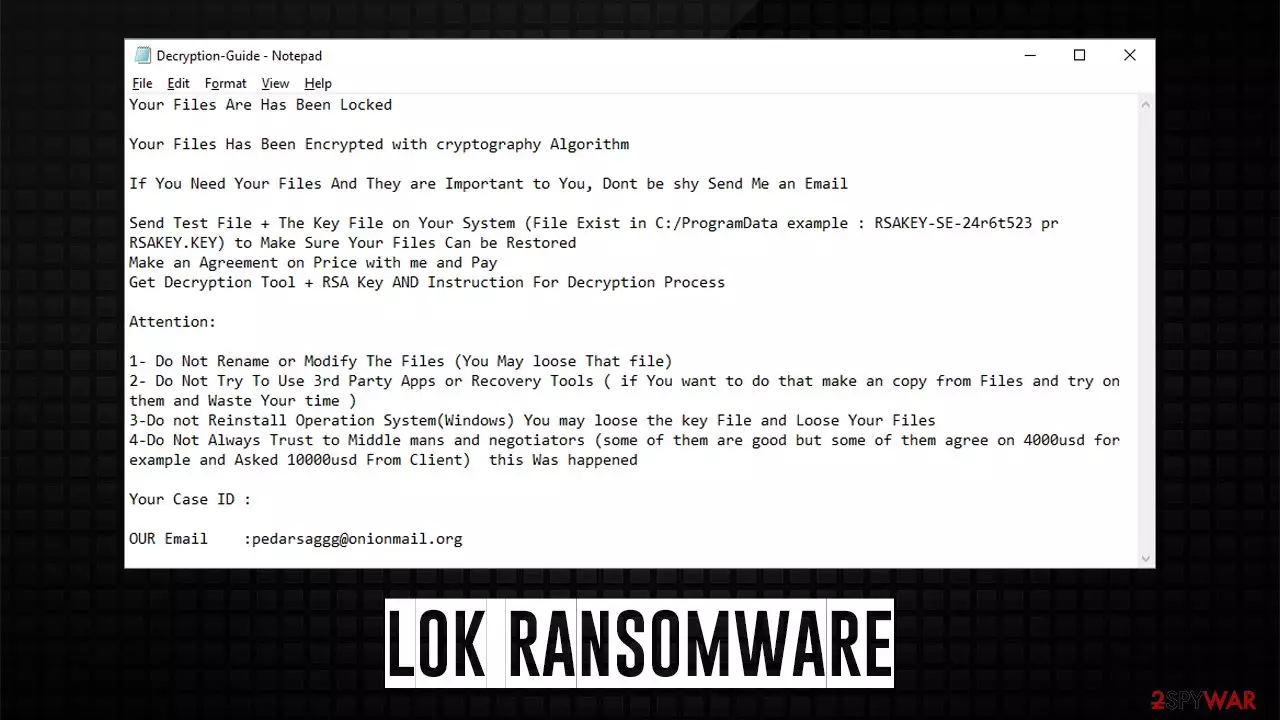
After that, the virus drops two ransom notes – Decryption-Guide.HTA and Decryption-Guide.txt. Both are meant to serve as the first communication between cybercriminals and victims. Within the note, crooks explain what has happened with users' files and ultimately tell them that they need to pay up to restore the currently inaccessible data:
Your Files Are Has Been Locked
Your Files Has Been Encrypted with cryptography Algorithm
If You Need Your Files And They are Important to You, Dont be shy Send Me an Email
Send Test File + The Key File on Your System (File Exist in C:/ProgramData example : RSAKEY-SE-24r6t523 pr RSAKEY.KEY) to Make Sure Your Files Can be Restored
Make an Agreement on Price with me and Pay
Get Decryption Tool + RSA Key AND Instruction For Decryption ProcessAttention:
1- Do Not Rename or Modify The Files (You May loose That file)
2- Do Not Try To Use 3rd Party Apps or Recovery Tools ( if You want to do that make an copy from Files and try on them and Waste Your time )
3-Do not Reinstall Operation System(Windows) You may loose the key File and Loose Your Files
4-Do Not Always Trust to Middle mans and negotiators (some of them are good but some of them agree on 4000usd for example and Asked 10000usd From Client) this Was happenedYour Case ID :
OUR Email :pedarsaggg@onionmail.org
While it is true that you should never trust what malicious actors say, there are facts that simply can't be denied, and that is the encrypted data. Once the system is infected, the malware uses a sophisticated RSA encryption algorithm to lock all files, which renders them unusable, and only the attackers have access to the required key to decipher them.
That being said, there is no guarantee that Lok virus authors would deliver the promised tool after you pay, so you are risking losing your money, along with your files. While it is true that some crooks keep their promises, remember, regardless of what the truth is, you should never trust cybercriminals, as there were plenty of people who suffered more damages because of it.
Instead, we recommend following through with the instructions below in order to remove malware and attempt to recover data using alternative solutions. Likewise, we also provide tips along the way to ensure this horrible scenario would not happen in the future.
| Name | Lok virus |
|---|---|
| Type | Ransomware, file-locking malware, cryptovirus |
| File extension | .lok, appended to each of the non-system and non-executable files |
| Ransom note | Decryption-Guide.HTA and Decryption-Guide.txt, placed on the desktop |
| Contact | pedarsaggg@onionmail.org |
| Data Recovery | If no backups are available, recovering data is almost impossible. However, we suggest you try the alternative methods that could help you in some cases – we list them below |
| Malware removal | Manual virus removal is not recommended, as it might be difficult for regular users. Instead, SpyHunterCombo Cleaner or other anti-malware tools should be used |
| System fix | Malware can seriously tamper with Windows systems, causing errors, crashes, lag, and other stability issues after it is terminated. To remediate the system and avoid its complete corruption, we recommend scanning it with the FortectIntego repair tool |
Ransomware is as successful as its delivery methods, as there are thousands of new strains that rise and manage only infect a few victims, which is by no means beneficial for the attackers. Unfortunately, the success of ransomware such as Yber or Zaqi (both of which are Djvu variants) means that more users suffer the consequences of the infection.
Thus, it is important to secure your computer from malware and correctly prepare for the incoming malware attacks if such would occur in the future. Here are a few tips from security experts:
- Do not open attachments of emails of unknown origin and beware of spoofed emails[3] that might look like they are coming from somebody you know – the “From” email can be faked;
- Never download software cracks or pirated programs from torrent sites;
- Employ an ad-blocker to stop malicious scripts from being executed;
- Use strong passwords for all your accounts and never reuse them (or use a powerful password manager);
- Install all the latest updates for your operating system and all programs;
- Ensure that a powerful anti-malware, such as SpyHunterCombo Cleaner or MalwarebytesMalwarebytes, is always running in the background and never ignore its warnings.

Removal steps
1. Disconnect from the internet
Once ransomware is installed on the device, it can no longer be considered safe to operate. The virus might spread to other computers via the network (if such is available) and even compromise the system further for implementation of other malware. Remote connection over the internet can also provide crooks remote access to users' PCs under certain circumstances, thus removing this connection is important before proceeding with Lok ransomware removal.
If the infected PC is not connected to a network, you can simply disconnect it by plugging out the ethernet or using the WiFi symbol in the taskbar. However, if a large network is affected, you should proceed with the following to disconnect all machines at once:
- Type in Control Panel in Windows search and press Enter
- Go to Network and Internet
- Click Network and Sharing Center
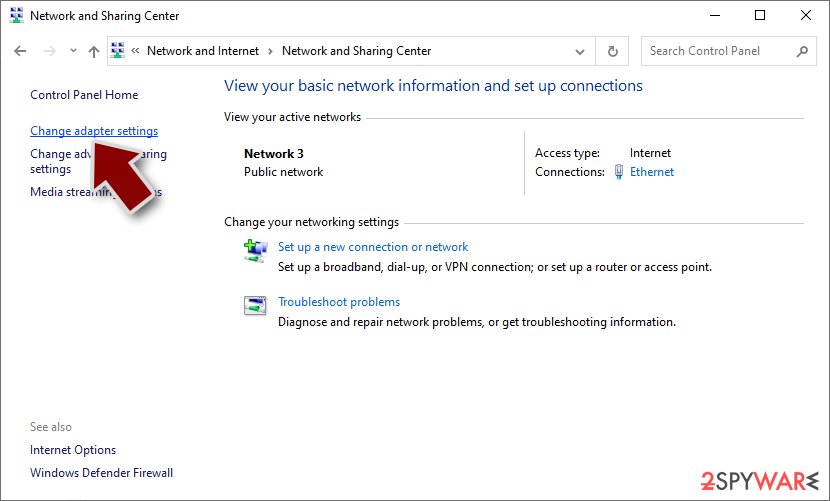
- On the left, pick Change adapter settings
- Right-click on your connection (for example, Ethernet), and select Disable
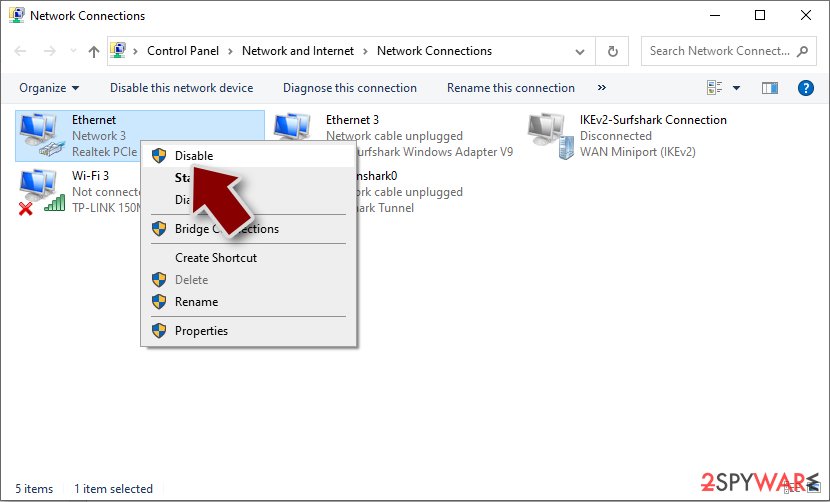
- Confirm with Yes.


2. Perform a full system scan
Once your computer is successfully segregated from the rest of the network and the internet, you should now remove the infection from your device. While it is true that some ransomware simply self-destructs after they complete the data-locking process, there could be additional payloads or modules that might be implemented by it.
For a secure and effective elimination, you should run a full system scan with SpyHunterCombo Cleaner, MalwarebytesMalwarebytes, or another powerful security application. In case you can't run anti-malware for some reason (the threat might be tampering with it), you can reboot your system in Safe Mode and perform a full scan from there:
Windows 7 / Vista / XP
- Click Start > Shutdown > Restart > OK.
- When your computer becomes active, start pressing the F8 button (if that does not work, try F2, F12, Del, etc. – it all depends on your motherboard model) multiple times until you see the Advanced Boot Options window.
- Select Safe Mode with Networking from the list.


Windows 10 / Windows 8
- Right-click on the Start button and select Settings.
- Scroll down to pick Update & Security.
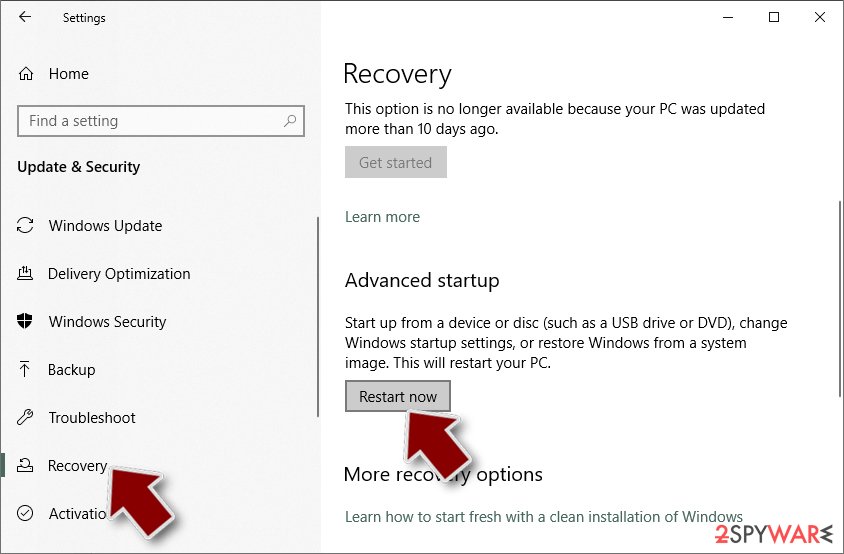
- On the left side of the window, pick Recovery.
- Now scroll down to find the Advanced Startup section.
- Click Restart now.
- Select Troubleshoot.
- Go to Advanced options.
- Select Startup Settings.
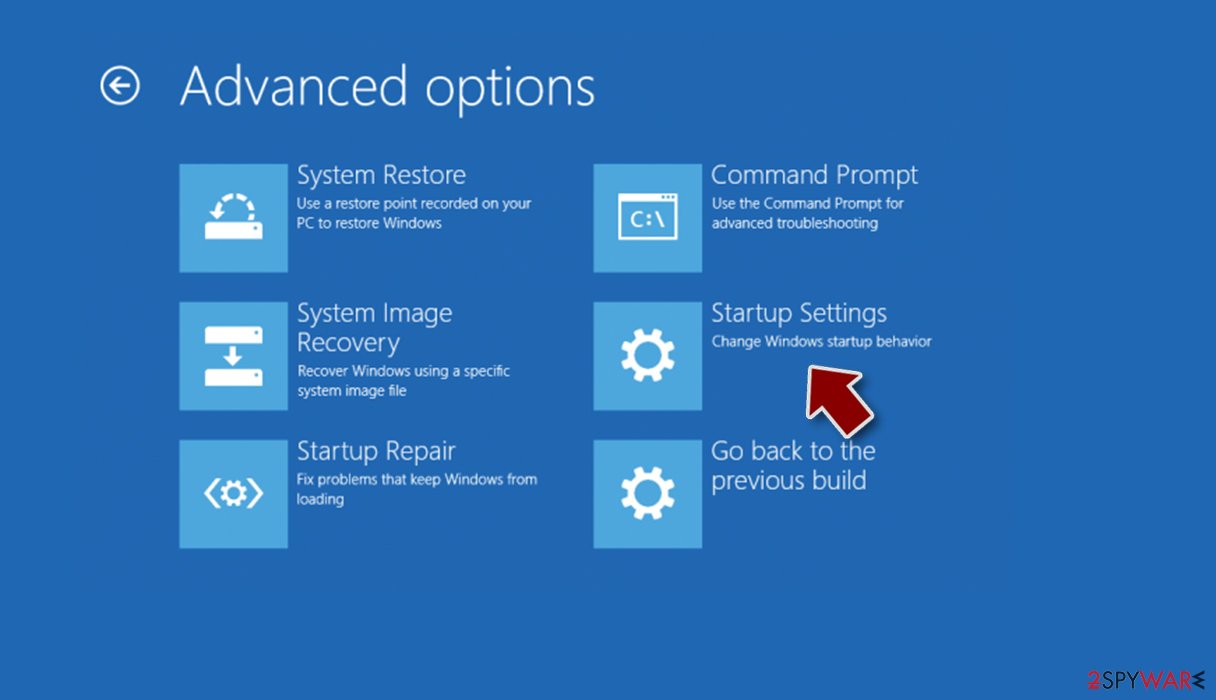
- Click Restart.
- Press 5 or click 5) Enable Safe Mode with Networking.


Once you get into the Safe Mode, use powerful security software to perform a full system scan. You might have to have the installer of the program within the thumb drive, execute it, install, update, and only then run a scan.
3. Restore your files
While the principle of ransomware operation is rather simple on paper, the encryption element is something rather complex. Since users find their files inaccessible, they might think that they are permanently corrupted, although it is not true at all. If the encryption was performed correctly, the files are simply locked behind a unique, complex password that consists alphanumeric character string.
This password, generally known as the key, is only accessible to the crooks behind Lok ransomware, thus making the whole operation work well. If users want it, they need to pay a fee, and they might or might not send it to them. As we already mentioned, paying criminals is not only risky, but it also proves that the illegal business model works well, and they will continue infecting other users all over the world.
It is also important to mention that running a scan with security software would not restore .look files, and they will remain locked even after the virus is deleted. This trait of ransomware is what makes it so devastating and also effective. Of course, if you had backups for your files, you have already mitigated the most damaging issue, and you can simply recover data with ease.
Unfortunately, many home users choose not to back their files and end up regretting this decision once ransomware strikes. We show how to backup files for the future at the bottom of this post.
- Download Data Recovery Pro.
- Double-click the installer to launch it.

- Follow on-screen instructions to install the software.
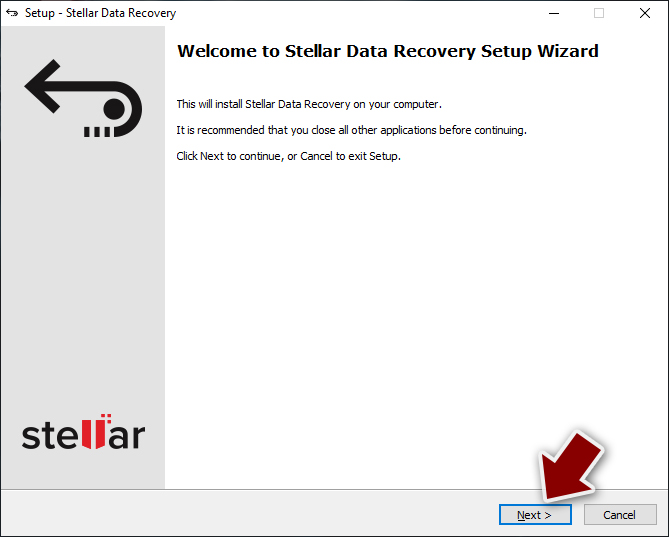
- As soon as you press Finish, you can use the app.
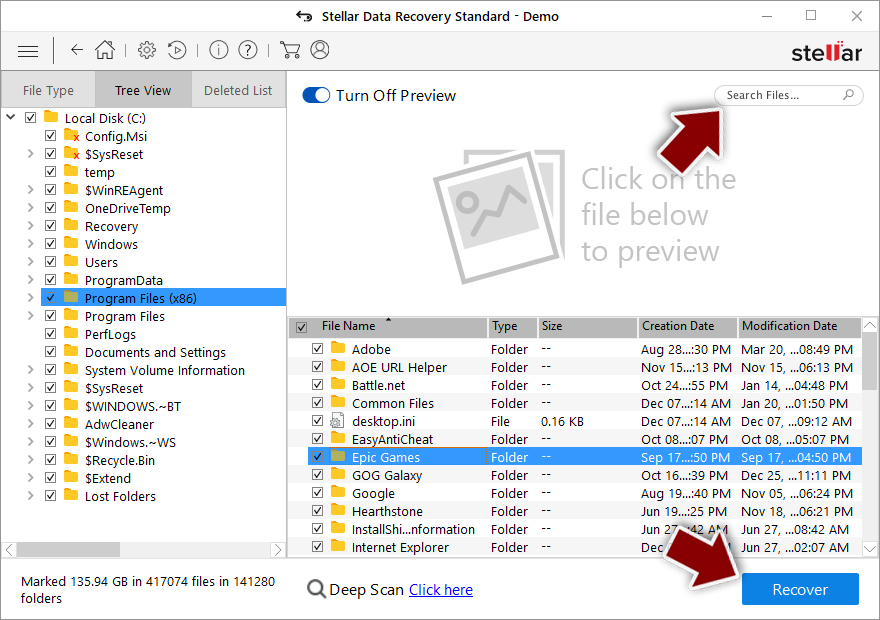
- Select Everything or pick individual folders where you want the files to be recovered from.
- Press Next.
- At the bottom, enable Deep scan and pick which Disks you want to be scanned.

- Press Scan and wait till it is complete.
- You can now pick which folders/files to recover – don't forget you also have the option to search by the file name!
- Press Recover to retrieve your files.


Security researchers are constantly working on battling malicious actors and helping victims by creating free decryptors. Unfortunately, such a tool is not yet developed for this malware family. There are several places where you could look for decryptors in the future:
- No More Ransom Project
- Free Ransomware Decryptors by Kaspersky
- Free Ransomware Decryption Tools from Emsisoft
- Avast decryptors

4. Repair damaged system components
Once you remove any type of malware from your system with security software, some of the system files might remain damaged, as anti-malware is unable to restore them to their previous state. As a result, you might later experience system crashes, BSODs, random restarts, registry errors, and more issues. If that is the case, we strongly recommend running a PC repair software that would get rid of leftover files and repair damaged system components automatically for you.
- Download FortectIntego
- Click on the ReimageRepair.exe

- If User Account Control (UAC) shows up, select Yes
- Press Install and wait till the program finishes the installation process
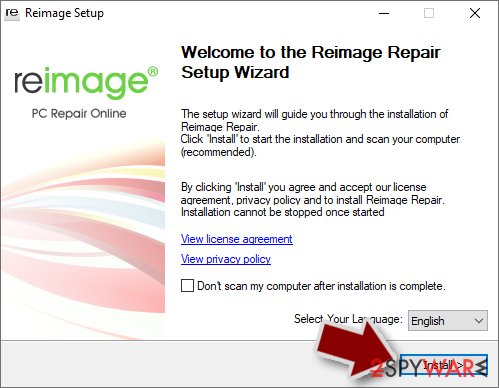
- The analysis of your machine will begin immediately
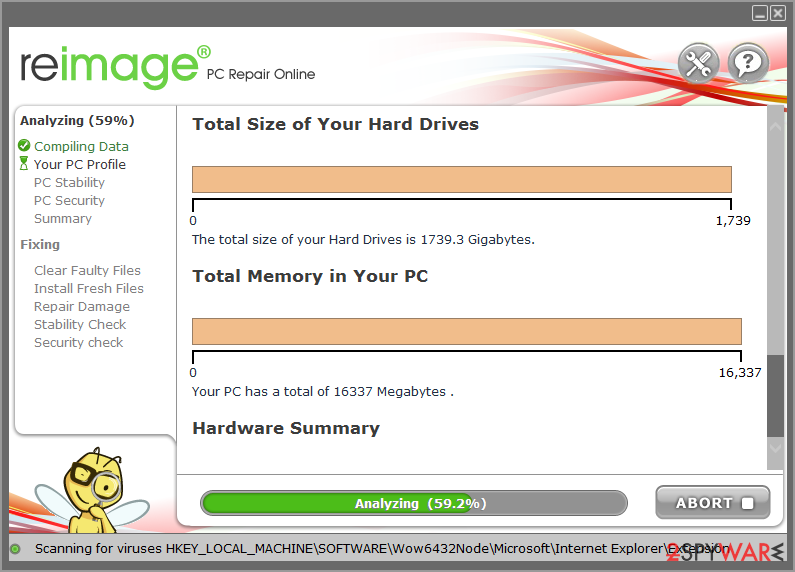
- Once complete, check the results – they will be listed in the Summary
- You can now click on each of the issues and fix them manually
- If you see many problems that you find difficult to fix, we recommend you purchase the license and fix them automatically.



Did this guide help?
Be the first to comment